request to quote
Leave Your Message

5 Tips to Cast Your Screen from Phone to TV

Watching phone content on a television can feel more natural than using a small screen. Photos look clearer, videos feel more immersive, and everyone can follow along from the sofa. However, the process is not always effortless. Different phones, TVs, apps, and wireless networks may behave differently.

This guide explains five practical tips to Cast Screen from your phone to a TV with fewer interruptions. It covers built-in casting features, screen mirroring, compatible streaming devices, and basic connection checks. A stable Wi-Fi network matters. Your phone and TV usually need to share the same network, not merely use the same internet service. Checking this detail first can save several frustrating minutes.

Small problems are common. The TV may appear unavailable, the picture may lag, or the sound may continue through the phone. Restarting both devices often helps, although it is not a perfect solution. Updating the operating system and the casting app can also improve reliability. Still, older televisions may require an external streaming device.

Privacy deserves attention, too. Only cast content you intend to display, especially when notifications appear on your phone. Testing the connection with a short video is sensible before starting a presentation or family movie. These tips are based on common device behavior, but results can vary by brand and model. A little patience helps. Sometimes, the simplest setting is the one overlooked.

5 Tips to Cast Your Screen from Phone to TV

Check TV and Phone Compatibility Before Casting

5 Tips to Cast Your Screen from Phone to TV

Check TV and Phone Compatibility Before Casting

Compatibility is the first test, not an afterthought. I have seen a phone detect a television, yet fail during playback. That small discovery can waste ten minutes. Check whether both devices support the same casting standard, operating system requirements, and screen-resolution range. A newer phone does not guarantee a compatible receiver.

The numbers explain the problem. The GSMA Mobile Economy 2024 report estimated that 4.6 billion people used mobile internet in 2023. Users connect through many phone models, software versions, and network conditions. The ITU’s Facts and Figures 2023 report counted about 5.4 billion internet users worldwide. Compatibility therefore varies widely. Confirm that both devices use the same Wi-Fi network, preferably the same frequency band. Then check firmware updates, audio support, and content-protection limits. Some subscription videos allow casting but block full screen mirroring. That difference is easy to miss.

Test before guests arrive. Open the phone’s casting menu and look for the television. If it appears, play a short local video first. Watch for delayed audio, black borders, or a frozen image. Weak signal strength can create misleading results. Wired connections may help, but the phone may need a compatible adapter. I would also check the television manual, because settings often hide under network or input menus. I still overlook this step sometimes. Compatibility is a process, not a single check.

Connect Both Devices to the Same Wi-Fi Network

5 Tips to Cast Your Screen from Phone to TV

Connect Both Devices to the Same Wi-Fi Network

Keep your phone and television on the same Wi-Fi network before opening the casting menu. This is not a minor detail. Casting usually depends on local-device discovery, not only internet access. A phone on a guest network may browse normally, while the television remains invisible. The ITU’s Facts and Figures 2023 reported that 5.4 billion people were online, showing how connected homes depend on reliable access. Yet being online does not guarantee local communication. Check the network name on both screens. Match the main network, not a guest version. If your router shows separate 2.4 GHz and 5 GHz names, connect both devices to one network first.

Then test the physical setup. Place the phone within reliable router range, especially when using 5 GHz. Thick walls, crowded channels, and weak signals can interrupt discovery before video starts. I still forget this step sometimes. Turn off mobile data temporarily, pause any VPN, and reopen the casting control. Some routers enable client isolation, which blocks nearby devices from communicating. Disable it only on a trusted home network, or contact the administrator. The OECD Digital Economy Outlook 2024 reported that fiber made up about 42% of fixed broadband subscriptions across OECD countries in 2023. Fast broadband helps, but it cannot repair incorrect Wi-Fi settings.

5 Tips to Cast Your Screen from Phone to TV

Connect both devices to the same Wi-Fi network, then use the chart to check the approximate network speed needed for different video resolutions.

Quick Setup Tips

  • Connect your phone and TV to the same Wi-Fi network.
  • Confirm that the TV is set to the correct input source.
  • Enable screen-casting or wireless-display access on the TV.
  • Keep both devices within a reasonable distance of the Wi-Fi router.
  • Restart the Wi-Fi connection if the TV does not appear in the cast list.

Higher-resolution video generally requires more available bandwidth. Actual performance can vary depending on Wi-Fi signal strength, network congestion, and device capabilities.

Enable Screen Casting on Your Phone

Enable Screen Casting on Your Phone

Screen casting begins in your phone’s connection settings. Connect both devices to the same Wi-Fi network. Open the quick settings panel, then select Screen Cast or Screen Mirroring. Choose the available television receiver. A short code may appear on the TV. Enter it on your phone when requested.

Keep the phone within a few metres of the router. Weak signals can create delay, frozen images, or missing sound. On some phones, you must allow nearby-device access first. Check the television’s input source too. I still forget this step sometimes. It is a small mistake, but it wastes time. If casting fails, restart Wi-Fi before restarting every device. Also disable battery-saving mode temporarily, because it may restrict background connection activity.

This feature matters as viewing habits become more flexible. The 2024 Digital Media Trends report found that about 90% of United States households subscribe to at least one streaming video service. Ofcom’s Media Nations 2024 report recorded roughly four and a half hours of daily audiovisual viewing among UK adults in 2023. Casting can make a small phone screen more practical for shared viewing. Protect privacy by checking the preview before connecting. Avoid casting sensitive notifications in public spaces. Screen quality also depends on the original video, network traffic, and television resolution. A perfect setup is not guaranteed.

Select Your TV and Start Mirroring the Screen

5 Tips to Cast Your Screen from Phone to TV

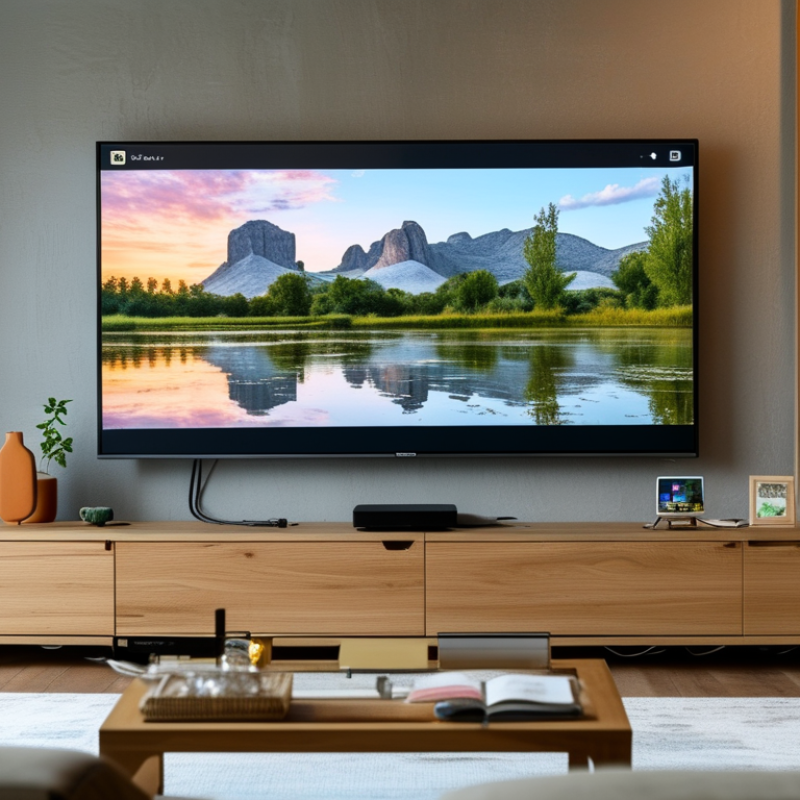
Select your TV and start mirroring the screen from your phone’s cast menu. Keep both devices on the same Wi-Fi network. The TV should appear within a few seconds. If it does not, restart Wi-Fi and check whether screen sharing is enabled. This small check prevents many failed attempts. DataReportal’s Digital 2024 Global Overview reports that 93.7% of internet users watch online video each week, making wireless viewing a common household habit.

Choose the correct TV name carefully. Nearby receivers can look confusing, especially in apartments or hotels. Approve the connection code shown on the TV. Then rotate your phone sideways for videos, and raise the volume slightly before playback. Test a short clip first. Audio may remain on the phone, and wireless delays can affect games or live conversations. The Consumer Technology Association’s 2024 U.S. Consumer Technology Ownership and Market Potential Study shows strong household demand for connected entertainment devices, but compatibility still varies between models.

For smoother mirroring, close unused apps and keep the phone near the router. A weak signal can create frozen images or uneven sound. I still check these basics too late sometimes. That is the frustrating part. Sensitive notifications may appear on the TV, so enable do-not-disturb mode before sharing. Stop mirroring from the phone’s control panel when finished. Five minutes of testing can save an awkward interruption.

5 Tips to Cast Your Screen from Phone to TV - Select Your TV and Start Mirroring the Screen
Tip Recommended Action How to Do It What You Need Typical Result Common Issue to Check
1 Use the Same Wi-Fi Network Connect both the phone and the TV to the same wireless network name before starting screen mirroring. Phone and TV connected to the same local network; guest networks may prevent device discovery. The TV appears in the available-device list. Different Wi-Fi networks, guest-network isolation, or a weak wireless signal.
2 Open the Phone’s Casting Control Open the phone’s quick settings or control center, then select the screen-casting or screen-mirroring option. A phone operating system that supports wireless display or media casting. A list of compatible receivers is displayed. The feature may be located under quick settings, connected devices, or display settings.
3 Select Your TV Tap the correct TV name from the device list and approve the connection request shown on the TV if prompted. TV discovery enabled and the TV set to its network or screen-mirroring mode. The phone screen is shown on the TV. Several nearby receivers may have similar names; verify the on-screen code when available.
4 Improve Connection Quality Move the phone and router closer together, reduce network congestion, and pause large downloads during mirroring. Stable wireless coverage and sufficient available network capacity. Fewer pauses, delayed images, and connection drops. Walls, distance, interference, and busy networks can increase delay or reduce image quality.
5 Stop Mirroring Securely Open the casting control on the phone and choose Disconnect, Stop Mirroring, or the equivalent command. Active screen-mirroring session. The TV returns to its previous input or home screen. Leaving mirroring active can continue sharing notifications and other phone content.

Troubleshoot Common Casting Problems and Improve Performance

5 Tips to Cast Your Screen from Phone to TV

Casting failures often begin with the network, not the television. Sandvine’s 2024 Global Internet Phenomena Report estimates that video creates about 54% of downstream internet traffic. Start with the network. Connect both devices to the same Wi-Fi band, preferably 5 GHz when nearby. Keep the phone within a few meters of the router. Thick walls, crowded channels, and microwaves can cause pauses. A quick router restart sometimes works, though it feels too simple.

If the picture appears but audio does not, check the TV’s selected output and the phone’s media volume. Then close unused apps. They may consume memory or quietly use bandwidth. Ericsson’s June 2024 Mobility Report expects video to represent about 75% of mobile data traffic by 2029, so unstable connections will remain a practical concern. Lower the streaming resolution when the image freezes. Smooth playback is usually better than sharp playback with constant buffering.

Compatibility also matters. Confirm that the phone and receiver support the same casting method. Update their operating systems, then restart both devices. I still miss this step sometimes. Small details matter. Disable battery-saving mode during long sessions, because it may restrict background communication. If casting works only after several attempts, test another Wi-Fi network. That experiment can separate a device problem from a network problem, although it may not reveal hidden interference immediately.