+86 152 8002 3723
QVoteProfessional Audience Response System software offers the most convenient functions for your interactions.
QClickThe most convenient educational software for working with Microsoft PowerPoint to quickly set up various question types and generate intelligent feedback reports.
QCameraQCamera by QOMO allows for real-time streaming from cameras and document cameras. Annotate, save snapshots, record, and manipulate camera images instantly.
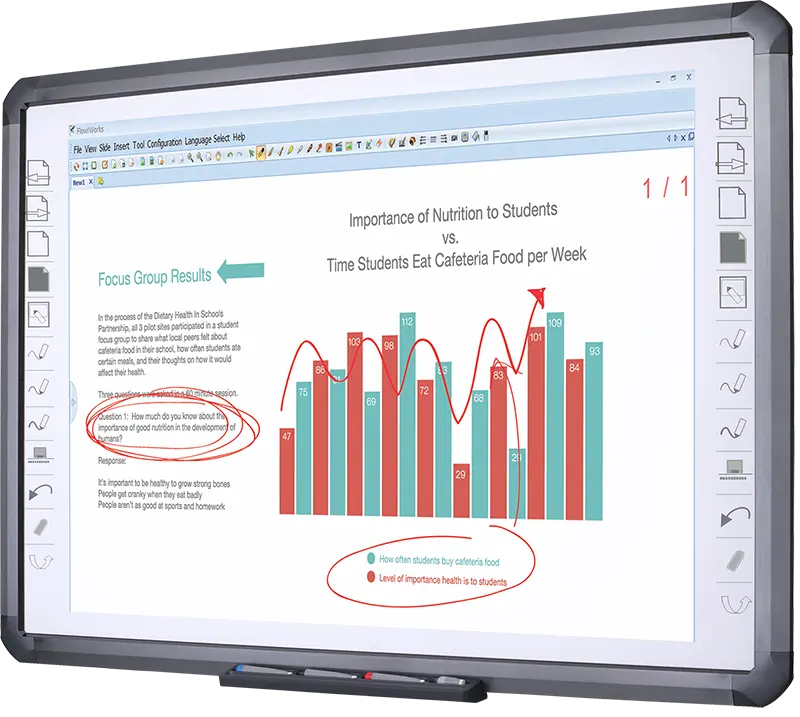
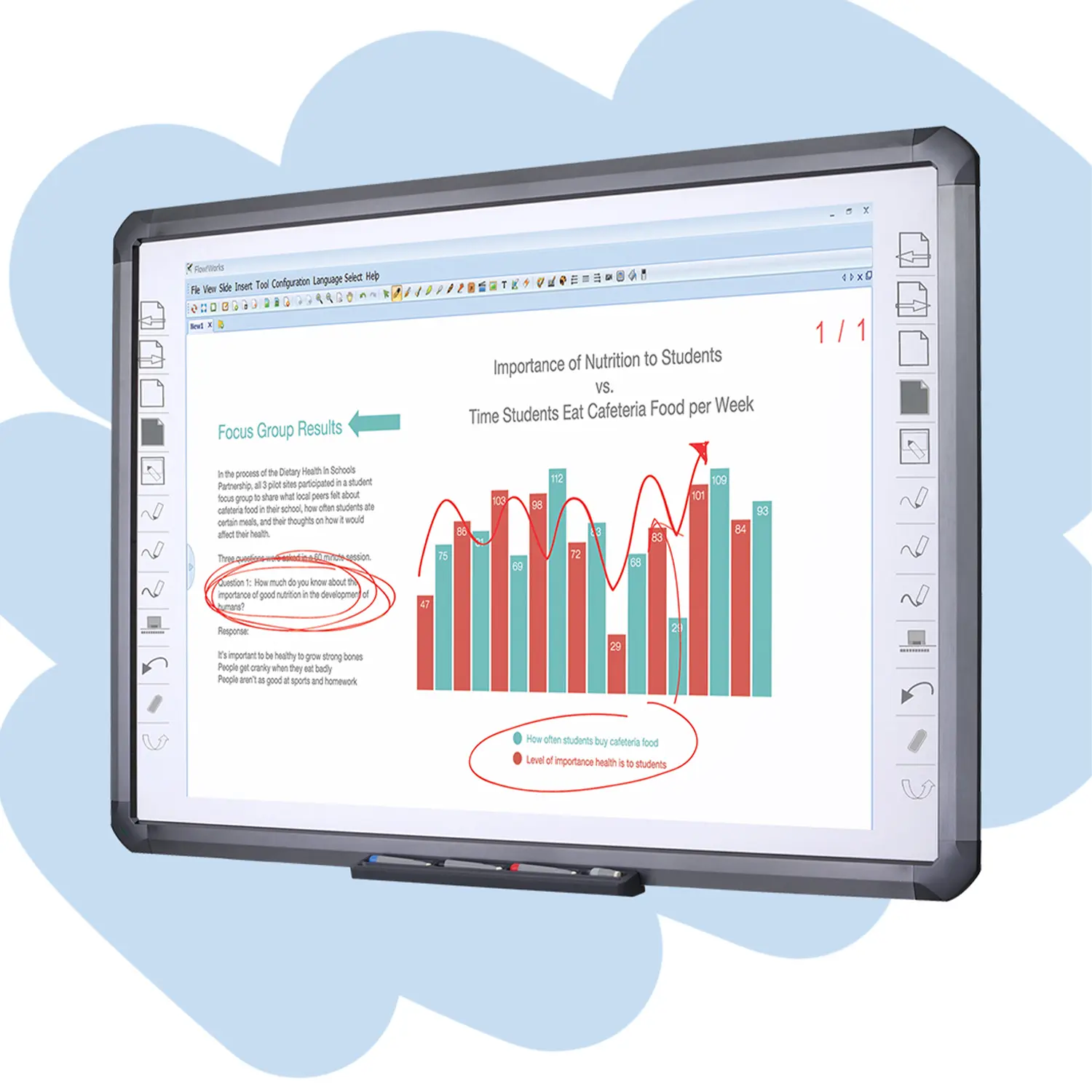
Flow!Works ProUser - friendly whiteboard software, it encompasses a wide range of presentation tools and powerful functions, delivering the most professional presentation experience to you.
Flow!WorksFlow!Works incorporates more educational tools, further enhancing the interactivity and fun - factor of your teaching.
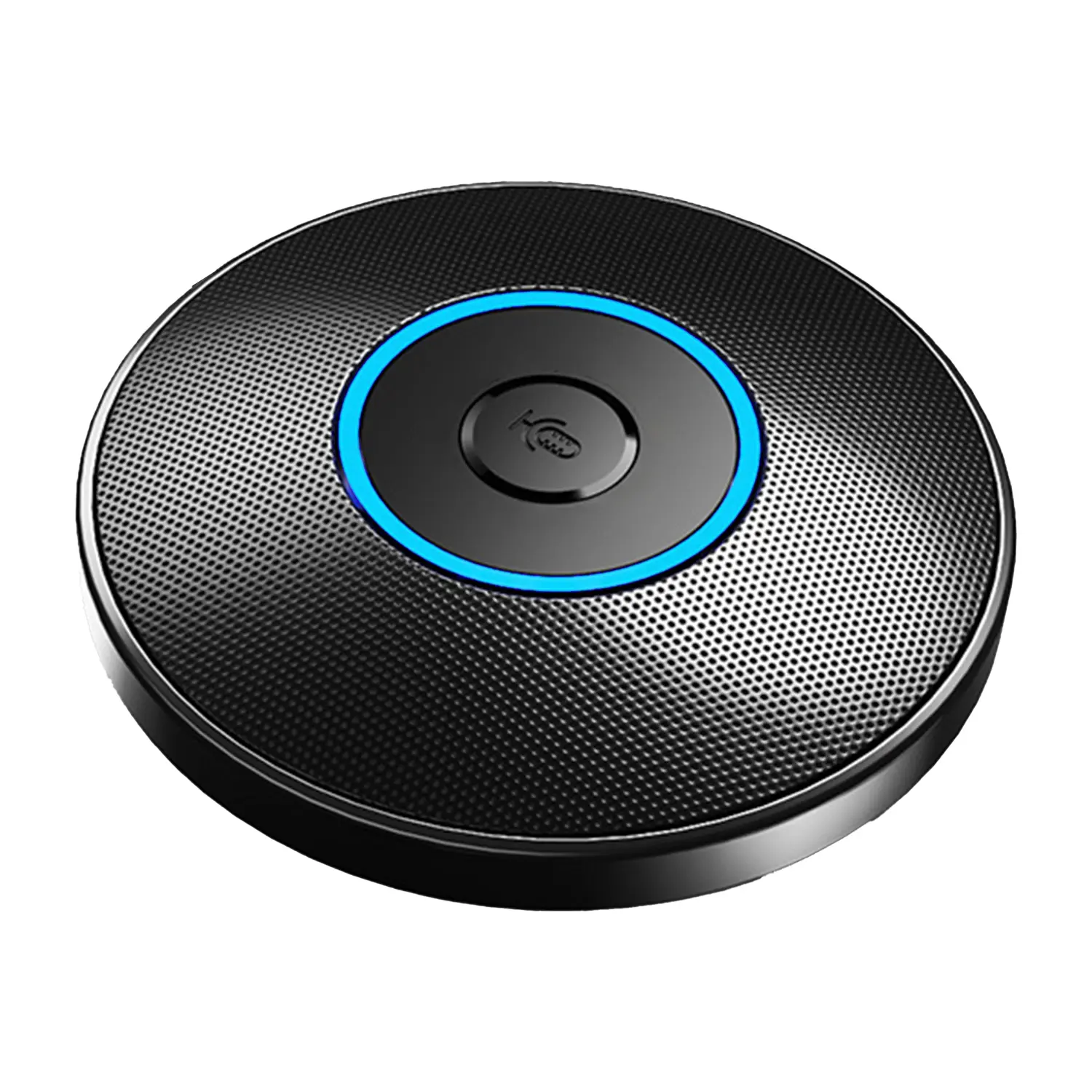
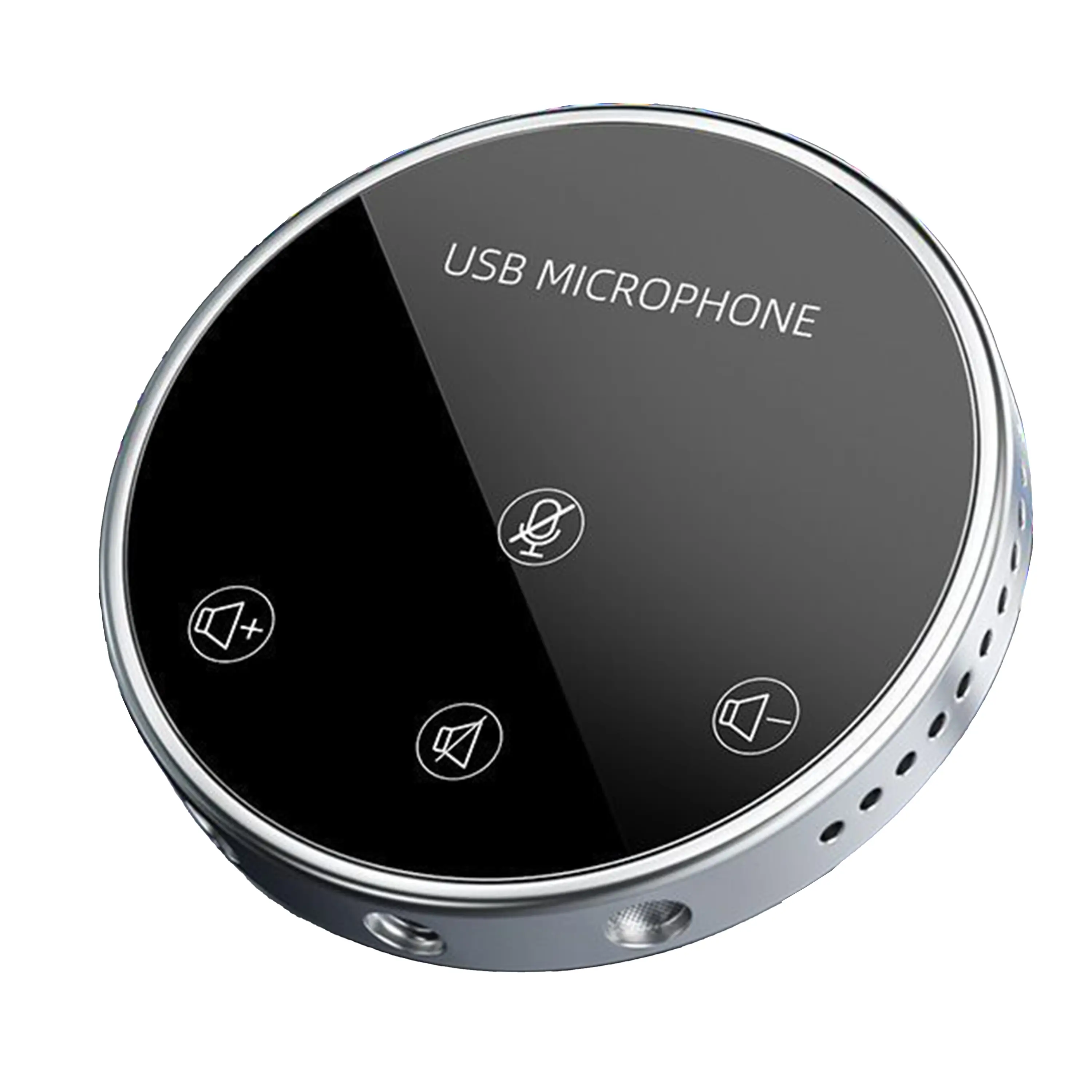
Conference Microphone● USB
● Plug and Play
● Intelligent Noise-Canceling
● 10ft/3m Extended Pickup Range
● 360° Omnidirectional Pickup
Conference Speakerphone● USB-C
● Plug and Play
● Intelligent Noise-Canceling
● 10ft/3m Extended Pickup Range
● 360° Omnidirectional Pickup
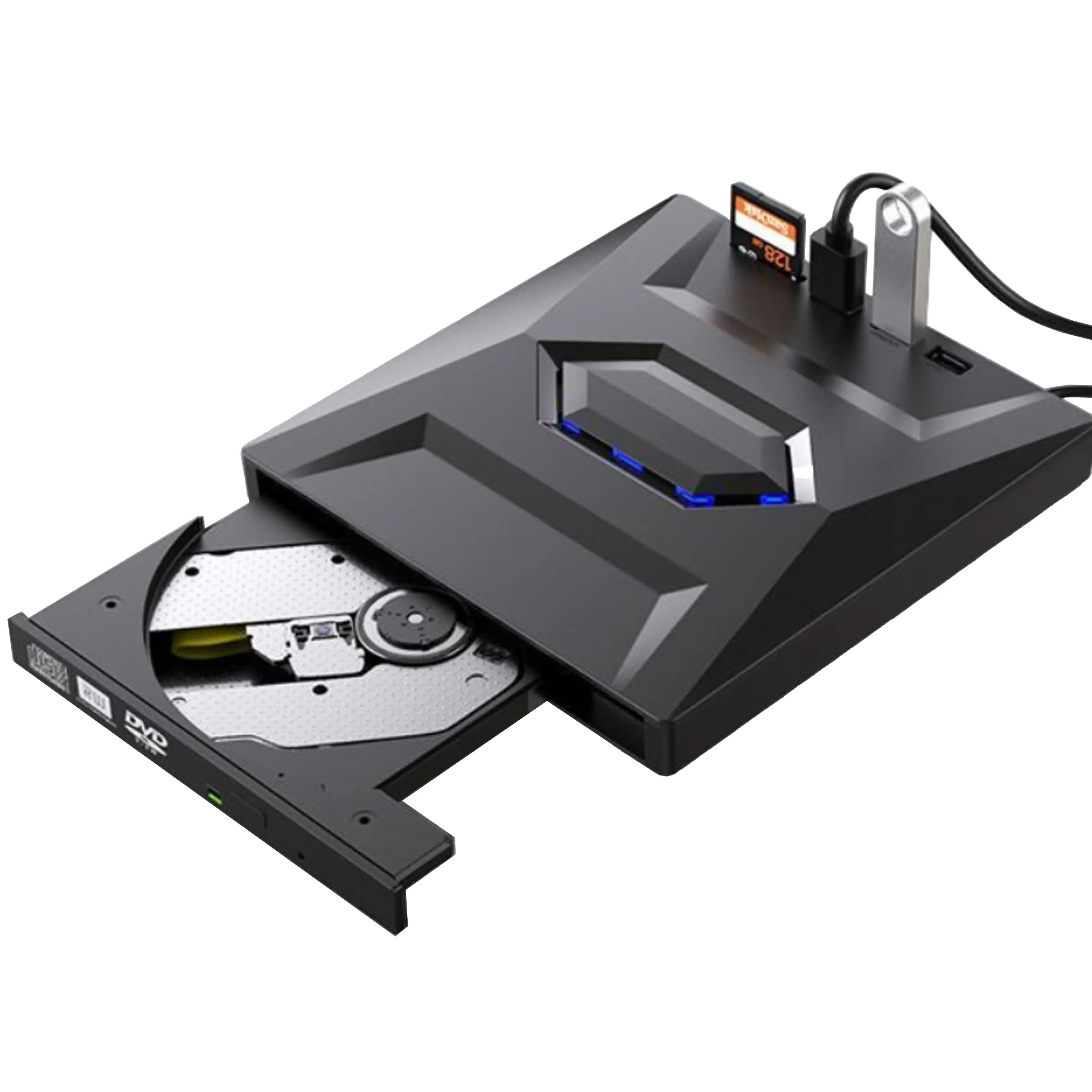
USB External CD/DVD Drive• USB and USB-C
• USB 3.0
• 8x DVD and 24x CD write/read speeds
• Portable
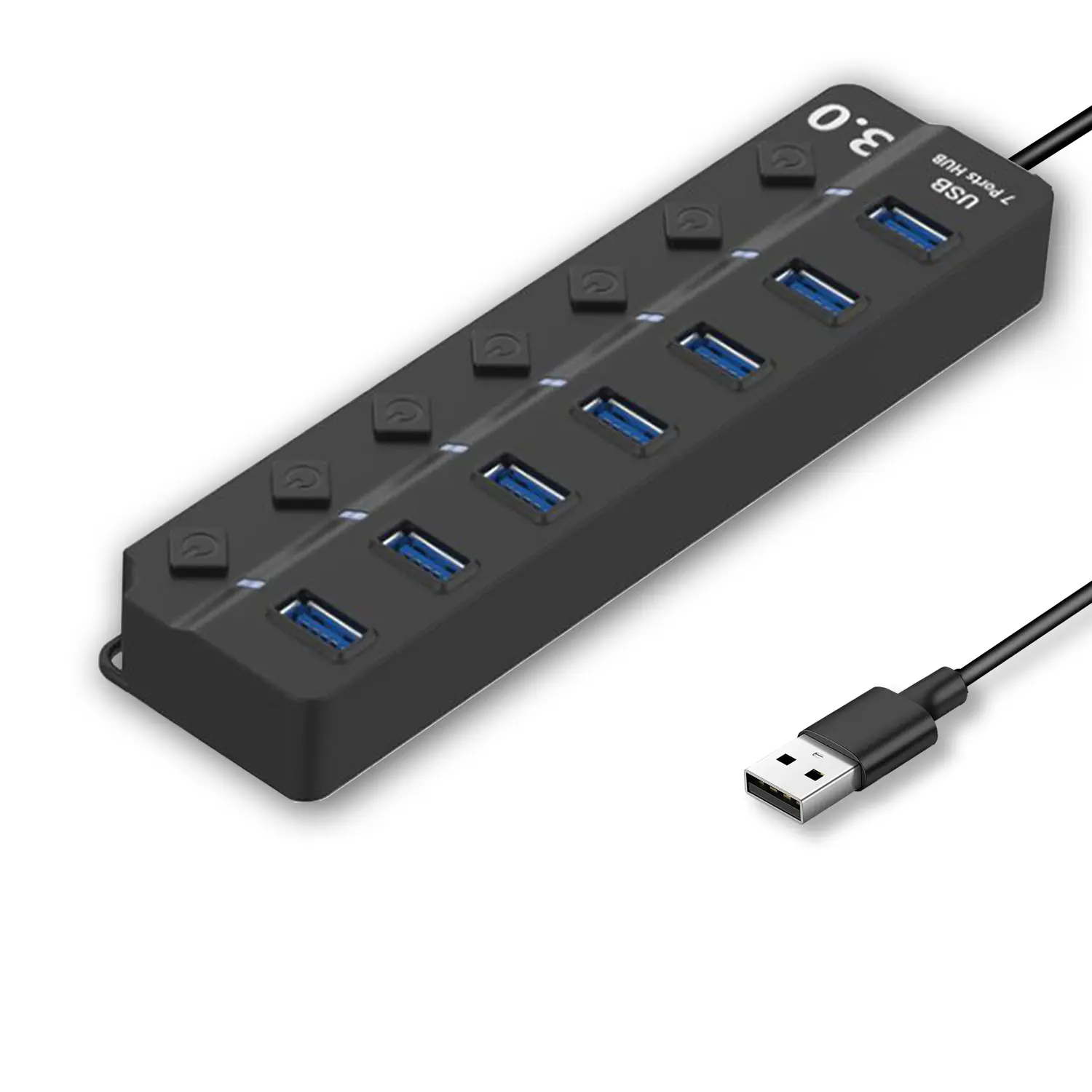
7-Port USB 3.0 Hub● USB 3.0
● Plug and Play
● 7-in-1 USB Hub
● Individual On/Off Switches
Revolutionize Your Presentations and Document Display with QWC 100S Document Camera
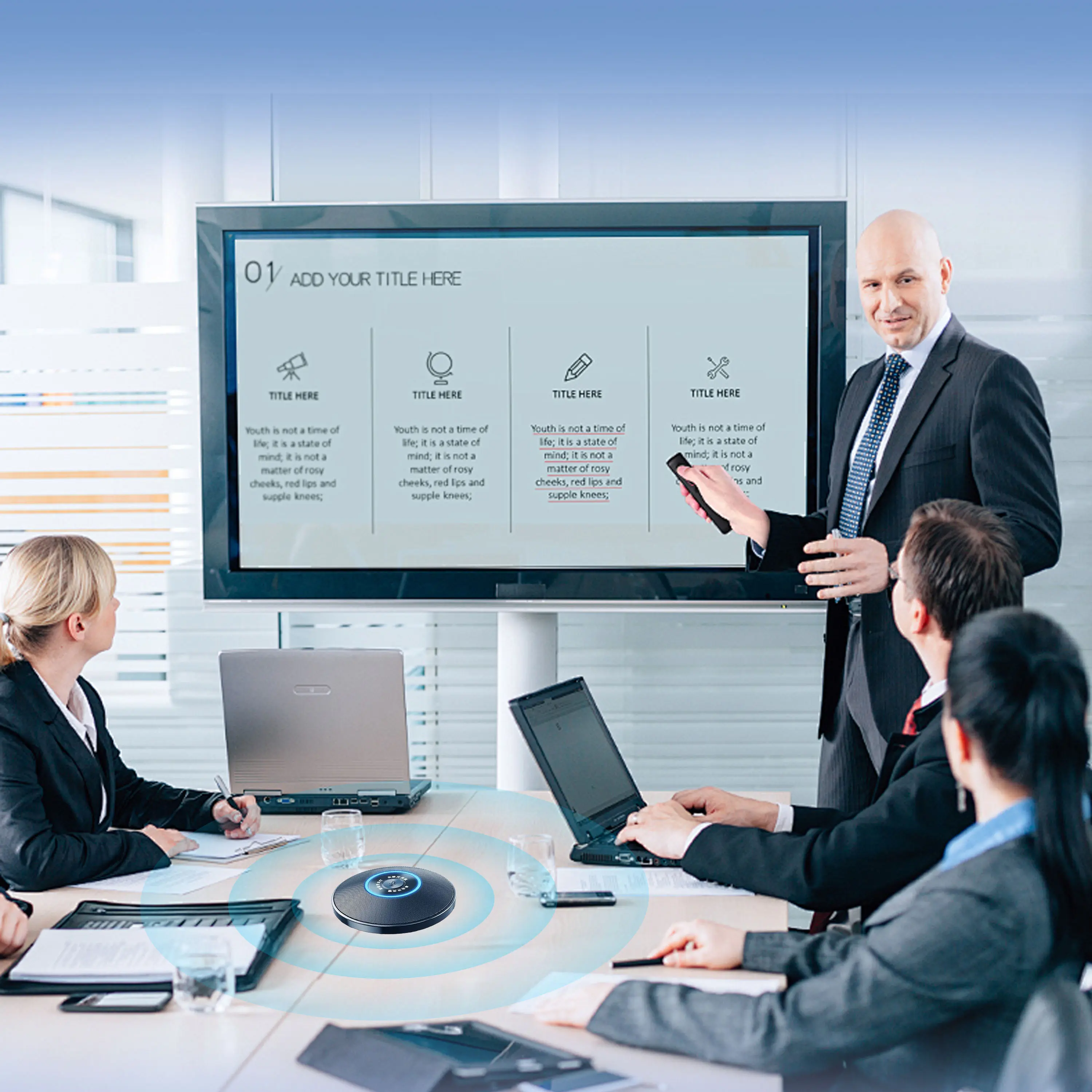
Enhance Call Experience: New Conference Microphone Now Available
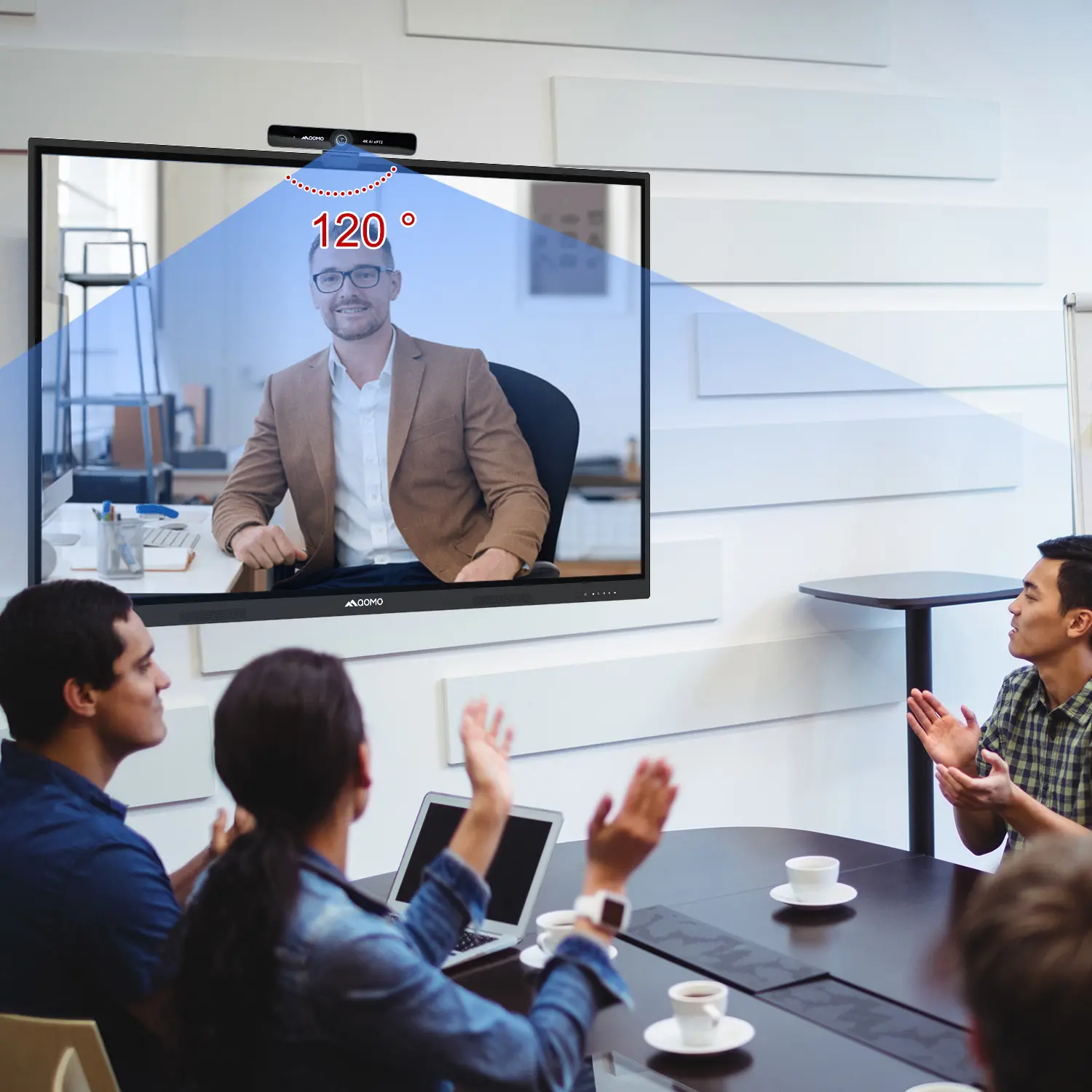
AI-Powered Face-Tracking Webcam
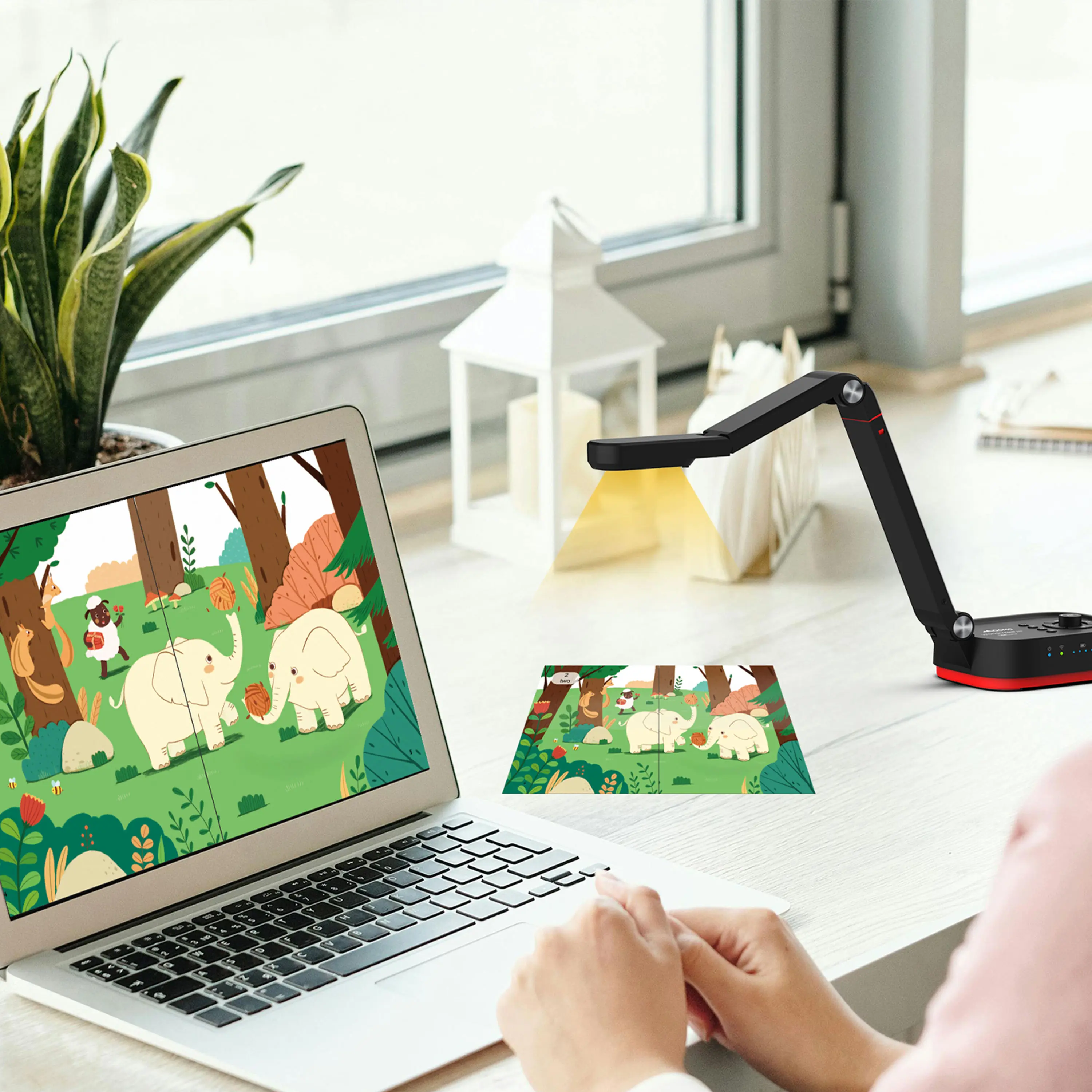
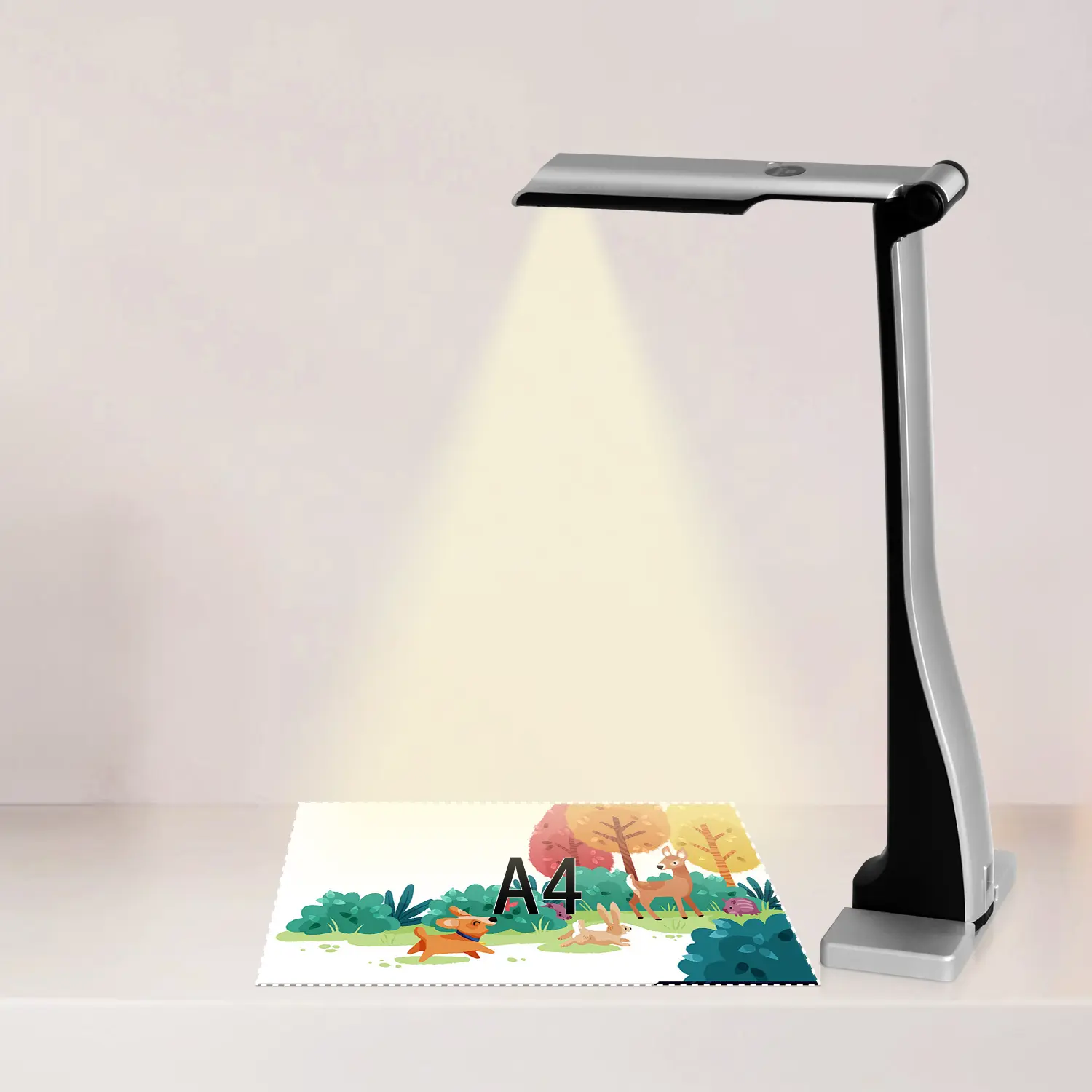
Portable Document Camera Recommendations
Classic Design, Exceptional Functionality: QPC 22 Document Camera
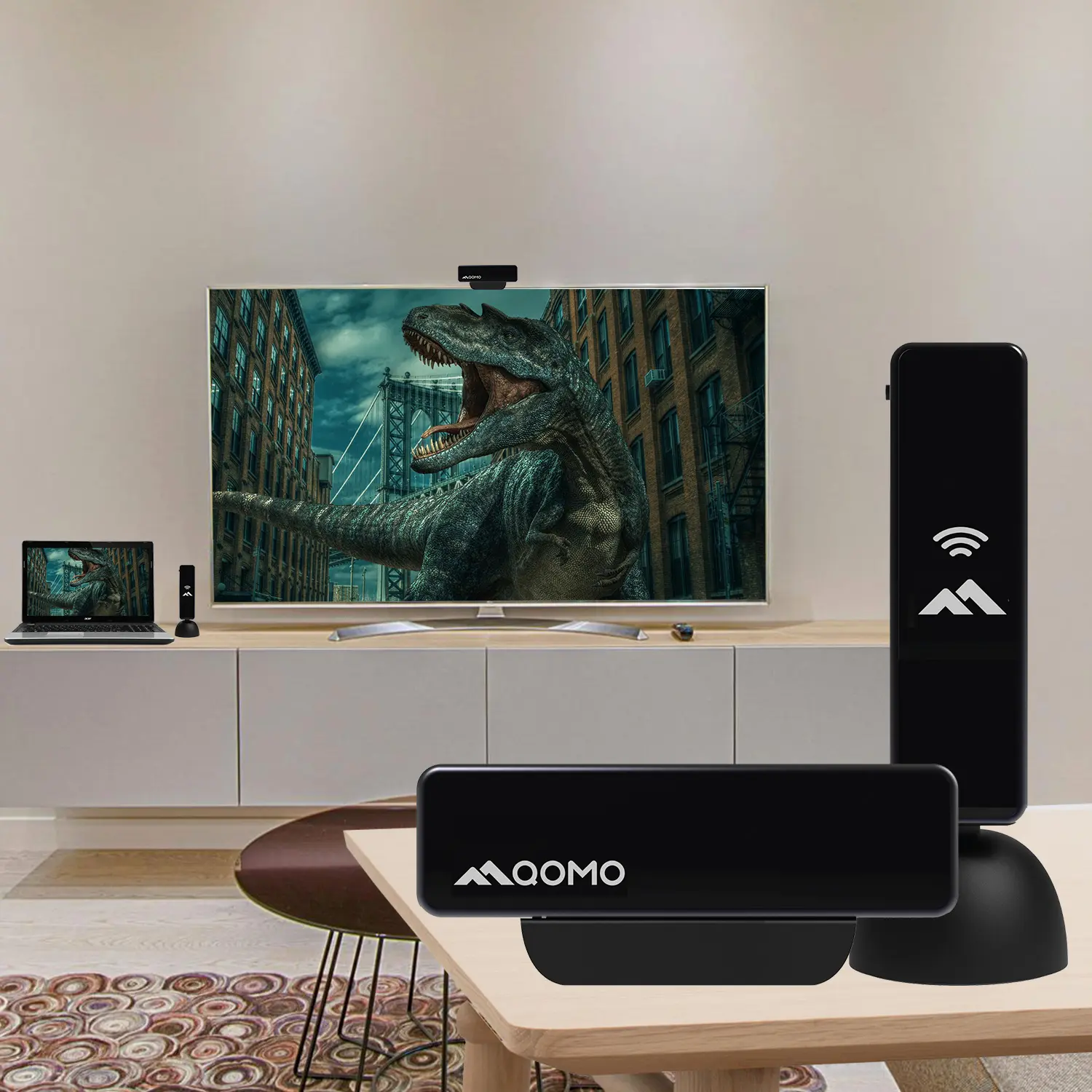
Wireless Screen Mirroring Solution for All Devices
Latest Audience Response System: QRF 999
Introducing the QPC 80H3 Gooseneck Document Camera
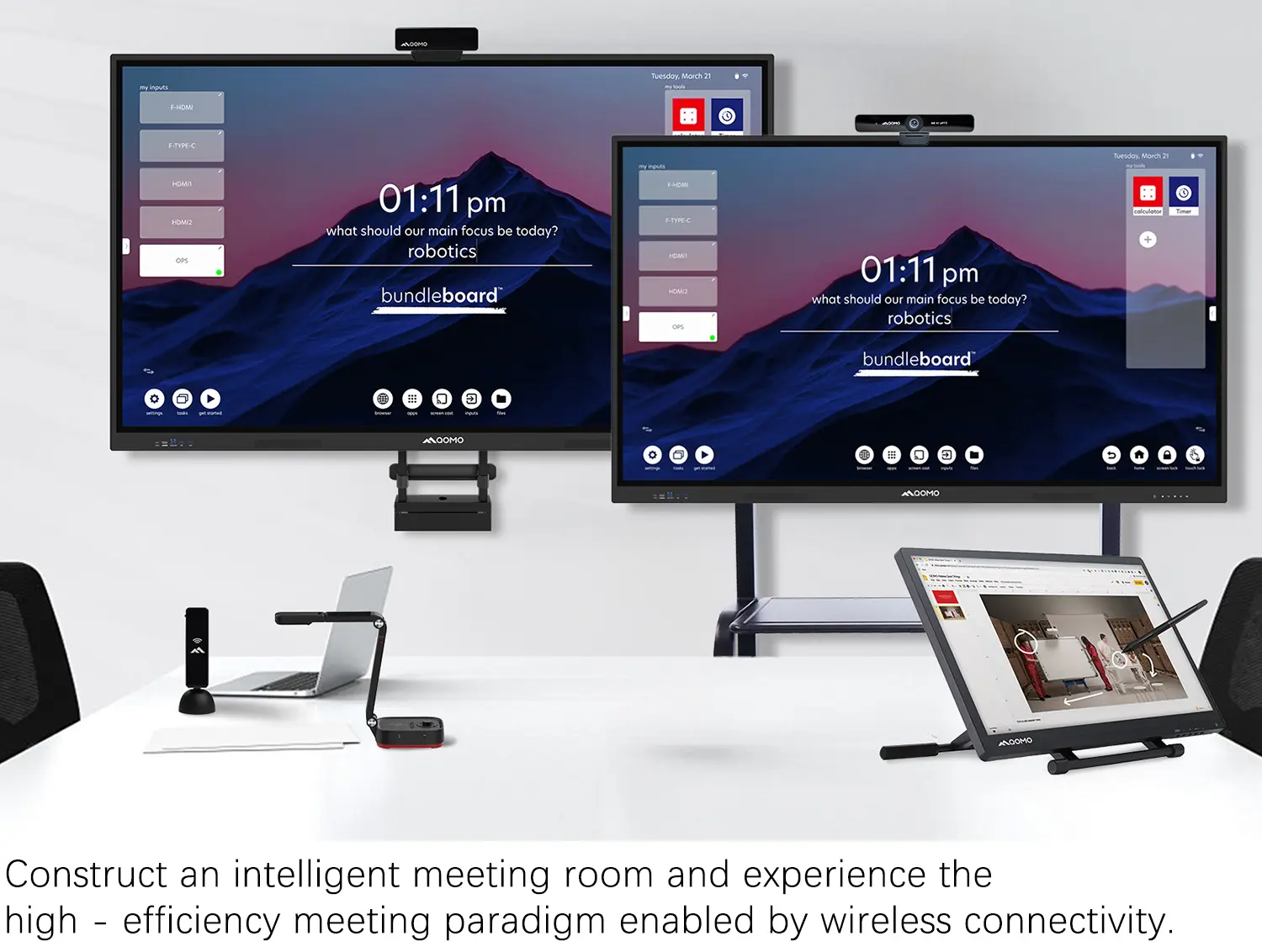
Creating a Smart Integrated Classroom: What Do You Need?
Wireless Connectivity Upgraded: WiFi-Free Wireless Document Receiver
Flow!Works Pro: Interactive Whiteboard Software for Engaging Classrooms
How to Choose the Perfect Document Camera and Elevate Productivity
QWC 004 Conference Webcam: The Top Choice for Remote Education
QCamera: Dedicated Software for Document Cameras to Elevate Your Presentations
QRF999 Voice Response System: Enhancing Teacher-Student Interaction
Work From Home? Maybe You Should Try This Document Camera
The Ultimate Educational Tool: Gooseneck Document Camera
60GHz Millimeter-Wave Wireless Screen Sharing: QShare 100
What Does a Modern Conference Room Need?
QD5000 Document Camera: Unimaginable Versatility!
QWC 004: The Most Cost-Effective Webcam
QVote Interactive Classroom Response System Software
Functionality, Aesthetics, Portability! Meet the QWC 100S Document Camera!
Why Choose the BundleBoard H/H2 Interactive Flat Panel?
Save Your Budget—Introducing the All-New QPC 70 Document Camera!
QIT 600F3: Revolutionize Your Presentations
QCamera: Professional Document Camera Software
QPC 5: The Ultimate 4K Portable Document Camera
Elevate Your Meetings in Seconds: QWC 006 Webcam
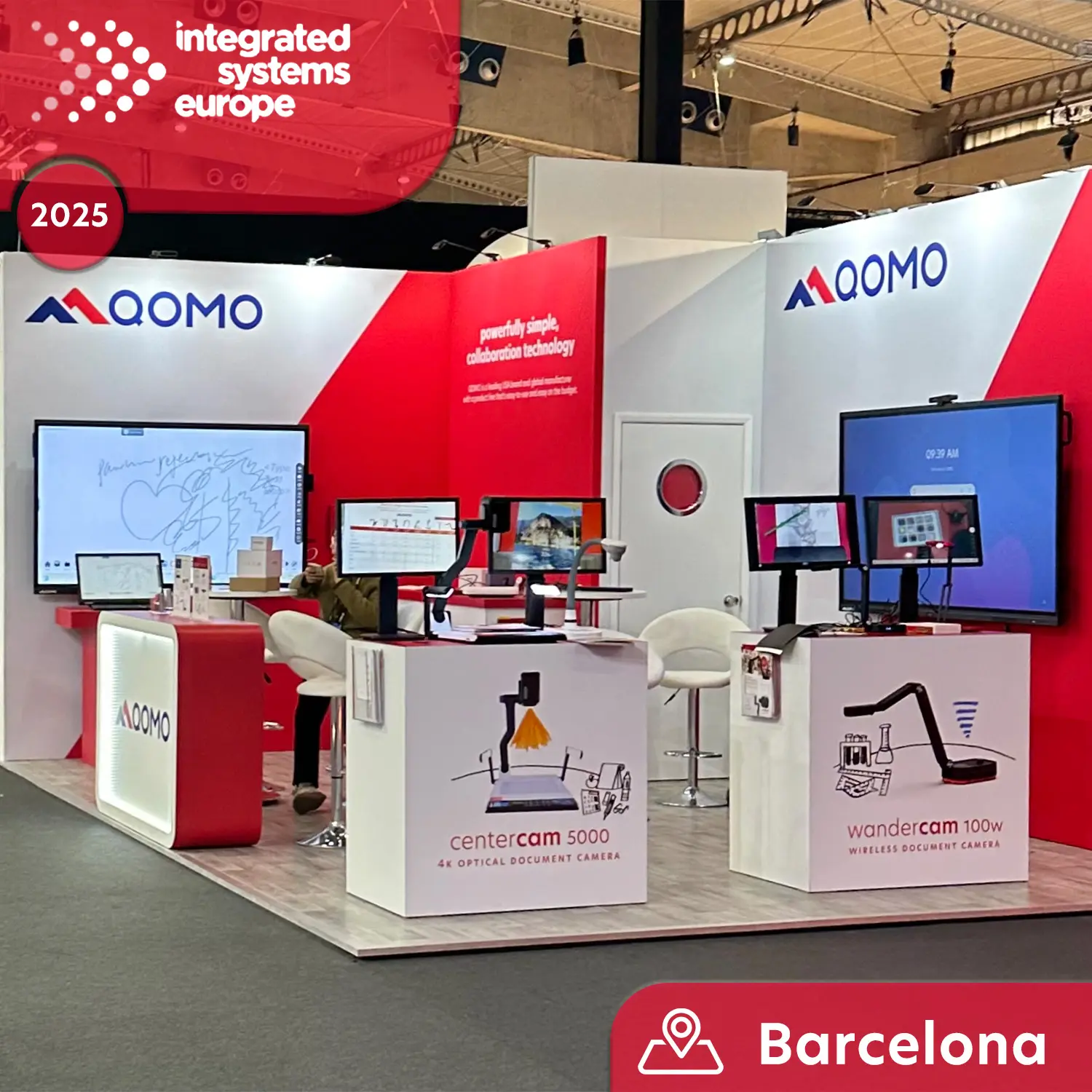
Meet QOMO at ISE 2025
Wireless Document Camera Solution, Revolutionizing Wireless Technology
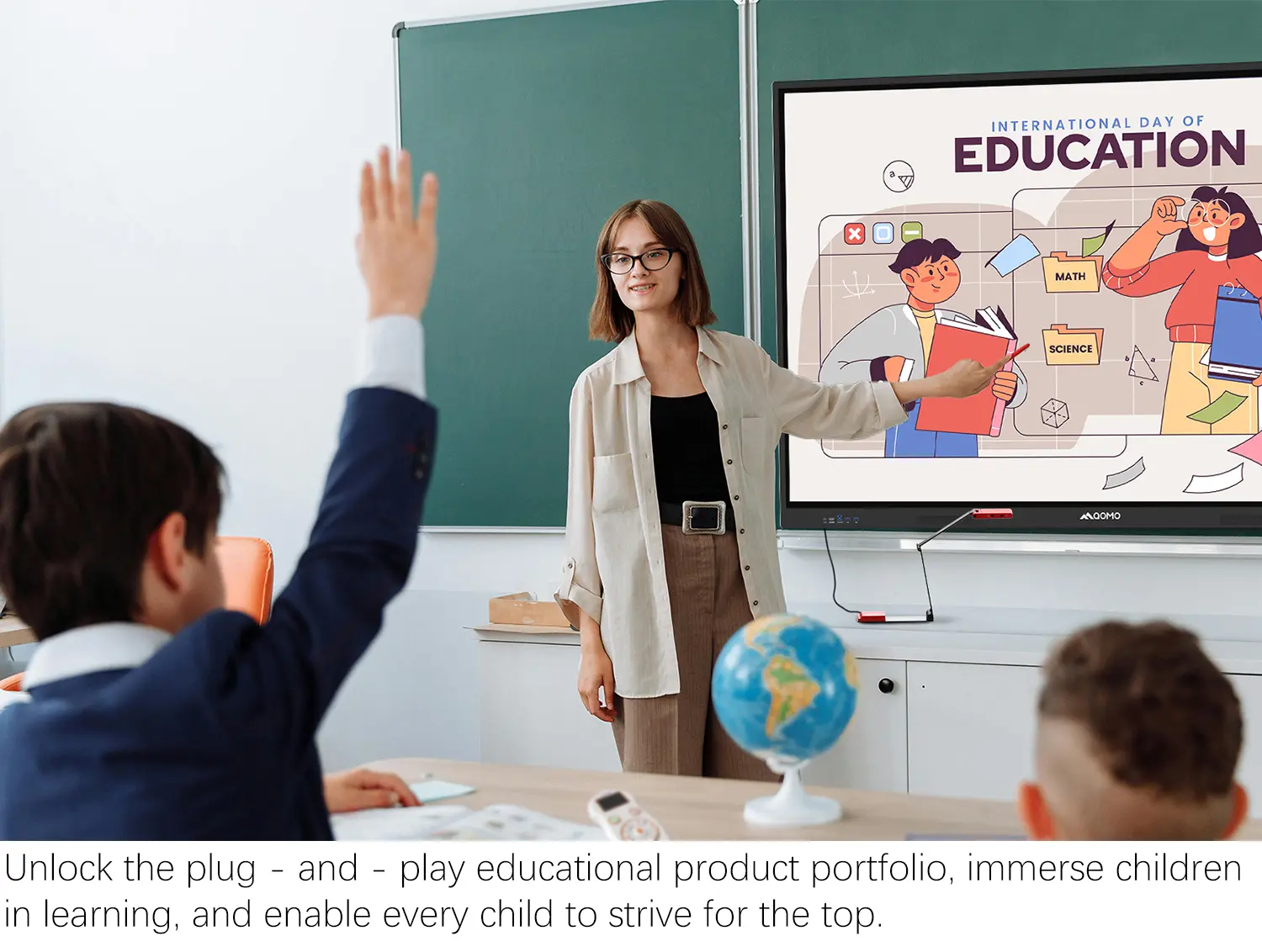
QRF Series, Transform Your Classroom!
QOMO, Building Intelligent Classrooms
QOMO QShare100 New Release
Outstanding Office Equipment Recommendations
In today's digital world, "Cast To TV Screen Mirroring" has transformed how we share and enjoy content. John Smith, a renowned expert in audio-visual technology, once stated, “Effective screen mirroring can elevate your viewing experience.” This highlights the importance of mastering this technology.
Many tools and methods are available for Cast To TV Screen Mirroring. However, finding the best fit can be challenging. Users often struggle with compatibility and connectivity issues. It’s essential to explore various options carefully. Some solutions may not perform as expected, leading to frustration.
Moreover, keeping up with new developments in this field is crucial. What works today might not suffice tomorrow. As technology evolves, staying informed becomes necessary for optimal screen mirroring. Finding reliable resources helps ensure you’re using the best methods available. Embracing this knowledge can enhance how we share experiences, making screen mirroring a vital skill in our tech-savvy lives.
Screen mirroring has become a popular way to share content from mobile devices to larger screens. It allows users to display photos, videos, and apps on their TV. This method enhances viewing experiences, especially during gatherings or presentations. People often enjoy watching movies or playing games on a big screen with friends and family.
Understanding the basics of screen mirroring is essential. It typically requires a stable Wi-Fi connection. Some devices support built-in screen sharing features, while others may need additional software. The ease of connecting your device can vary. Users may experience occasional lag or connectivity issues, which can be frustrating. Testing the connection before an important event is helpful.
The benefits of screen mirroring include better visibility and increased interactivity. You can easily navigate your mobile apps using a remote control. Also, sharing presentations during meetings becomes seamless. However, not all devices are compatible. It's crucial to research your equipment to avoid disappointment. While screen mirroring offers convenience, ensuring that both the sending and receiving devices are prepared is vital.
In today's digital landscape, casting content from devices to TV screens has gained significant traction. According to a recent industry report, over 70% of households utilize screen mirroring features. This indicates a clear preference for seamless streaming experiences. With the integration of devices and smart TVs, users expect quick and easy connections.
Over 40% of users prefer using built-in features like AirPlay or Miracast for casting. Such direct methods enhance convenience and reduce setup time. A staggering 83% of millennials utilize screen mirroring at least once a week, showing a surge in demand for these technologies. However, many still face challenges. Connection issues or compatibility concerns can lead users to seek alternative methods, highlighting the need for improvement in existing systems.
Moreover, the market for casting devices is evolving. Many consumers are exploring third-party solutions for enhanced capabilities. Close to 25% of users reported experiencing latency or poor quality during screen mirroring. This invites ongoing reflection on technology’s role in creating user-friendly experiences. The challenge remains in keeping the casting experience smooth and efficient across diverse devices and networks.
| Method | Compatibility | Supported Devices | Resolution Supported | Additional Features |
|---|---|---|---|---|
| Chromecast | Android, iOS, Windows, Mac | Chromecast connected devices | Up to 4K | Voice control, built-in apps |
| AirPlay | iOS, macOS | Apple devices | Up to 4K | Screen mirroring, multi-room audio |
| Miracast | Android, Windows | Miracast-supported devices | Up to 1080p | No Internet required |
| Roku Screen Mirroring | Android, Windows | Roku devices | Up to 1080p | Private listening, channel casting |
| DLNA | Windows, Android | DLNA-capable TVs | Varies by device | Media sharing over network |
| Amazon Fire TV Casting | Android, iOS, Windows | Fire TV devices | Up to 4K | Voice commands, Alexa support |
| Screen Mirroring on Smart TVs | Varies by brand | Smart TVs from various manufacturers | Varies by model | Built-in options, compatibility with apps |
| Third-party Apps | Android, iOS | Compatible devices | Varies based on app | Customization, additional features |
| HDMI Connection | Universal | Any device with HDMI output | Up to 4K | Reliable, no latency |
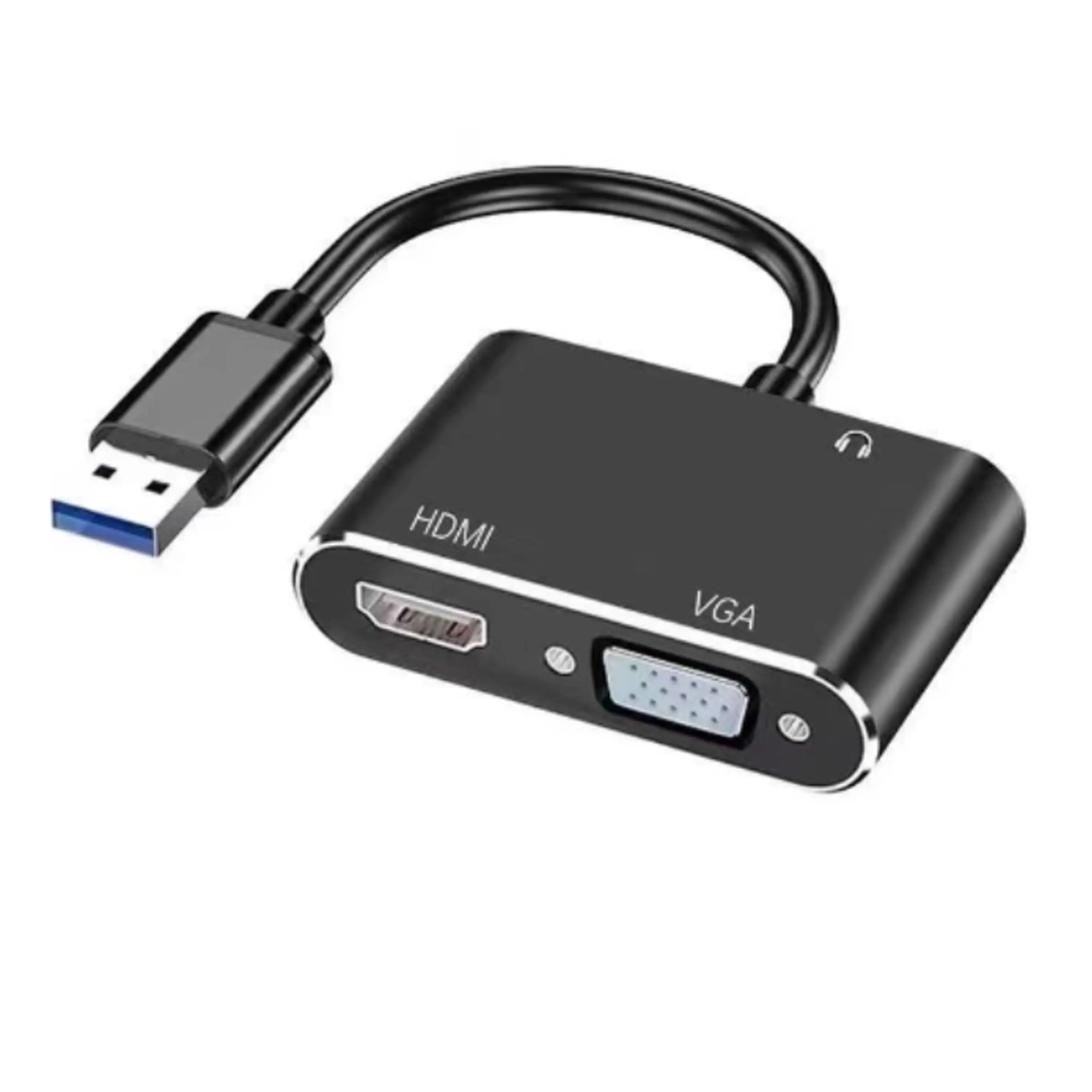
Using HDMI cables for direct connection is one of the most straightforward methods for screen mirroring. This technique guarantees a stable and high-quality connection. The HDMI cable transmits both audio and video signals, ensuring that everything is displayed perfectly on the TV screen.
To set up, first, locate the HDMI ports on your devices. Most modern TVs have multiple HDMI inputs. Connect one end of the HDMI cable to your TV, and the other to your laptop, tablet, or smartphone. After the connection, switch your TV input source to the designated HDMI channel. This will mirror your device’s display directly onto the TV screen.
However, consider some potential issues. Using HDMI cables may limit your mobility since you’re physically bound to the TV. Cables can also wear out over time, which might affect performance. Make sure to inspect your cables routinely for any signs of damage. Overall, while this method is reliable, it may not always offer the convenience of wireless alternatives.
When it comes to streaming content on your TV, utilizing Chromecast can be an excellent choice. It provides a user-friendly way for seamless screen mirroring. With Chromecast, you can easily cast videos, music, and even presentations from your smart devices to your television. It's compatible with a wide range of apps, making it versatile for various entertainment needs.
Setting up Chromecast requires a few simple steps. First, plug the Chromecast into an HDMI port on your TV and connect it to Wi-Fi. Once set up, launch the appropriate streaming app on your smartphone or tablet. You will notice a cast icon in the app. Tap it, and choose your Chromecast device from the list. Your content will begin streaming instantly.
Tips: Ensure both devices are on the same Wi-Fi network. Check your app settings if the cast icon doesn’t appear. Remember that not all devices can support all formats. Always have your device and Chromecast software updated for the best experience. While the setup is usually hassle-free, connectivity issues might require troubleshooting. Be patient and try restarting the devices if problems arise.
AirPlay offers a seamless way to mirror screens between Apple devices. This technology allows users to project content with minimal setup. Reports show that in 2022, 65% of Apple device users utilized screen mirroring. It highlights the growing preference for wireless solutions.
While AirPlay is user-friendly, it has limitations. The connection range can be short. Minor delays in streaming can occur. For those with larger spaces, this can be frustrating. Many users report mixed experiences with network reliability. In urban settings, interference can disrupt the signal.
Despite these drawbacks, AirPlay continues to evolve. The introduction of advancements may address these issues. Industry analysts predict that screen mirroring technologies will improve further. This data-driven approach could enhance performance significantly. As users demand higher quality experiences, companies must adapt to keep up.
The article "Top 10 Methods for Cast To TV Screen Mirroring Today" explores various techniques for wirelessly displaying content from devices to television screens. It begins with an explanation of screen mirroring, highlighting its benefits such as convenience and enhanced viewing experiences. The overview of the top methods includes options like using HDMI cables for direct connections, utilizing smart devices for Chromecast, and leveraging built-in mirroring features found in many modern smart TVs.
Among the discussed methods, HDMI cables provide a reliable and straightforward way to cast content directly, while Chromecast and AirPlay simplify the streaming process for compatible devices. The article emphasizes how these methods enhance user experiences, making it easier to enjoy media across devices and screens. Overall, the article serves as a comprehensive guide for anyone looking to effectively utilize Cast To TV Screen Mirroring technology.