+86 152 8002 3723
QVoteProfessional Audience Response System software offers the most convenient functions for your interactions.
QClickThe most convenient educational software for working with Microsoft PowerPoint to quickly set up various question types and generate intelligent feedback reports.
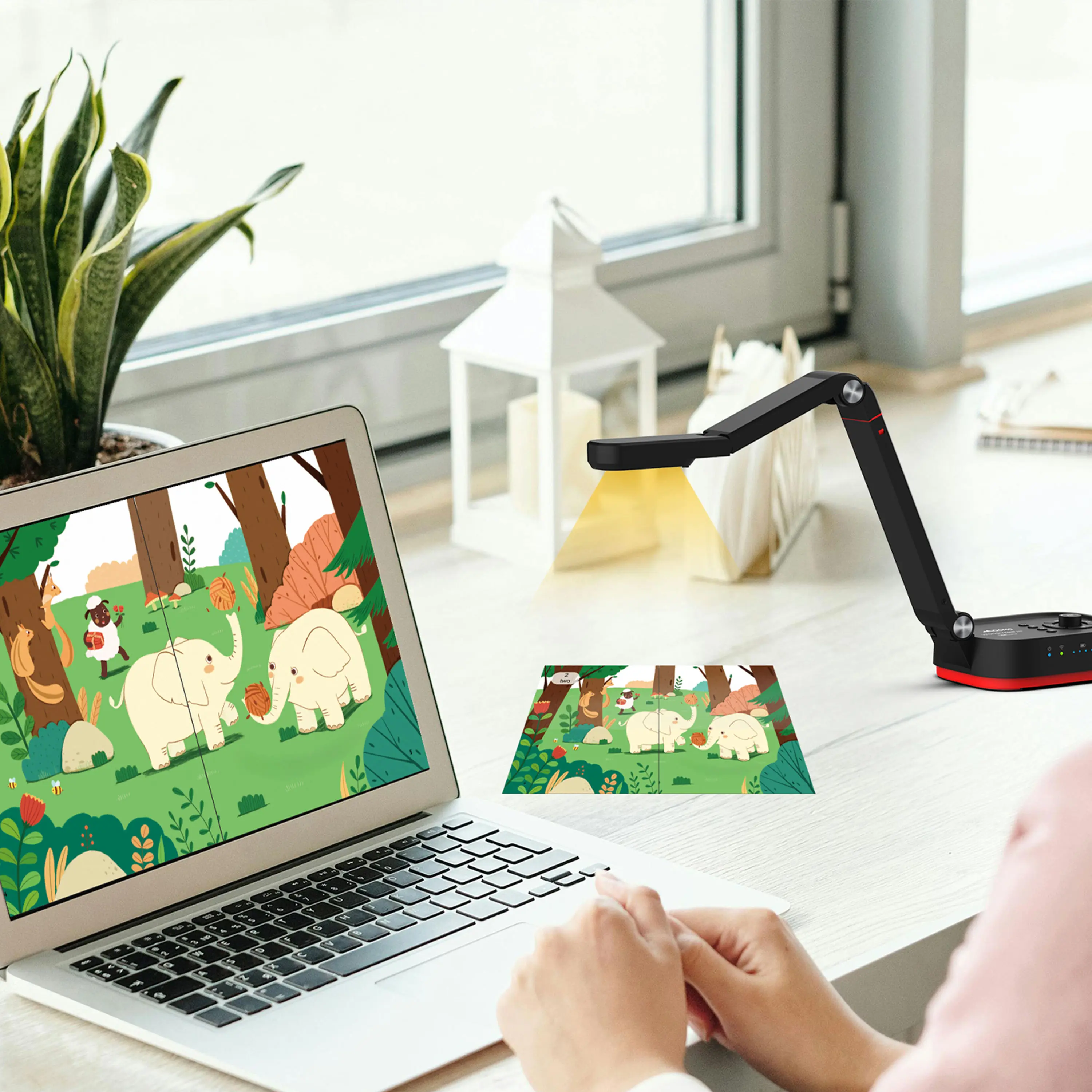
QCameraQCamera by QOMO allows for real-time streaming from cameras and document cameras. Annotate, save snapshots, record, and manipulate camera images instantly.
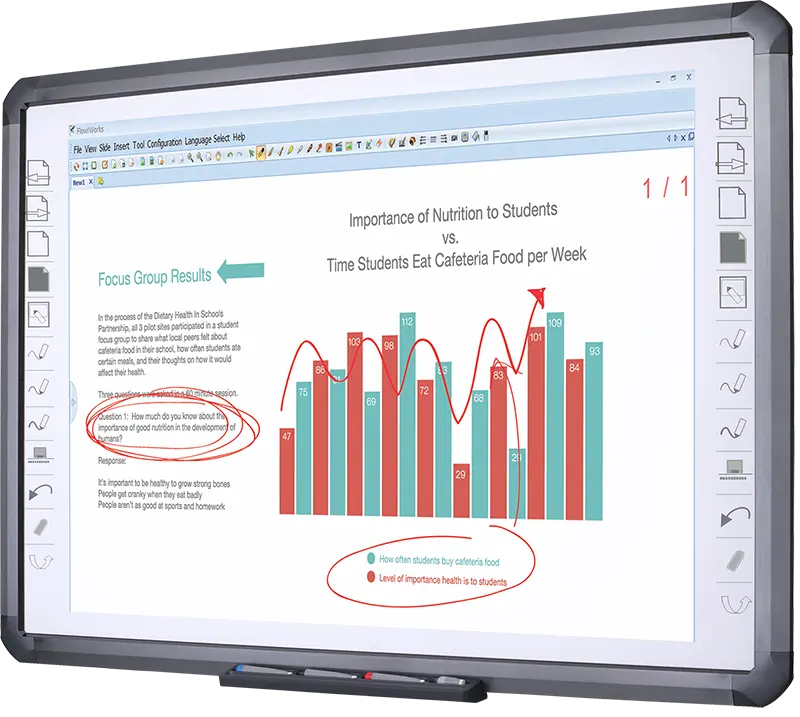
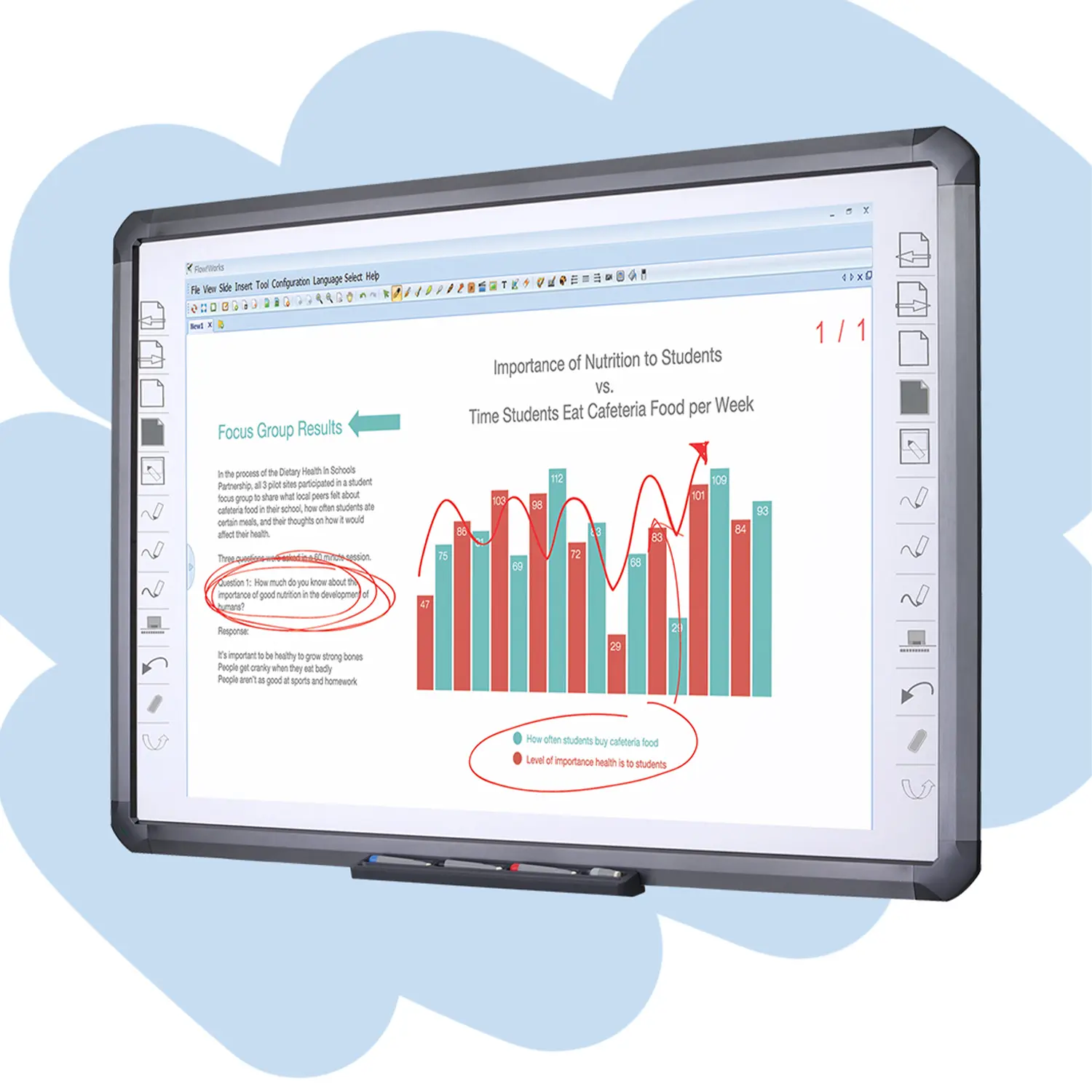
Flow!Works ProUser - friendly whiteboard software, it encompasses a wide range of presentation tools and powerful functions, delivering the most professional presentation experience to you.
Flow!WorksFlow!Works incorporates more educational tools, further enhancing the interactivity and fun - factor of your teaching.
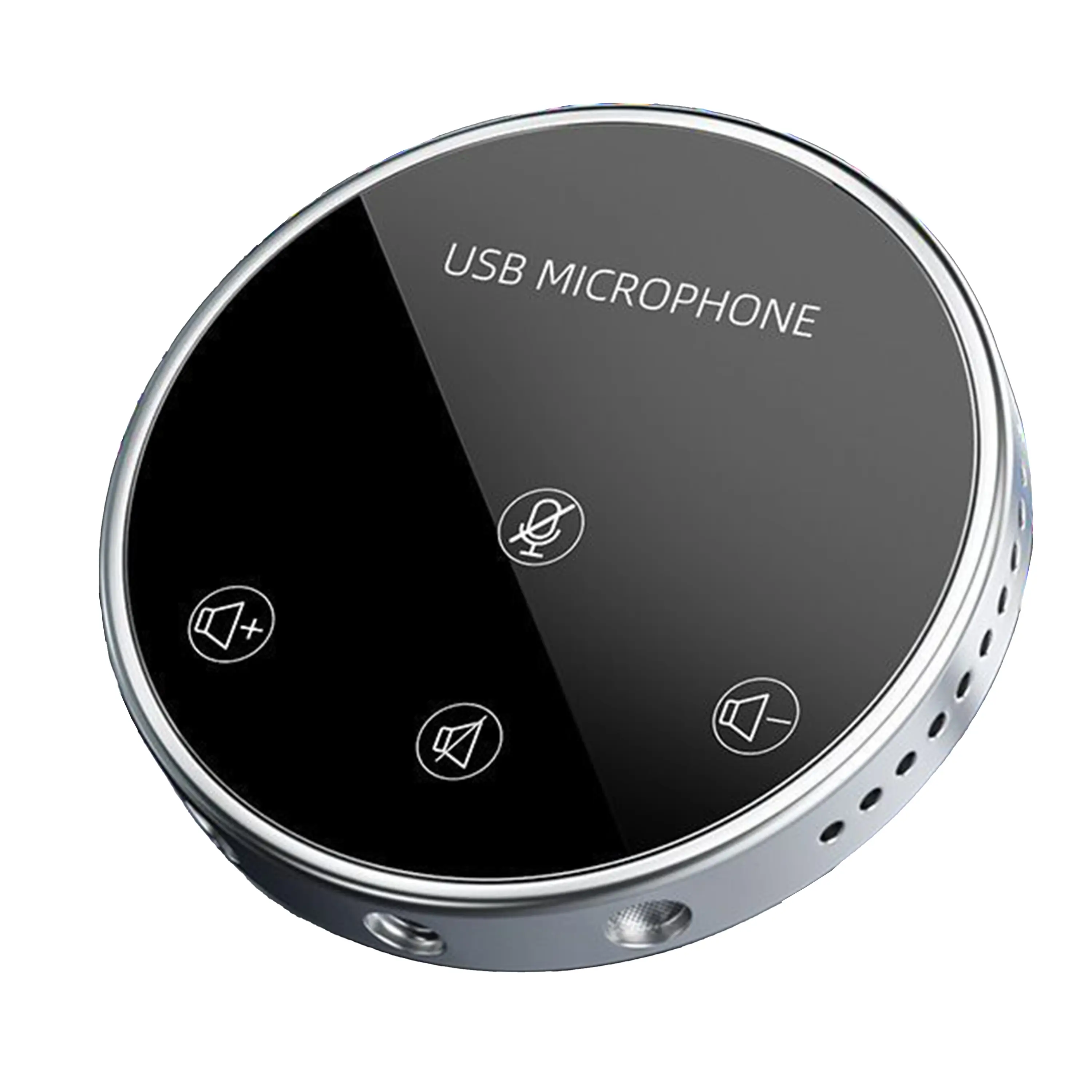
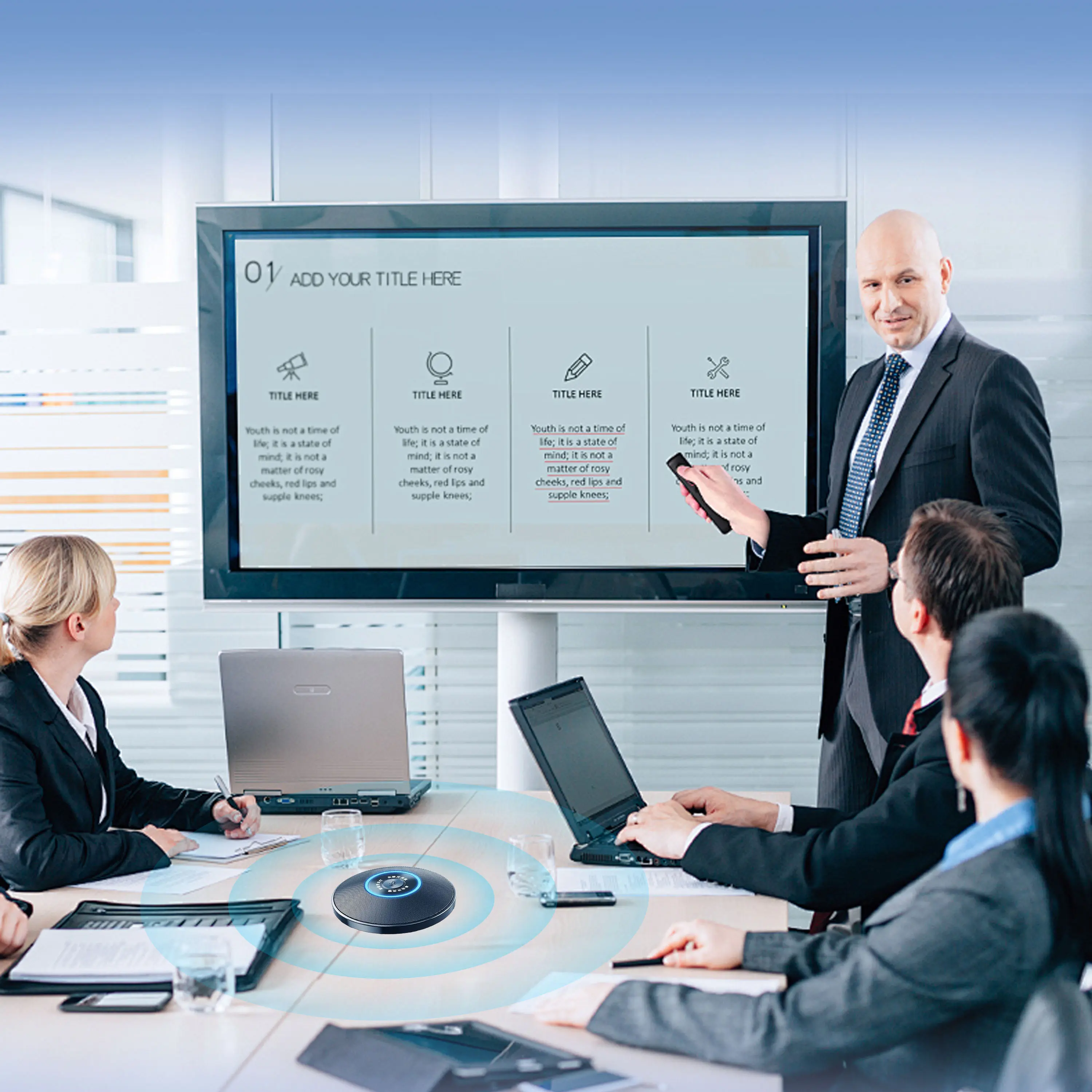
Conference Microphone● USB
● Plug and Play
● Intelligent Noise-Canceling
● 10ft/3m Extended Pickup Range
● 360° Omnidirectional Pickup
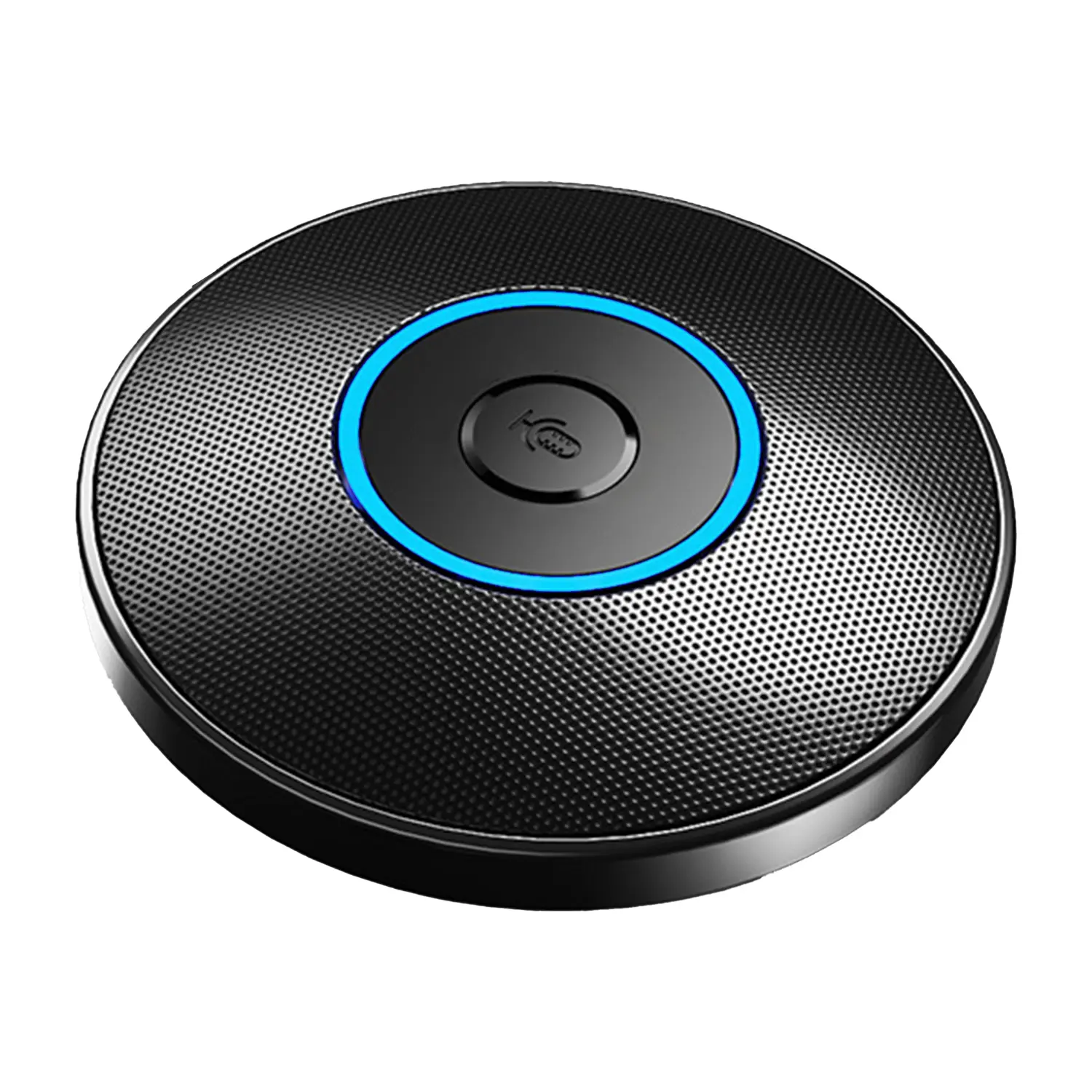
Conference Speakerphone● USB-C
● Plug and Play
● Intelligent Noise-Canceling
● 10ft/3m Extended Pickup Range
● 360° Omnidirectional Pickup
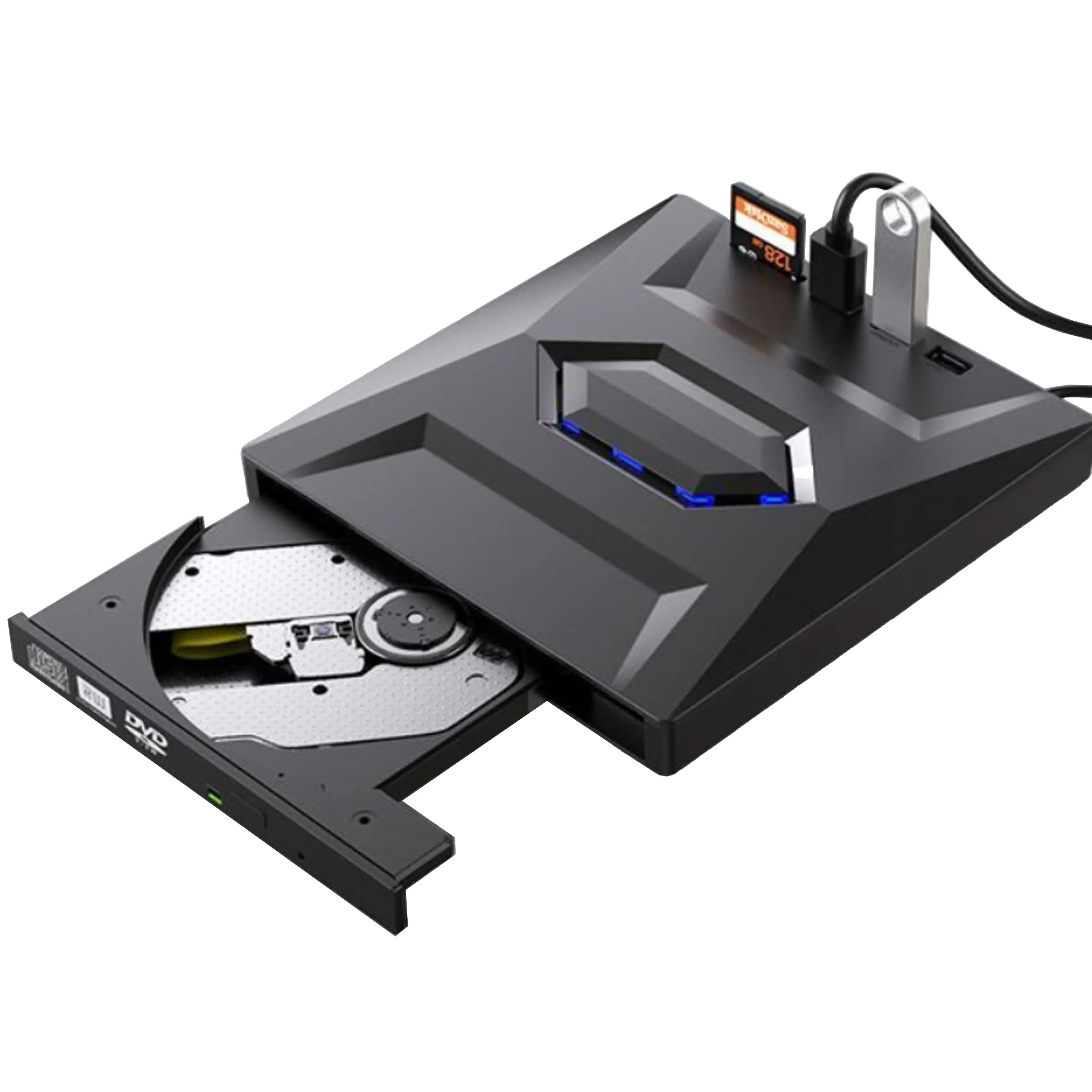
USB External CD/DVD Drive• USB and USB-C
• USB 3.0
• 8x DVD and 24x CD write/read speeds
• Portable
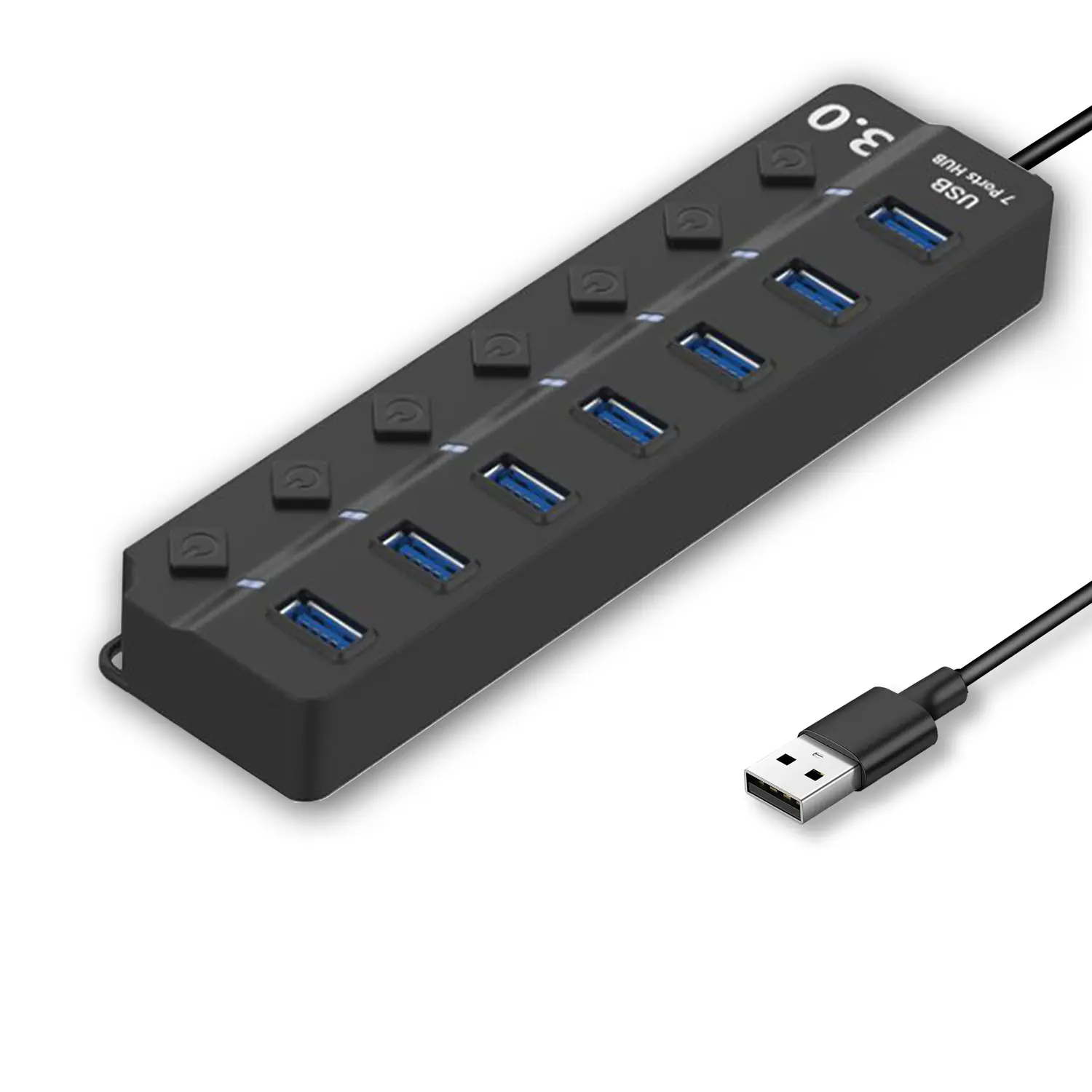
7-Port USB 3.0 Hub● USB 3.0
● Plug and Play
● 7-in-1 USB Hub
● Individual On/Off Switches
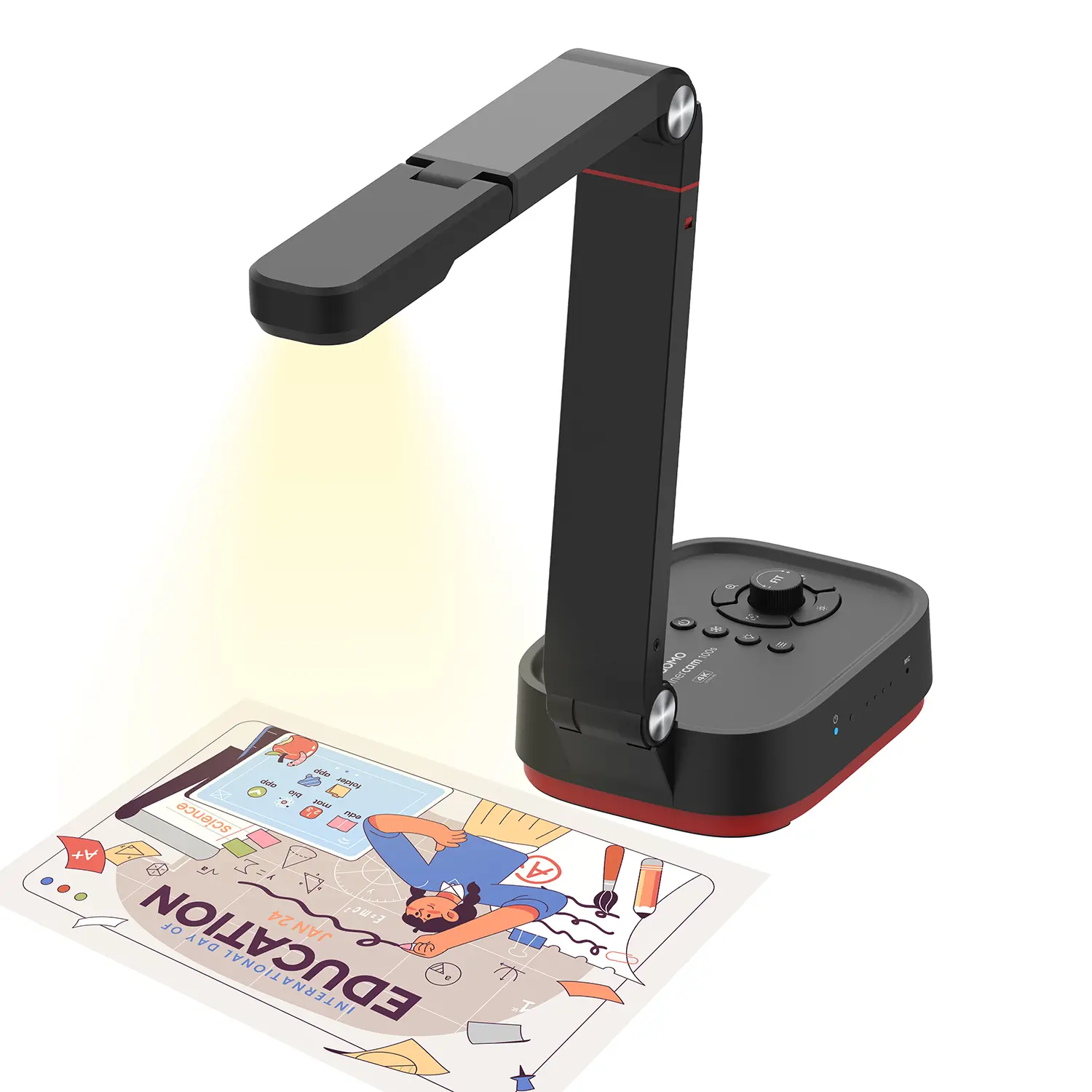
Revolutionize Your Presentations and Document Display with QWC 100S Document Camera
Enhance Call Experience: New Conference Microphone Now Available
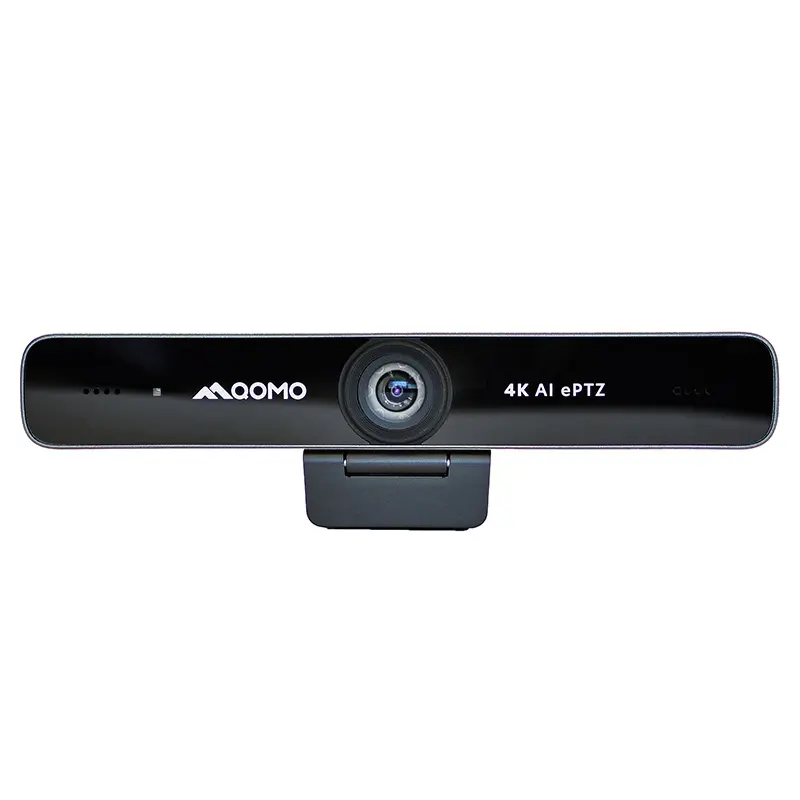
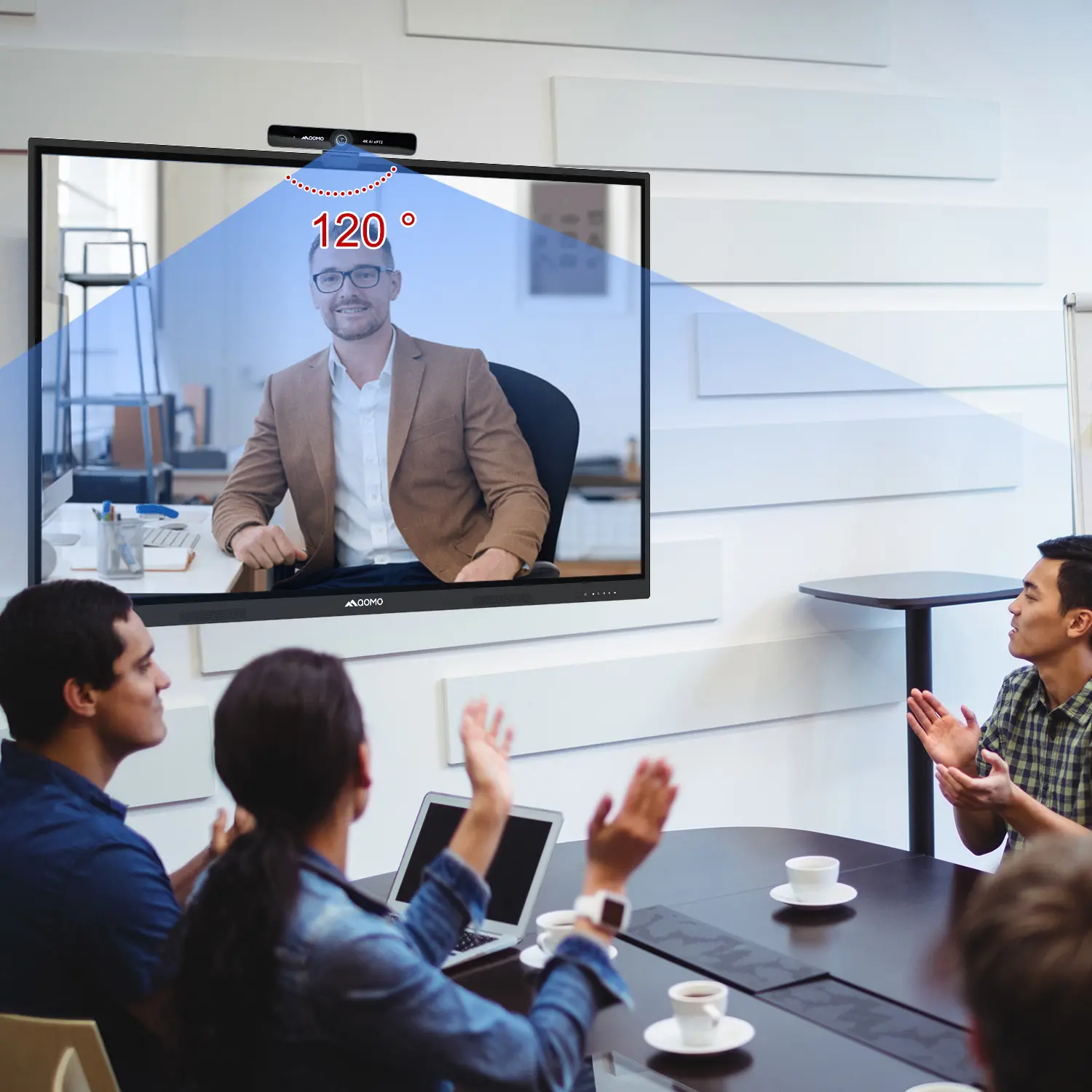
AI-Powered Face-Tracking Webcam
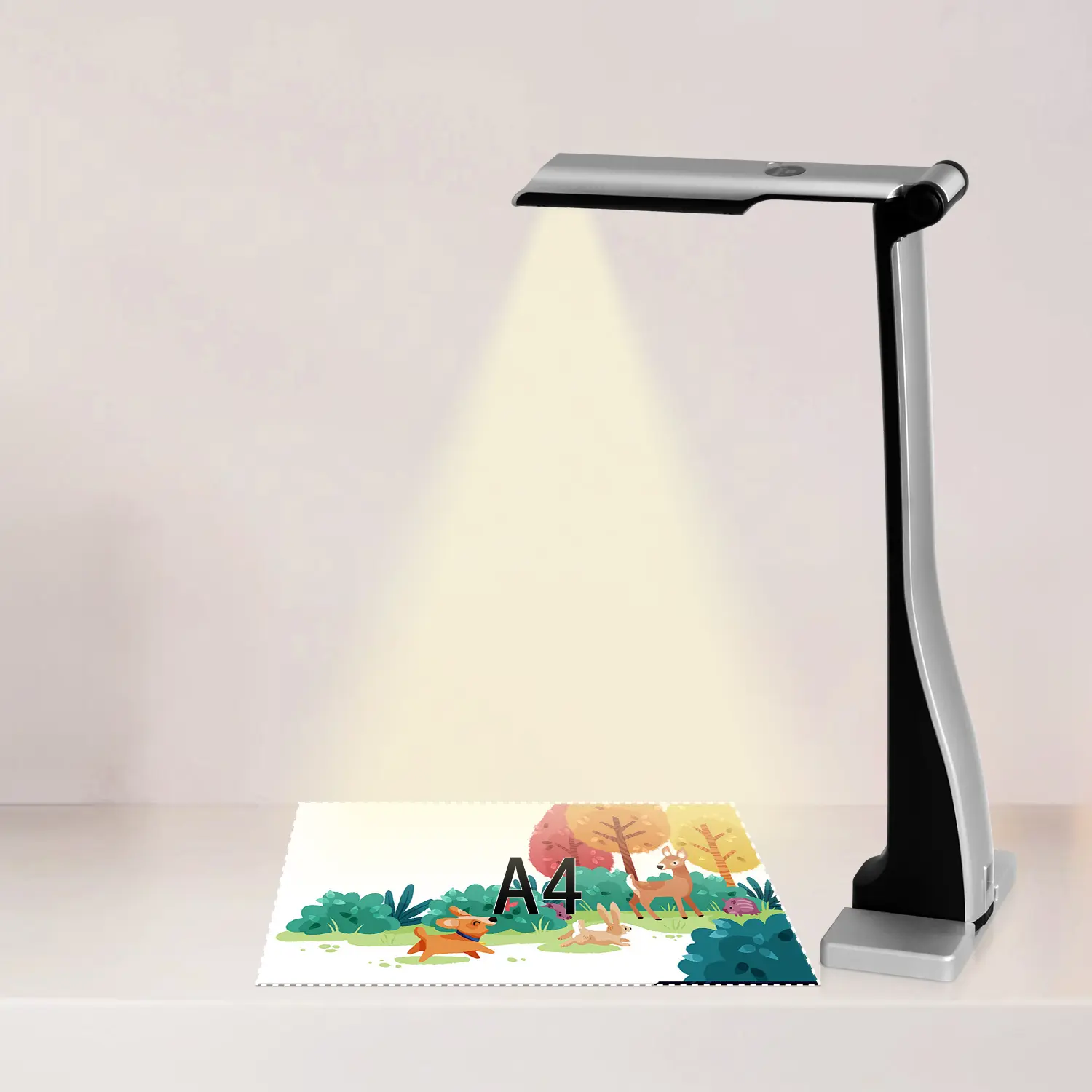
Portable Document Camera Recommendations
Classic Design, Exceptional Functionality: QPC 22 Document Camera
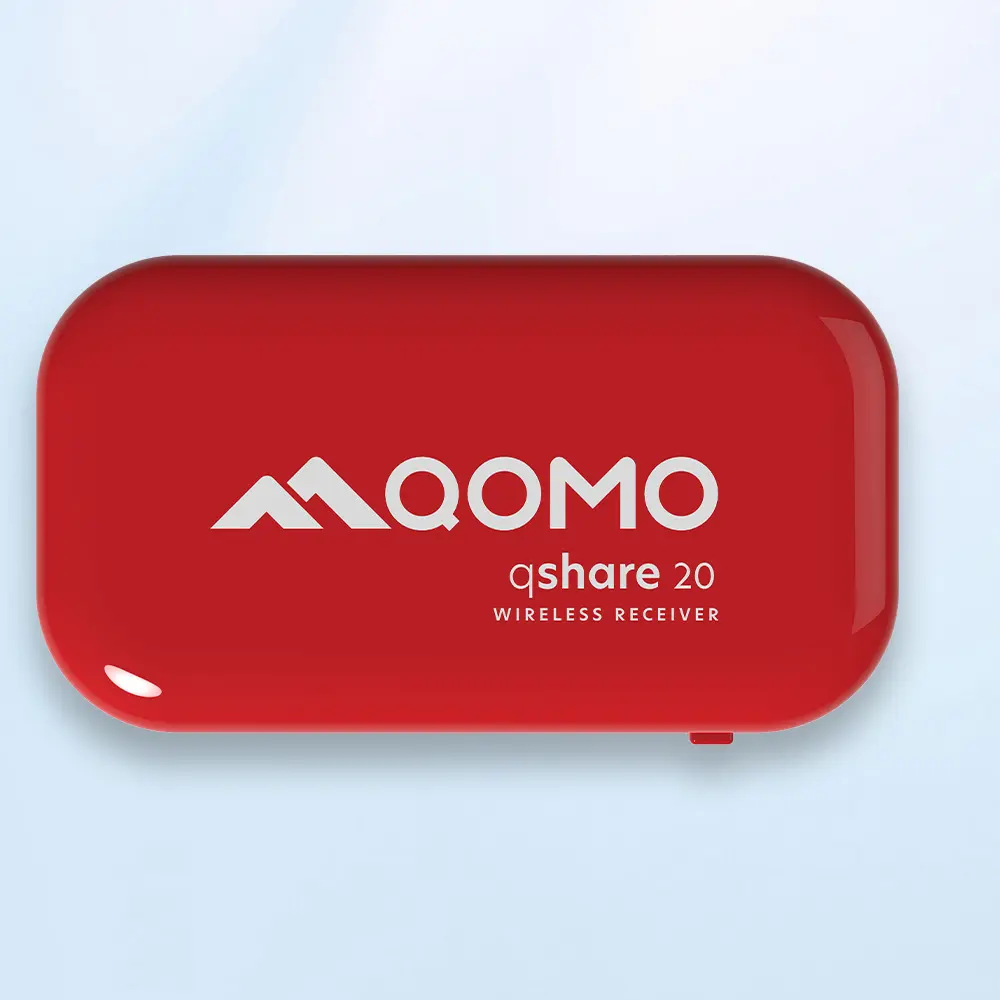
Wireless Screen Mirroring Solution for All Devices
Latest Audience Response System: QRF 999
Introducing the QPC 80H3 Gooseneck Document Camera
Creating a Smart Integrated Classroom: What Do You Need?
Wireless Connectivity Upgraded: WiFi-Free Wireless Document Receiver
Flow!Works Pro: Interactive Whiteboard Software for Engaging Classrooms
How to Choose the Perfect Document Camera and Elevate Productivity
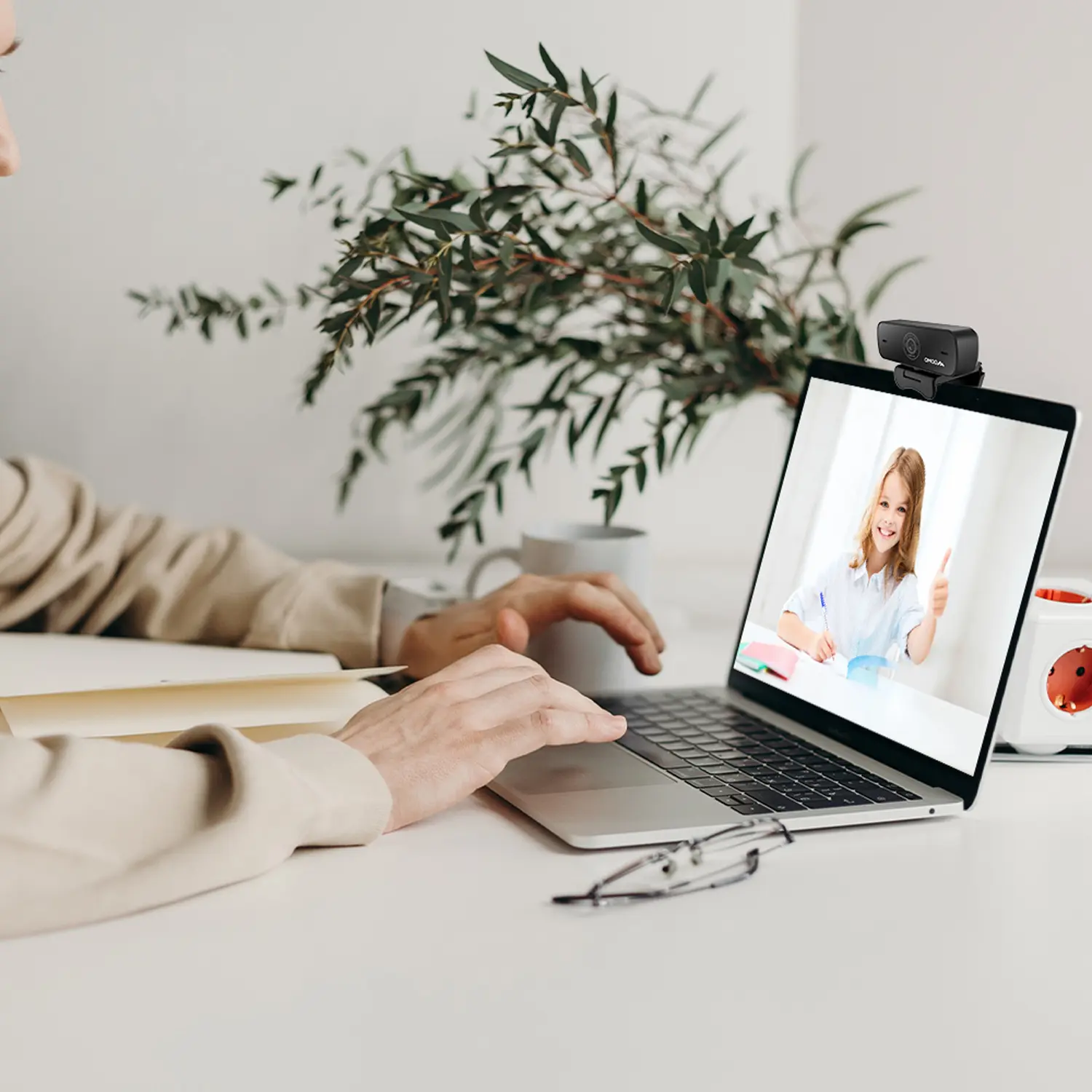
QWC 004 Conference Webcam: The Top Choice for Remote Education
QCamera: Dedicated Software for Document Cameras to Elevate Your Presentations
QRF999 Voice Response System: Enhancing Teacher-Student Interaction
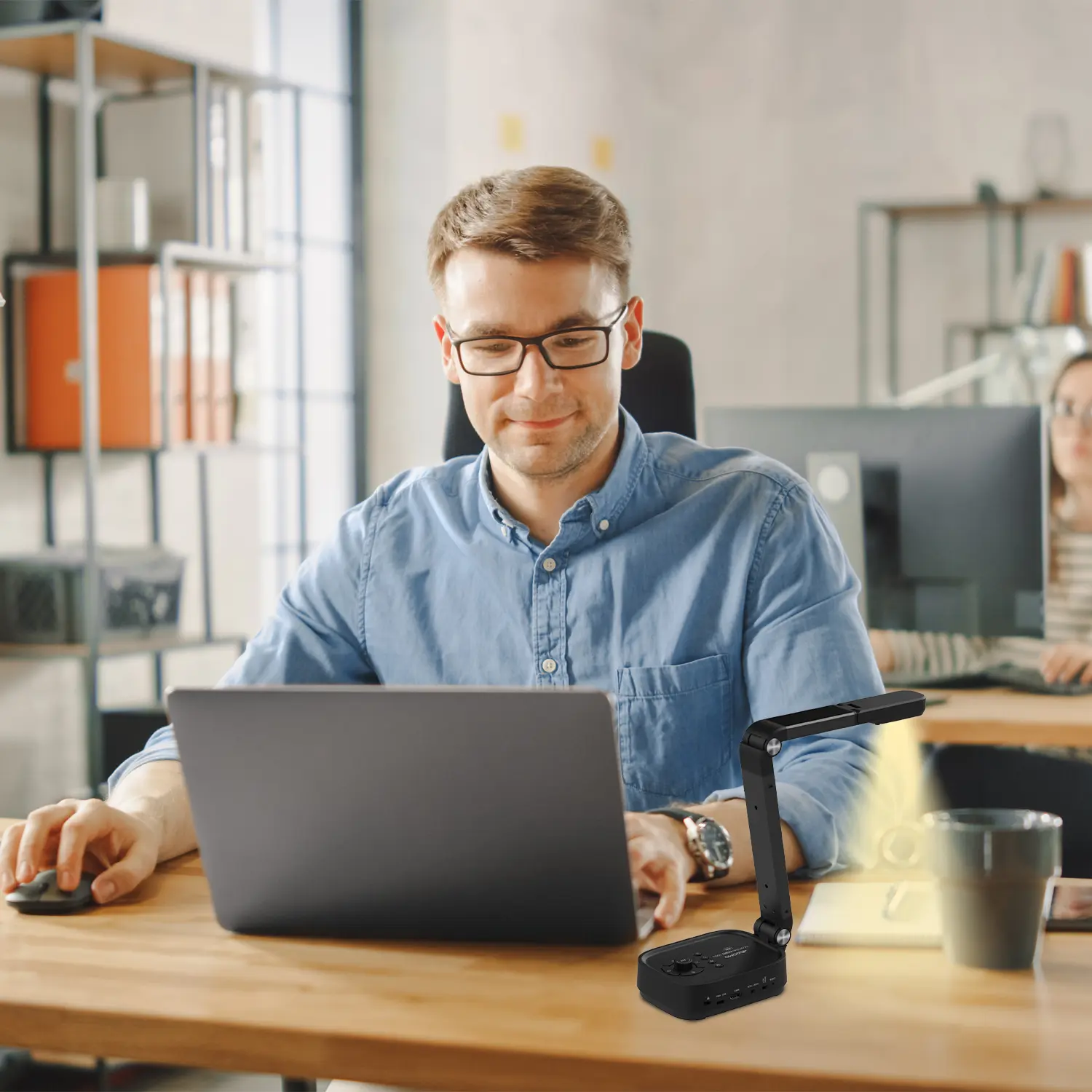
Work From Home? Maybe You Should Try This Document Camera
The Ultimate Educational Tool: Gooseneck Document Camera
60GHz Millimeter-Wave Wireless Screen Sharing: QShare 100
What Does a Modern Conference Room Need?
QD5000 Document Camera: Unimaginable Versatility!
QWC 004: The Most Cost-Effective Webcam
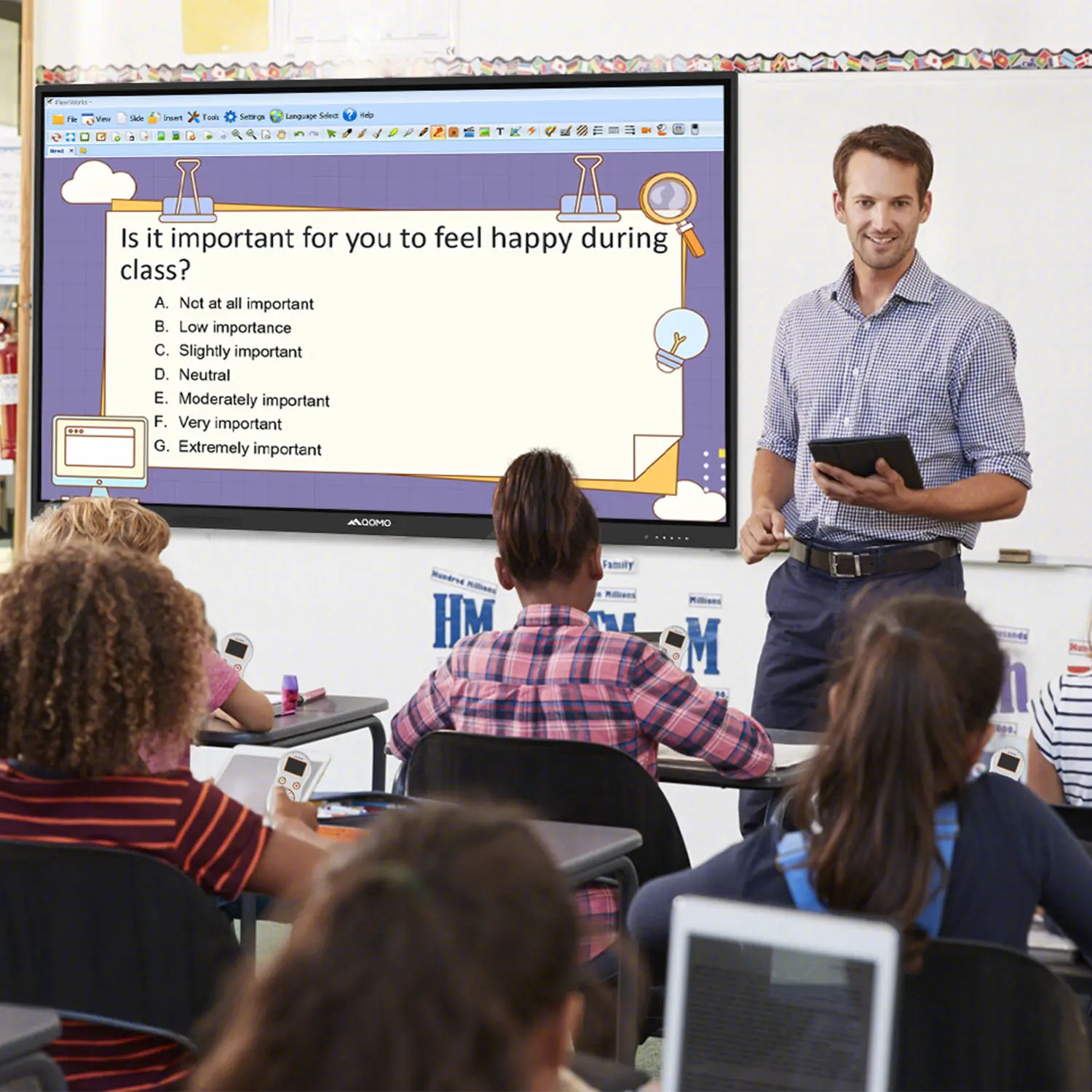
QVote Interactive Classroom Response System Software
Functionality, Aesthetics, Portability! Meet the QWC 100S Document Camera!
Why Choose the BundleBoard H/H2 Interactive Flat Panel?
Save Your Budget—Introducing the All-New QPC 70 Document Camera!
QIT 600F3: Revolutionize Your Presentations
QCamera: Professional Document Camera Software
QPC 5: The Ultimate 4K Portable Document Camera
Elevate Your Meetings in Seconds: QWC 006 Webcam
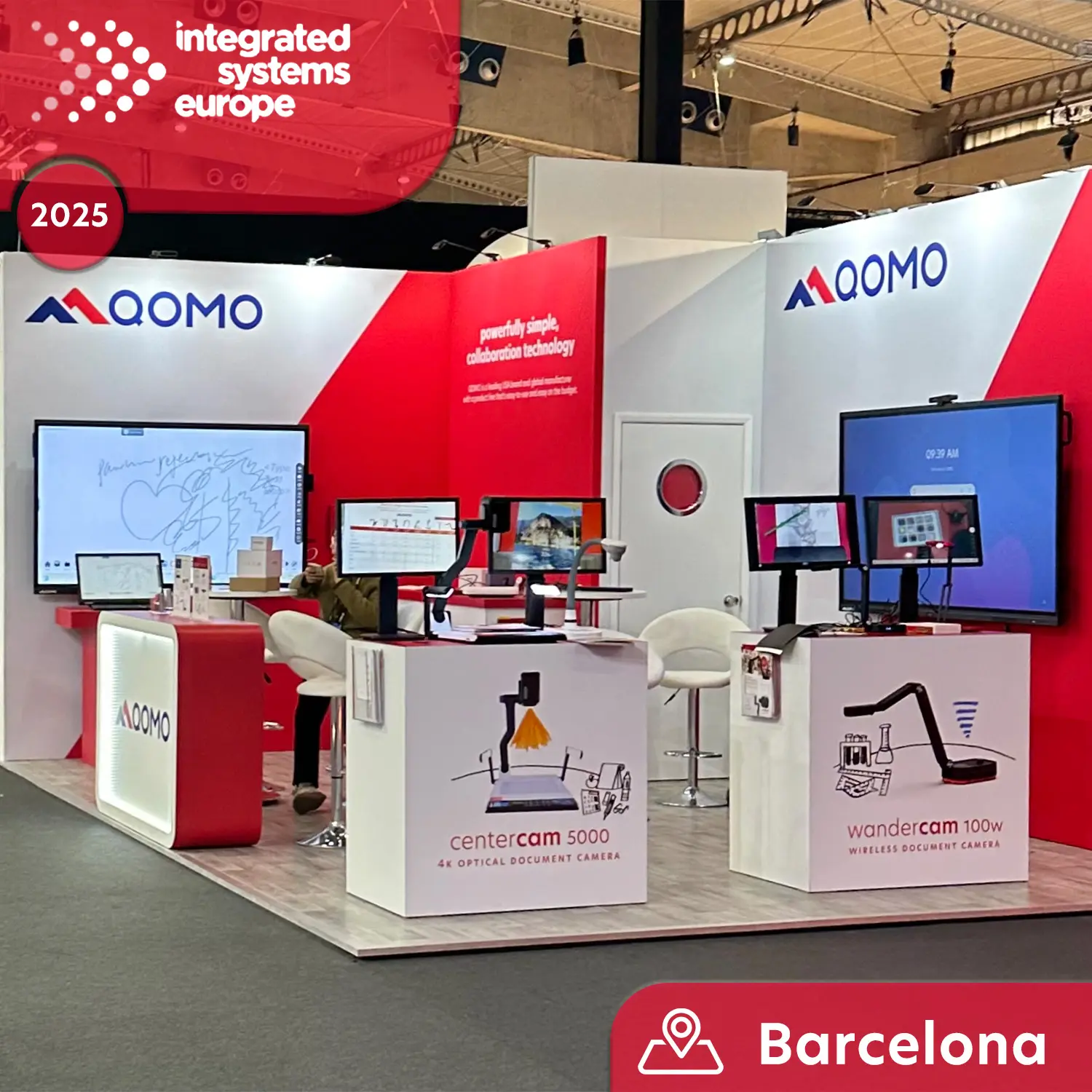
Meet QOMO at ISE 2025
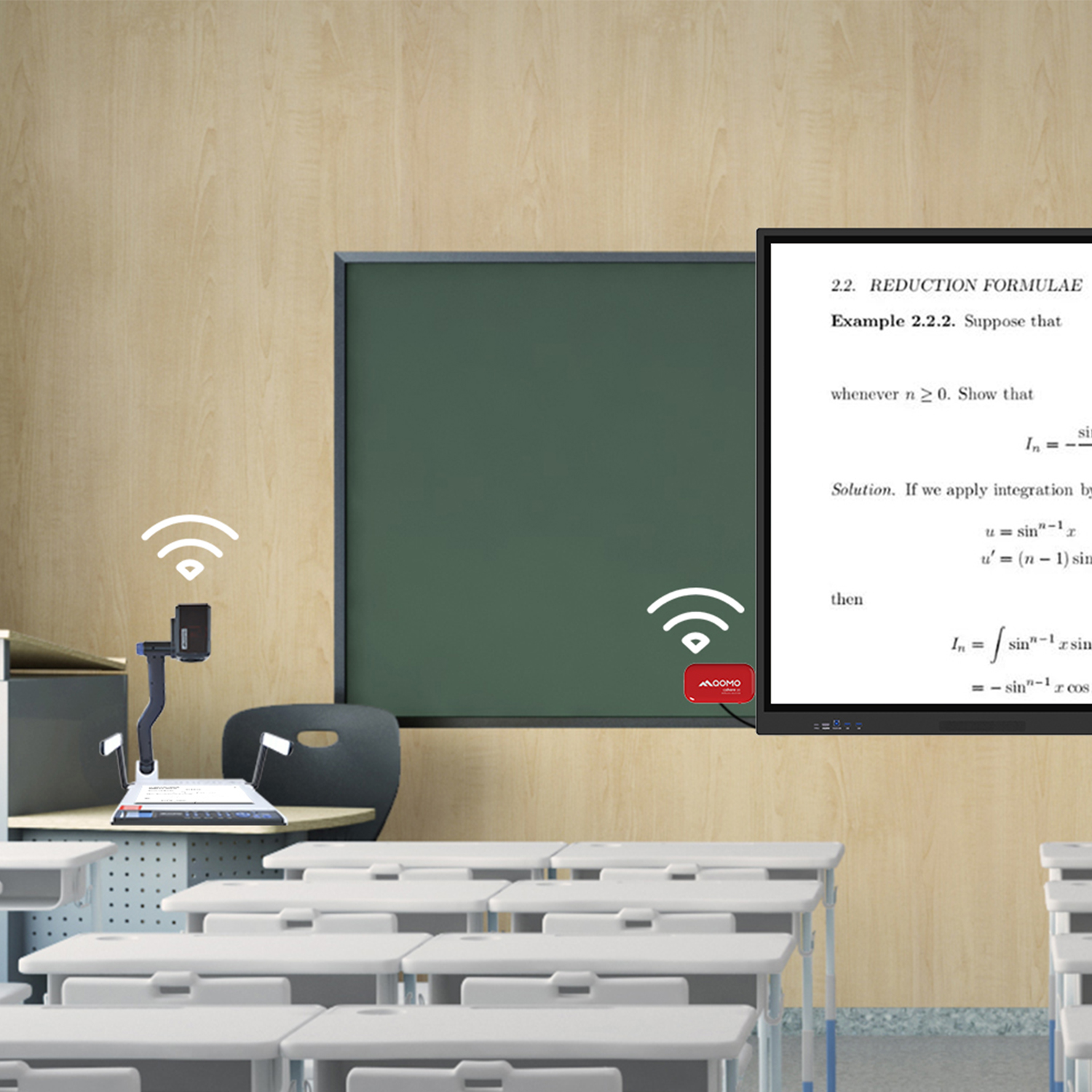
Wireless Document Camera Solution, Revolutionizing Wireless Technology
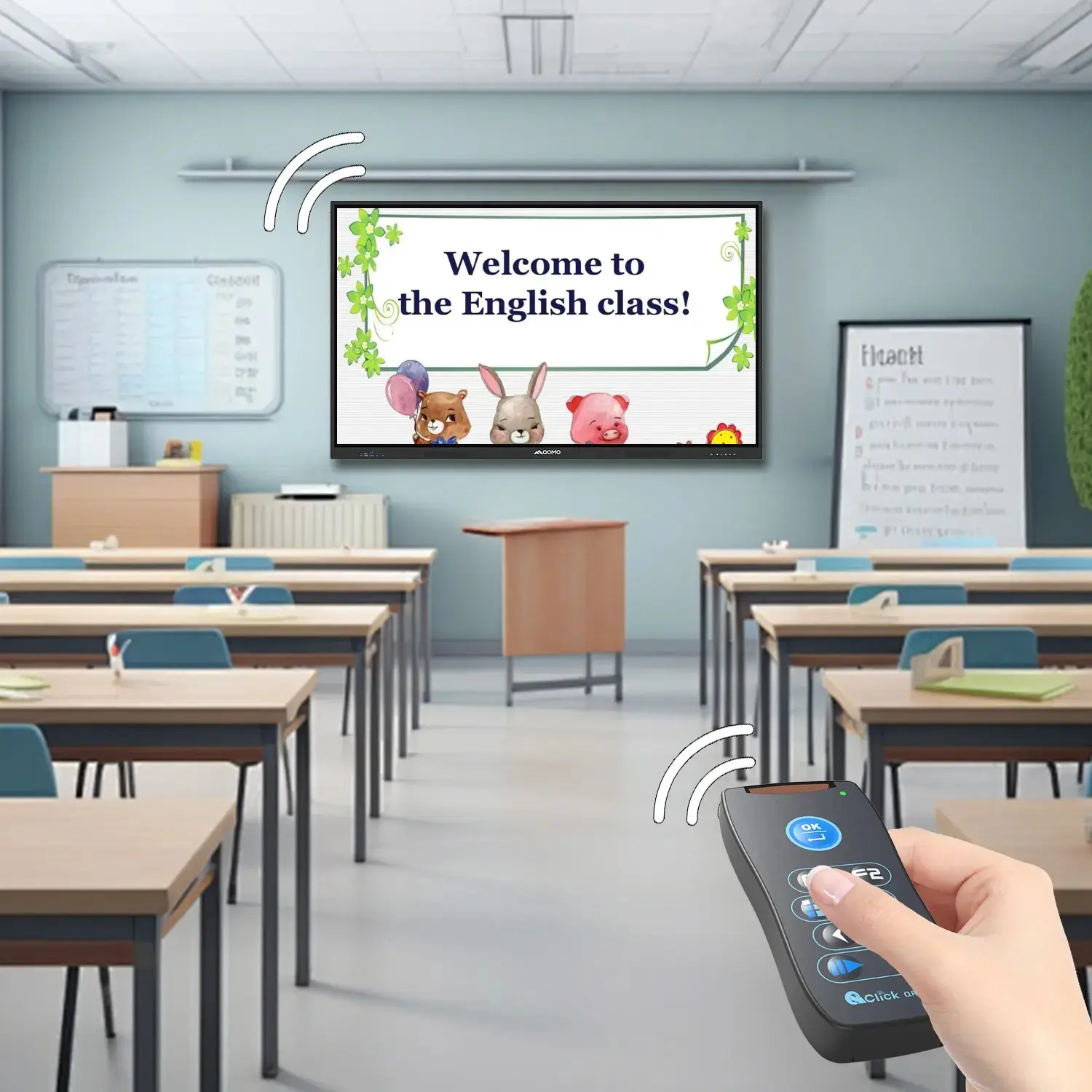
QRF Series, Transform Your Classroom!
QOMO, Building Intelligent Classrooms
QOMO QShare100 New Release
Outstanding Office Equipment Recommendations
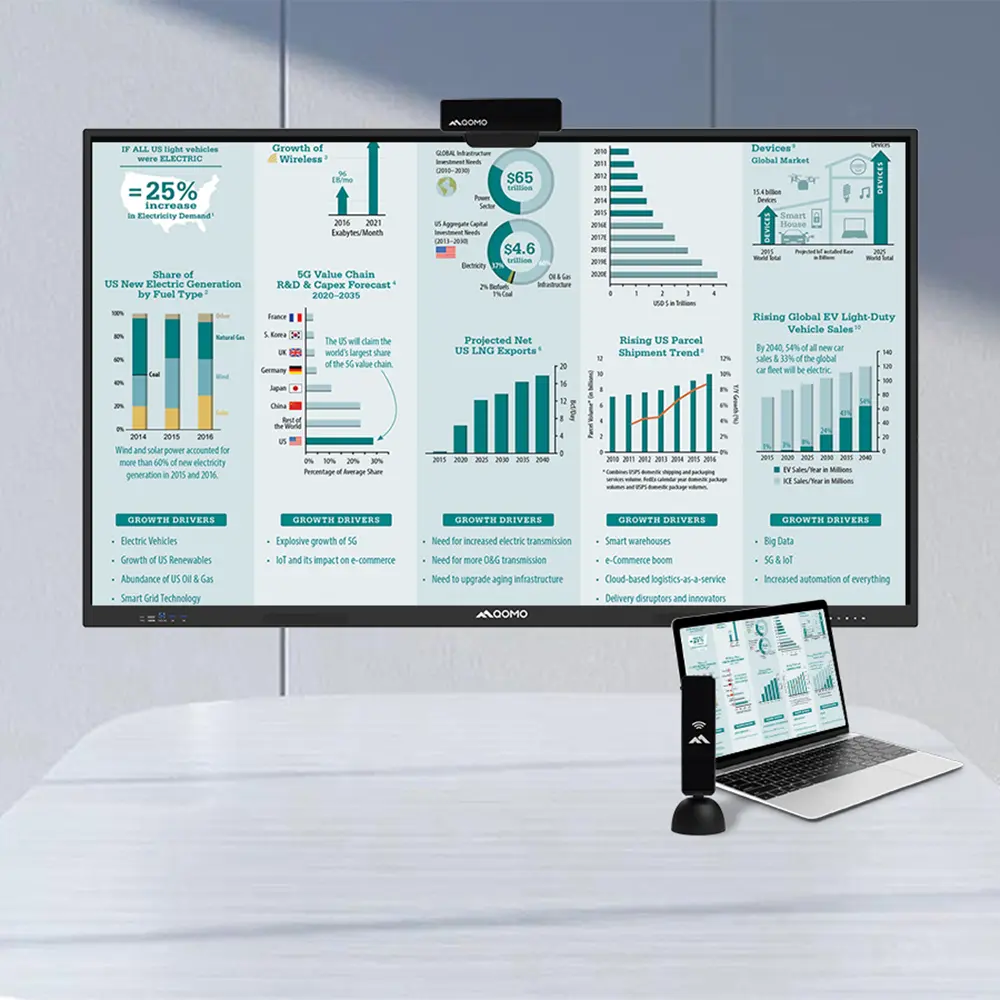
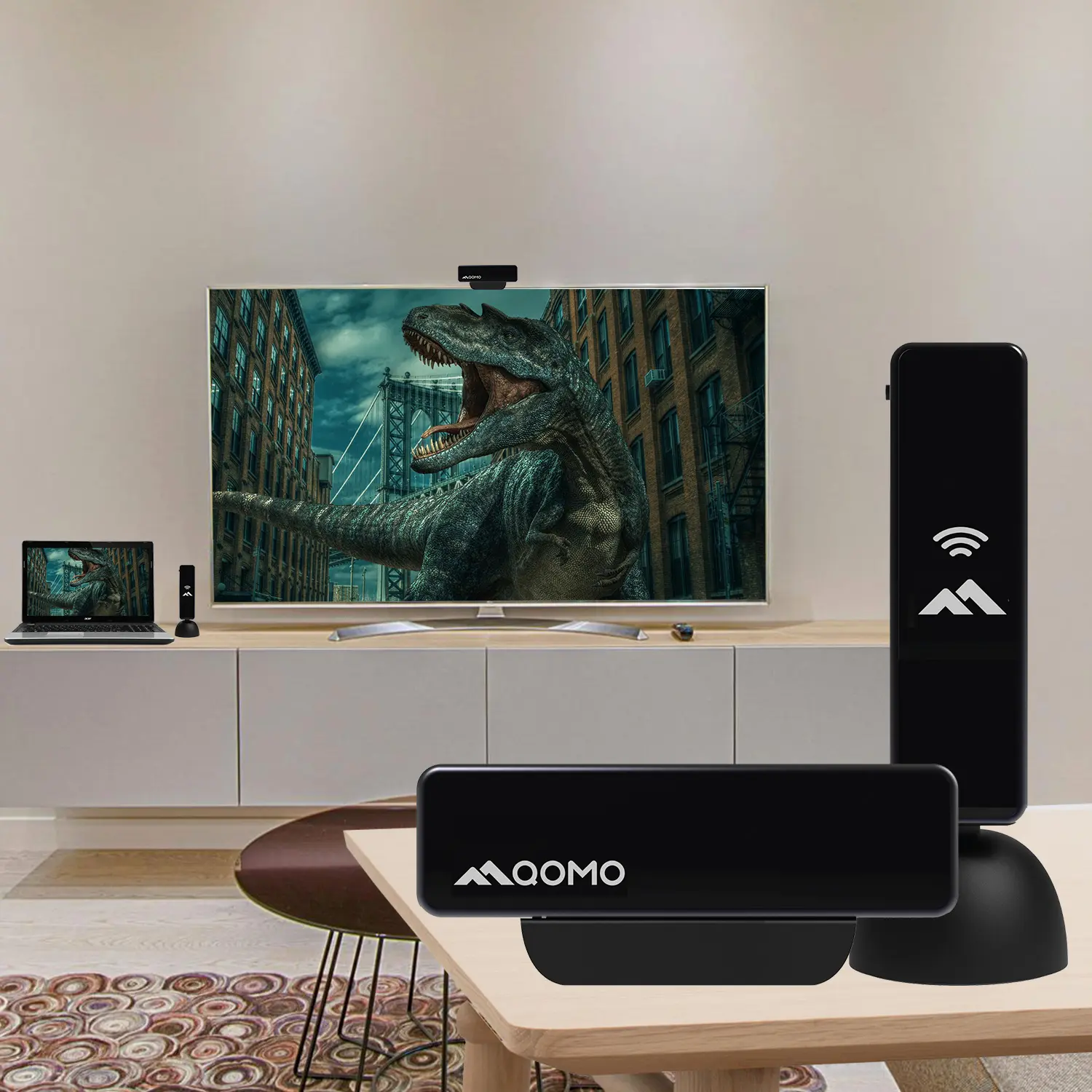
Screen mirroring technology has revolutionized the way we connect and share content between devices. According to a recent report by Statista, the global screen mirroring market is projected to grow significantly, reaching over $1 billion by 2025. This growth highlights the increasing popularity of connecting devices, especially the "Screen Mirroring Laptop To TV" capability.
Many individuals, especially remote workers and students, leverage this technology for enhanced productivity and entertainment. Connecting a laptop to a TV allows for larger displays, making presentations and streaming more enjoyable. The ability to share high-resolution images and videos from a laptop to a larger screen adds value to both professional and personal settings.
However, challenges remain in this technology. Compatibility issues and latency can negatively impact user experiences. Not every laptop and TV supports seamless mirroring, which requires users to invest time in finding the right equipment. This aspect raises questions about accessibility and usability for some demographics. Despite these hurdles, the benefits often outweigh the drawbacks, making screen mirroring a valuable tool for modern users.
Screen mirroring has become a vital tool for connecting laptops to TVs. Understanding its functionality can greatly enhance how we consume media and share content. The screen mirroring technology allows users to display their laptop screen on a larger TV screen seamlessly. As per a report from Statista, the global screen mirroring market is projected to reach $40 billion by 2028, reflecting its growing importance in multimedia experiences.
This technology uses protocols such as Miracast and Google Cast to enable connectivity. Users can simply connect their devices wirelessly, eliminating clutter from HDMI cables. In 2021, nearly 30% of households adopted screen mirroring solutions, according to research from eMarketer. This shift indicates a preference for convenience and portability in media consumption. Yet, some users face challenges with connectivity and latency. Such issues can lead to frustration, especially during important presentations or family gatherings.
While screen mirroring offers numerous advantages, it isn't flawless. Not every device is compatible, and the setup may vary. A report by Nielsen highlighted that 25% of users experience technical difficulties when mirroring screens. These experiences can serve as reminders that technology, while beneficial, isn't always seamless. Consequently, being informed about potential hiccups can help manage expectations and improve user experience.
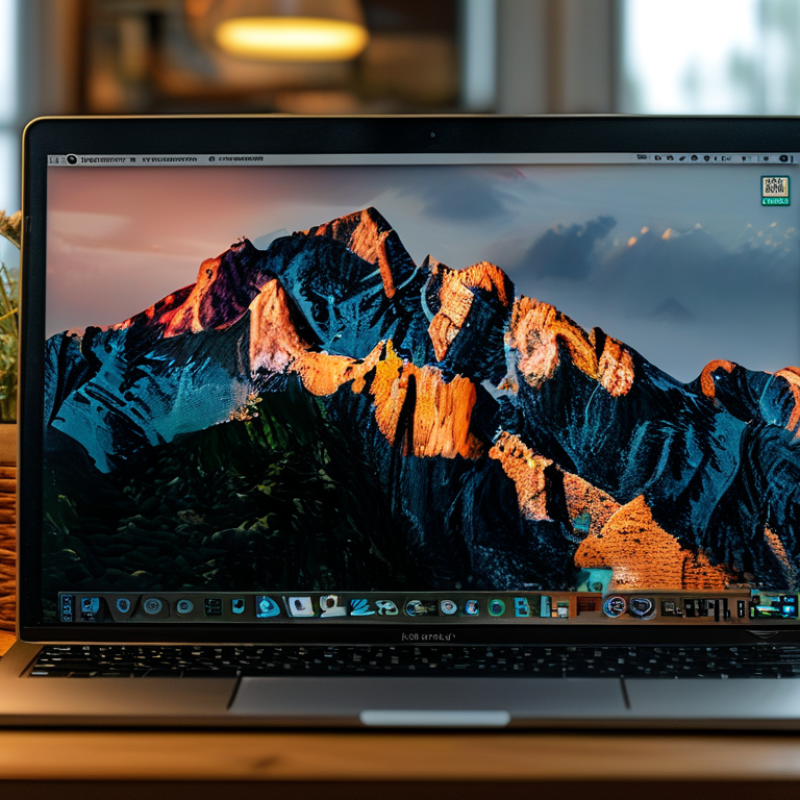
Screen mirroring has become a popular way to connect laptops to TVs. This method allows users to display their laptop screens on larger screens easily. It enhances the viewing experience significantly. Watching movies, playing games, or giving presentations becomes more engaging on a bigger platform.
One of the primary benefits is convenience. You can share your screen wirelessly without cumbersome cables. This feature makes it easier to move around while presenting. It’s a seamless way to showcase your work during meetings. However, depending on your Wi-Fi connection, you might face lag issues. This inconsistency can disrupt your flow, especially during important moments.
Another advantage is the ability to enjoy multimedia content. Streaming films or series on a larger screen is more enjoyable. The visual clarity and sound quality improve significantly. Yet, not all laptops or TVs support this feature equally. Sometimes, compatibility issues can arise. Checking device specifications in advance can save you time and frustration.
Screen mirroring allows you to display your laptop screen on your TV. This is a great way to enjoy movies, shows, and presentations on a larger screen. Setting up screen mirroring can seem daunting, but it’s straightforward if you follow some clear steps.
To begin, ensure both your laptop and TV are connected to the same Wi-Fi network. This is essential for the connection to work. Next, on your laptop, locate the display settings. Depending on your operating system, you may find an option like "Project" or "Cast." Click on this option to see available devices. Select your TV from the list, and voila, you should see your screen mirrored!
Here’s a tip: Before you start, check your TV’s settings. Some TVs may require enabling screen mirroring in their menus. This small adjustment can save time later. Also, make sure your laptop’s screen resolution matches your TV for the best quality. It’s important to test this connection before any important presentation or family movie night. You want everything to run smoothly!
Don’t forget, troubleshoot common issues like lag or disconnection. A simple restart of both devices can often fix these problems. It’s also helpful to keep your software updated. An outdated driver can cause frustrations that might be avoided. Enjoy the convenience of screen mirroring, but always stay prepared for minor hiccups along the way.
| Feature | Description | Benefits |
|---|---|---|
| Wireless Connection | Eliminates the need for HDMI cables and clutter. | Convenience and flexibility in device placement. |
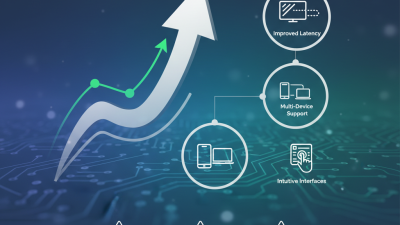
| Multi-device Support | Allows various devices to connect, such as laptops, tablets, and smartphones. | Versatility in usage across different platforms. |
| High-Quality Display | Supports high-definition mirroring. | Enhanced viewing experience for videos and presentations. |
| Easy Setup | Quick connection process with few steps. | Saves time and effort when connecting devices. |
| Screen Sharing | Share content like games, websites, or apps on a larger screen. | Ideal for group activities, making it social and interactive. |
Screen mirroring offers an easy way to display your laptop screen on a larger TV. However, users often encounter common issues that can cause frustration. Connectivity problems, such as Wi-Fi instability, are frequent culprits. An erratic signal can lead to lagging images and dropped connections. Checking your network strength can help, but sometimes, simply rebooting your router fixes the problem.
Another common issue is resolution mismatches. If the display quality is subpar, try adjusting the settings on your laptop. Often, the TV may not automatically adjust to your desired resolution. Experimenting with different display settings can yield better results. Remember, not all laptops are optimized for screen mirroring. Compatibility issues may arise, leaving users disappointed.
Lastly, users should be aware that audio may not sync perfectly with the video. This can detract from the overall viewing experience. Testing the audio settings before starting any presentation or movie can save time later. Troubleshooting these issues can enhance your screen mirroring experience, allowing for seamless connection and entertainment.
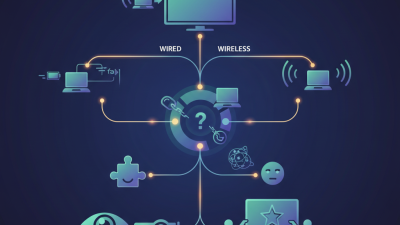
Connecting your laptop to a TV can enhance your viewing experience. While screen mirroring is popular, alternative methods offer flexibility.
One option is using an HDMI cable. It provides a direct connection with high-quality audio and video output. Simply plug one end into your laptop and the other into your TV. This method is simple, but it can limit where you sit.
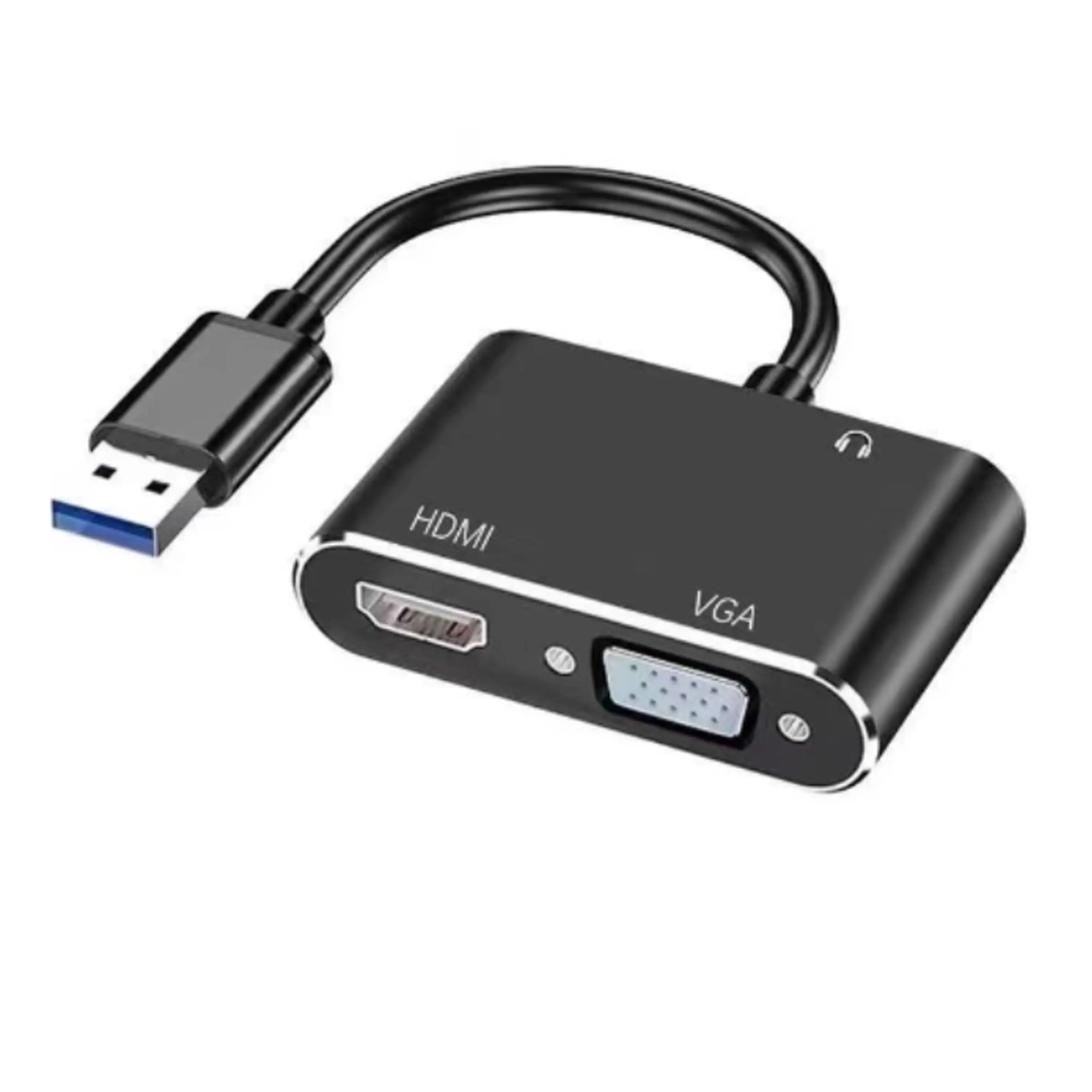
Another method is using a VGA or DVI connection. If your laptop has these ports, you can use them. Connect with the appropriate cable for your devices. However, note that these connections often require a separate audio cable for sound. This adds complexity to the setup.
Tips: Check compatibility between your devices. This will save time and prevent frustration. Keep your cables tidy to avoid tripping hazards. A neat setup improves safety and aesthetics. Be aware that wireless methods, while convenient, can introduce lag. Consider your needs before choosing a connection method.