+86 152 8002 3723
QVoteProfessional Audience Response System software offers the most convenient functions for your interactions.
QClickThe most convenient educational software for working with Microsoft PowerPoint to quickly set up various question types and generate intelligent feedback reports.
QCameraQCamera by QOMO allows for real-time streaming from cameras and document cameras. Annotate, save snapshots, record, and manipulate camera images instantly.
Flow!Works ProUser - friendly whiteboard software, it encompasses a wide range of presentation tools and powerful functions, delivering the most professional presentation experience to you.
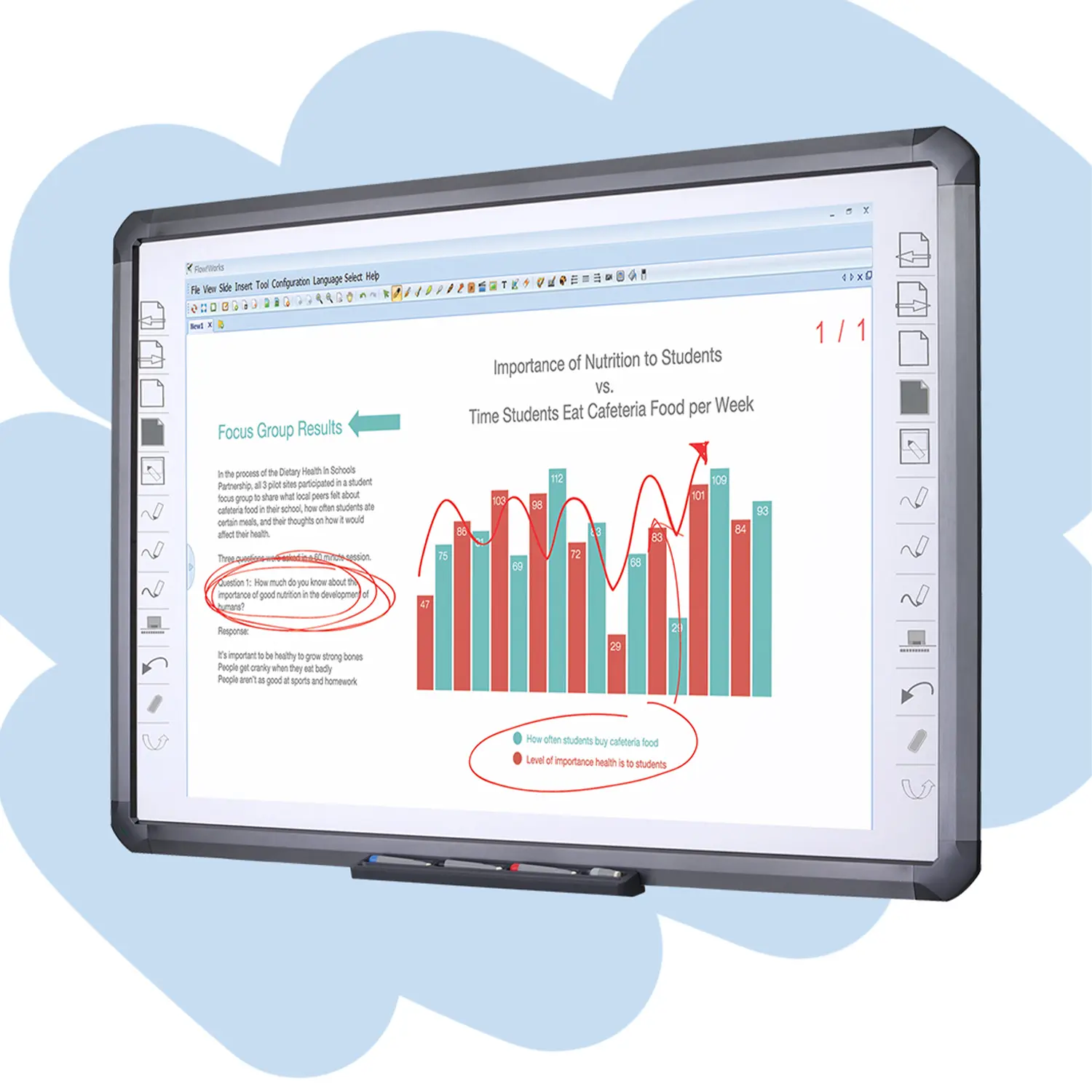
Flow!WorksFlow!Works incorporates more educational tools, further enhancing the interactivity and fun - factor of your teaching.
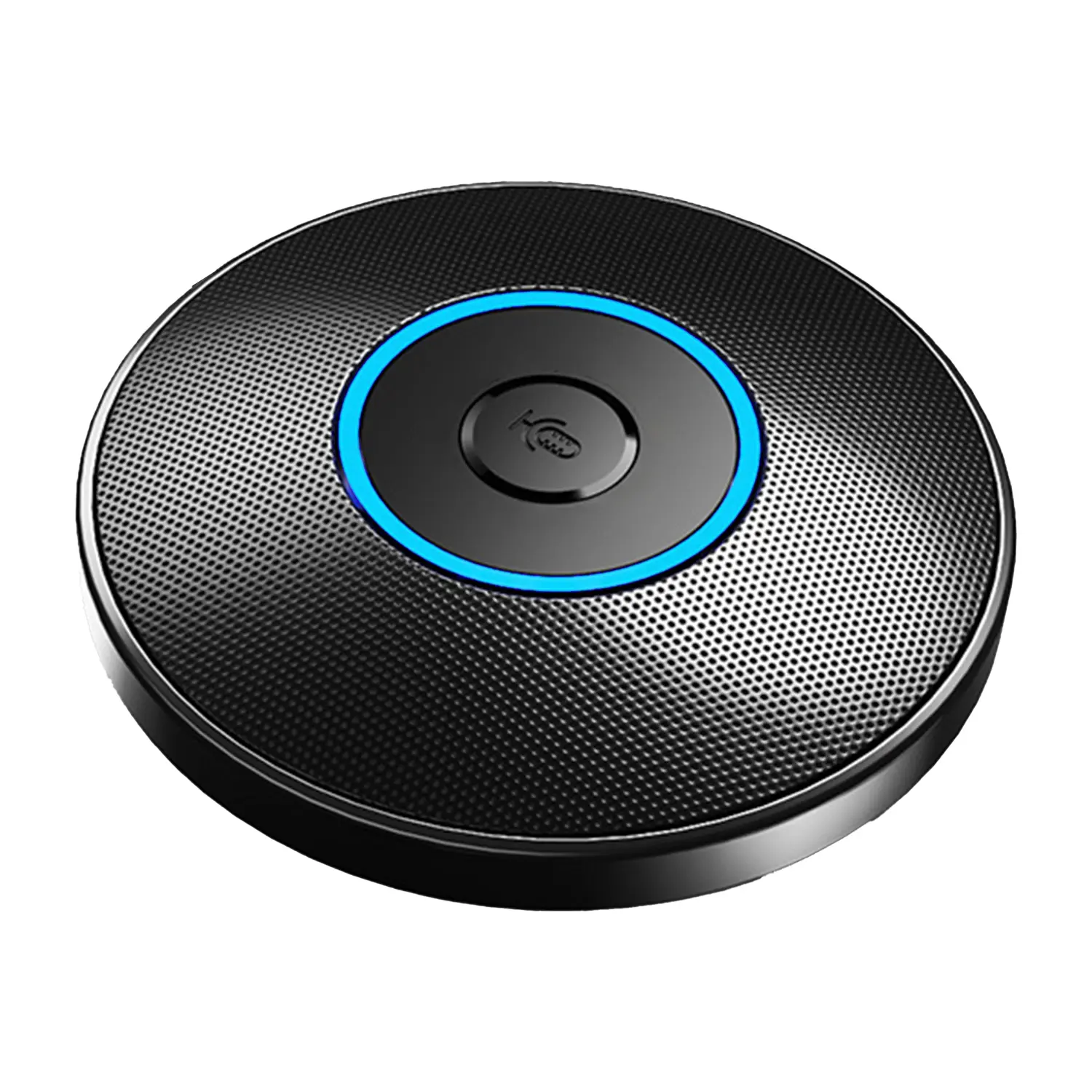
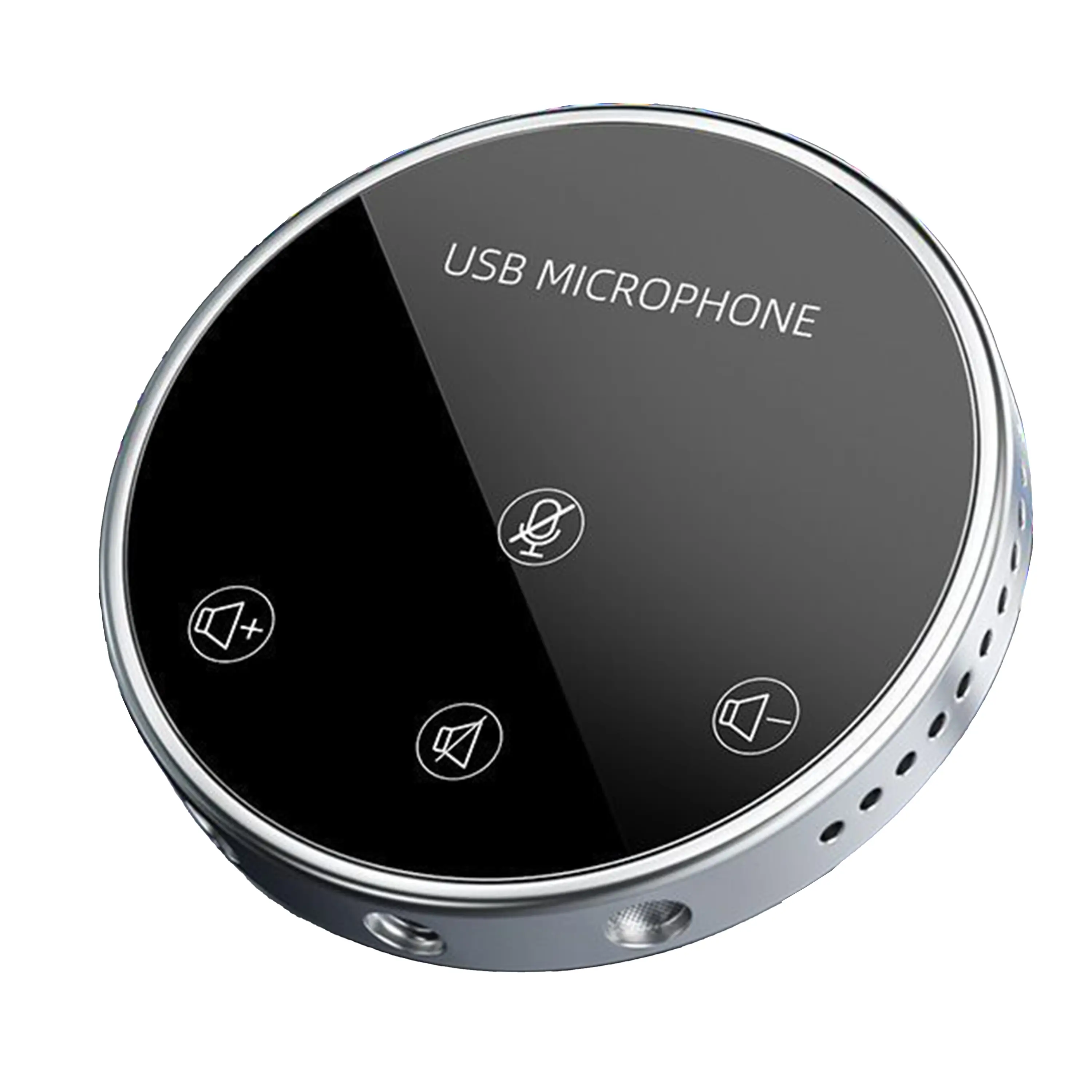
Conference Microphone● USB
● Plug and Play
● Intelligent Noise-Canceling
● 10ft/3m Extended Pickup Range
● 360° Omnidirectional Pickup
Conference Speakerphone● USB-C
● Plug and Play
● Intelligent Noise-Canceling
● 10ft/3m Extended Pickup Range
● 360° Omnidirectional Pickup
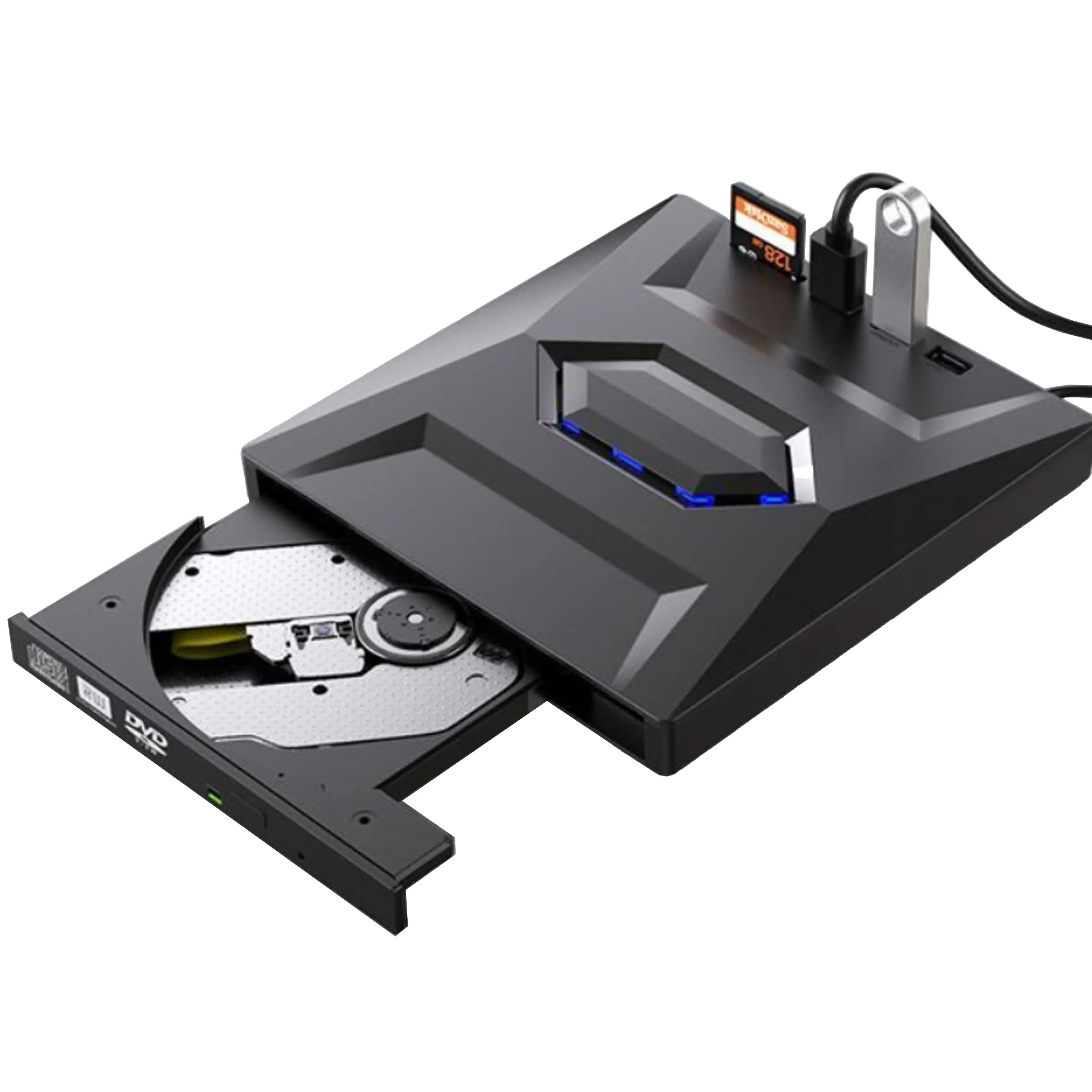
USB External CD/DVD Drive• USB and USB-C
• USB 3.0
• 8x DVD and 24x CD write/read speeds
• Portable
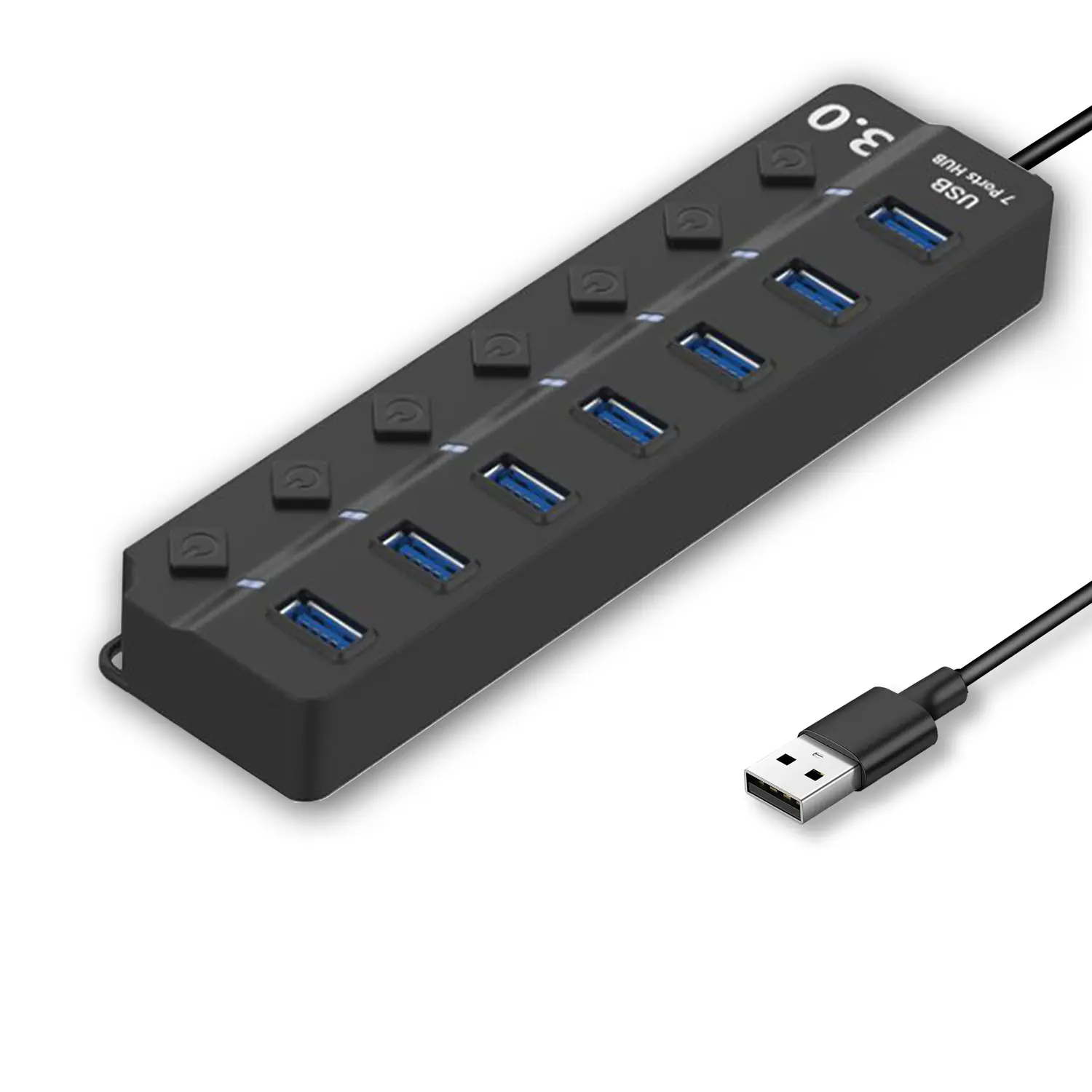
7-Port USB 3.0 Hub● USB 3.0
● Plug and Play
● 7-in-1 USB Hub
● Individual On/Off Switches
Revolutionize Your Presentations and Document Display with QWC 100S Document Camera
Enhance Call Experience: New Conference Microphone Now Available
AI-Powered Face-Tracking Webcam
Portable Document Camera Recommendations
Classic Design, Exceptional Functionality: QPC 22 Document Camera
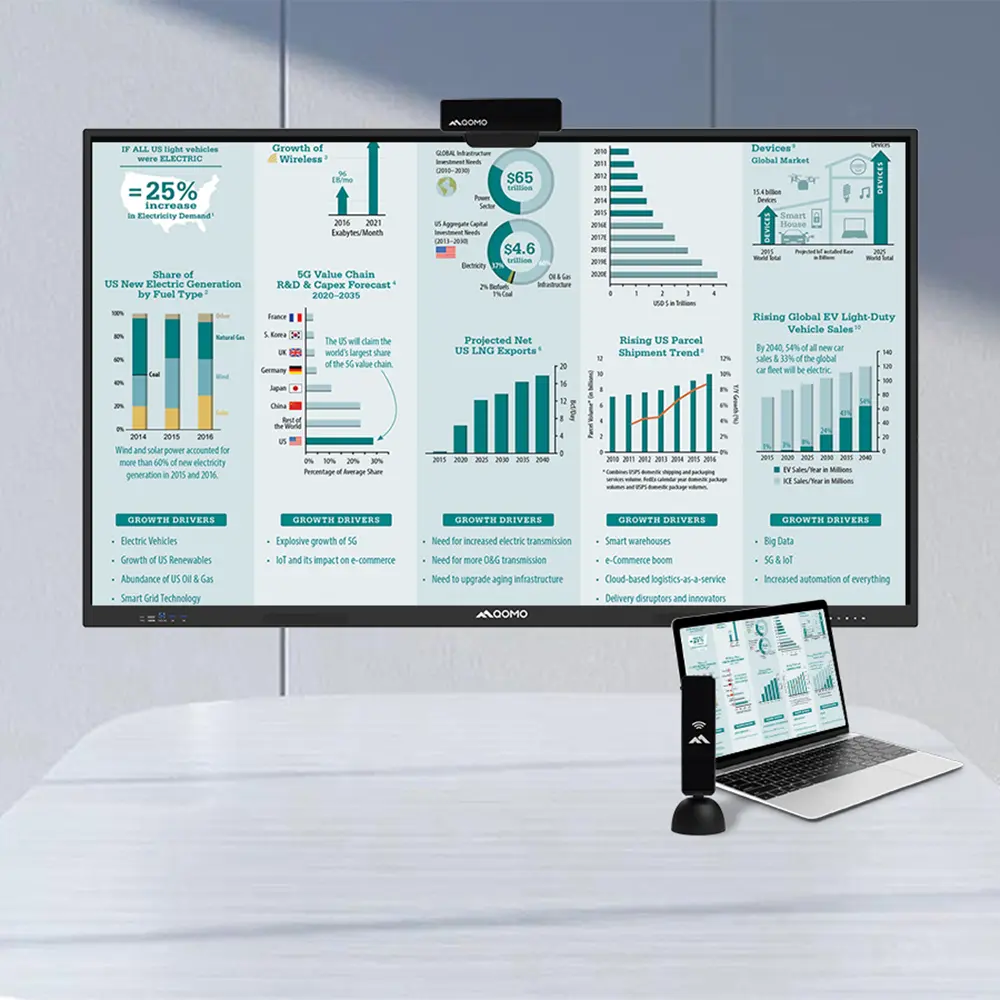
Wireless Screen Mirroring Solution for All Devices
Latest Audience Response System: QRF 999
Introducing the QPC 80H3 Gooseneck Document Camera
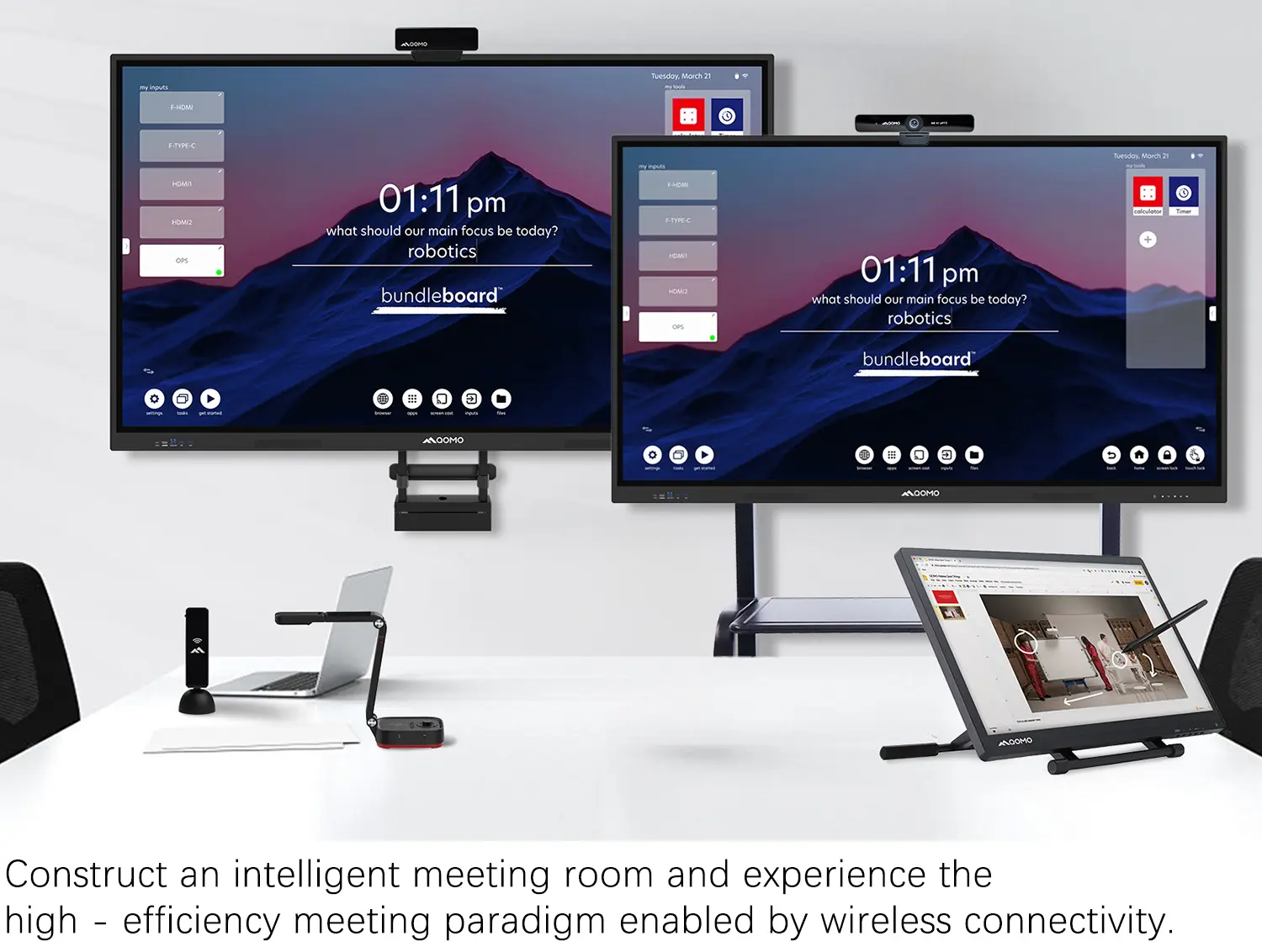
Creating a Smart Integrated Classroom: What Do You Need?
Wireless Connectivity Upgraded: WiFi-Free Wireless Document Receiver
Flow!Works Pro: Interactive Whiteboard Software for Engaging Classrooms
How to Choose the Perfect Document Camera and Elevate Productivity
QWC 004 Conference Webcam: The Top Choice for Remote Education
QCamera: Dedicated Software for Document Cameras to Elevate Your Presentations
QRF999 Voice Response System: Enhancing Teacher-Student Interaction
Work From Home? Maybe You Should Try This Document Camera
The Ultimate Educational Tool: Gooseneck Document Camera
60GHz Millimeter-Wave Wireless Screen Sharing: QShare 100
What Does a Modern Conference Room Need?
QD5000 Document Camera: Unimaginable Versatility!
QWC 004: The Most Cost-Effective Webcam
QVote Interactive Classroom Response System Software
Functionality, Aesthetics, Portability! Meet the QWC 100S Document Camera!
Why Choose the BundleBoard H/H2 Interactive Flat Panel?
Save Your Budget—Introducing the All-New QPC 70 Document Camera!
QIT 600F3: Revolutionize Your Presentations
QCamera: Professional Document Camera Software
QPC 5: The Ultimate 4K Portable Document Camera
Elevate Your Meetings in Seconds: QWC 006 Webcam
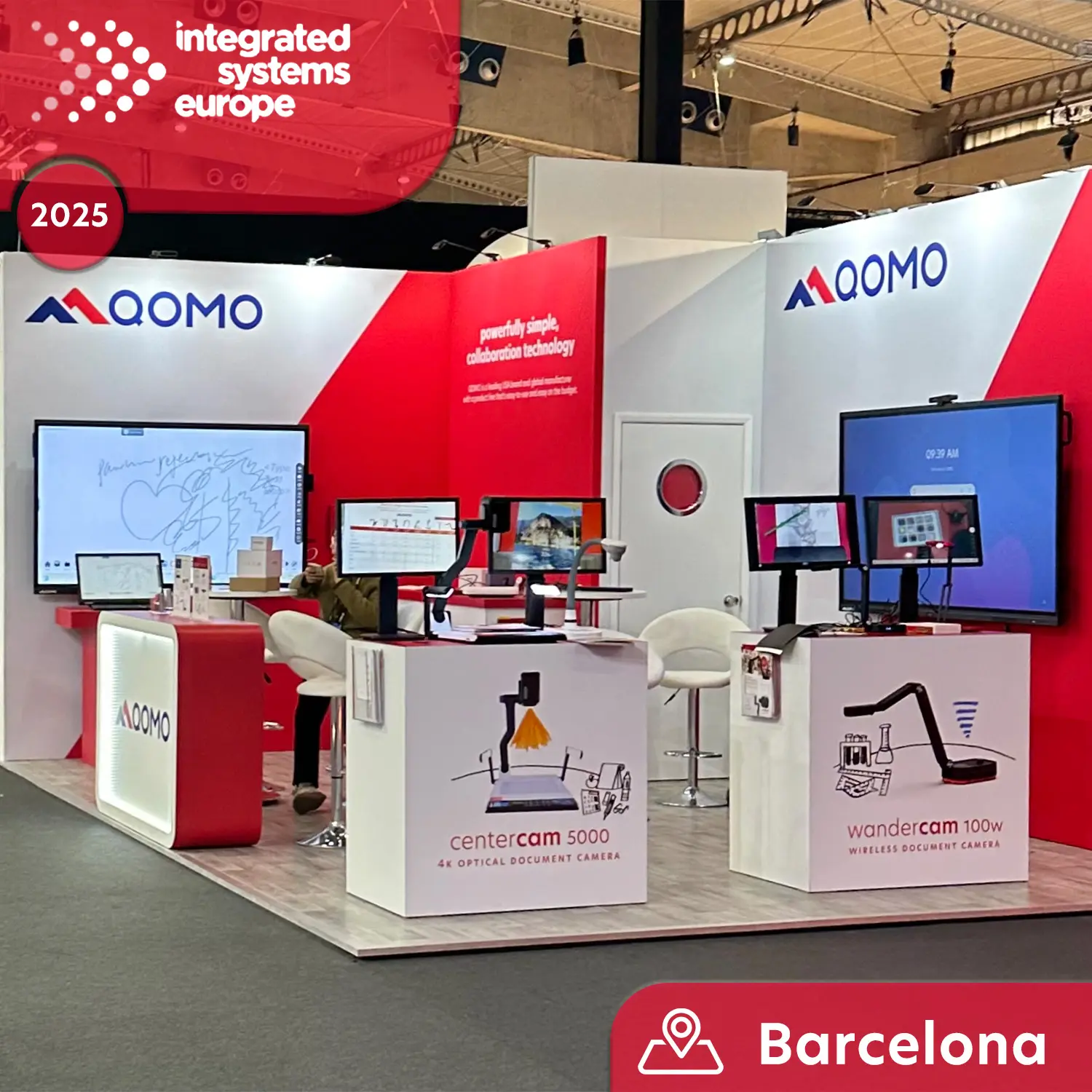
Meet QOMO at ISE 2025
Wireless Document Camera Solution, Revolutionizing Wireless Technology
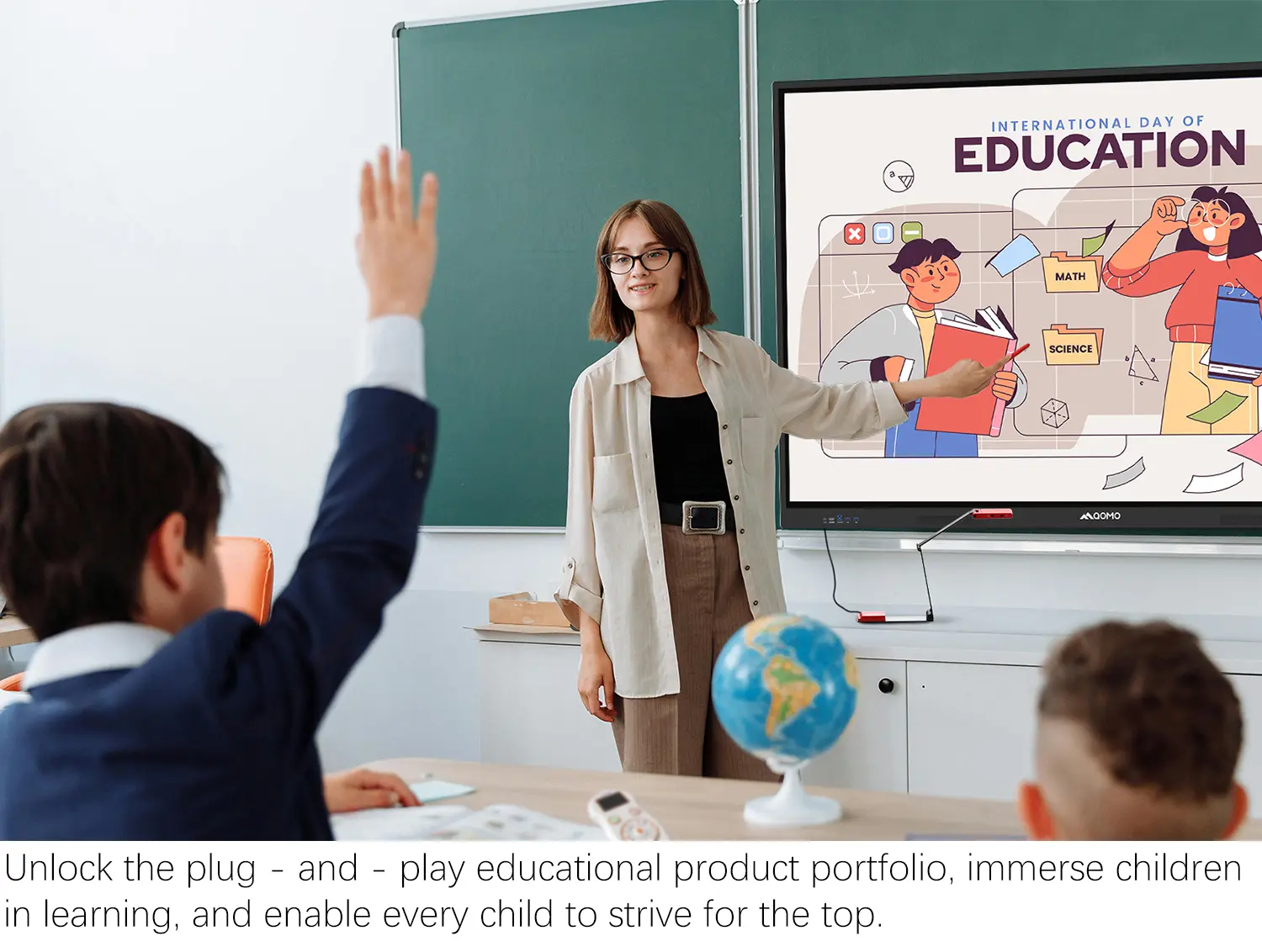
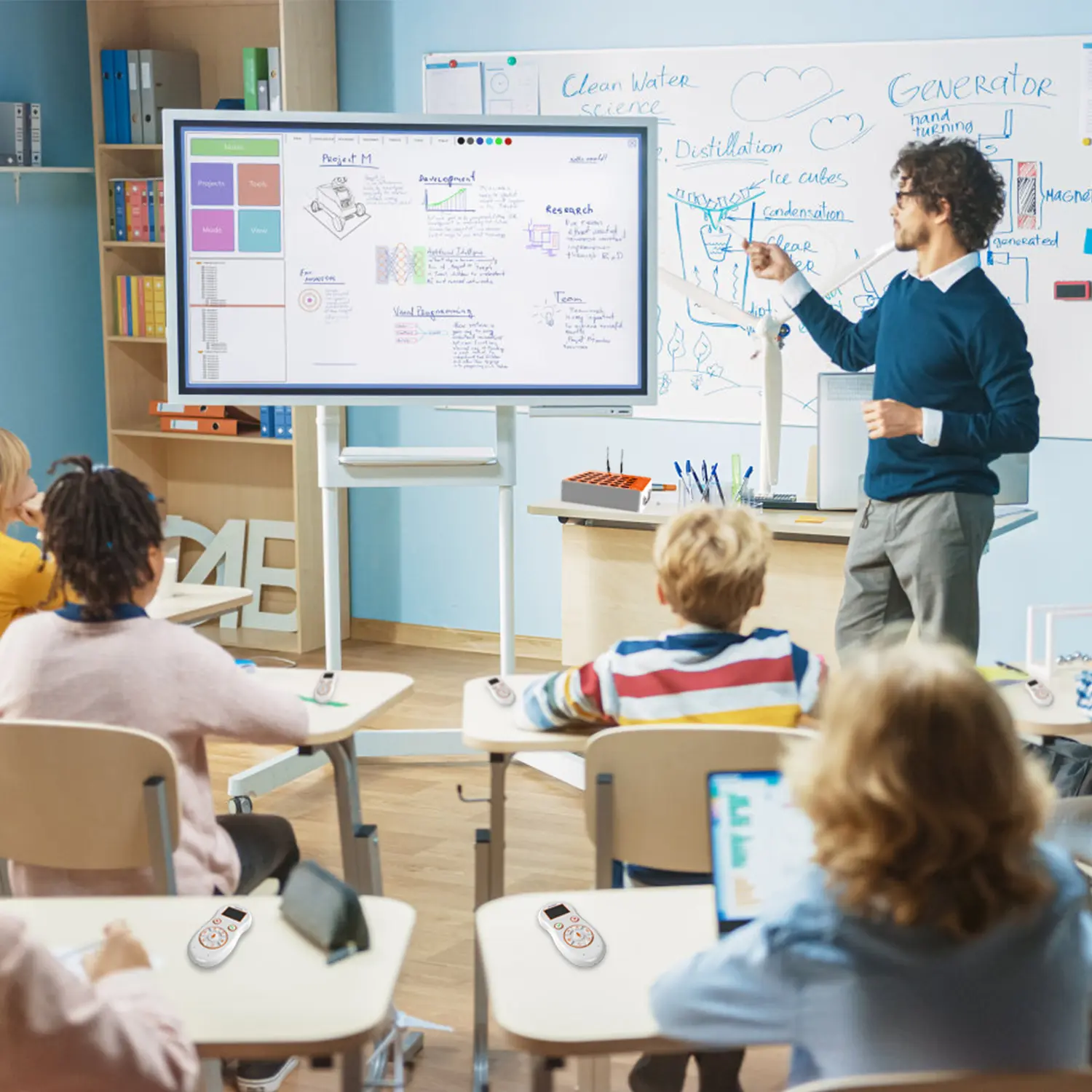
QRF Series, Transform Your Classroom!
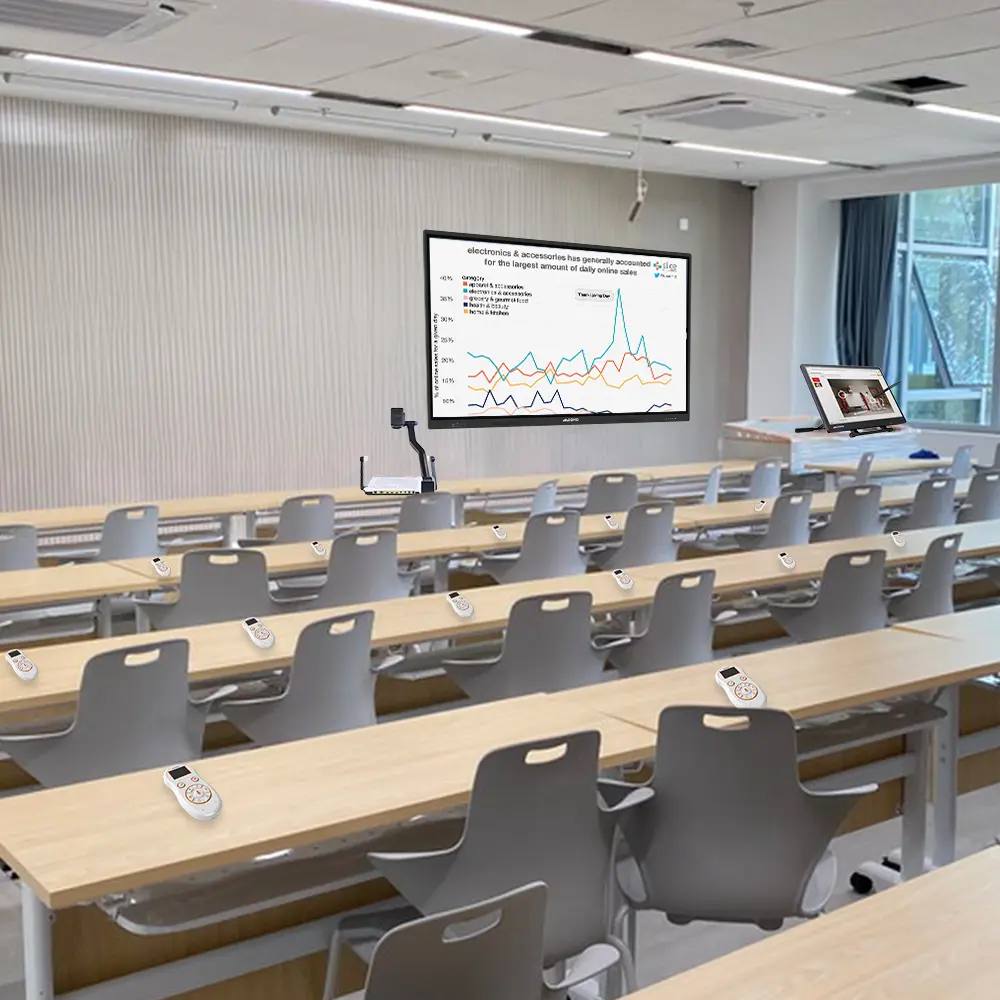
QOMO, Building Intelligent Classrooms
QOMO QShare100 New Release
Outstanding Office Equipment Recommendations
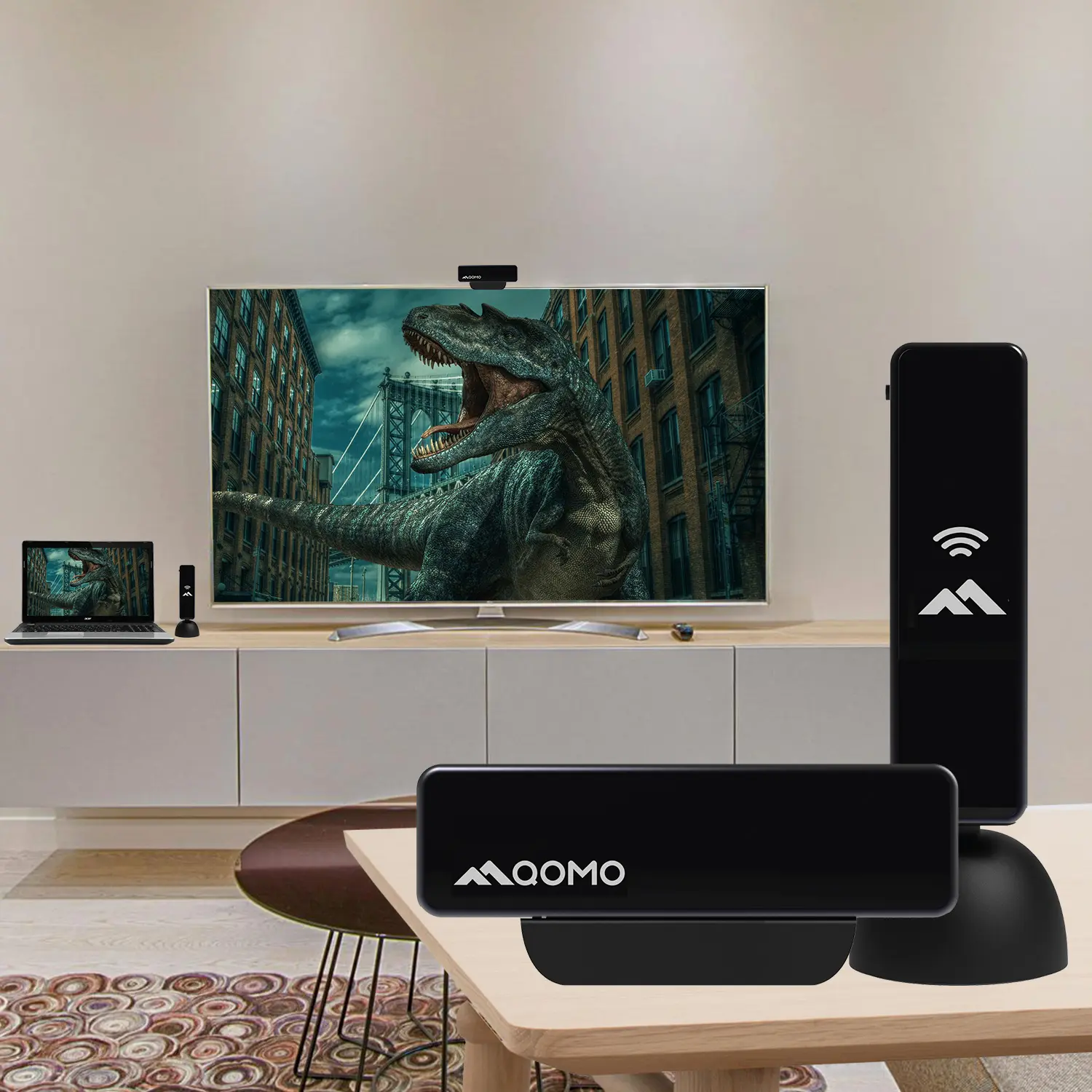
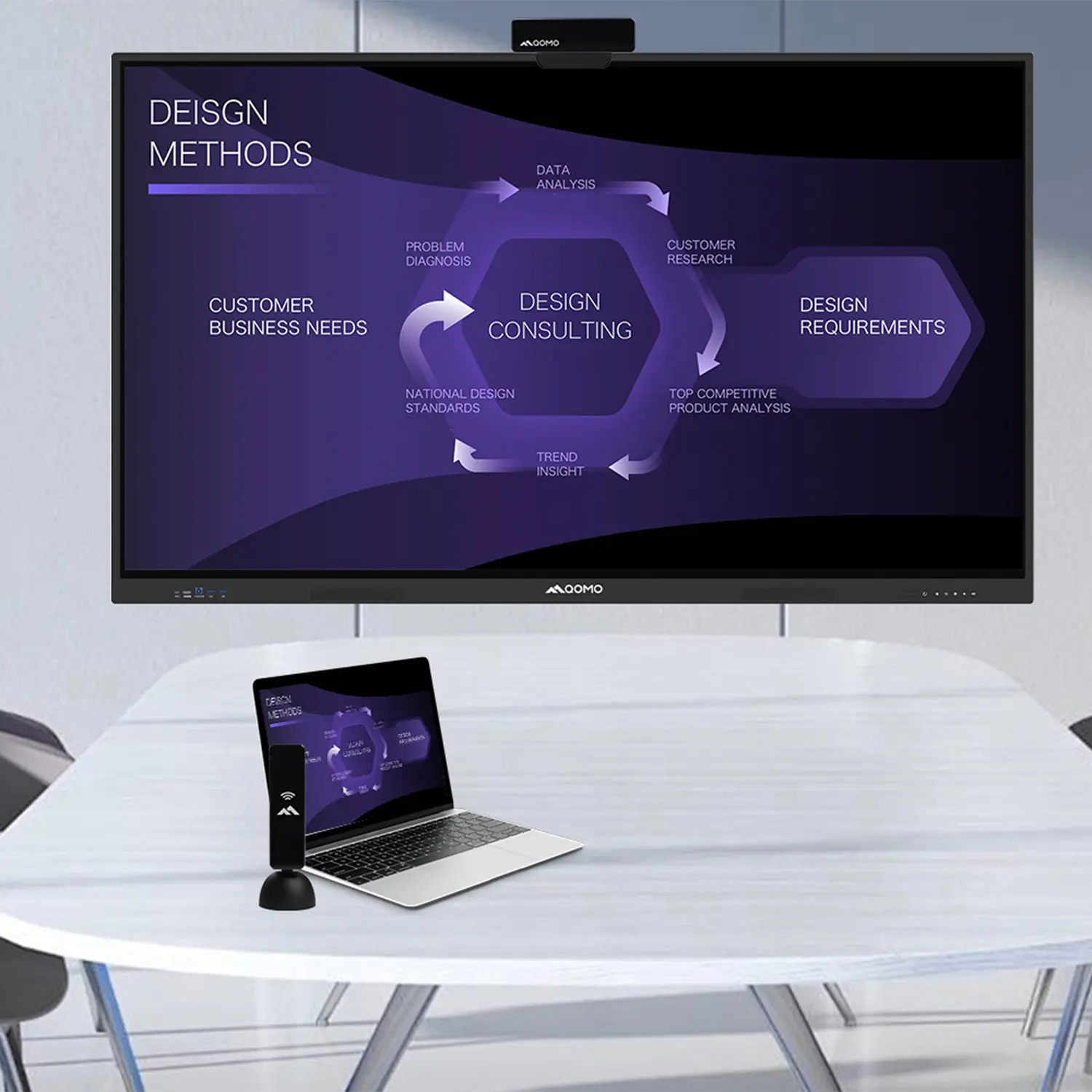
In today’s digital age, the ability to share screen with TV has become increasingly important. According to tech expert Alex Johnson, "Seamless screen sharing can transform how we enjoy media at home." Many users struggle to connect their devices to the TV, facing issues with compatibility and connectivity. This can result in frustration and wasted time, which diminishes the overall experience.
Understanding how to share screen with TV can enhance your viewing experience. Whether it’s for a video call or streaming your favorite show, the process should be straightforward. However, many still encounter challenges. The range of technologies and devices can complicate what should be a simple task. It's essential to find reliable methods and tools that guarantee a smooth connection.
Sometimes, even the most experienced users face hiccups. Compatibility issues with different devices can lead to unexpected errors. Not every device is user-friendly, and sometimes settings can be confusing. Recognizing these challenges is crucial for improvement. By learning more about screen sharing, we can all enhance our experience and enjoy opportunities for connection and entertainment more effectively.
Screen sharing has become increasingly popular, allowing users to mirror their devices on a larger display. Understanding the basics and requirements of screen sharing is essential for effective use. Comprehensive knowledge of your device’s software is crucial. Different operating systems may have distinct methods for initiating screen sharing. For instance, ensure you know whether you need to connect via Wi-Fi or another network. Sometimes devices require special settings to enable this feature.
Connectivity is fundamental. Always verify that both your device and the TV are connected to the same network. Incompatibility issues may arise if they are on different networks. This can lead to frustrating experiences when attempting to share your screen. Experimenting with different settings might reveal better results. Sometimes, an update may be required for either device. Outdated software often poses a barrier to seamless screen sharing.
Moreover, not all applications support screen sharing. Understanding this limitation can save time and stress. If one method doesn’t work, it’s worth trying another approach. Screen sharing can sometimes feel complicated. Yet, the right knowledge and patience can enhance this experience. Ultimately, being prepared and informed helps make screen sharing smoother and more effective.
When considering screen sharing with your TV, choosing the right devices is crucial. According to a recent industry report, 70% of users prioritize device compatibility. This means your smartphone, tablet, or laptop must work seamlessly with your TV. Many smart TVs now support various sharing protocols, but their effectiveness varies.
Some users overlook the importance of Wi-Fi connectivity. A stable internet connection enhances performance during screen sharing. Weak signals can lead to lag or disconnection. Studies show that nearly 30% of users experience frustrating interruptions due to poor Wi-Fi. Investing in a high-quality router can significantly improve your experience.
Tips: Always check for the latest software updates for both your TV and sharing device. Ensuring compatibility is key. Experiment with different screen-sharing methods, such as casting or screen mirroring. These can yield different results depending on your setup. It's essential to understand the limitations of each method to avoid disappointment. If unsure, refer to professional guides or communal forums for insight. The right approach can make a significant difference.
Setting up your TV for screen sharing is crucial for a seamless experience. Many people still struggle with this technology, often fully utilizing just a fraction of their TV’s capabilities. According to a recent survey by the Consumer Technology Association, 48% of users are unaware of all the connection options available to them. Understanding these options can significantly enhance viewing experiences.
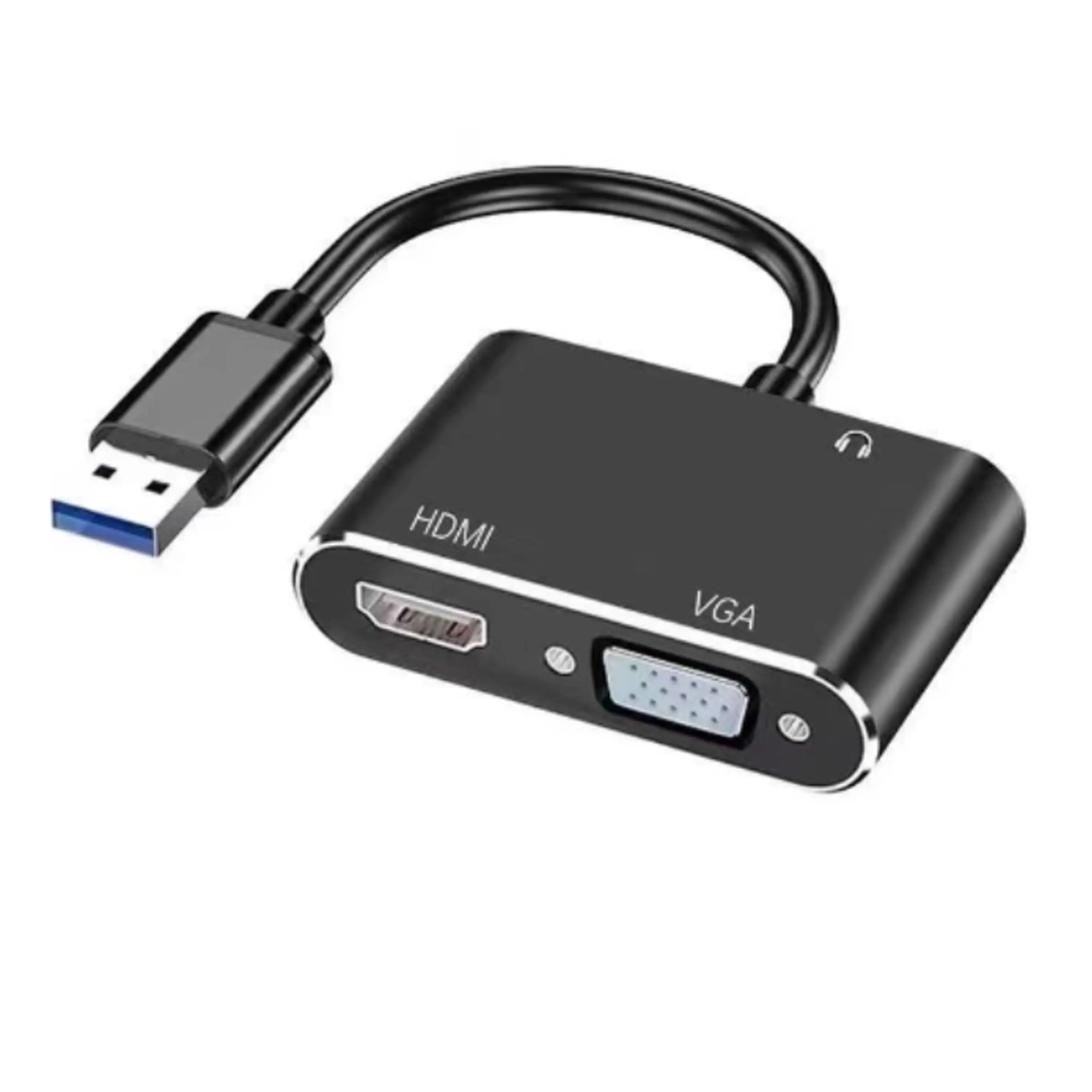
Wireless connections are common, with technologies like Miracast and AirPlay leading the way. They allow you to stream content without physical cables. However, some users find these connections unreliable and prone to lag. Wired connections, such as HDMI, remain popular for their stability. The same survey indicates that 62% of users prefer wired connections for video quality and consistency. Setting up an HDMI connection is often straightforward, needing just a cable and the right ports.
Compatibility is another concern. Many smart TVs support various screen sharing technologies, yet not all devices will communicate smoothly. It’s important to check device compatibility before attempting to share screens. Users often express frustration when their hardware does not support sharing features, leading to wasted time and effort. That’s a reminder to research before diving in. Choosing the right connection can make all the difference in creating an efficient screen-sharing setup.
Screen sharing with your TV can significantly enhance your entertainment and productivity. Whether streaming a movie, presenting a project, or sharing photos, the ability to display your device screen on a larger screen is highly sought after. According to a recent survey by Statista, about 55% of consumers expressed interest in using screen sharing for family gatherings and professional meetings.
For effective screen sharing, start by identifying the type of device you are using. Many smartphones, tablets, and laptops can connect to TVs via HDMI, Wi-Fi, or Bluetooth. This connection varies based on system compatibility. Ensure your devices support the same screen-sharing protocols, such as Miracast or Apple AirPlay. If problems arise, remember to check your Wi-Fi network strength. Weak connections can lead to disruptions during display.
Tips: Always update your software. Outdated software can cause compatibility issues. Additionally, consider the distance between your device and the TV. Keeping devices close can minimize any lag or disconnection issues.
Another point to consider is the quality of your content. Streaming in high resolution can lead to buffering delays. Compressed files may play more smoothly but won't look as good. Adjust settings accordingly for the best viewing experience. Test the connection before your main event to identify potential issues. This preparation can save you time and prevent awkward interruptions.
Screen sharing with a TV can enhance your viewing experience. However, users often face common issues. One report found that over 30% of people struggle with connectivity problems during screen sharing. Understanding these issues can lead to better solutions.
Wi-Fi interference is a frequent culprit. Many households have multiple devices connected simultaneously. This can weaken the signal between your device and the TV. In fact, a study indicated that 25% of users experience lag or disconnection due to weak Wi-Fi signals. Placing your router closer or minimizing obstacles can significantly improve performance.
Another common problem is compatibility. Not all devices support screen sharing equally. Research has shown that 40% of users find their devices cannot connect due to compatibility issues. Always check device specifications before attempting to share the screen. Adjusting settings can also help, yet many users overlook this step. Simple tweaks in your device's settings can make a substantial difference.
| Issue | Possible Causes | Solutions |
|---|---|---|
| Screen Not Mirroring | Wrong input source selected | Switch to the correct HDMI or input source on the TV. |
| Lag or Delayed Image | Weak Wi-Fi signal | Move closer to the router or use Ethernet for a wired connection. |
| No Sound | Audio output settings not configured | Check the TV audio settings and select the correct output. |
| Connection Drops Frequently | Interference from other devices | Reduce the number of devices connected to the network. |
| Quality of Image Poor | Resolution mismatch | Change the resolution settings on the device to match the TV. |