request to quote
Leave Your Message

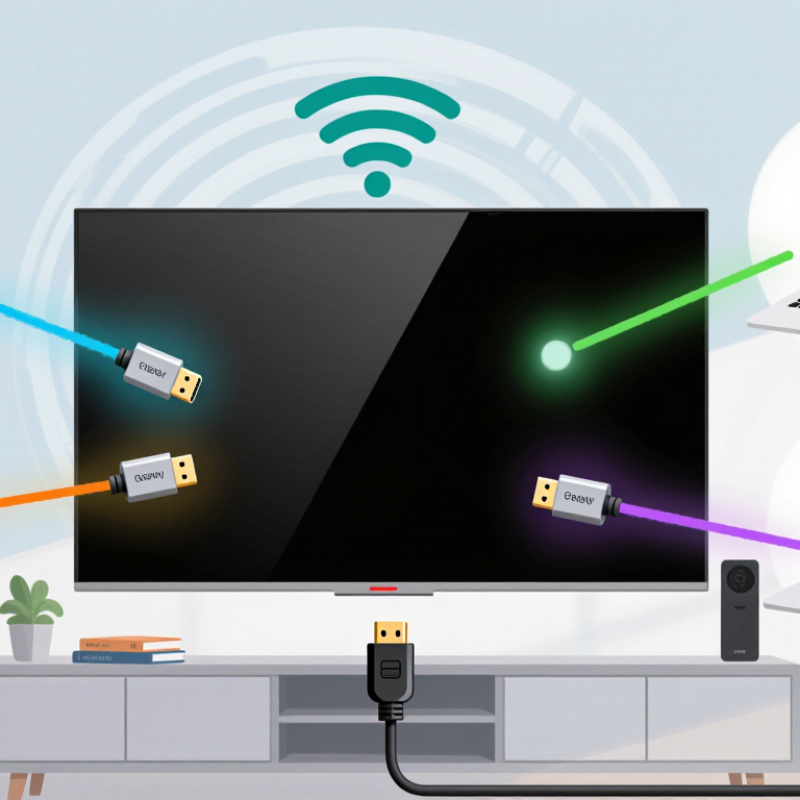
How to Share Your Screen with a TV?

Sharing a phone, tablet, or computer screen with a television can make a recipe easier to follow, photos more enjoyable, and presentations clearer. Yet the right method depends on your devices, network, and what you want to show. Human-centered design expert Don Norman observed, “Good design is actually a lot harder to notice than poor design.” His remark is not specifically about TV casting, but it captures a useful goal: screen sharing should feel simple, while its limits remain clear.

This guide explains practical ways to Share Screen With Tv, including AirPlay, Chromecast or Google Cast, Miracast, and an HDMI cable. You will learn what to check before connecting, how to find the relevant setting, and what to try when the television does not appear. Small details matter. A TV may need casting enabled, and some devices work best on the same Wi-Fi network. A cable can be less elegant, but it may be steadier for slides or video calls.

Expect a few differences between brands and operating systems. Wireless mirroring can introduce a short delay, and notifications may appear on the big screen. Check what is visible before you begin. There is no single perfect setup; even familiar devices sometimes behave oddly after an update. The following sections offer clear steps, simple troubleshooting, and practical privacy checks, so you can choose a method that fits your room and your equipment.

How to Share Your Screen with a TV?

Identify Your TV and Device’s AirPlay, Chromecast, or Miracast Support

Before connecting, check both ends of the link: the TV’s settings or manual, and the phone, tablet, or computer’s display menu. AirPlay, Chromecast, and Miracast are different systems, not interchangeable names. A TV may support one, two, or none; an HDMI streaming device can add support. Leichtman Research Group’s 2024 study found that 87% of U.S. TV households had at least one internet-connected TV device. That figure describes connected devices, not support for any particular screen-sharing protocol. Deloitte’s 2024 Digital Media Trends survey found that 83% of U.S. consumers subscribed to at least one paid streaming service. Streaming access still does not guarantee screen-mirroring compatibility.

Look for the protocol name in the TV’s network, input, or screen-sharing menu. AirPlay and Chromecast-style casting commonly rely on both devices using the same local Wi-Fi network. Miracast can connect directly between compatible devices, without that shared router. Check your device’s display settings, too: support on one side is not enough. A model’s specification sheet can be misleading when it lists casting features without naming the supported protocol. A quick test helps. Open the sharing menu, select the TV, and confirm that the image appears with usable sound. If the TV is missing, check network settings and software updates before assuming the hardware is incompatible.

How to Share Your Screen with a TV? - Identify Your TV and Device’s AirPlay, Chromecast, or Miracast Support

What to Check AirPlay Chromecast Miracast
How it works Streams or mirrors content from a compatible device to a compatible receiver. Sends supported media from an app or browser to a compatible receiver. Some devices also support full-screen mirroring. Mirrors a device’s display directly to a compatible receiver using Wi-Fi Direct.
Check the TV Look in the TV’s settings or specifications for AirPlay receiver support. Look for Chromecast built-in or casting receiver support in the TV’s settings or specifications. Look for Miracast, wireless display, or screen mirroring support in the TV’s settings or specifications.
Check the sending device Confirm the device’s operating system and model support AirPlay sending; check its screen-mirroring or media-output controls. Check whether the device or app offers a Cast control. Availability depends on the operating system, app, and content. Check the device’s wireless display or screen-mirroring settings and its specifications for Miracast support.
Network requirements Usually, the sending device and receiver should be on the same local Wi-Fi network. Network settings may affect discovery. Usually, the sending device and receiver should be on the same Wi-Fi network. Guest networks or client isolation can prevent discovery. Uses Wi-Fi Direct, so a shared Wi-Fi network is generally not required. Device and receiver support are both necessary.
Typical setup Enable the receiver feature on the TV, open the device’s screen-mirroring or media-output control, then select the TV. Enable the receiver on the TV, open a compatible app or browser, select its Cast control, then choose the TV. Enable wireless display or screen mirroring on the TV, open the sending device’s wireless display control, then select the TV.
Best suited for Mirroring a device screen or sending supported photos, videos, and audio. Casting supported video, audio, and other app content; full-screen mirroring depends on the device. Mirroring the full display, including content that may not have a separate casting control.
Common limitations Compatibility varies by device and receiver. Some protected content or apps may restrict mirroring. Not every app supports casting, and casting a video is not always the same as mirroring the entire screen. Compatibility, resolution, and performance vary by device. Wireless interference can cause delay or reduce image quality.
If the TV is not found Confirm both devices are powered on, check receiver settings and network access, and restart the devices if needed. Confirm both devices are on the same network, check receiver settings, and disable network isolation if applicable. Confirm wireless display is enabled on both devices, move them closer together, and check for device or receiver updates.

Choose Wireless Casting or HDMI; HDMI 2.1 Supports Up to 48 Gbit/s

Wireless casting is convenient for slides, photos, and casual video. For fast motion or precise timing, an HDMI cable is usually more predictable. HDMI Forum’s HDMI 2.1 specification sets a maximum bandwidth of 48 Gbit/s, enabling demanding formats such as 4K at 120 Hz when the source, TV, cable, and settings all support them.

Check the port. A cable marked “high speed” may not meet the full requirement; look for certification suited to the intended bandwidth. The number describes capacity, not a guarantee of better picture quality.

For a console or computer, connect directly to the TV when possible, then select the matching input and resolution. Keep the cable run short and avoid tight bends behind the cabinet. Wireless casting can still be the cleaner choice for a quick presentation, but crowded Wi-Fi may introduce delay or stuttering.

That is the catch.

HDMI 2.1’s 48 Gbit/s figure comes from a technical specification, not a promise that every setup will use the full rate. A less tidy detail: display menus can hide useful settings, so confirm refresh rate and color format on both devices instead of assuming they negotiate correctly.

Connect Wireless Devices to the Same Wi-Fi Network

Before opening screen-sharing controls, connect both your phone or computer and television to the same Wi-Fi network. This detail fixes many failed connections. A device on guest Wi-Fi may have internet access but still be blocked from seeing other devices. Check the network name in each device’s settings, not just the Wi-Fi icon. Similar names can hide separate networks. If your router offers separate 2.4 GHz and 5 GHz networks, they often communicate, but some setups isolate them. When discovery fails, try putting both devices on one network band temporarily. It is a small test, not a guaranteed fix.

Keep the television awake while you open its screen-mirroring or casting menu. On your phone or computer, select the TV after both devices are connected. I’ve found that waiting ten seconds can help; repeated tapping often makes the process less clear. Check whether a VPN is routing one device away from the local network, and look in router settings for “client isolation” or similar wording. That setting can prevent devices from communicating locally. If the TV still does not appear, toggle Wi-Fi off and on, then reopen the discovery menu on both devices. This can feel fussy. Note each device’s network before changing settings, because it is easy to forget which one you switched.

Start Screen Mirroring from Your Device’s Cast or Display Settings

To share your screen with a TV, open your device’s Cast, Screen Mirroring, or Display settings. The exact label depends on the device, so look for an option that mentions wireless displays or nearby screens. Make sure your device and TV are connected to the same Wi-Fi network, then select the TV from the available list. Keep it nearby.

A connection request may appear on the TV. Approve it with the remote, and give the devices a few seconds to connect. Wait a moment. Your phone or tablet screen should then appear on the larger display. If the TV does not show up, check that screen mirroring is enabled in its settings and that both devices are awake. A guest network or weak signal can also prevent discovery.

Before sharing, close private messages and lower notification previews; alerts may appear on the TV. Rotate your device for a wider view when watching a video, or keep it upright for a document. If the image stutters, move closer to the router or pause other network-heavy activity. That matters. Settings names and connection behavior can vary, and the first attempt may not work. Disconnect from the same Cast or Display menu when you are finished.

Screen Mirroring: Pixel Count by Display Resolution

Higher display resolutions contain more pixels. When mirroring, the picture quality you see depends on the resolutions supported by both your device and TV.

Select the TV and Check the Picture and Audio Connection

Open the screen-sharing menu and choose the television that matches the room. If several devices appear, check the TV’s settings for its exact device name. Keep both devices on the same Wi-Fi network, then accept the connection prompt on the TV. Wait a moment. The picture may take a few seconds to appear.

ITU’s Facts and Figures 2023 estimated that 5.4 billion people used the internet, or 67% of the world’s population. That broad reach does not guarantee a strong home connection; distance, walls, and network congestion can still interrupt screen sharing.

Once connected, play a familiar video or open a photo with clear edges. Check for a sharp image, correct proportions, and steady motion. If the picture looks stretched, review the TV’s screen-fit or aspect-ratio setting. For stuttering, move the sending device closer to the router and pause large downloads on the same network.

Then check audio separately. Raise the TV volume, confirm the TV is selected as the audio output, and test a short clip with speech. I sometimes blame the picture first, but muted or delayed sound can make a good connection seem broken. If sound comes from the phone instead, disconnect and reconnect, then verify the audio-output setting again.