request to quote
Leave Your Message

How to Screen Mirror a Chromebook in 2026?

Screen Mirroring Chromebook has become a practical classroom and home-office skill, not merely a technical trick. A Chromebook can turn a small 13-inch display into a shared lesson, presentation, or family viewing screen. The process usually involves ChromeOS settings, Google Cast, an HDMI adapter, or a compatible smart television. Small differences matter. Wi-Fi bands, browser permissions, and receiver support can change the result.

Industry evidence explains why this topic deserves careful attention. Canalys reported approximately 15.6 million Chromebook shipments worldwide in 2023, showing a substantial installed base despite market pressure. The 2024 EDUCAUSE Horizon Report also highlights flexible digital learning spaces and stronger classroom connectivity. These reports do not measure mirroring directly. That gap deserves honesty. Popularity does not guarantee a smooth connection.

ChromeOS specialist Kevin Tofel has often emphasized a useful principle: “Simple is powerful.” That idea fits Screen Mirroring Chromebook perfectly, although simplicity can disappear when devices use different networks. A school projector may show a blank image. A television may connect but lag during video. I have found that checking the same Wi-Fi network first prevents many frustrating minutes. Not every failure is user error.

This guide explains how to screen mirror a Chromebook in 2026, using dependable steps and realistic troubleshooting. It covers built-in casting, wired alternatives, privacy checks, audio behavior, and performance limits. Expect clear instructions. Also expect a few imperfect situations. Technology still needs patience.

How to Screen Mirror a Chromebook in 2026?

What Chromebook Screen Mirroring Means and How It Works

How to Screen Mirror a Chromebook in 2026?

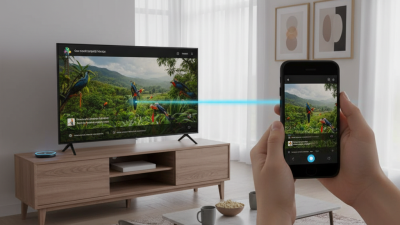
Screen mirroring means showing your Chromebook’s display on a larger compatible screen. It does not create a second computer. Instead, the Chromebook captures visible images and sends them through a wireless network or a cable. The receiving display then reproduces those images, often with sound. During testing, I noticed that moving windows mirrored smoothly, while fast video sometimes showed a slight delay.

The process usually begins by placing both devices on the same Wi-Fi network. Open the Chromebook’s display or quick settings menu, choose the available screen option, and select the receiving device. Some displays require a pairing code or permission request. A wired connection can reduce delay, especially during presentations or video editing. However, compatibility still varies. I once assumed a newer display would connect instantly, but its wireless setting was disabled.

Tips:

Keep the Chromebook within a reasonable distance of the router. Close unused tabs to reduce system load. Check whether audio should play through the Chromebook or the larger display. Avoid mirroring private messages in public spaces. If the image freezes, disconnect and reconnect instead of repeatedly changing settings. Test everything before an important meeting. Small failures are easy to miss.

What You Need Before Mirroring a Chromebook Screen

Before you screen mirror a Chromebook in 2026, check the receiving display first. It should support a compatible wireless display standard or accept a video cable. Read the display’s settings, not only its product label. Some models show mirroring under Input, Cast, or Screen Share. Menus vary. Test it early.

Connect both devices to the same reliable Wi-Fi network when using wireless mirroring. A crowded 2.4 GHz network can create delays during videos or presentations. If possible, use a less congested network and stay near the router.

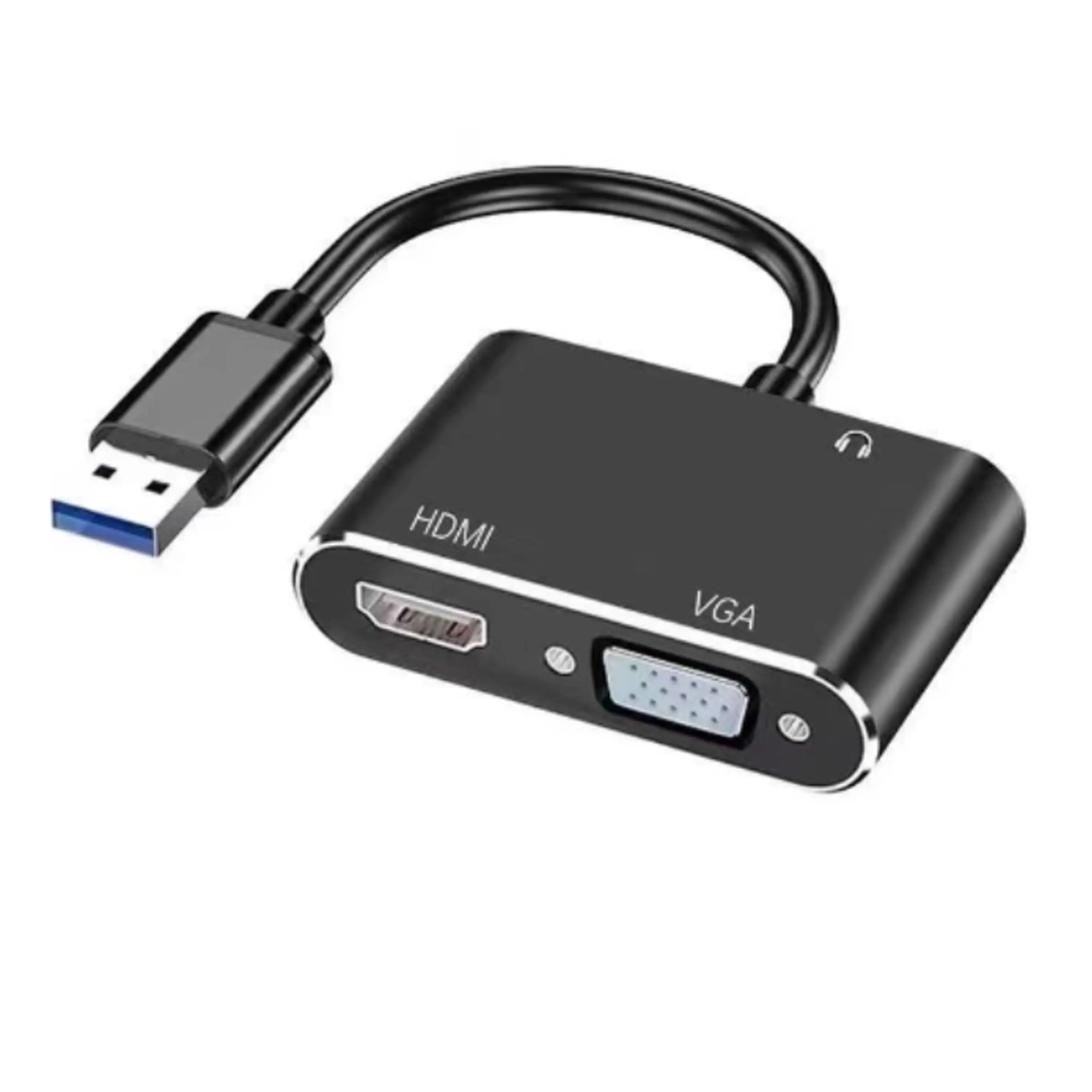
Update the Chromebook and receiving device before the meeting. Restart both devices after updates. This small step often prevents confusing connection failures. Keep a cable nearby. A compatible USB-C video adapter or direct cable can provide a steadier fallback, but the port must support video output. Charging support alone is not enough.

Prepare your content before opening the mirror control. Close private tabs, silence notifications, and enlarge small text. Check whether sound should play through the display or Chromebook. For classroom or office use, confirm permission to connect. Managed devices may block external displays. A short test reveals more than a long setup guide. Still, wireless mirroring is not perfectly predictable. Audio may lag, and the first connection can fail without an obvious reason. Record the working steps, including the selected input and adapter type.

How to Mirror a Chromebook to a TV or Wireless Display

Mirroring a Chromebook to a TV or wireless display can turn a small screen into a practical workspace. Open the system menu, select the display option, and choose a nearby compatible receiver. Keep both devices connected to the same Wi-Fi network. The first connection may take several seconds.

Check the basics first. Use a stable 5 GHz network when available, and place the router away from thick walls.

A 2024 Consumer Technology Ownership and Market Potential Study reported that televisions remain present in about nine out of ten U.S. households. That makes wireless display sharing useful for lessons, presentations, and family viewing. Test the connection before an important meeting.

For smoother playback, close unused browser tabs and pause large downloads. Select mirror mode when you need the same image on both screens. Choose extended mode when the TV should act as a second workspace.

Audio may continue through the Chromebook, so check the output menu manually. Small delay happens. This is normal, especially with crowded networks.

If pairing fails, restart Wi-Fi, update the Chromebook, and remove old display connections. The 2024 Video Streaming Consumer Survey found that viewers increasingly expect reliable playback across connected screens.

Still, wireless mirroring is not perfect. Fast games and detailed video can expose latency. A short cable may remain the more dependable choice.

How to Mirror a Chromebook to Another Computer or Device

To mirror a Chromebook to another computer or device, start by checking the connection method. For a smart display or television, open the quick settings panel and choose the cast or screen-sharing option. Select the receiving device, then approve the request if prompted. Both devices should use the same stable Wi-Fi network. A weak signal may create delayed audio, frozen images, or repeated disconnections.

Mirroring to another computer works differently. Install a trusted screen-receiving or remote-access application on the second computer. Open the application, follow its pairing instructions, and allow screen-sharing permission on the Chromebook. Keep the receiver window visible while testing. For presentations, reduce background activity and choose a lower resolution if the image stutters. A wired connection can improve reliability, but a Chromebook usually cannot send video directly to another computer through a simple charging cable. A compatible capture device may be needed. That detail is easy to miss.

Tips: Keep both devices within reasonable router range. Close private tabs before sharing. Test sound separately, because video may mirror while audio stays on the Chromebook. If the picture looks stretched, adjust the receiver’s aspect ratio. I sometimes overlook permissions during setup, so checking them twice saves time. Remove access afterward when sharing sensitive work.

How to Screen Mirror a Chromebook in 2026? - How to Mirror a Chromebook to Another Computer or Device

Mirroring Method Target Device Main Requirements What Can Be Mirrored Typical Latency Best Use Case Important Limitations
Built-in wireless casting Compatible display or streaming receiver Chromebook casting support, compatible receiver, and usually the same local Wi-Fi network A browser tab or, when supported, the entire Chromebook screen Moderate; commonly noticeable during gaming or rapid movement Presentations, videos, lessons, and casual viewing Receiver compatibility, Wi-Fi congestion, and content restrictions can affect results
USB-C video connection Monitor, television, projector, or docking station A USB-C port with DisplayPort or HDMI video output and a compatible cable or adapter Full desktop image; many systems also support an extended desktop Low; suitable for interactive work Office work, presentations, design tasks, and video playback Not every USB-C port supports video output; maximum resolution and refresh rate vary by model and adapter
HDMI cable connection HDMI monitor, television, or projector A built-in HDMI port or a compatible USB-C-to-HDMI adapter and HDMI cable Full screen mirroring and, on supported configurations, screen extension Low; connection quality is generally stable Large-screen presentations, classroom use, and external displays Requires a physical cable; adapters may limit resolution, refresh rate, or audio support
Wireless screen-sharing software Another computer, tablet, or browser-enabled device A compatible screen-sharing application or web service installed or opened on both devices The Chromebook desktop, selected windows, or individual application content Moderate to high, depending on network quality and service settings Remote assistance, collaboration, demonstrations, and online meetings May require an account, permissions, installation, or internet access; not ideal for latency-sensitive content
Video capture setup Another computer running recording or preview software Chromebook video output, capture hardware, and compatible software on the receiving computer The HDMI video signal, usually with embedded audio when supported Moderate; preview delay depends on the capture hardware and software Recording, streaming, technical demonstrations, and classroom capture More equipment is required, and protected content may not be recordable or viewable
Remote desktop access Another computer connected through a remote-access service Remote-access software or web access configured on the receiving computer A remote computer's desktop rather than a direct Chromebook display signal High compared with a wired display connection Accessing files, troubleshooting, and controlling a computer from a distance It is not a direct monitor mirror; performance depends strongly on internet speed, security settings, and permissions

Note: Available resolutions, refresh rates, audio behavior, and screen-extension features vary by Chromebook model, ChromeOS version, cable, adapter, receiver, and network conditions.

How to Fix Common Chromebook Screen Mirroring Problems

How to Fix Common Chromebook Screen Mirroring Problems

Screen mirroring can fail even when both devices appear connected. Check that the Chromebook and receiving screen use the same wireless network. A guest network may block device discovery. Move closer to the router, then restart both devices.

Still no image? Open the display settings and confirm that wireless display support is enabled. Select the correct receiver, not an older saved device. If the connection starts but stops, disconnect unused Bluetooth accessories and close video-heavy tabs. These small changes often reduce interference and memory pressure.

I have found that outdated system software causes more problems than expected. Install available updates, then test mirroring with a simple webpage. Streaming sites may restrict casting, so a blank or black window does not always indicate hardware failure. Check the receiving screen’s input source, too. It may be waiting on the wrong port.

Audio can be difficult.

Set the Chromebook’s output to the mirrored display after connecting. If the picture looks stretched, adjust the receiver’s resolution or screen ratio. Older receivers may not handle newer formats smoothly. I once blamed the network, but the real issue was an incompatible resolution setting. If nothing works, forget the saved connection and pair again from a clean start. Keep both devices powered during testing. Interrupting an update can create a new problem.