+86 152 8002 3723
QVoteProfessional Audience Response System software offers the most convenient functions for your interactions.
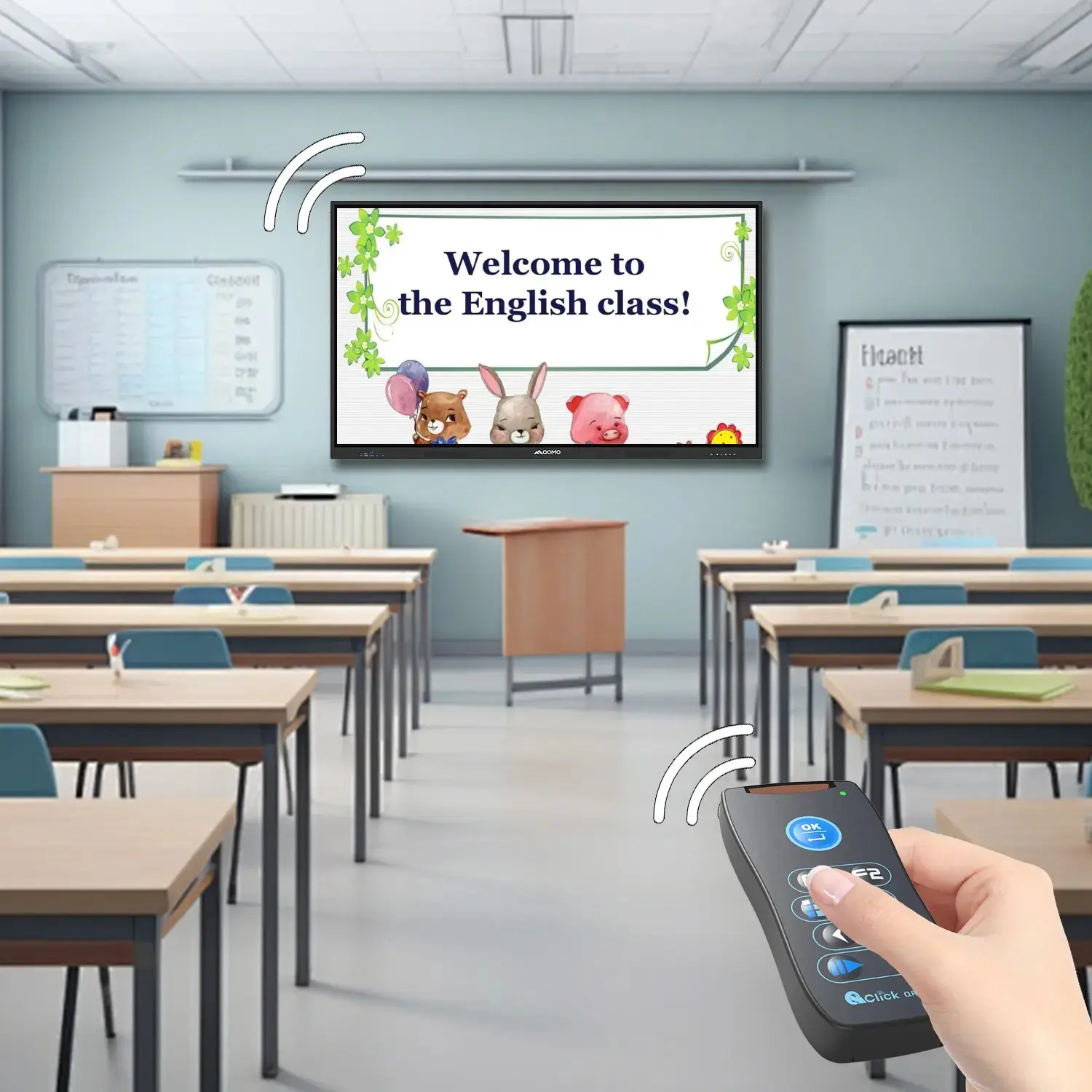
QClickThe most convenient educational software for working with Microsoft PowerPoint to quickly set up various question types and generate intelligent feedback reports.
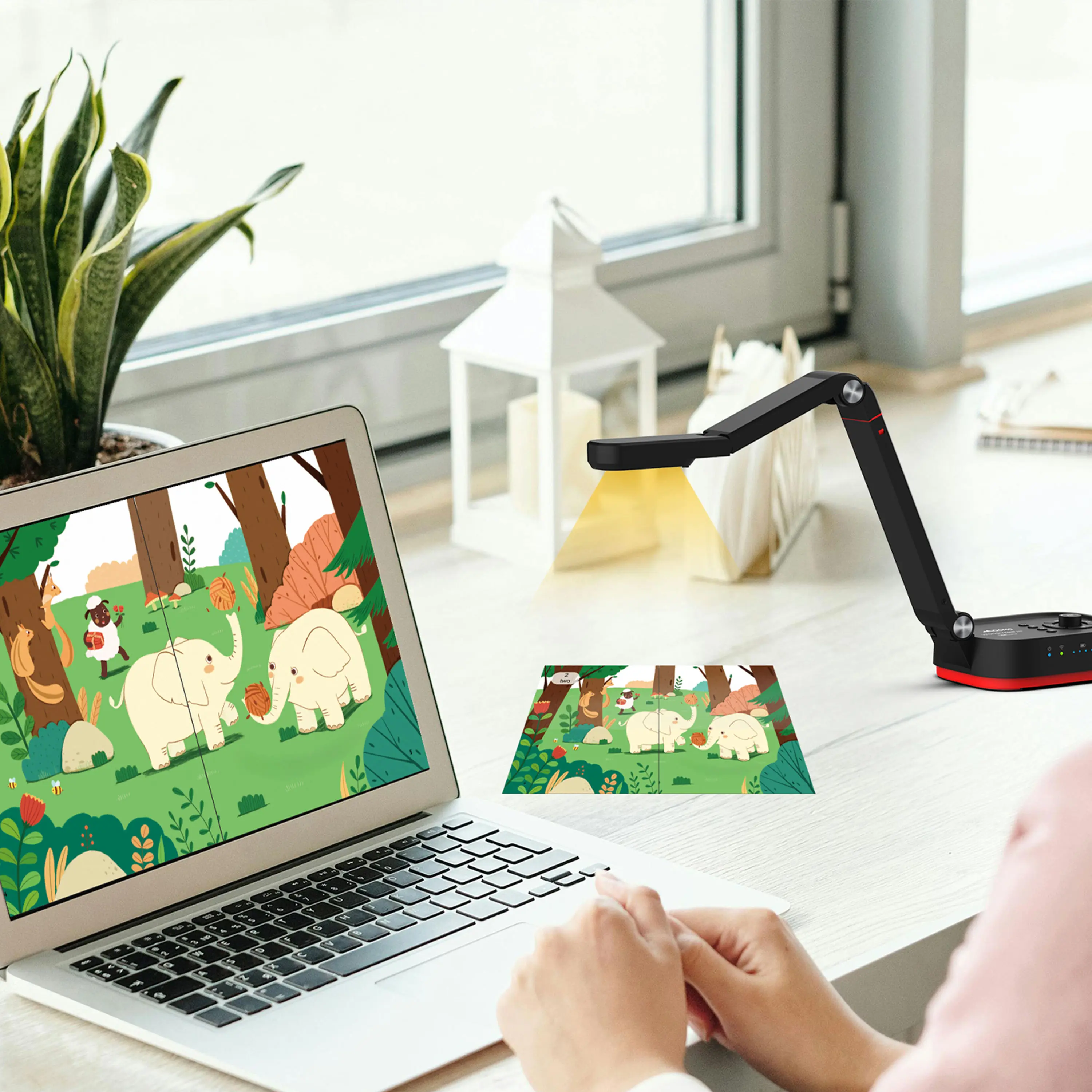
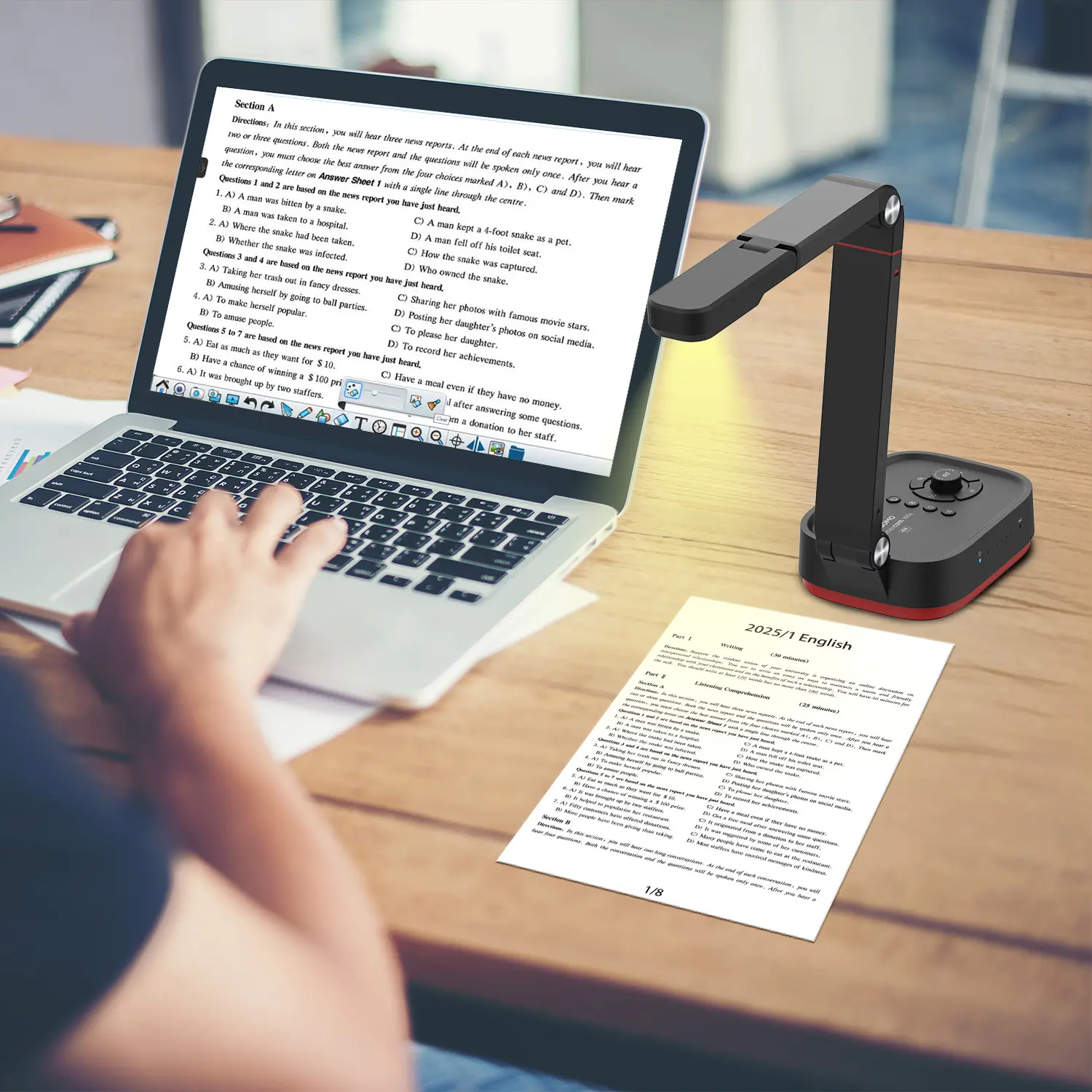
QCameraQCamera by QOMO allows for real-time streaming from cameras and document cameras. Annotate, save snapshots, record, and manipulate camera images instantly.
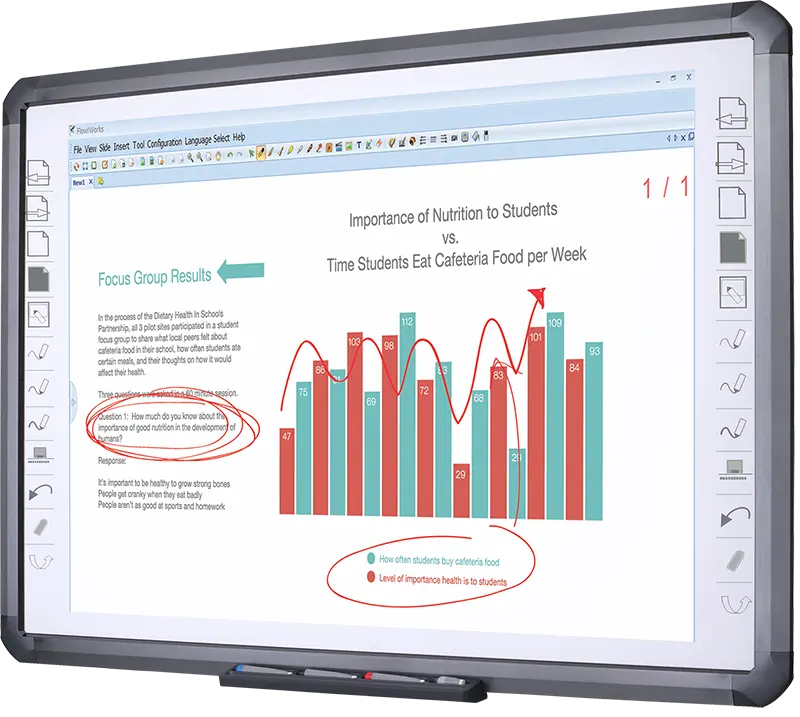
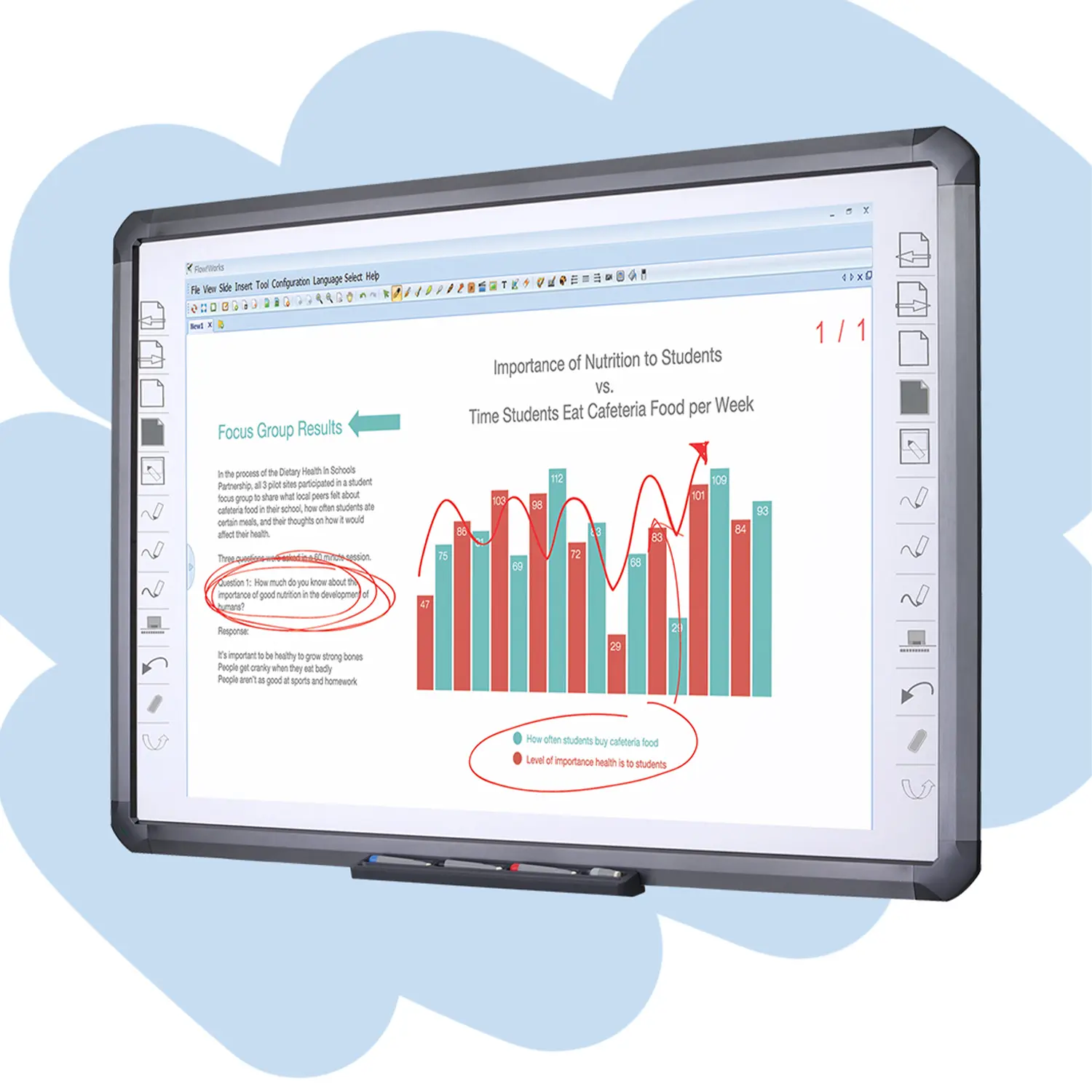
Flow!Works ProUser - friendly whiteboard software, it encompasses a wide range of presentation tools and powerful functions, delivering the most professional presentation experience to you.
Flow!WorksFlow!Works incorporates more educational tools, further enhancing the interactivity and fun - factor of your teaching.
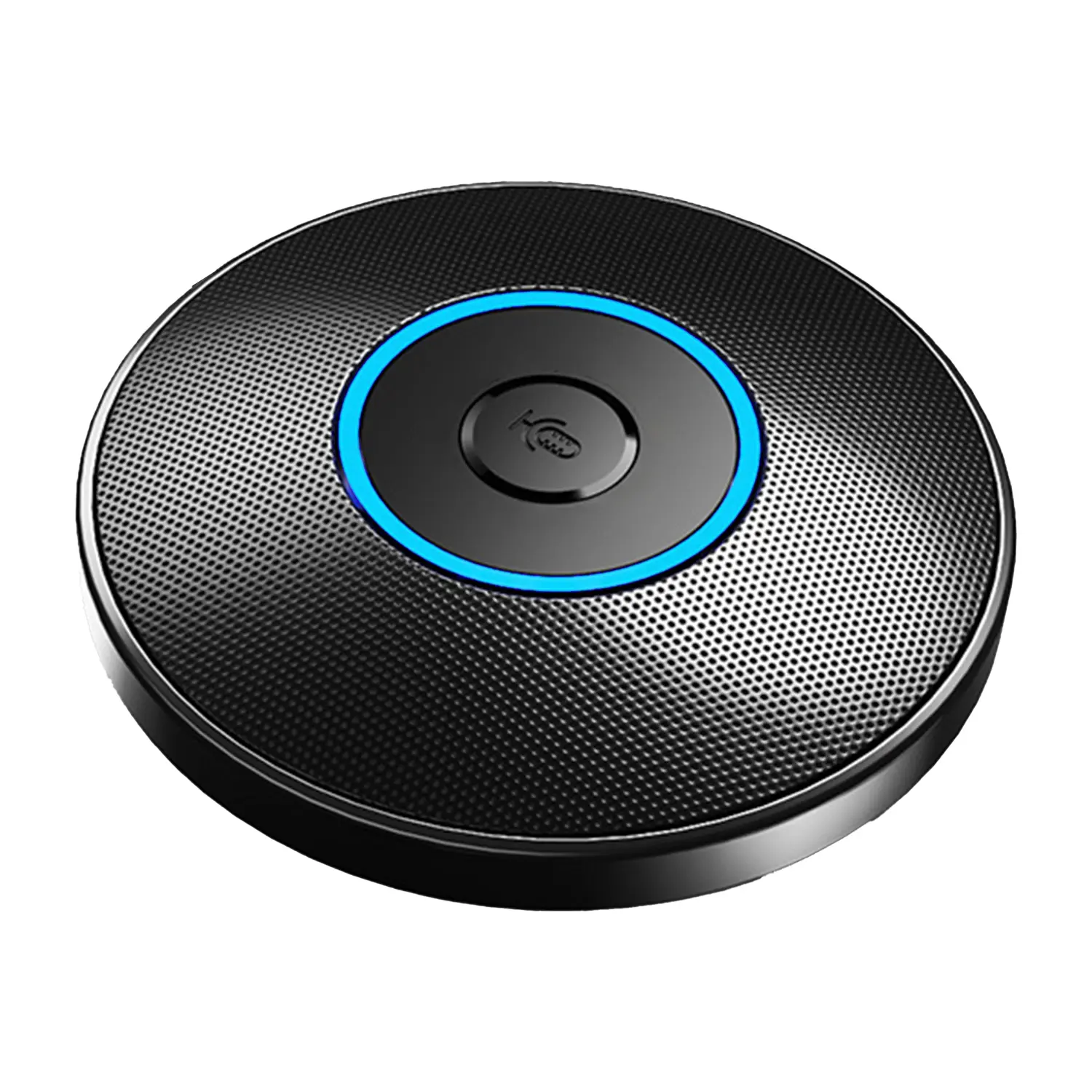
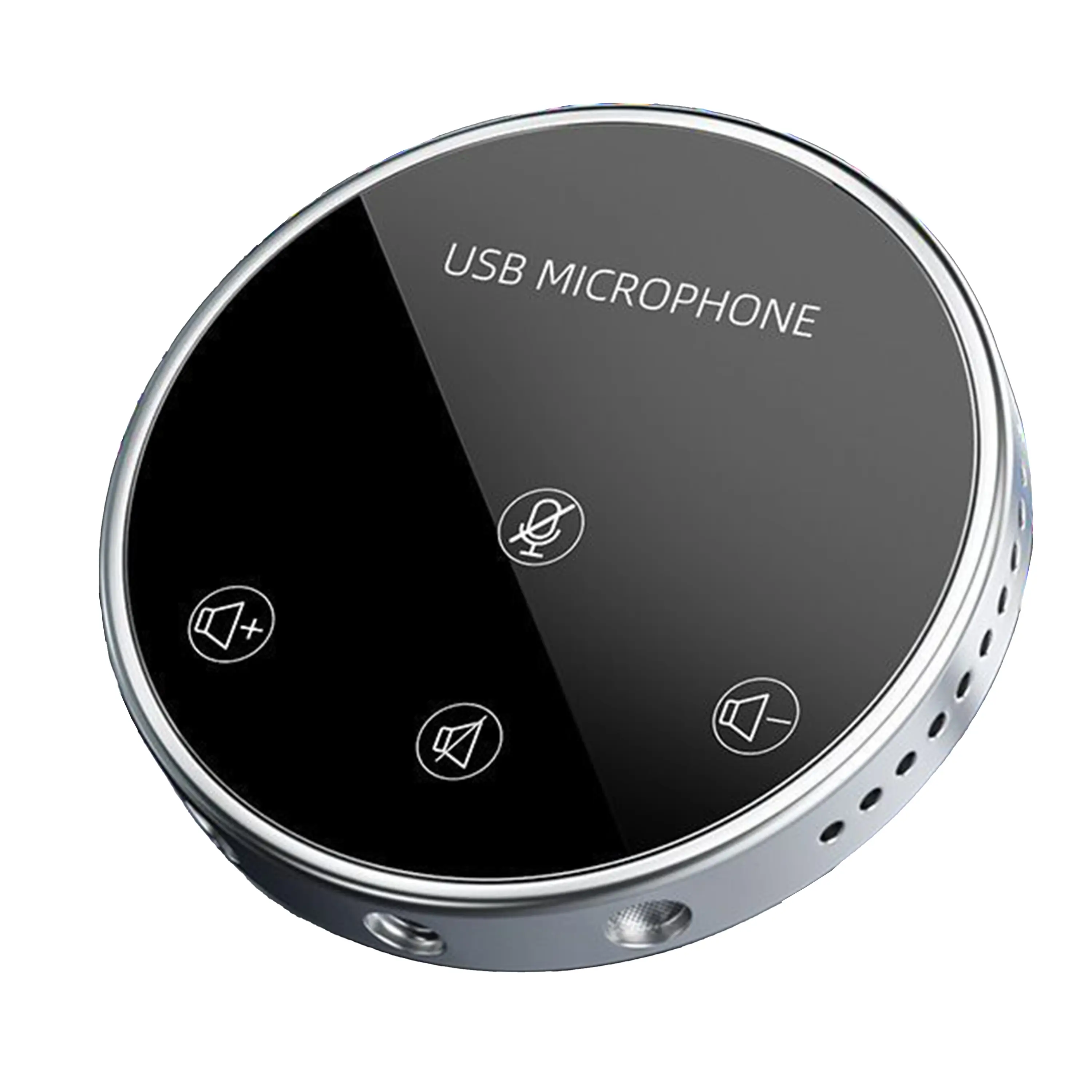
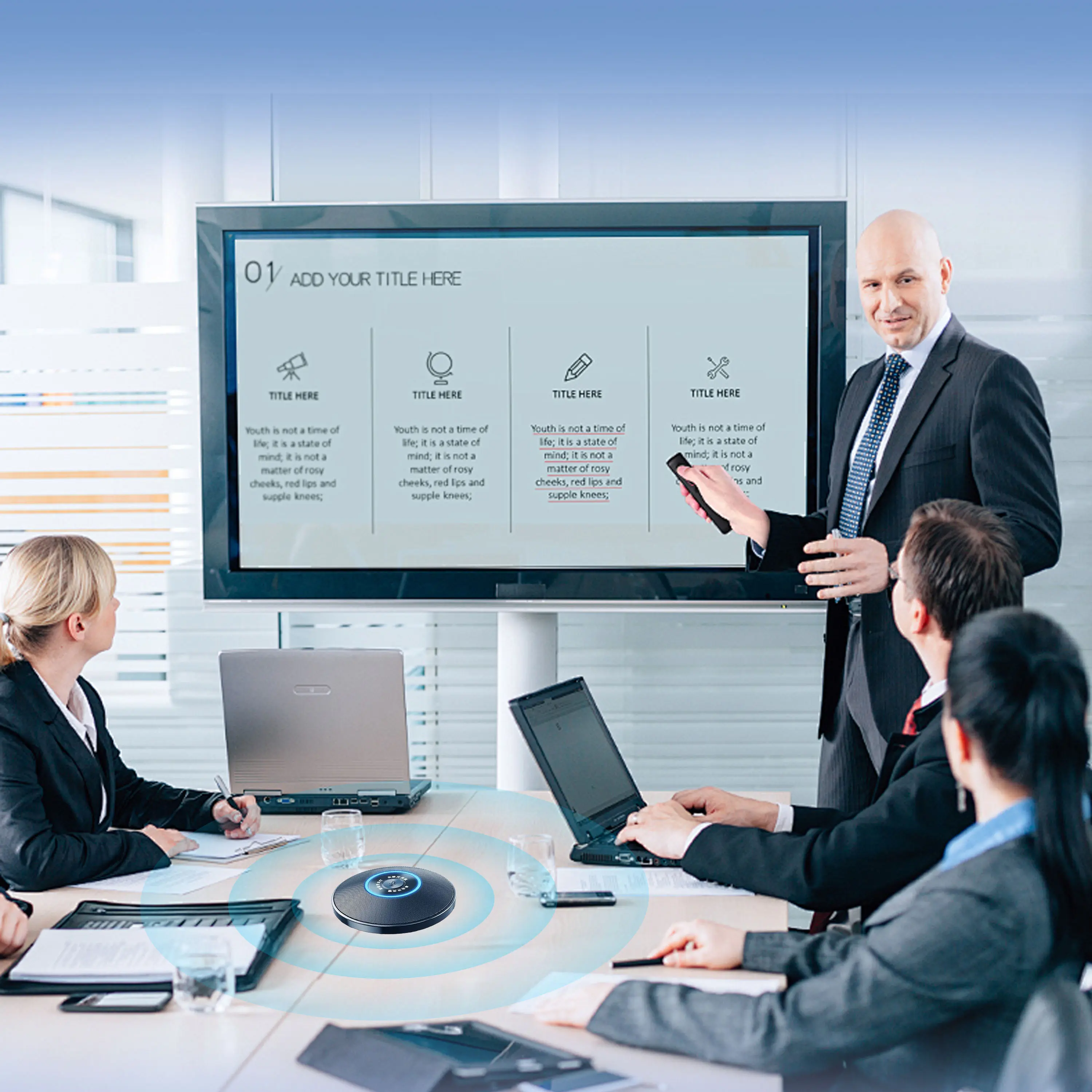
Conference Microphone● USB
● Plug and Play
● Intelligent Noise-Canceling
● 10ft/3m Extended Pickup Range
● 360° Omnidirectional Pickup
Conference Speakerphone● USB-C
● Plug and Play
● Intelligent Noise-Canceling
● 10ft/3m Extended Pickup Range
● 360° Omnidirectional Pickup
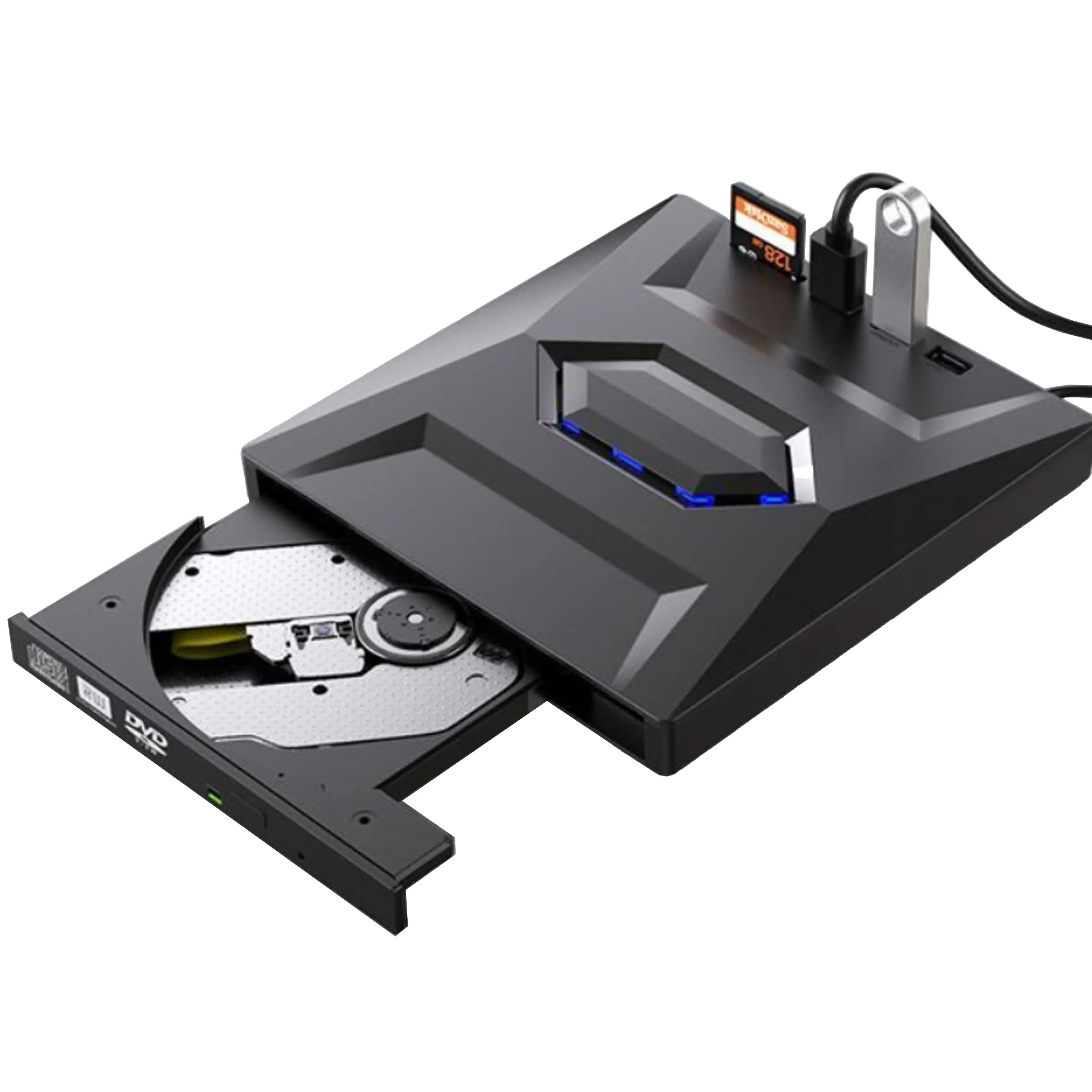
USB External CD/DVD Drive• USB and USB-C
• USB 3.0
• 8x DVD and 24x CD write/read speeds
• Portable
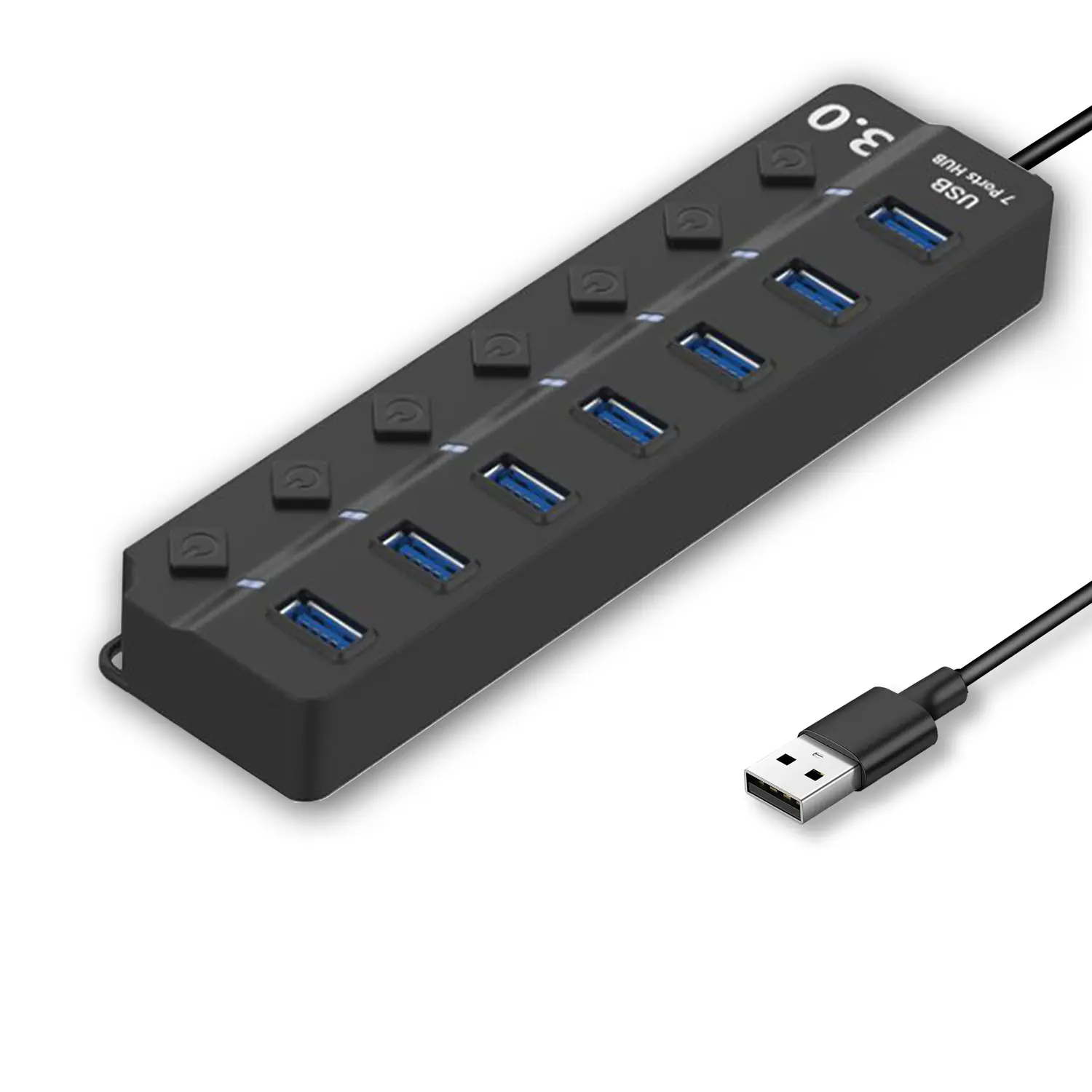
7-Port USB 3.0 Hub● USB 3.0
● Plug and Play
● 7-in-1 USB Hub
● Individual On/Off Switches
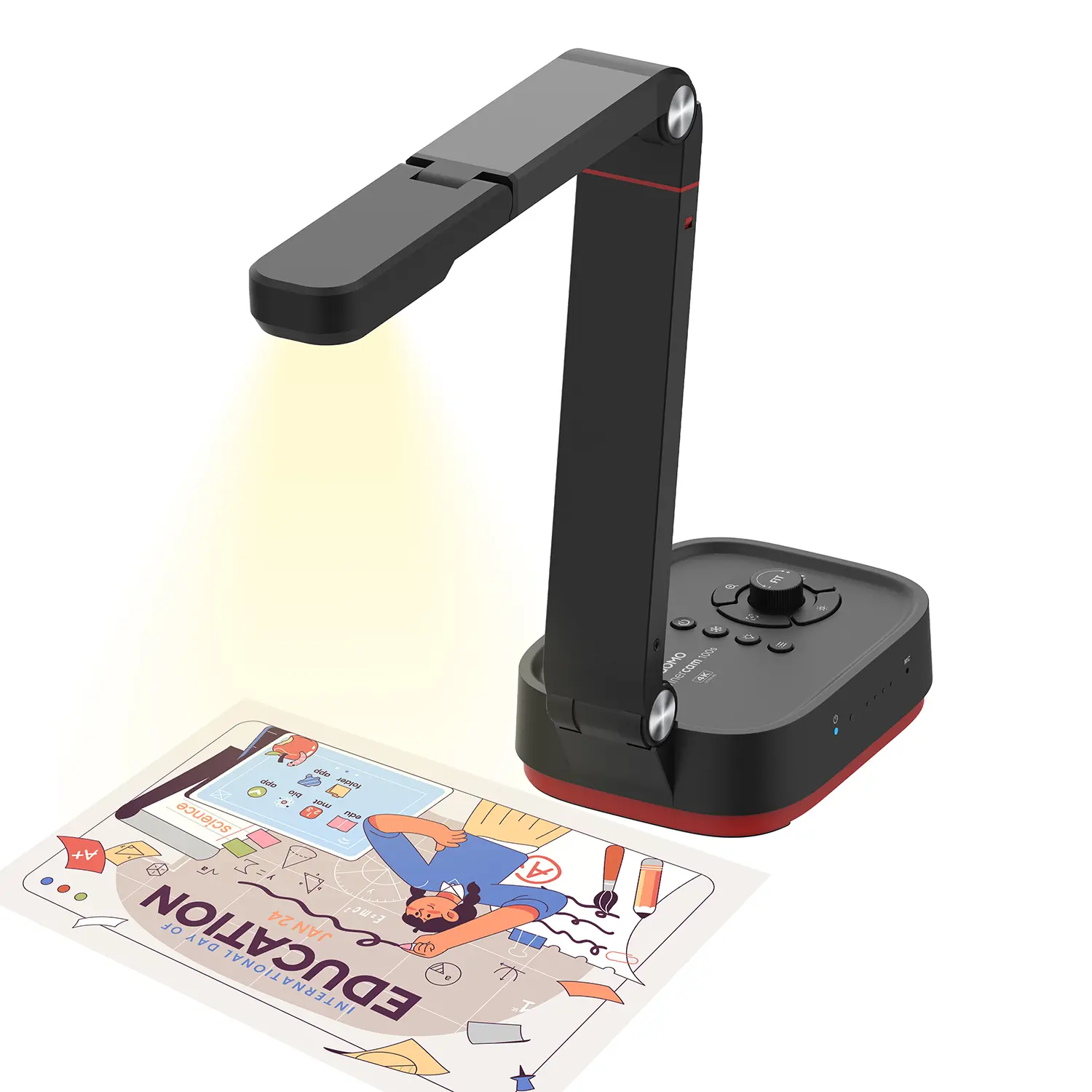
Revolutionize Your Presentations and Document Display with QWC 100S Document Camera
Enhance Call Experience: New Conference Microphone Now Available
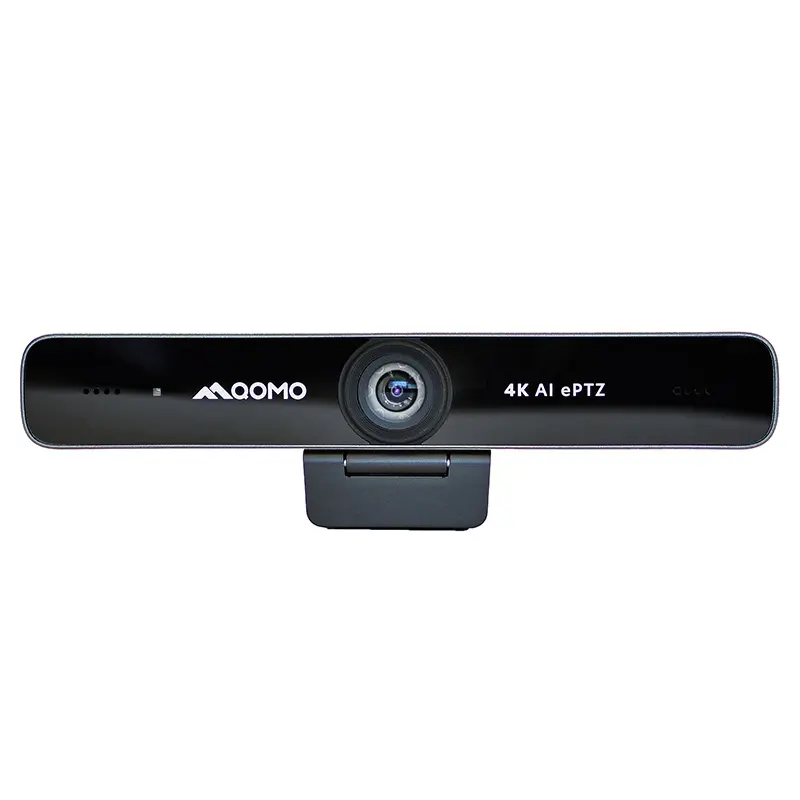
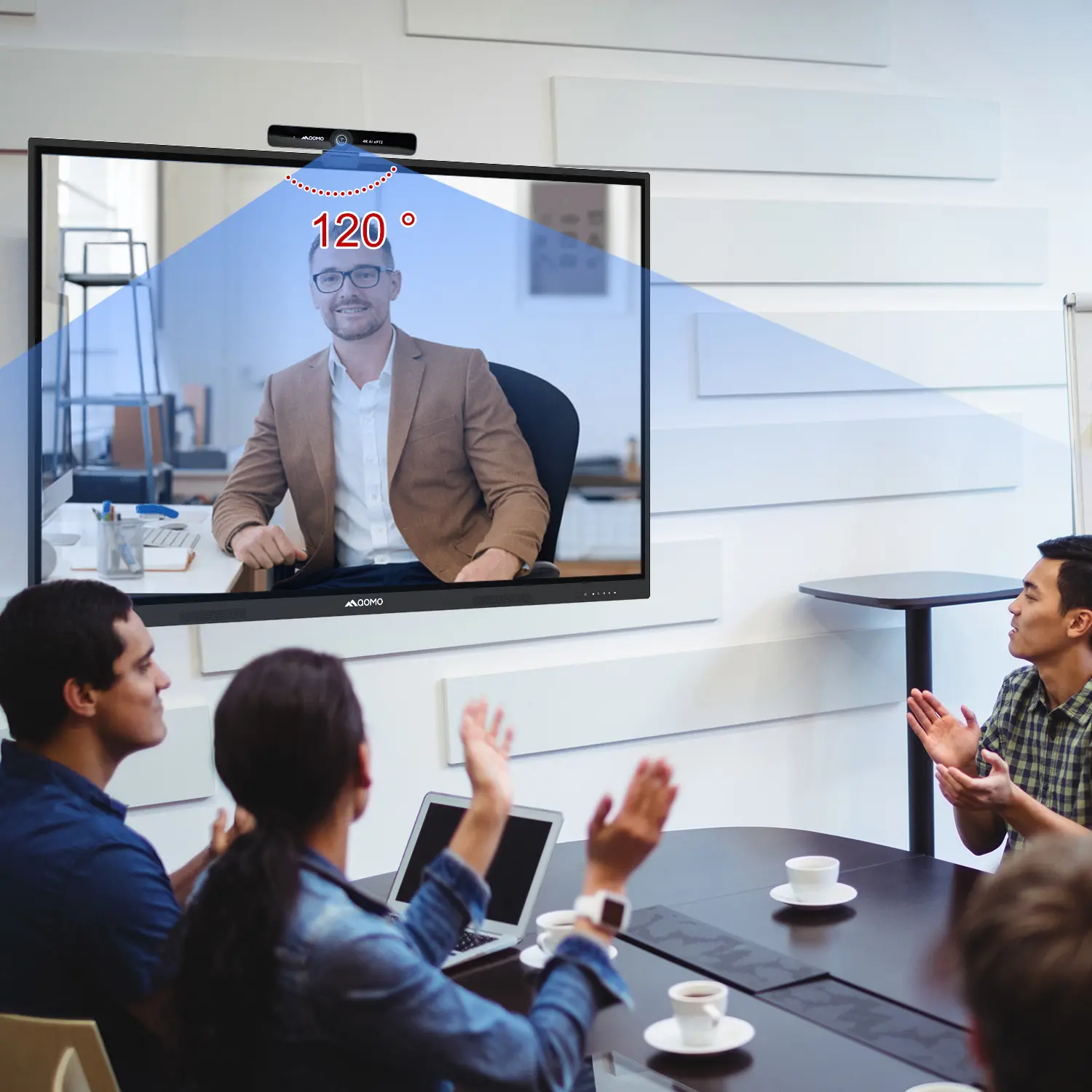
AI-Powered Face-Tracking Webcam
Portable Document Camera Recommendations
Classic Design, Exceptional Functionality: QPC 22 Document Camera
Wireless Screen Mirroring Solution for All Devices
Latest Audience Response System: QRF 999
Introducing the QPC 80H3 Gooseneck Document Camera
Creating a Smart Integrated Classroom: What Do You Need?
Wireless Connectivity Upgraded: WiFi-Free Wireless Document Receiver
Flow!Works Pro: Interactive Whiteboard Software for Engaging Classrooms
How to Choose the Perfect Document Camera and Elevate Productivity
QWC 004 Conference Webcam: The Top Choice for Remote Education
QCamera: Dedicated Software for Document Cameras to Elevate Your Presentations
QRF999 Voice Response System: Enhancing Teacher-Student Interaction
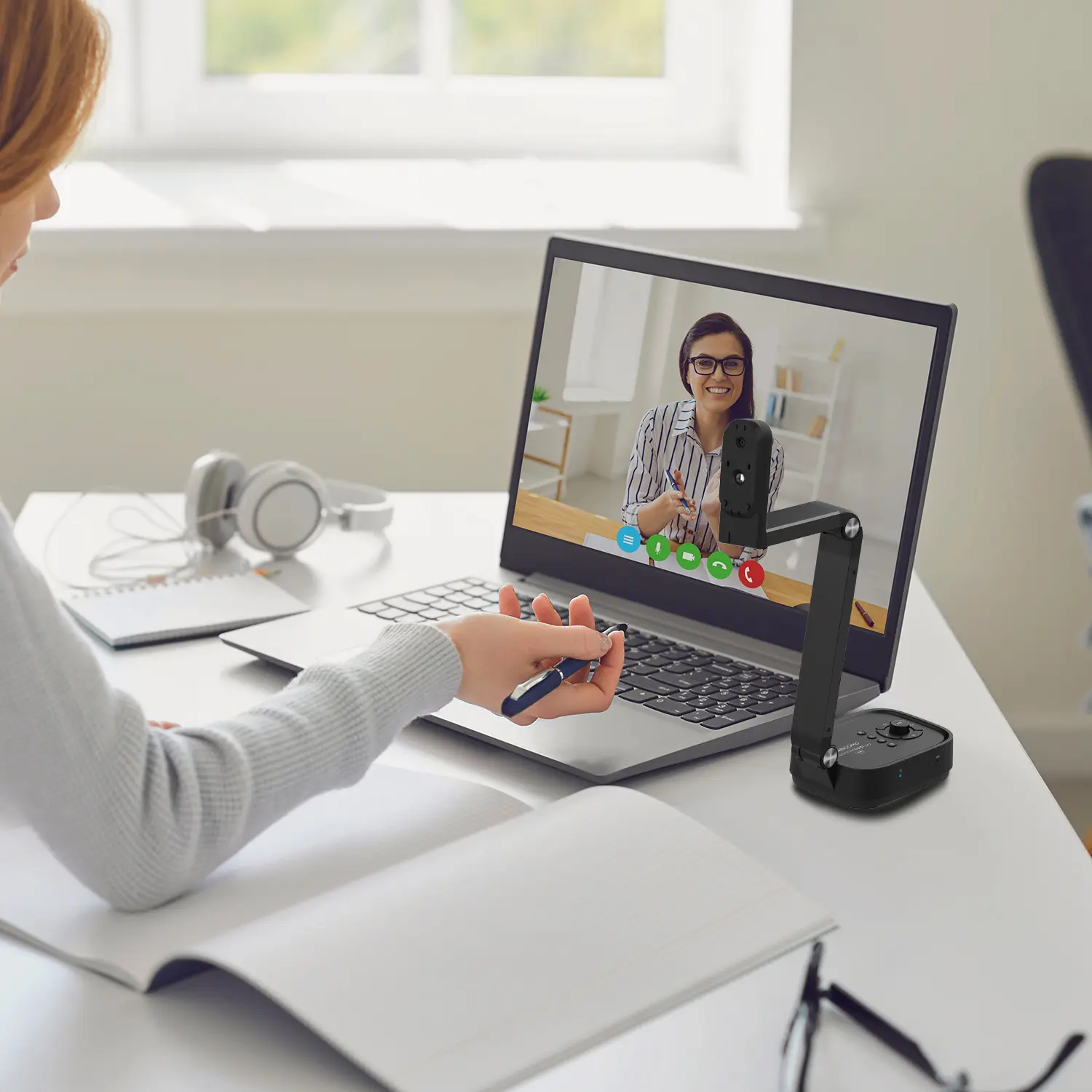
Work From Home? Maybe You Should Try This Document Camera
The Ultimate Educational Tool: Gooseneck Document Camera
60GHz Millimeter-Wave Wireless Screen Sharing: QShare 100
What Does a Modern Conference Room Need?
QD5000 Document Camera: Unimaginable Versatility!
QWC 004: The Most Cost-Effective Webcam
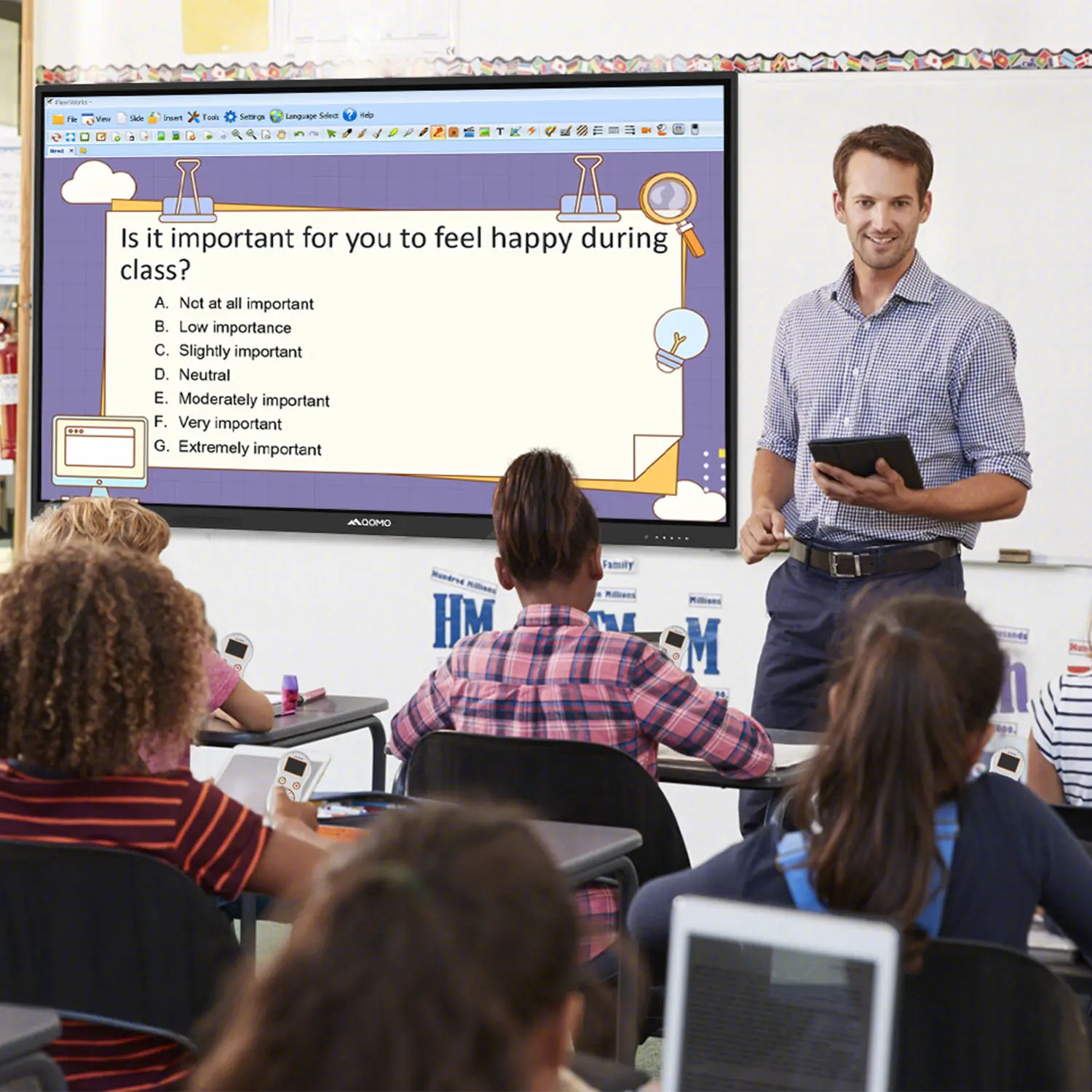
QVote Interactive Classroom Response System Software
Functionality, Aesthetics, Portability! Meet the QWC 100S Document Camera!
Why Choose the BundleBoard H/H2 Interactive Flat Panel?
Save Your Budget—Introducing the All-New QPC 70 Document Camera!
QIT 600F3: Revolutionize Your Presentations
QCamera: Professional Document Camera Software
QPC 5: The Ultimate 4K Portable Document Camera
Elevate Your Meetings in Seconds: QWC 006 Webcam
Meet QOMO at ISE 2025
Wireless Document Camera Solution, Revolutionizing Wireless Technology
QRF Series, Transform Your Classroom!
QOMO, Building Intelligent Classrooms
QOMO QShare100 New Release
Outstanding Office Equipment Recommendations
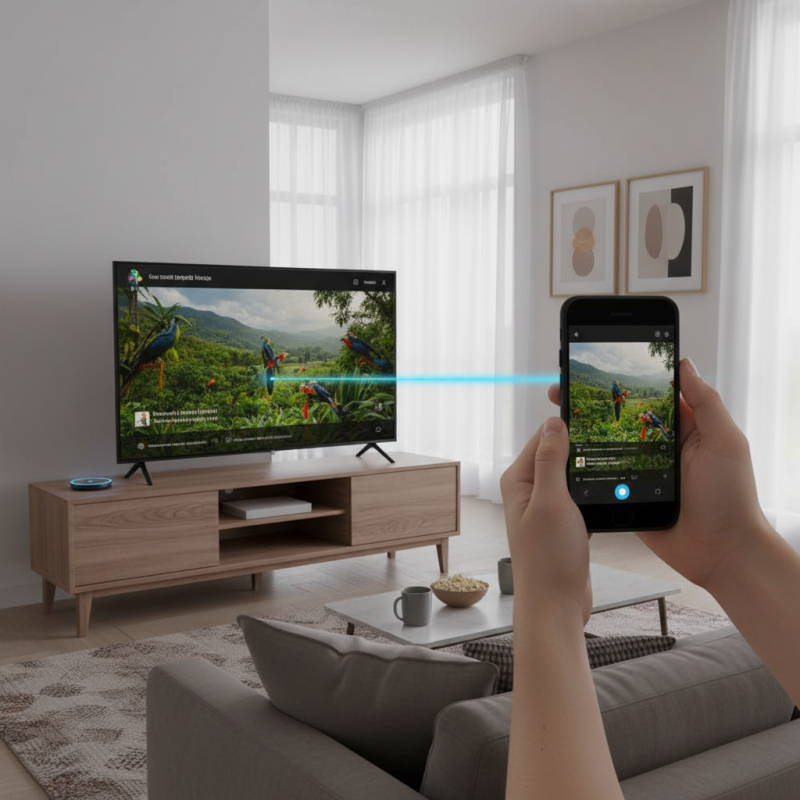
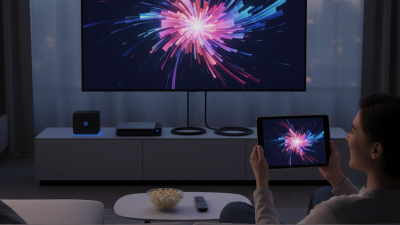
In today’s digital age, the desire to cast mobile to TV has become increasingly prevalent. According to renowned tech expert Sarah Johnson, "Seamless casting transforms how we enjoy mobile content." Her words resonate with many who seek a convenient way to connect their devices.
Casting your mobile to a TV can enhance viewing experiences. Imagine streaming your favorite series or sharing photos with family on a larger screen. It’s a small action that can create big moments. However, the process can sometimes feel overwhelming. Many users find themselves confused by the different platforms and connectivity options.
Despite the challenges, the rewards often outweigh the hurdles. From Android to Apple devices, understanding compatibility is key. Experimenting with various methods will guide you toward the right solution. Thus, the journey to cast mobile to TV is as important as the destination. Embrace the learning curve, and enjoy the transformation of your entertainment experience.
Mobile casting has transformed how we enjoy content on televisions. Recent studies indicate that approximately 80% of mobile users seek ways to stream their screens on larger displays. This trend is driven by an increasing demand for shared viewing experiences. Whether it's for watching movies, gaming, or video conferencing, the mobile-to-TV casting feature enhances our everyday entertainment.
Understanding the basics of mobile casting is crucial. Users often encounter compatibility issues when connecting their devices. Various technologies like Miracast, DLNA, and Chromecast are available, but not all devices support them. A report by the International Data Corporation notes that roughly 45% of users experience technical difficulties while casting content. This can discourage many from using these features. Proper setup is essential for seamless casting, as even minor misconfigurations can hinder the process.
Moreover, the user interface can be unintuitive. Some might struggle to locate the right settings on their devices. A recent survey indicated that around 30% of users feel overwhelmed when trying to adjust display settings or connect to Wi-Fi networks. While mobile casting is convenient, the experience can be flawed. Learning the basics and understanding potential pitfalls can minimize frustration and enhance the overall experience.
When it comes to casting mobile content to a TV, different methods cater to various devices. Understanding each option’s quirks can help you quickly connect and enjoy your favorite media. For many, Wi-Fi Direct is the go-to choice. It allows a direct connection between devices, offering a seamless experience. Make sure both your mobile and TV support this feature. Sometimes, the connection can be shaky, requiring you to troubleshoot settings.
Another common method is using HDMI cables. This is a wired solution that provides stability. Simply connect your phone or tablet to the TV using an appropriate cable. The downside? You’re tethered to your TV. If you move around, it can be inconvenient. Some users may prefer using casting devices. These gadgets often require setup but can add functionality, like access to streaming apps.
Remember, not every casting method works perfectly. There may be latency, image distortion, or compatibility issues depending on your devices. Experiment and choose a method that fits your lifestyle. Finding the right balance between convenience and performance can take time, but the effort is worth it for a great viewing experience.
| Casting Method | Device Compatibility | Connection Type | Setup Time | Quality |
|---|---|---|---|---|
| Screen Mirroring | Android, iOS, Windows | Wi-Fi | Instant | High |
| Chromecast | Android, iOS, Chrome | Wi-Fi | Moderate | Very High |
| Apple AirPlay | iOS, macOS | Wi-Fi | Instant | Very High |
| HDMI Cable | All devices with HDMI output | Wired | Low | High |
| Roku Screen Mirroring | Android, Windows | Wi-Fi | Moderate | High |
Casting your mobile device to your TV can enhance your viewing experience. Thanks to modern technology, it's become quite straightforward. Begin by connecting your mobile device and TV to the same Wi-Fi network. This step is essential. Without it, your devices will not communicate properly.
Once connected, open the settings on your mobile device. Look for the “Cast” option, sometimes labeled as “Screen Mirroring” or similar terms. Tap on this and select your TV from the list of available devices. In some instances, it might take a moment for your TV to appear. If it doesn’t, try restarting both devices. Patience is key.
As you successfully mirror your screen, be aware of potential pitfalls. Occasionally, the connection might drop, or there could be lag. If you face these issues, check the Wi-Fi signal strength. High traffic on your network can also cause interruptions. Experiment with different streaming resolutions. Sometimes, lowering the quality can improve stability.
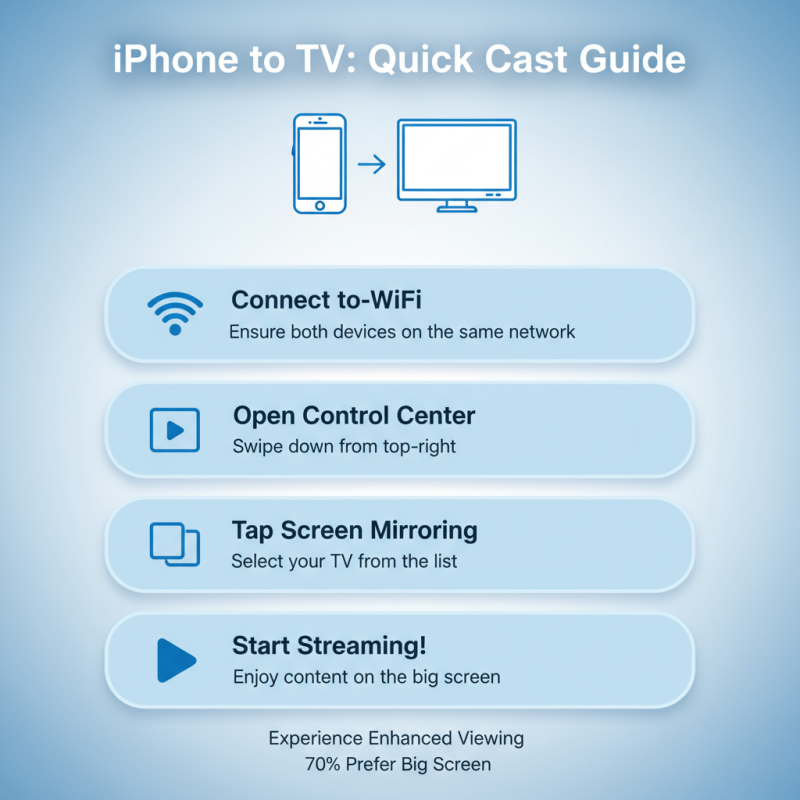
Casting from your iPhone to your TV can enhance your viewing experience. According to recent reports, 70% of consumers prefer streaming content via a larger screen. This has driven an increase in demand for seamless casting solutions. Here’s a step-by-step guide to effortlessly cast from your iPhone to your TV.
Start by ensuring that your iPhone and TV connect to the same Wi-Fi network. This is critical for the casting process to function properly. Navigate to the Control Center on your iPhone, a feature that 85% of users utilize for quick access to settings. Tap on “Screen Mirroring,” then select your TV from the list displayed. It’s worth noting that some older TVs may require an additional setup. This can lead to user frustration if the steps aren't followed correctly.
Once connected, select the content you want to watch. Whether it's a movie or your favorite show, any visual content is more enjoyable on a bigger screen. However, connectivity issues can occur, causing lag or failure to connect. A survey indicated that 55% of users experience interruptions due to poor Wi-Fi signals. Regularly check your network status and consider rebooting your router if issues persist. Remember, technology is not always foolproof, and troubleshooting can sometimes be necessary for a smoother experience.
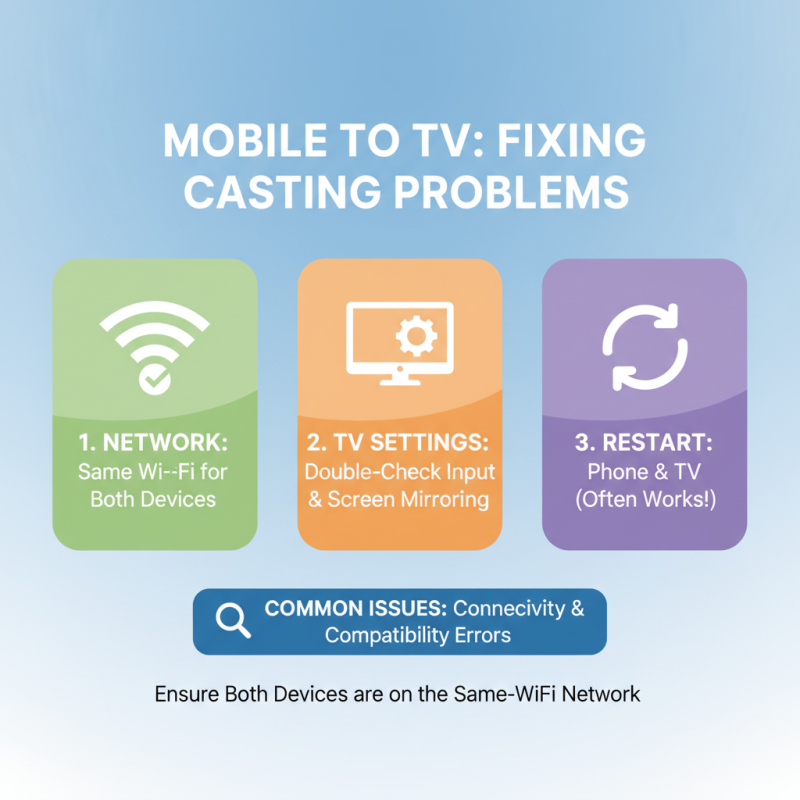
Casting your mobile device to your TV can be seamless, yet many encounter issues. Common problems often arise due to connectivity errors or compatibility issues. For example, your mobile device may fail to detect the TV. Ensure both devices are on the same Wi-Fi network. Double-check the settings on your TV. Sometimes, a simple restart can resolve connectivity hitches.
Another frequent issue is buffering or lag during casting. This could stem from a weak internet connection. Try moving your router closer to your devices. If this doesn't help, consider rebooting your router. Furthermore, outdated software on either device can also cause disruptions. Always keep your devices updated. Even minor software updates can enhance the connection process.
Occasionally, even when everything seems right, casting just won’t work. This can be frustrating. Check for any app-specific issues. Some apps have restrictions that prevent casting. Testing alternate apps can often reveal the root of the problem. If issues persist, consider reaching out to support forums for tailored advice from experienced users. This collective knowledge often uncovers solutions that standard troubleshooting guides overlook.