+86 152 8002 3723
QVoteProfessional Audience Response System software offers the most convenient functions for your interactions.
QClickThe most convenient educational software for working with Microsoft PowerPoint to quickly set up various question types and generate intelligent feedback reports.
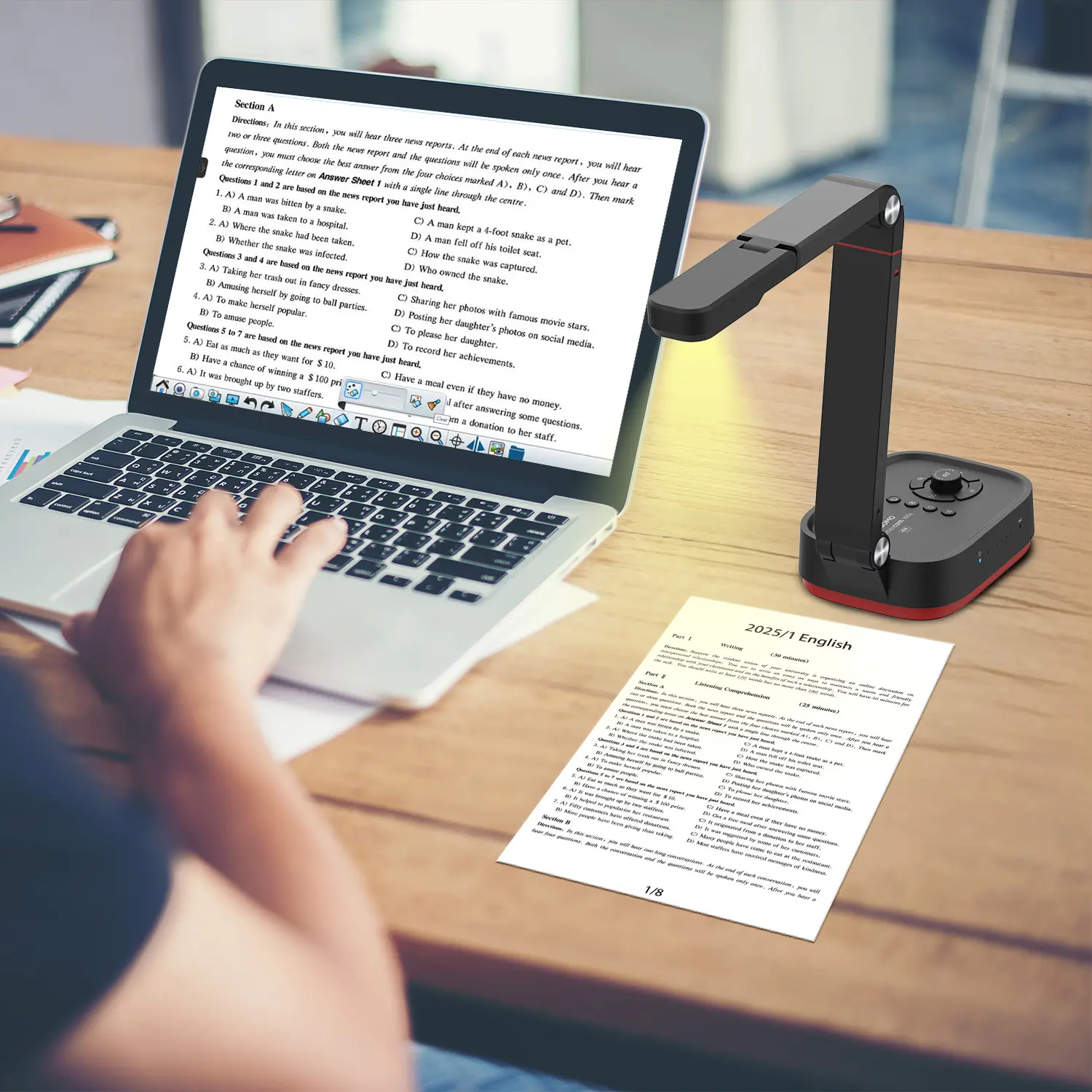
QCameraQCamera by QOMO allows for real-time streaming from cameras and document cameras. Annotate, save snapshots, record, and manipulate camera images instantly.
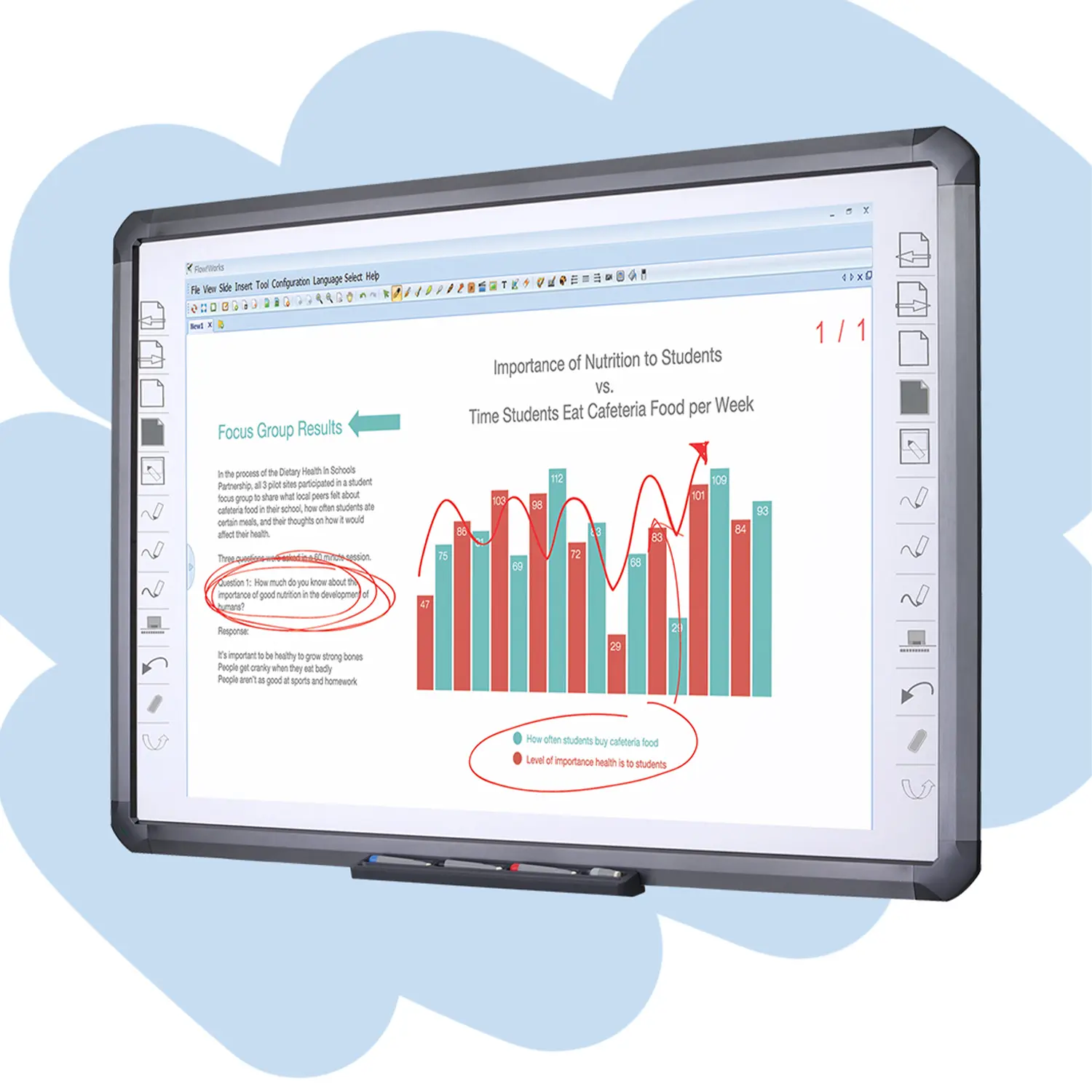
Flow!Works ProUser - friendly whiteboard software, it encompasses a wide range of presentation tools and powerful functions, delivering the most professional presentation experience to you.
Flow!WorksFlow!Works incorporates more educational tools, further enhancing the interactivity and fun - factor of your teaching.
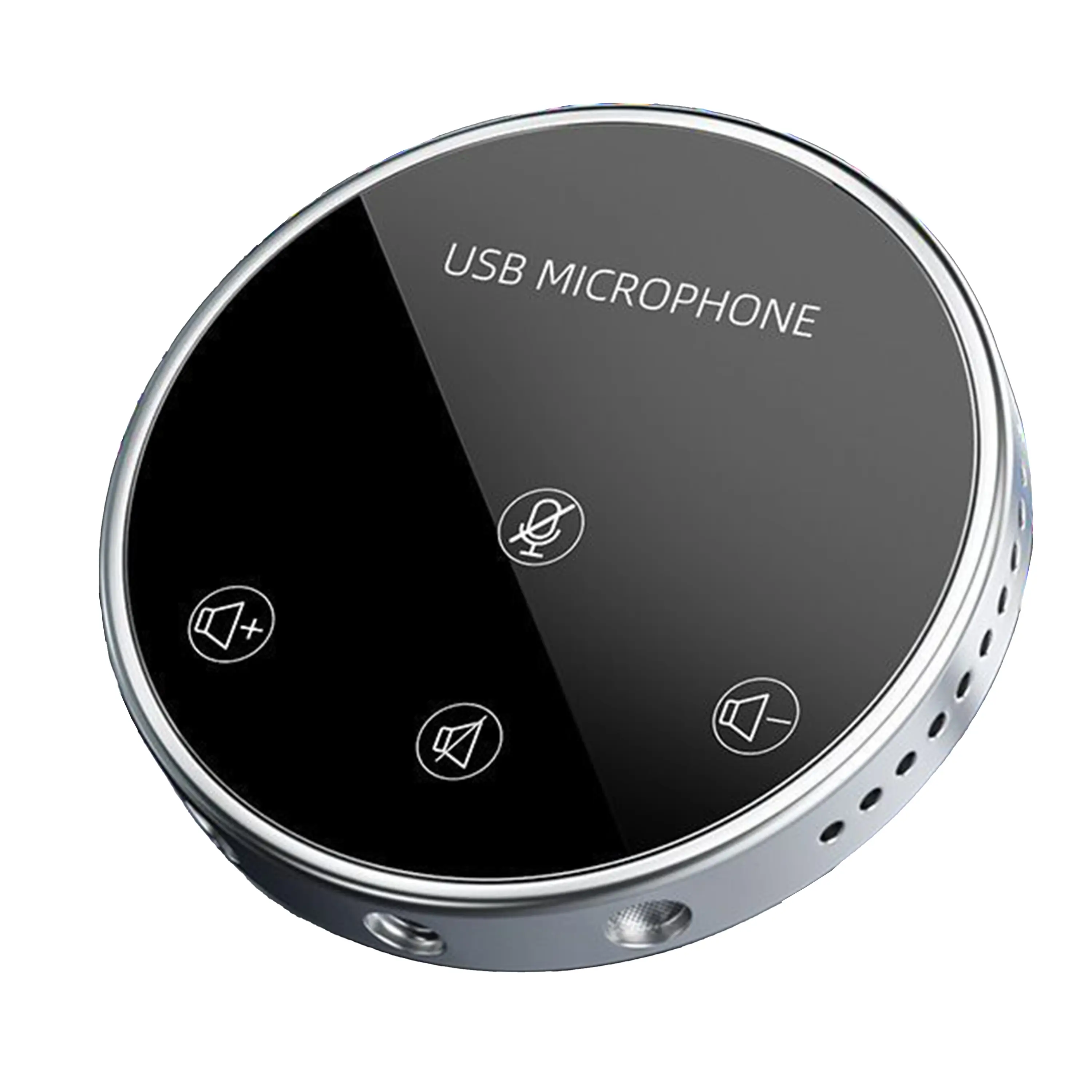
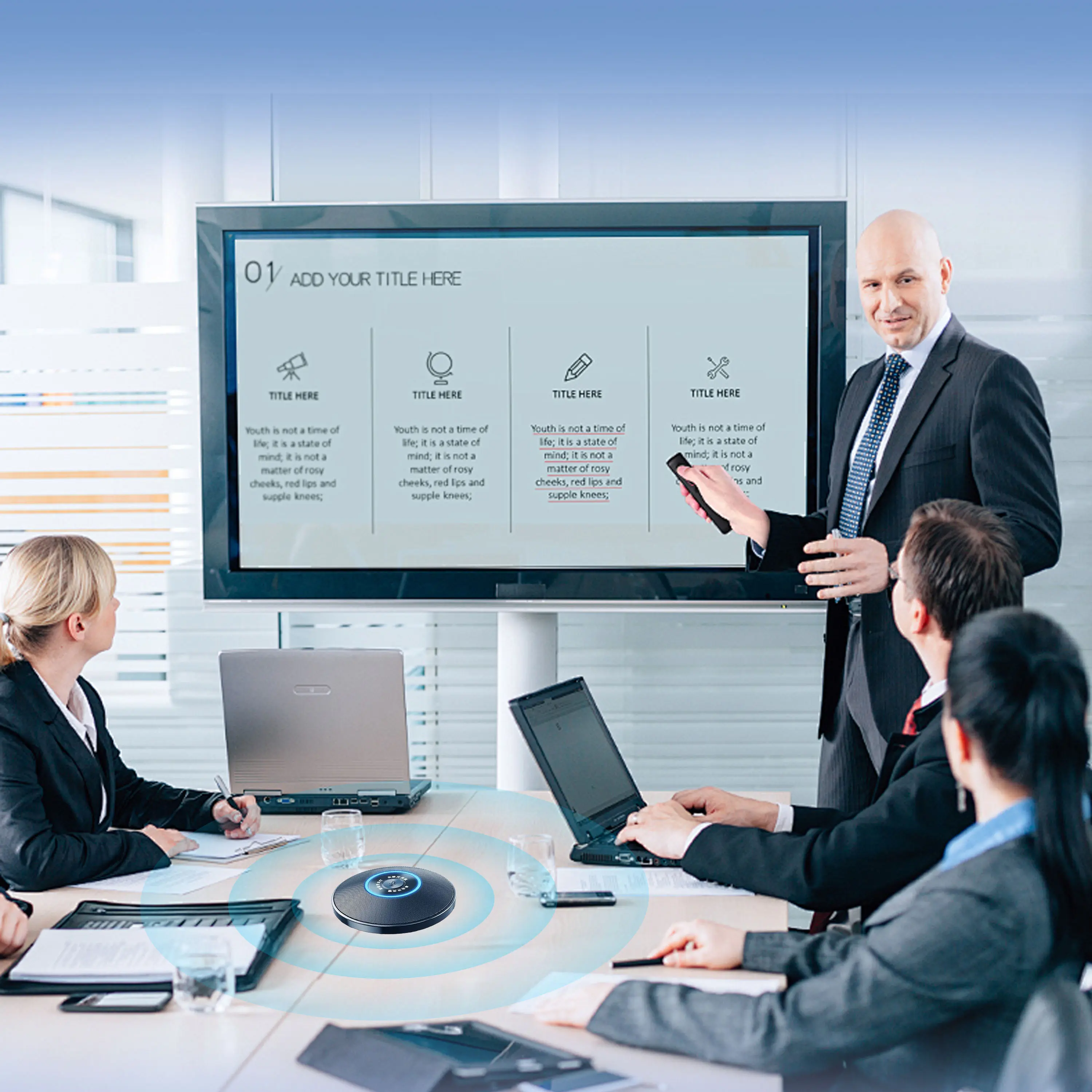
Conference Microphone● USB
● Plug and Play
● Intelligent Noise-Canceling
● 10ft/3m Extended Pickup Range
● 360° Omnidirectional Pickup
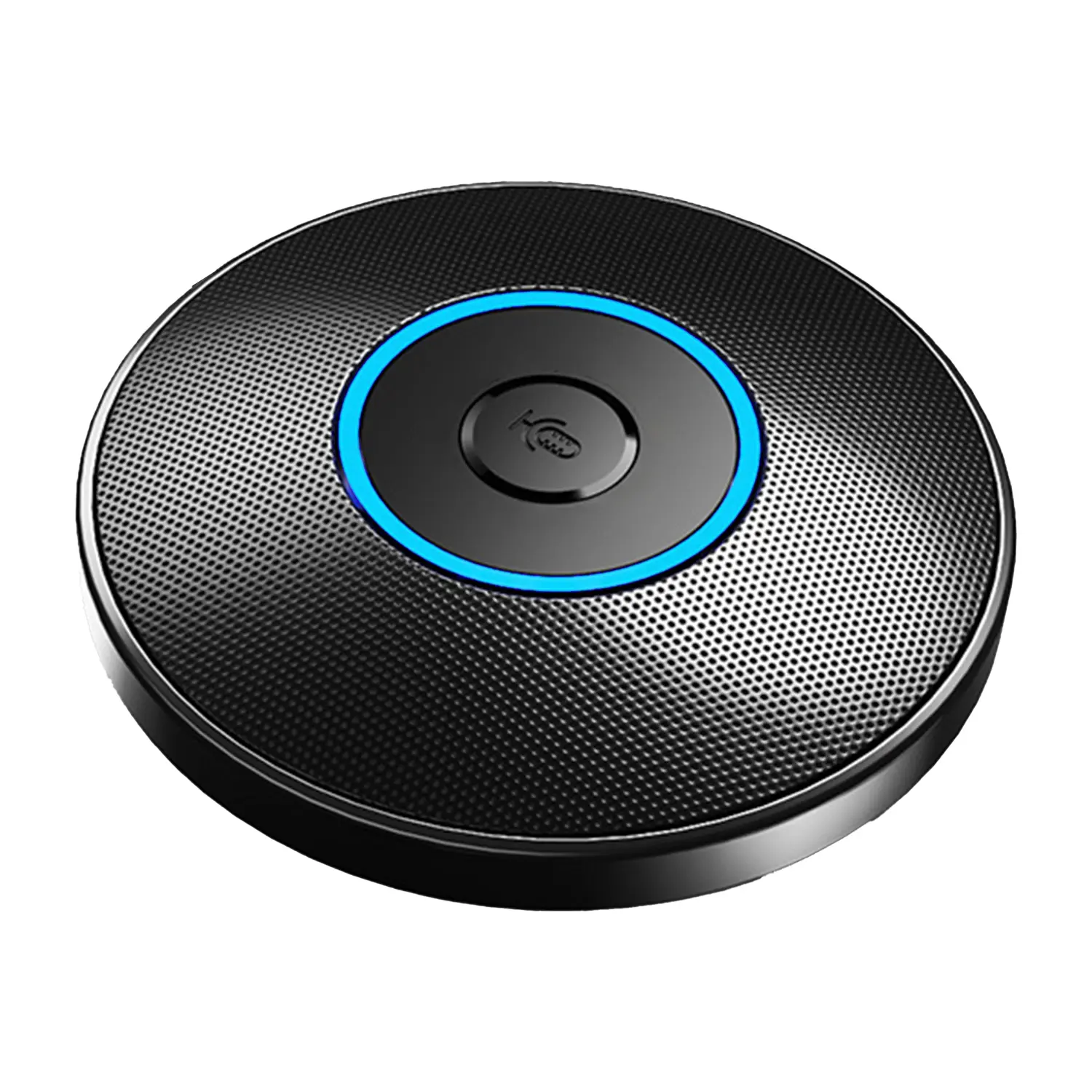
Conference Speakerphone● USB-C
● Plug and Play
● Intelligent Noise-Canceling
● 10ft/3m Extended Pickup Range
● 360° Omnidirectional Pickup
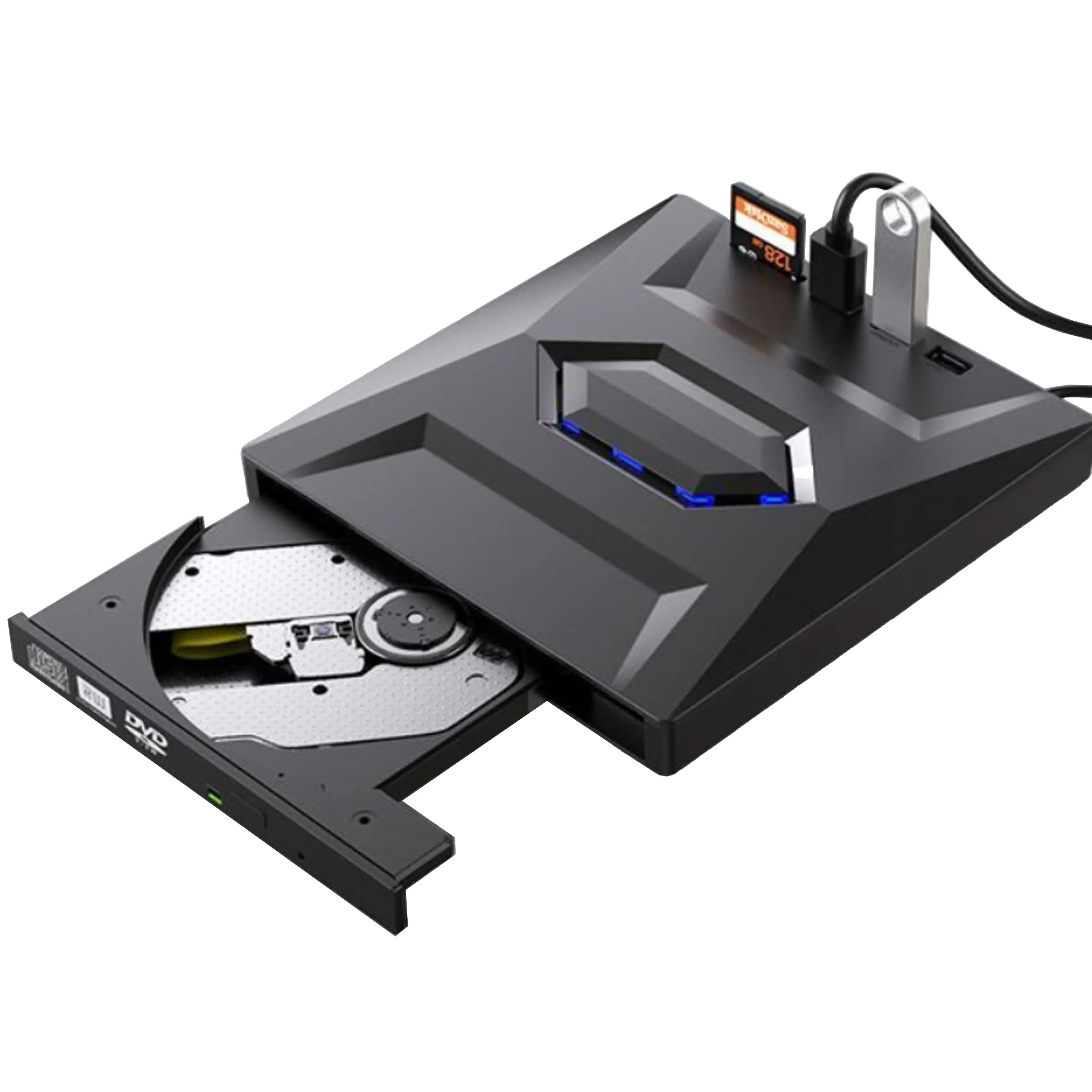
USB External CD/DVD Drive• USB and USB-C
• USB 3.0
• 8x DVD and 24x CD write/read speeds
• Portable
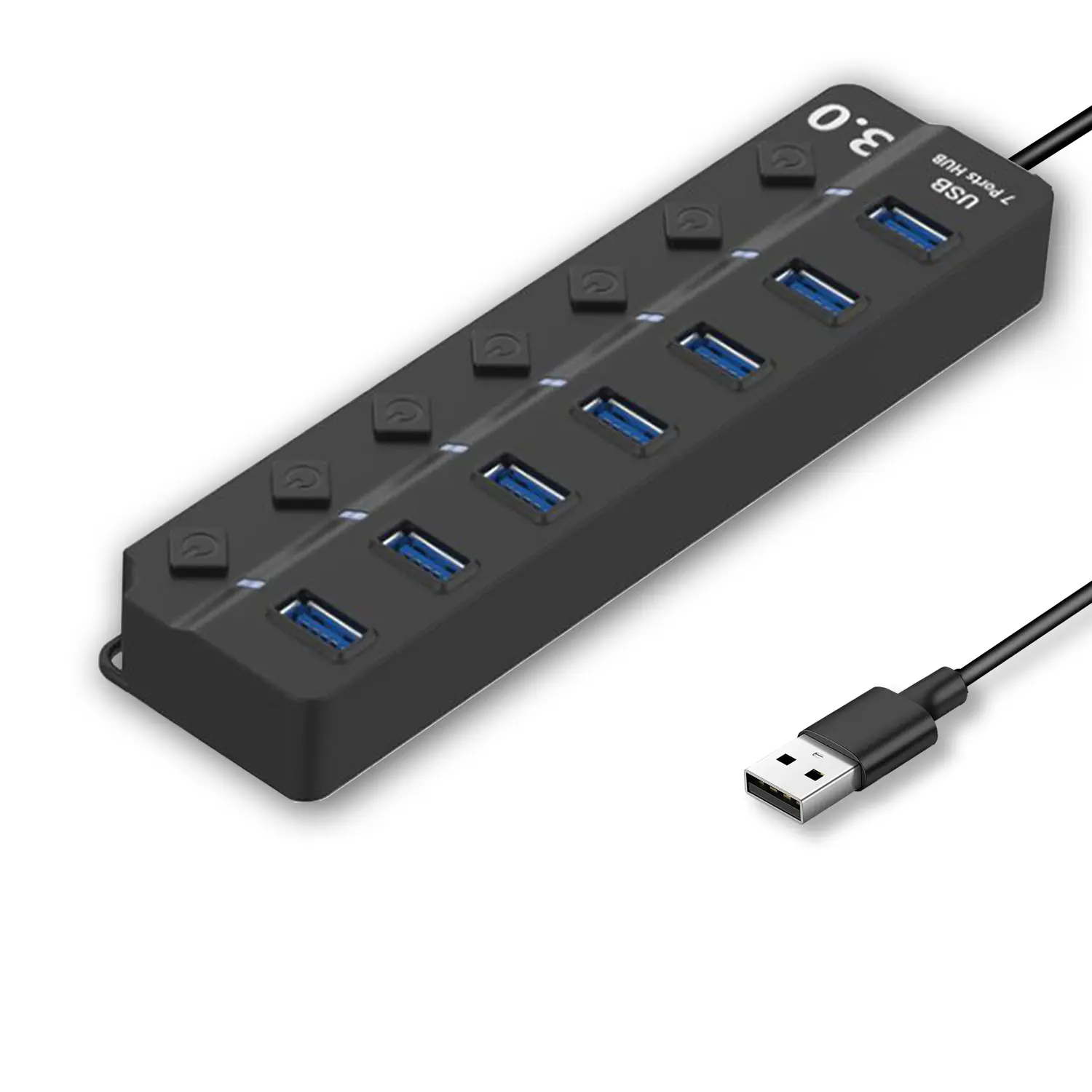
7-Port USB 3.0 Hub● USB 3.0
● Plug and Play
● 7-in-1 USB Hub
● Individual On/Off Switches
Revolutionize Your Presentations and Document Display with QWC 100S Document Camera
Enhance Call Experience: New Conference Microphone Now Available
AI-Powered Face-Tracking Webcam
Portable Document Camera Recommendations
Classic Design, Exceptional Functionality: QPC 22 Document Camera
Wireless Screen Mirroring Solution for All Devices
Latest Audience Response System: QRF 999
Introducing the QPC 80H3 Gooseneck Document Camera
Creating a Smart Integrated Classroom: What Do You Need?
Wireless Connectivity Upgraded: WiFi-Free Wireless Document Receiver
Flow!Works Pro: Interactive Whiteboard Software for Engaging Classrooms
How to Choose the Perfect Document Camera and Elevate Productivity
QWC 004 Conference Webcam: The Top Choice for Remote Education
QCamera: Dedicated Software for Document Cameras to Elevate Your Presentations
QRF999 Voice Response System: Enhancing Teacher-Student Interaction
Work From Home? Maybe You Should Try This Document Camera
The Ultimate Educational Tool: Gooseneck Document Camera
60GHz Millimeter-Wave Wireless Screen Sharing: QShare 100
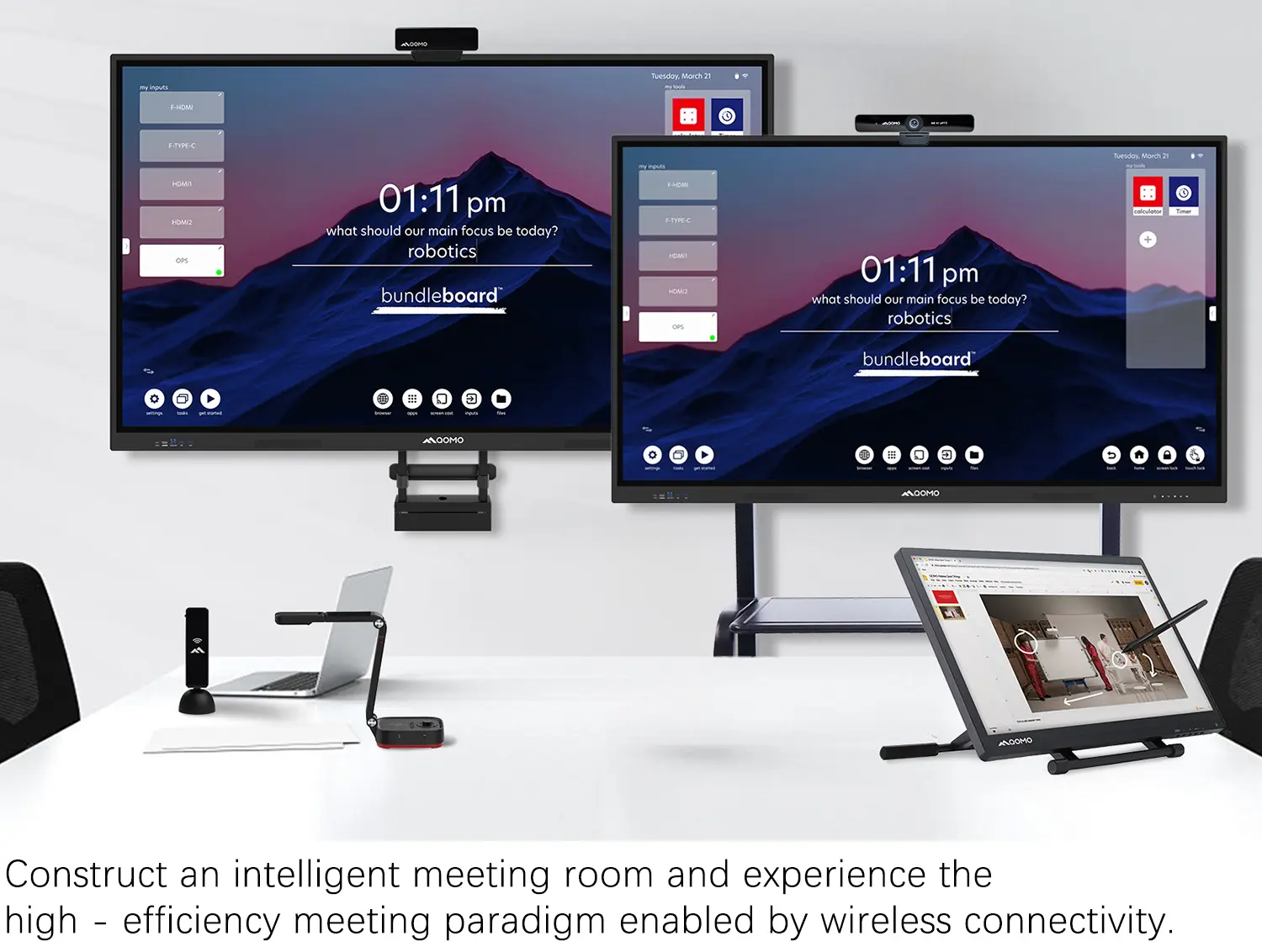
What Does a Modern Conference Room Need?
QD5000 Document Camera: Unimaginable Versatility!
QWC 004: The Most Cost-Effective Webcam
QVote Interactive Classroom Response System Software
Functionality, Aesthetics, Portability! Meet the QWC 100S Document Camera!
Why Choose the BundleBoard H/H2 Interactive Flat Panel?
Save Your Budget—Introducing the All-New QPC 70 Document Camera!
QIT 600F3: Revolutionize Your Presentations
QCamera: Professional Document Camera Software
QPC 5: The Ultimate 4K Portable Document Camera
Elevate Your Meetings in Seconds: QWC 006 Webcam
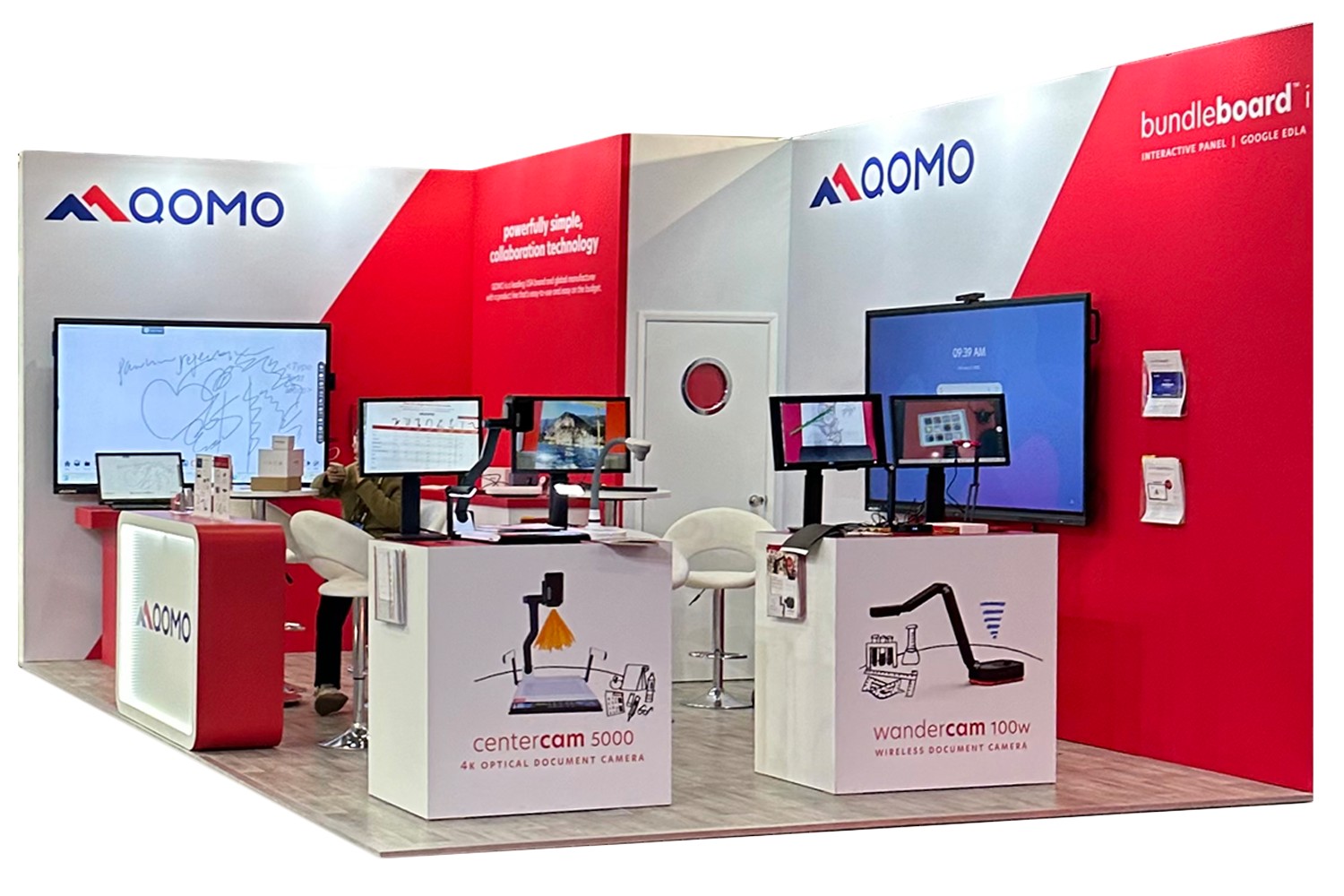
Meet QOMO at ISE 2025
Wireless Document Camera Solution, Revolutionizing Wireless Technology
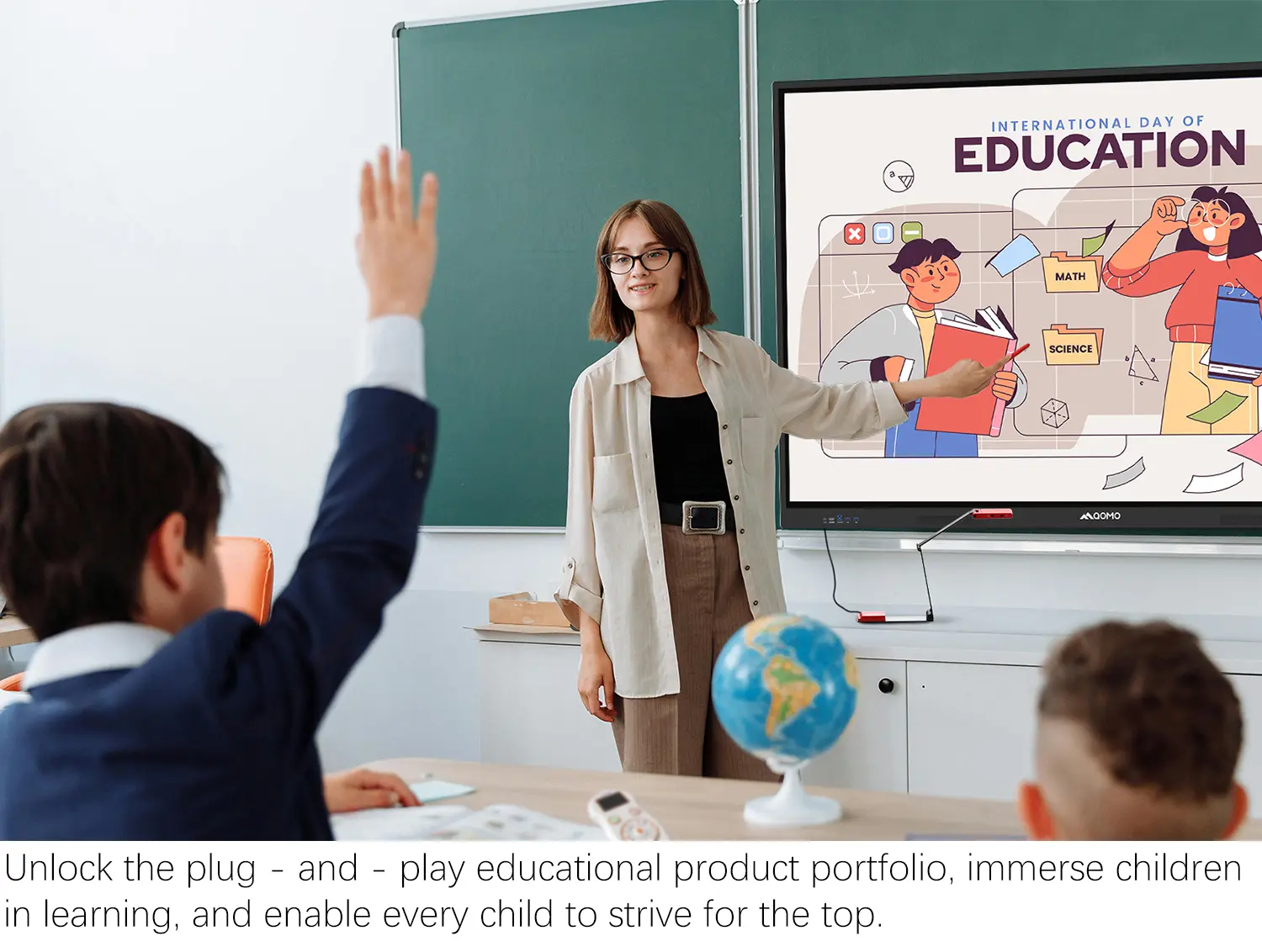
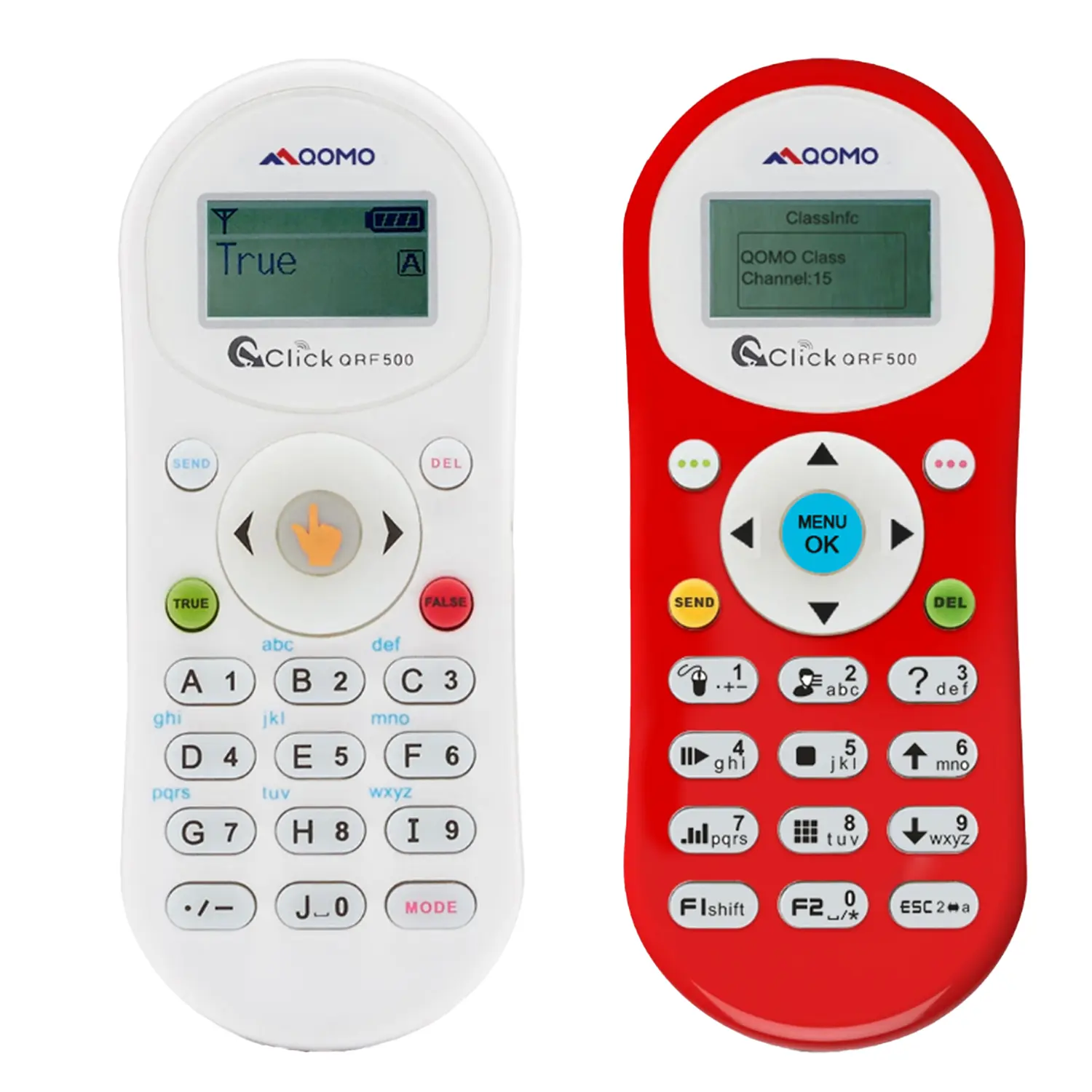
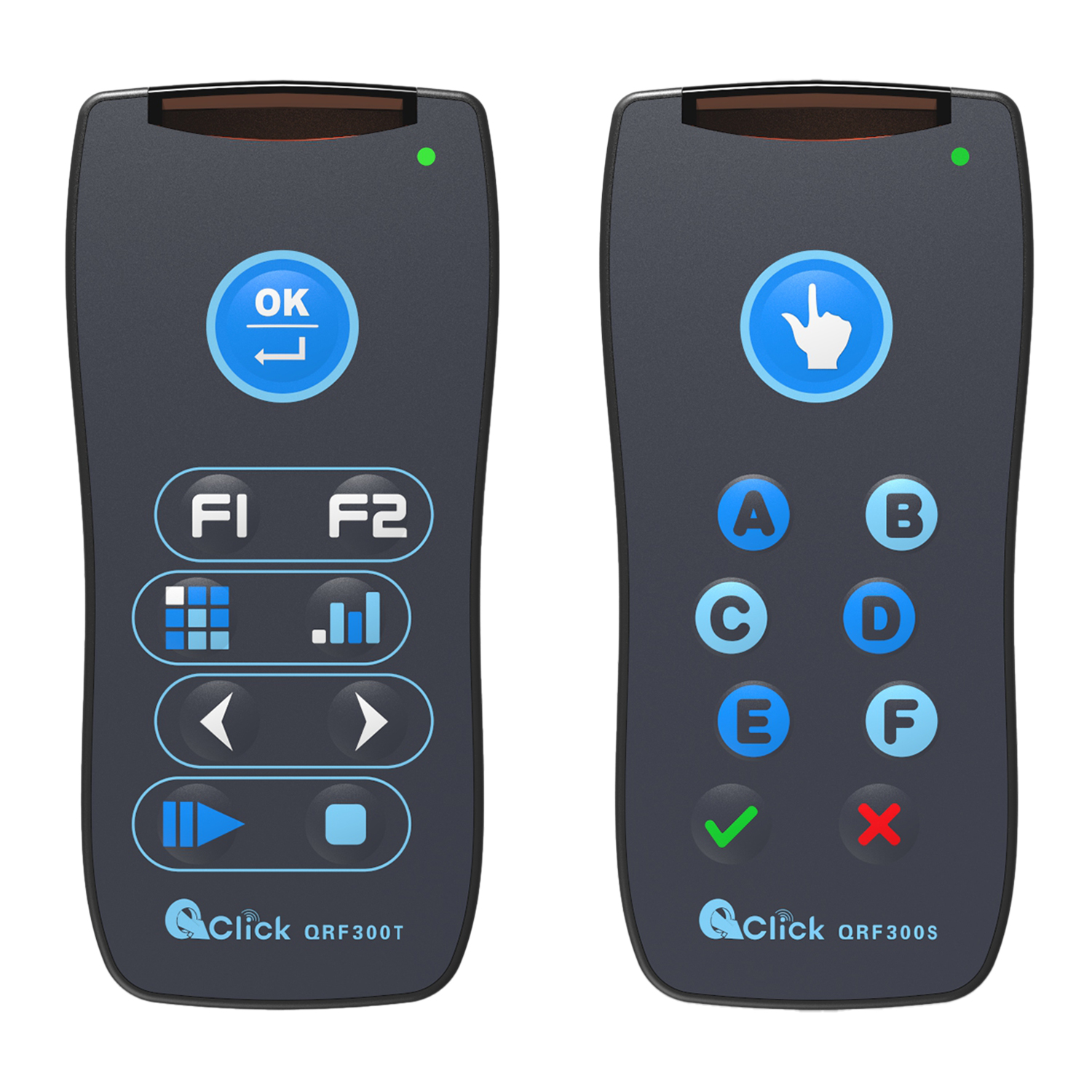
QRF Series, Transform Your Classroom!
QOMO, Building Intelligent Classrooms
QOMO QShare100 New Release
Outstanding Office Equipment Recommendations
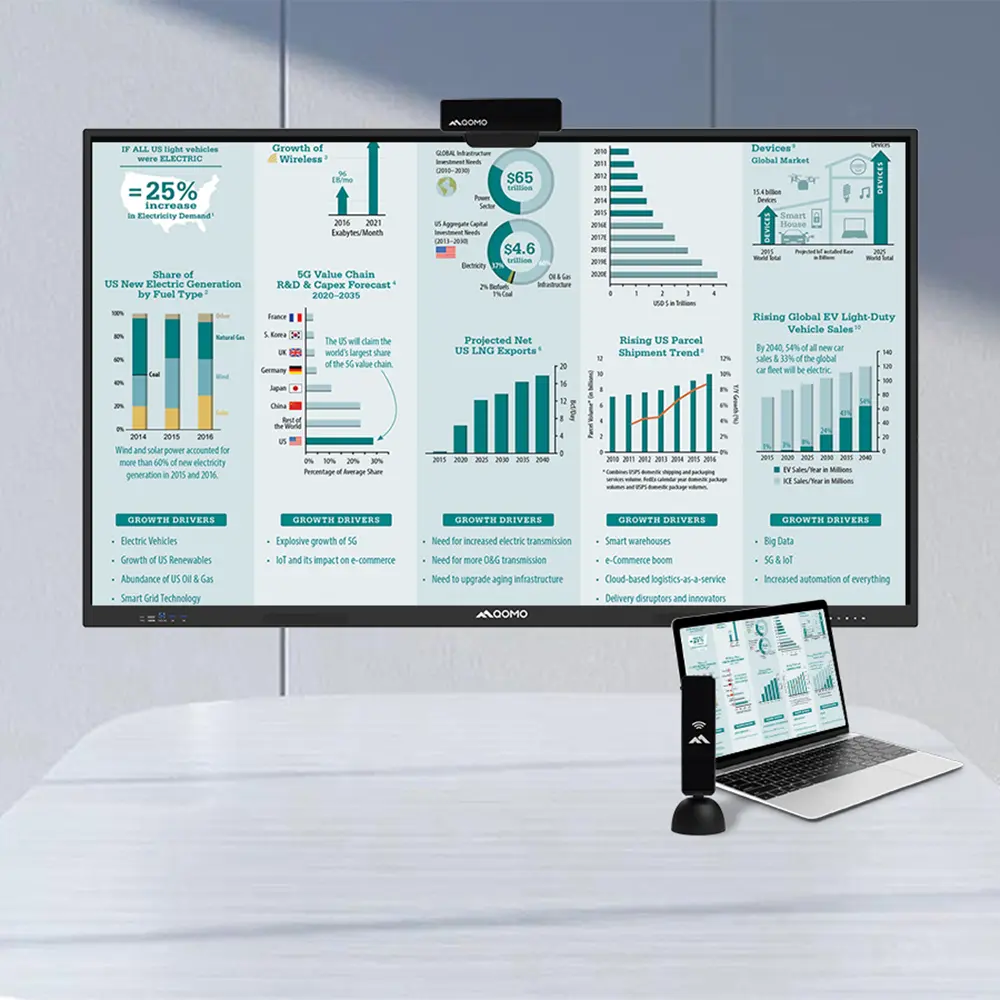
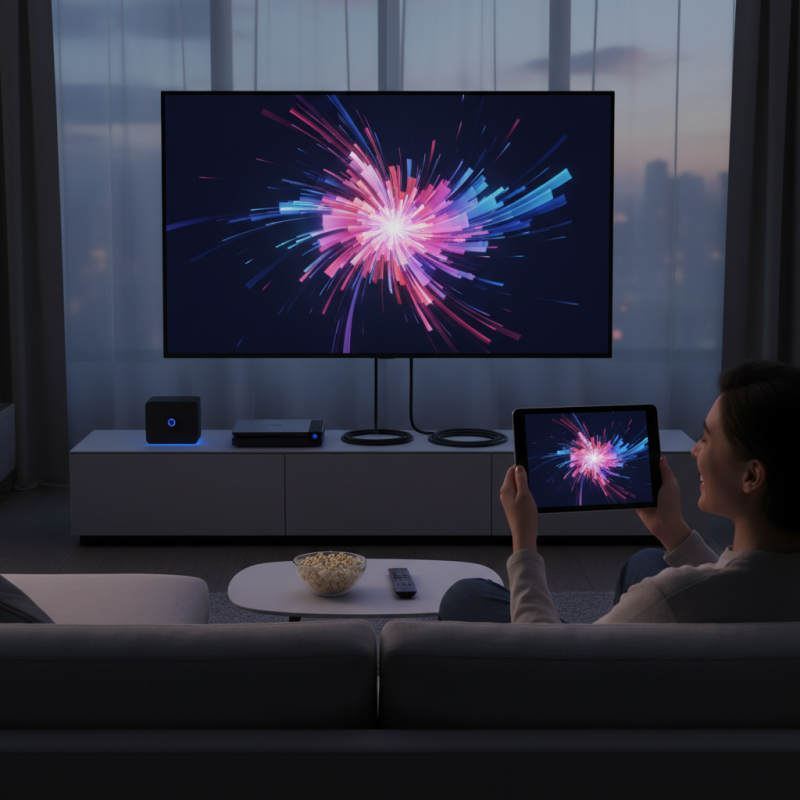
In today's digital age, the ability to share screen with TV has become essential. Whether for presentations, gaming, or streaming, seamless connectivity enhances our viewing experiences. Knowing how to effectively share your screen can transform any gathering into an engaging event.
Many devices offer different methods to share your screen. Unfortunately, navigating these options can sometimes be frustrating. Technical glitches or compatibility issues often arise. Understanding each method's nuances is vital.
From smart TVs to HDMI cables, there are various ways to achieve this. Selecting the right approach depends largely on your devices. The following tips will guide you through sharing your screen with TV effortlessly. With the right tools and knowledge, you'll be able to enjoy a bigger, more immersive experience.
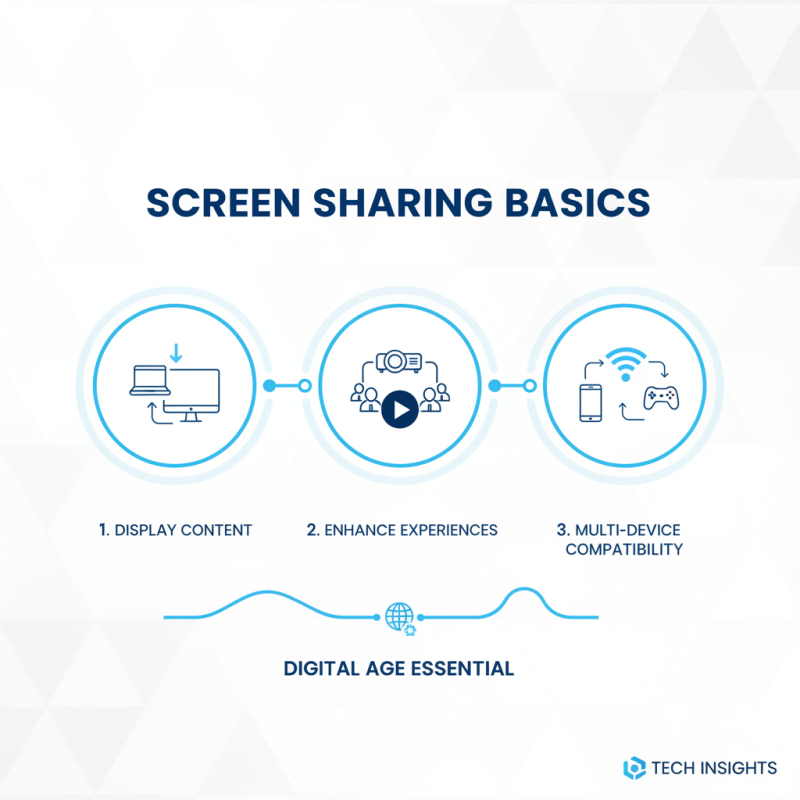
Screen sharing has become essential in our digital age. It's crucial to understand the basics. First, screen sharing allows you to display content from your device to a larger screen. This can enhance presentations, movie nights, or gaming sessions. Many devices support this feature, but knowing how to implement it is key.
Connecting your device can involve various methods. Wireless options like Wi-Fi Direct or Miracast provide a seamless experience. However, using cables like HDMI can offer stability. Each method has its pros and cons. For instance, wireless options can sometimes lag, while cables limit movement. Understanding these nuances can greatly improve your sharing experience. Make sure to check compatibility before attempting to share your screen.
Troubleshooting issues is also part of screen sharing. Sometimes, the connection might fail unexpectedly. This can be frustrating. Checking settings on both devices can often resolve these issues. It's also beneficial to read user manuals for specific instructions. Familiarizing yourself with different devices' capabilities and limitations can help avoid confusion. As you gain more experience, your confidence in sharing your screen will grow.
When it comes to sharing your screen with a TV, choosing the right devices is crucial. Your setup can influence both the ease and quality of the experience. Consider options like streaming devices, smart TVs, and HDMI cables. Each has its pros and cons, and knowing these can save you time and frustration.
Streaming devices are popular for their wireless capabilities. They allow for easy setup and connectivity. However, ensure your Wi-Fi is strong. Weak signals can cause lag or interruptions. HDMI cables provide a reliable wired connection but can be cumbersome due to their length and placement. It's a balance between convenience and reliability.
Tips for effective screen sharing: always update your device software. This ensures compatibility and can solve many connection issues. Additionally, check your TV's input settings to avoid confusion when connecting. Lastly, don't hesitate to experiment with different configurations to find what works best for your space. Reflection is key; if something doesn’t work, adjusting your approach may lead to improvement.
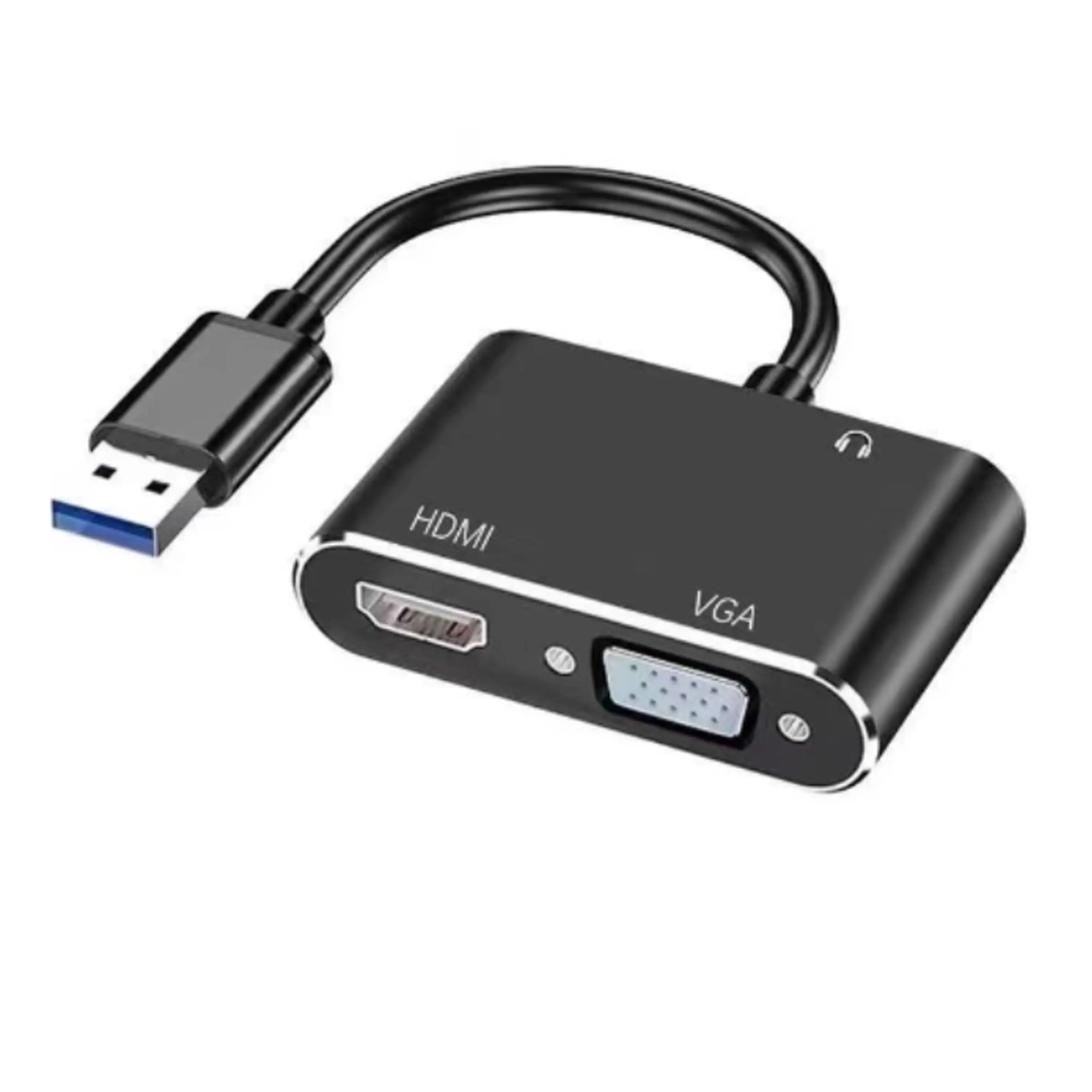
Using HDMI cables for screen sharing can be straightforward. This guide provides clear steps to help you connect your devices effortlessly. Begin by gathering your HDMI cable alongside your laptop or mobile device and your TV. Look for the HDMI ports on both your TV and devices. Make sure to identify them correctly; they often have clear labels.
Connect one end of the HDMI cable to your device and the other end to the TV. It's crucial to ensure the connection is snug to prevent disruptions. Once connected, turn on your TV and select the appropriate HDMI input. This step is essential, as it directs your TV to display the feed from your device. If you do not see the expected screen, check your connections and the input settings on your TV.
Sometimes, the desktop may not appear as intended. In those cases, you might need to adjust the display settings on your device. Open the settings and navigate to the display options. Here, you can select 'duplicate' or 'extend' your screen. Experimenting with these settings can help you achieve the desired outcome. Remember, troubleshooting is part of the process; don’t panic if things don’t work on the first try.
| Method | Description | Pros | Cons |
|---|---|---|---|
| HDMI Cable | Direct connection from device to TV for video and audio sharing. | High-quality video; low latency. | Cables can be restrictive; physical connections required. |
| Chromecast | Wirelessly stream content from devices to TV. | No cables; multiple device compatibility. | Requires Wi-Fi; potential lag. |
| Apple AirPlay | Stream content from Apple devices to enabled TVs. | Seamless for Apple users; high-quality streaming. | Limited to Apple devices; requires compatible TVs. |
| Miracast | Wi-Fi Direct technology to mirror screens. | No router needed; compatible with many devices. | Performance may vary; setup may be complex. |
| DisplayPort to HDMI | Convert DisplayPort output on PC to HDMI input on TV. | Supports high resolutions; good for gaming. | May require adapter; not as common as HDMI. |
| Roku Screen Mirroring | Mirror content from compatible devices to Roku-enabled TVs. | User-friendly; good for streaming apps. | Limited to certain devices; requires setup. |
| Steam Link | Stream games from PC to TV via local network. | Great for gaming; low latency. | Requires powerful PC; network dependent. |
| Smart TV Apps | Use apps directly on smart TV to access content. | Convenient; no additional devices needed. | Limited app selection; interface can vary. |
| Bluetooth Streaming | Connect devices via Bluetooth for audio streaming. | No wires; easy setup. | Limited range; audio only. |
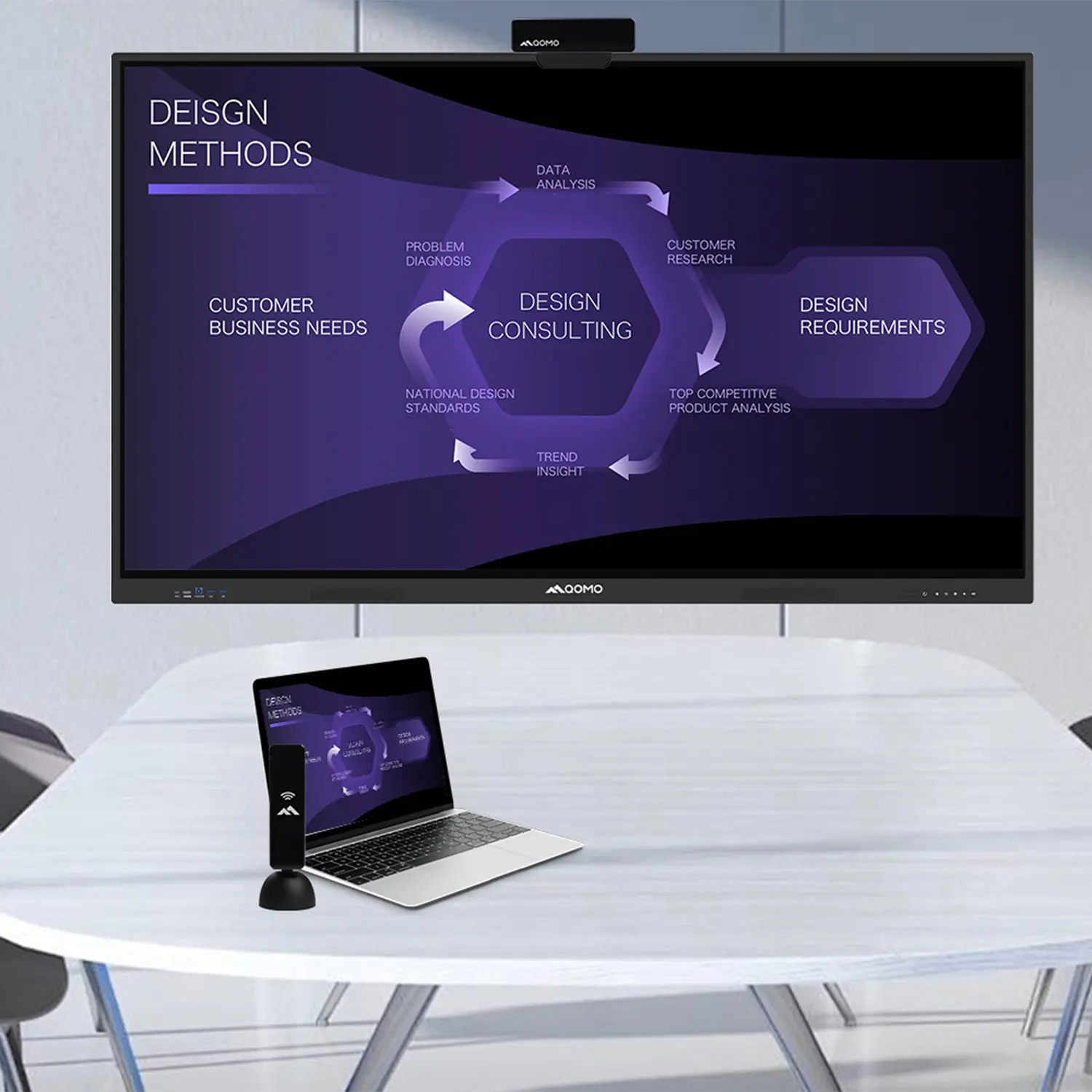
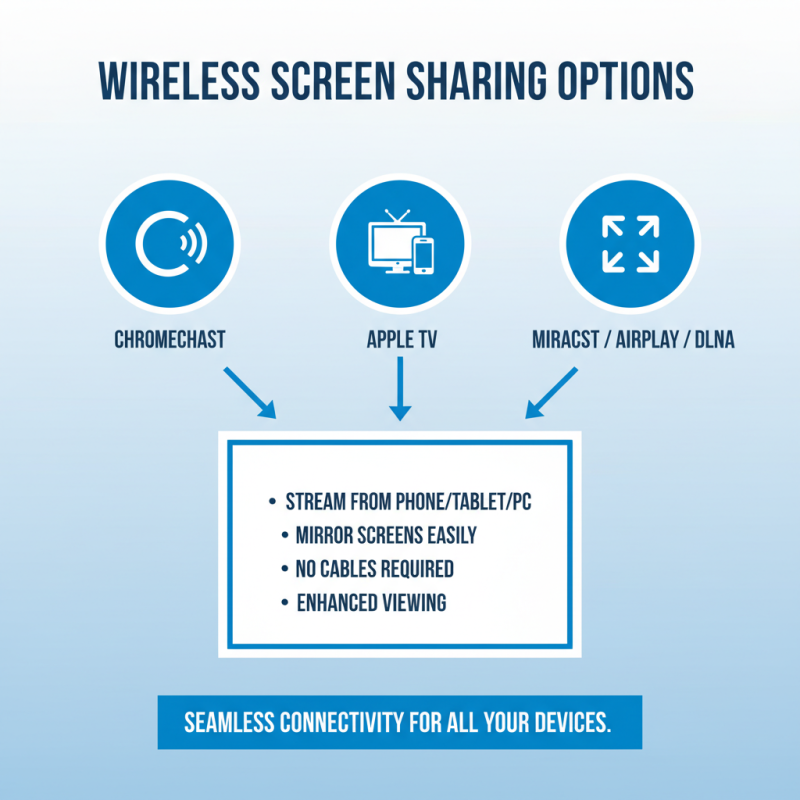
Screen sharing has become essential in our digital age. Fortunately, wireless options simplify the process. Many devices enable seamless connection to TVs, providing an enhanced viewing experience. These technologies allow users to mirror their screens effortlessly without a physical connection.
Chromecast options are popular for their versatility. Users can stream directly from mobile devices or laptops. It’s simple to set up. Just connect it to your TV’s HDMI port. After that, follow the instructions. Apple-compatible devices can also benefit from similar wireless methods. AirPlay creates a convenient way to share your screen with ease. While these technologies offer plenty of potential, some users may face connection issues. Interference can disrupt streaming quality.
Others may find the initial setup time-consuming. Understanding network settings is crucial. Clear instructions help mitigate confusion. Each device comes with unique features, and sometimes trial and error is necessary. Careful exploration can lead to better use of these wireless options. Each sharing method has strengths and weaknesses. A bit of patience enhances the experience. Embracing this technology opens doors to creativity and convenience.
Screen sharing with a TV can sometimes be frustrating. Users often encounter common issues that can disrupt the experience. One of the frequent problems is connectivity.
Ensure both devices are on the same Wi-Fi network. A simple disconnection and reconnection can work wonders.
Another issue is audio lag. If the sound doesn't sync with the video, check your settings. Sometimes, adjusting the audio delay option on the TV can fix it.
Don’t overlook firmware updates for your TV. Outdated software can hinder performance and compatibility. Regular updates can improve overall experience.
Tips for better screen sharing: