+86 152 8002 3723
QVoteProfessional Audience Response System software offers the most convenient functions for your interactions.
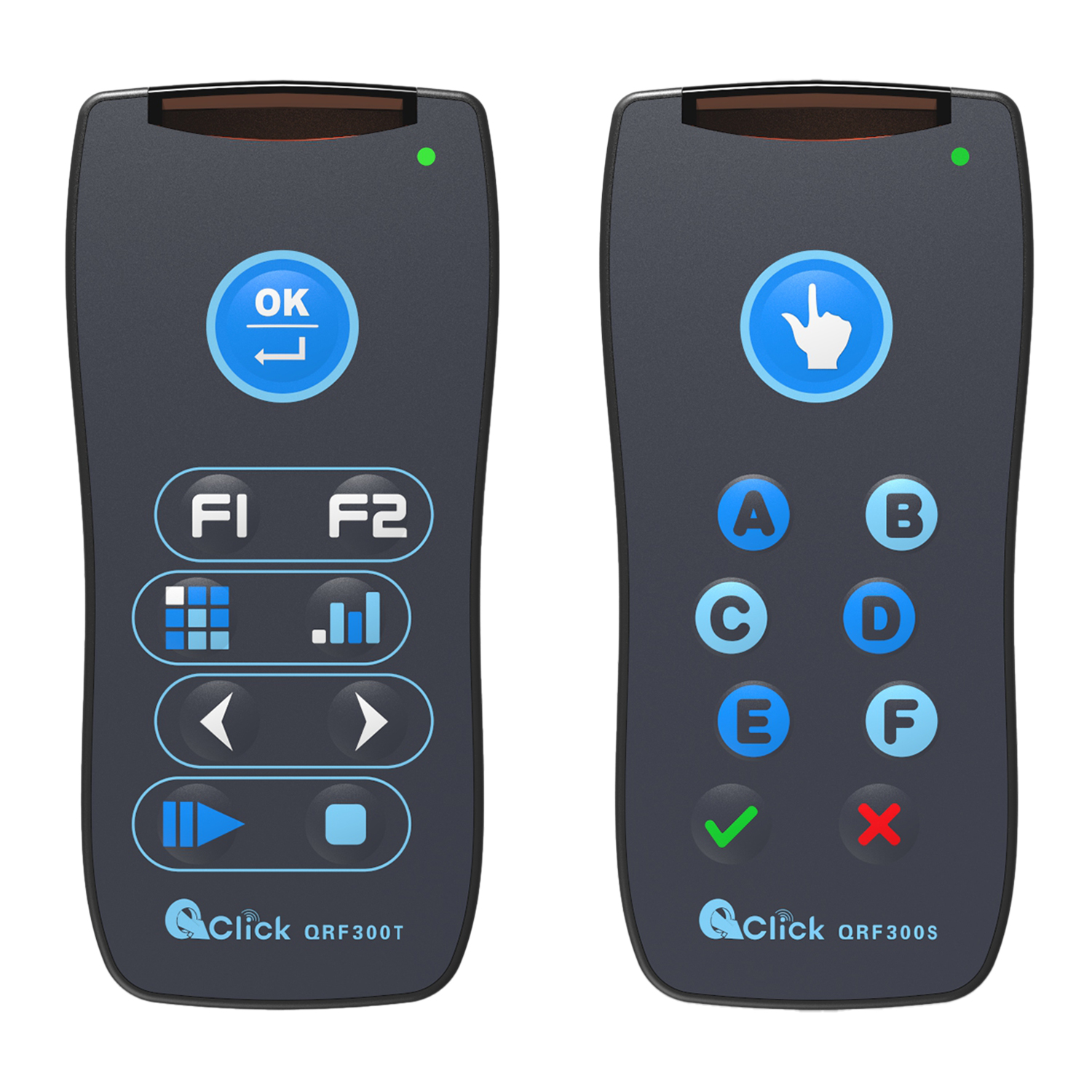
QClickThe most convenient educational software for working with Microsoft PowerPoint to quickly set up various question types and generate intelligent feedback reports.
QCameraQCamera by QOMO allows for real-time streaming from cameras and document cameras. Annotate, save snapshots, record, and manipulate camera images instantly.
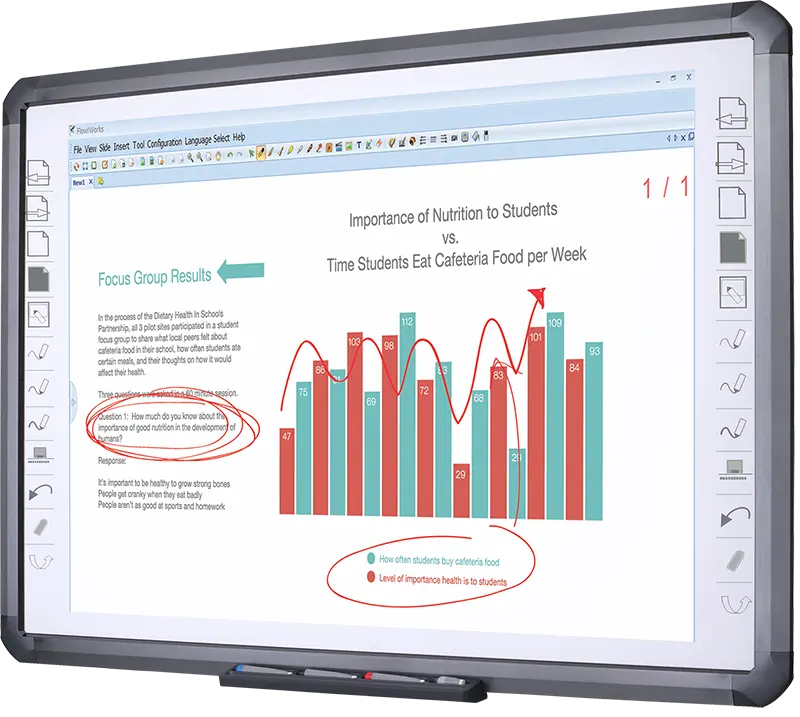
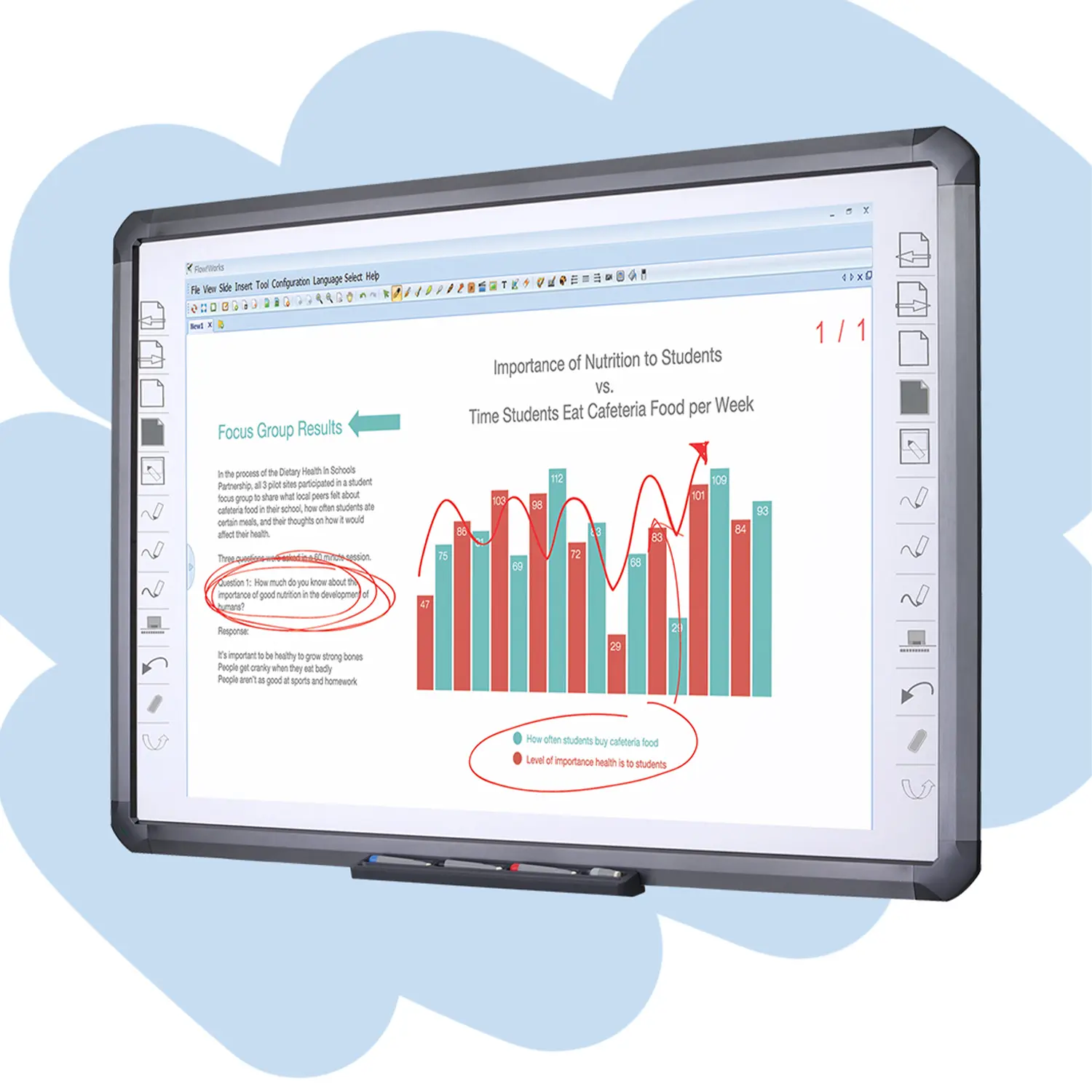
Flow!Works ProUser - friendly whiteboard software, it encompasses a wide range of presentation tools and powerful functions, delivering the most professional presentation experience to you.
Flow!WorksFlow!Works incorporates more educational tools, further enhancing the interactivity and fun - factor of your teaching.
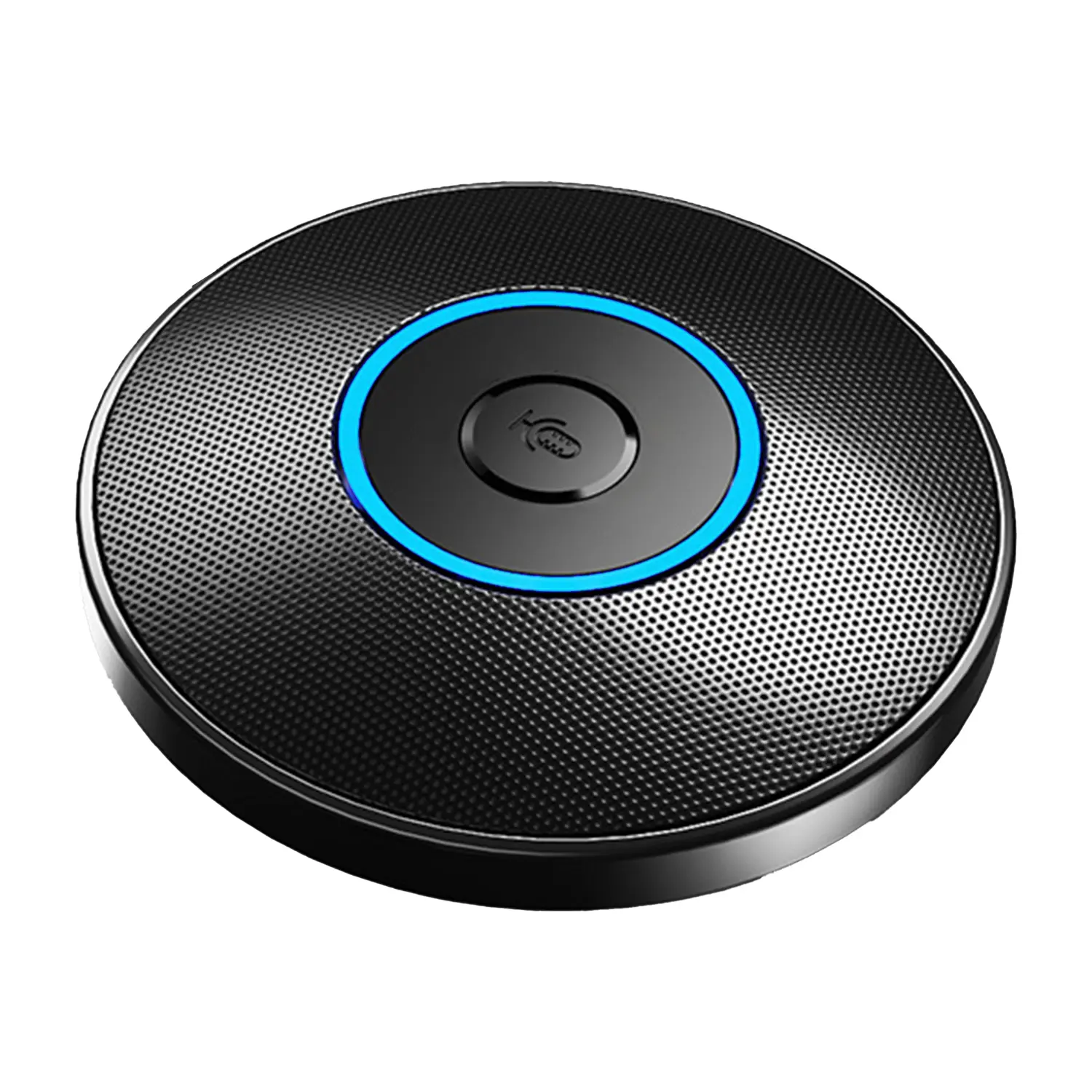
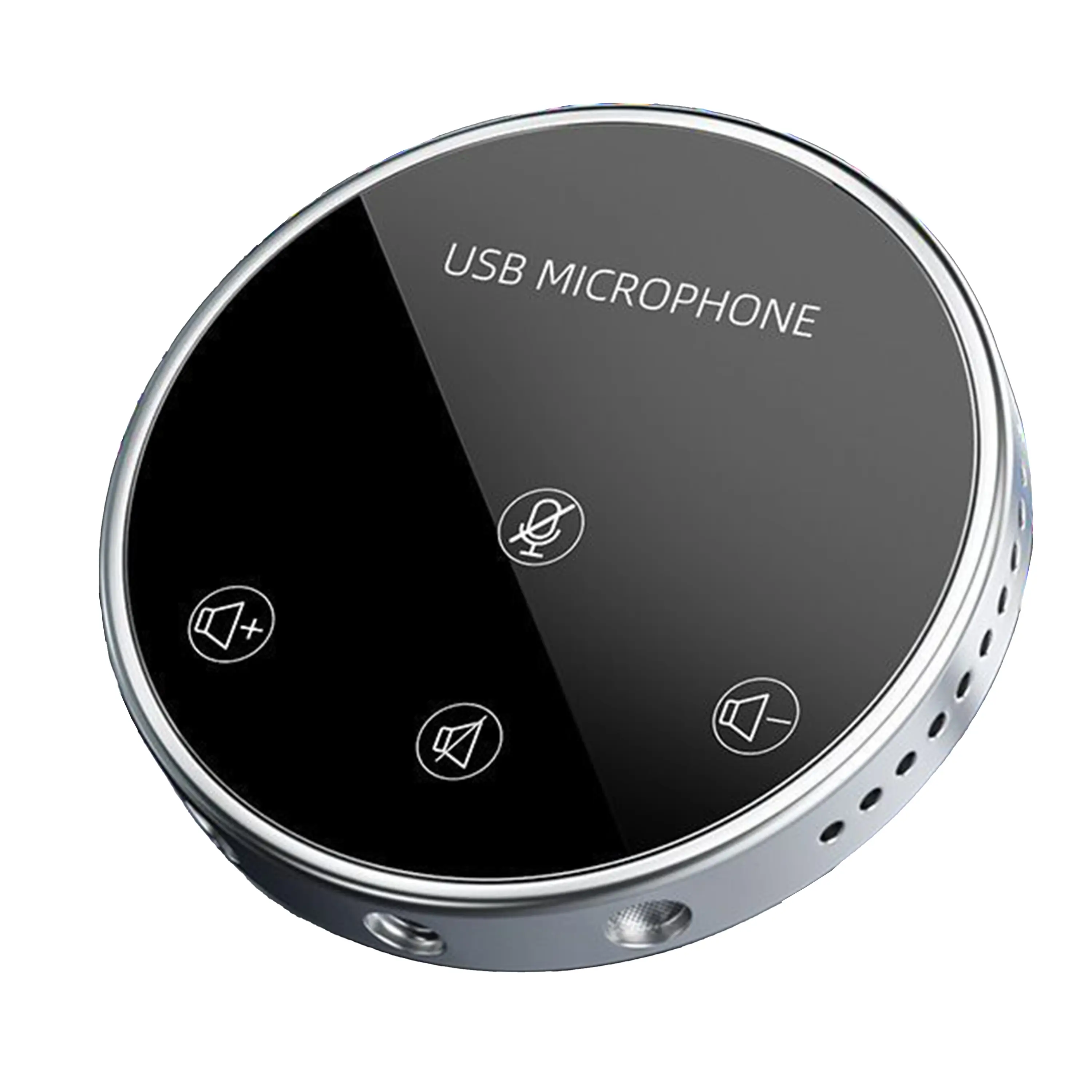
Conference Microphone● USB
● Plug and Play
● Intelligent Noise-Canceling
● 10ft/3m Extended Pickup Range
● 360° Omnidirectional Pickup
Conference Speakerphone● USB-C
● Plug and Play
● Intelligent Noise-Canceling
● 10ft/3m Extended Pickup Range
● 360° Omnidirectional Pickup
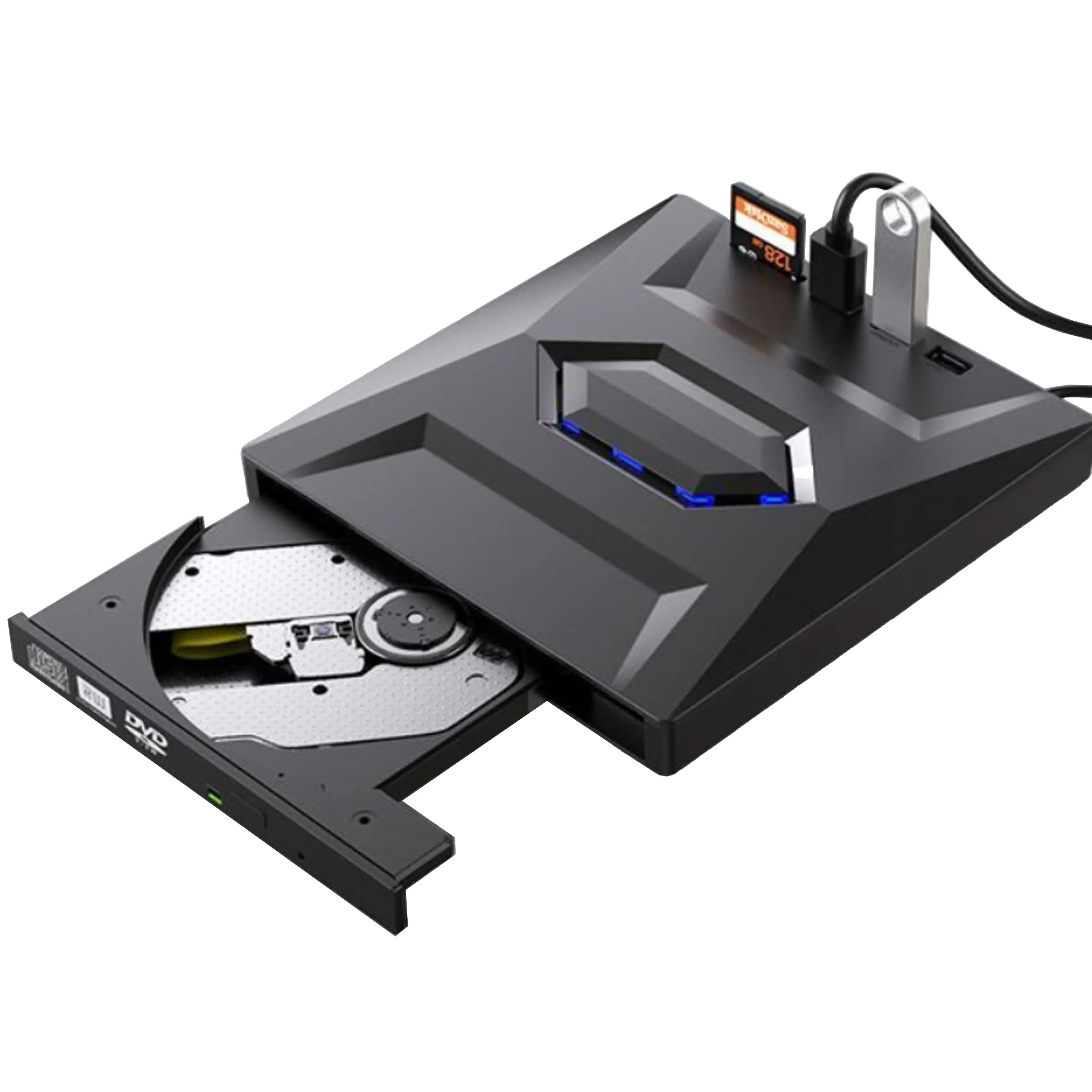
USB External CD/DVD Drive• USB and USB-C
• USB 3.0
• 8x DVD and 24x CD write/read speeds
• Portable
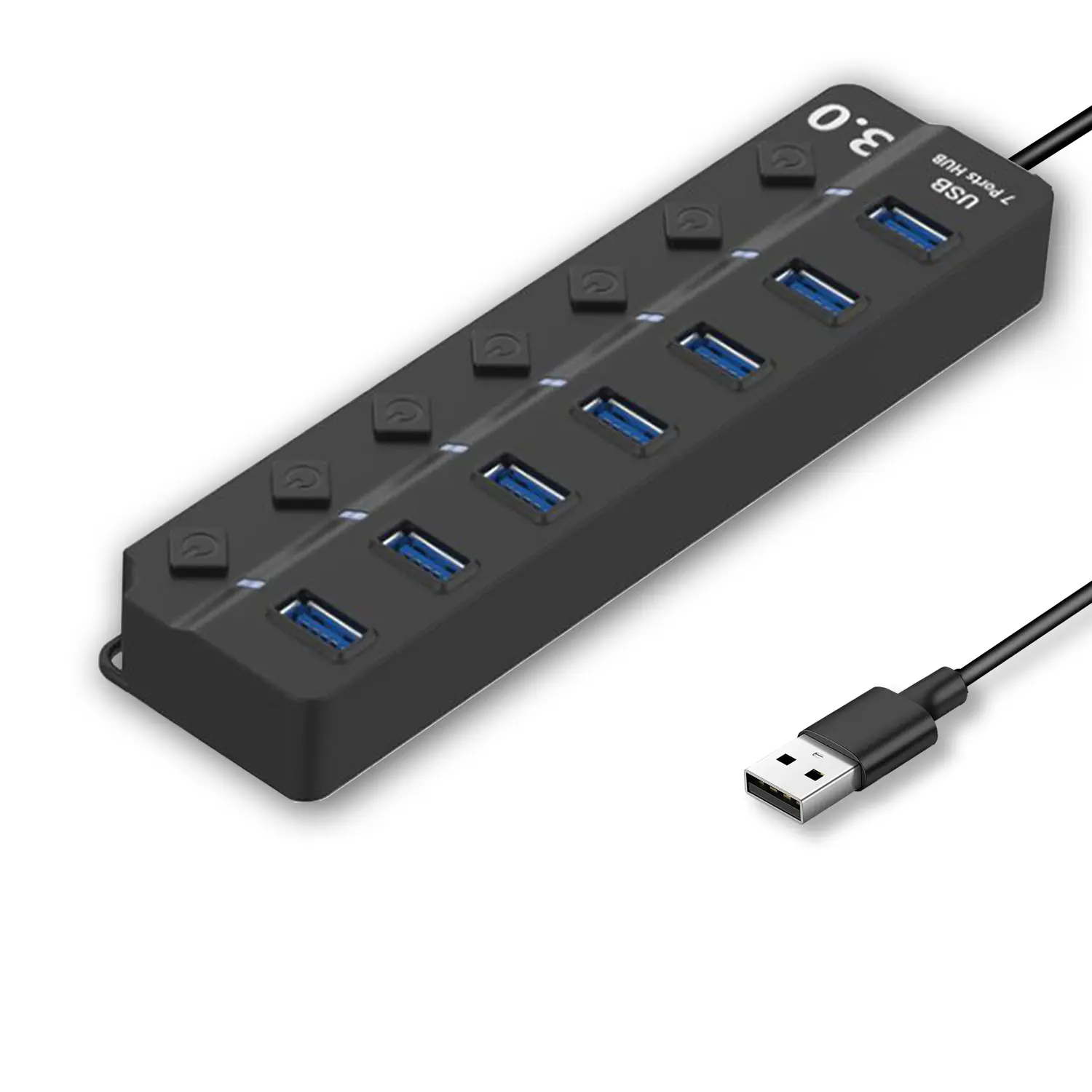
7-Port USB 3.0 Hub● USB 3.0
● Plug and Play
● 7-in-1 USB Hub
● Individual On/Off Switches
Revolutionize Your Presentations and Document Display with QWC 100S Document Camera
Enhance Call Experience: New Conference Microphone Now Available
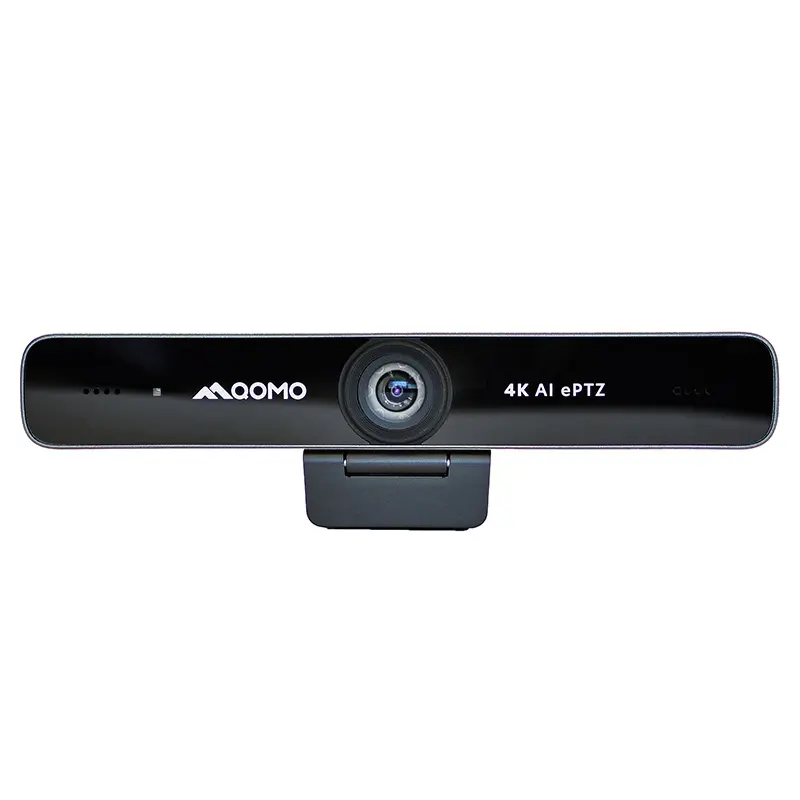
AI-Powered Face-Tracking Webcam
Portable Document Camera Recommendations
Classic Design, Exceptional Functionality: QPC 22 Document Camera
Wireless Screen Mirroring Solution for All Devices
Latest Audience Response System: QRF 999
Introducing the QPC 80H3 Gooseneck Document Camera
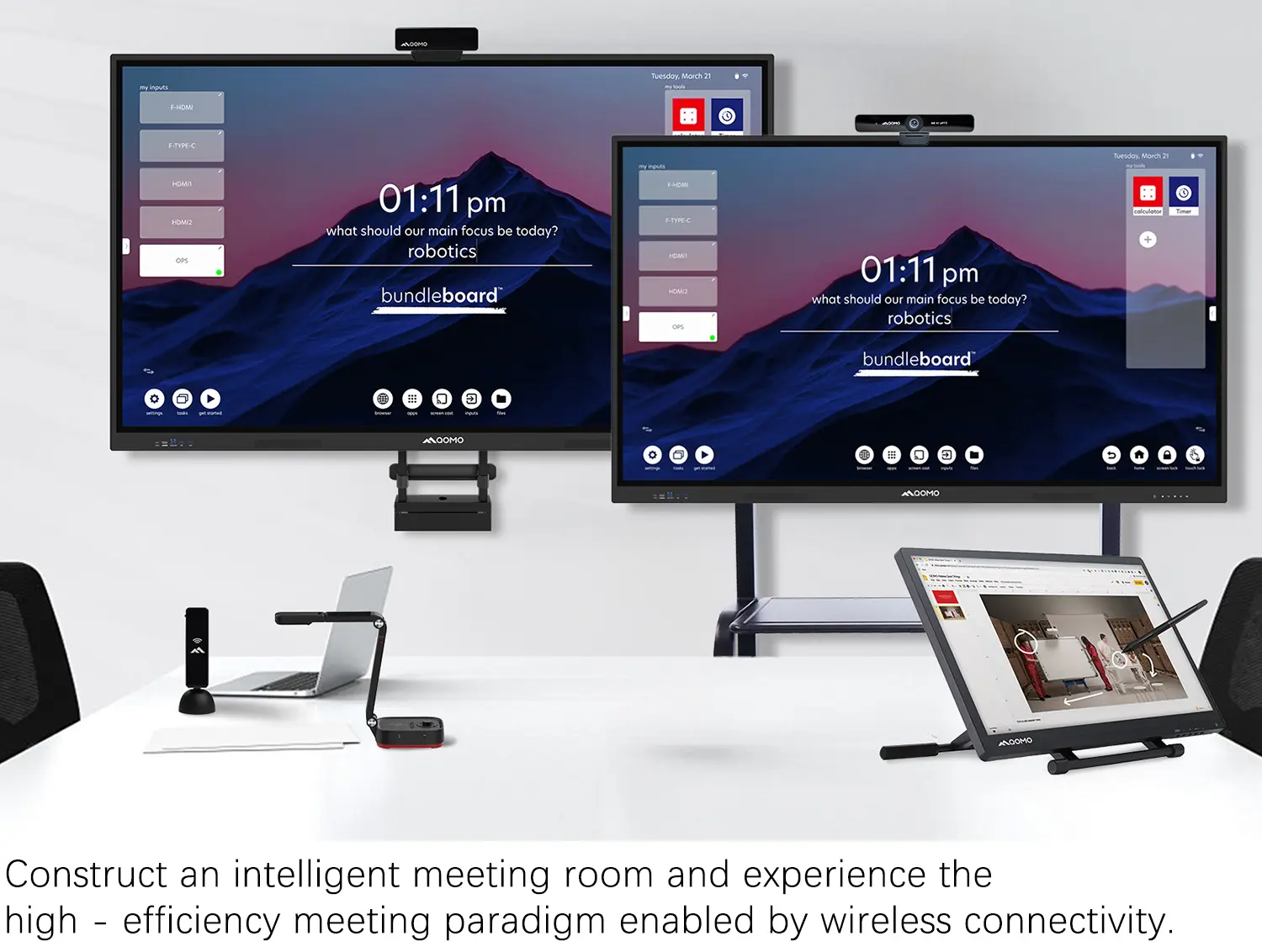
Creating a Smart Integrated Classroom: What Do You Need?
Wireless Connectivity Upgraded: WiFi-Free Wireless Document Receiver
Flow!Works Pro: Interactive Whiteboard Software for Engaging Classrooms
How to Choose the Perfect Document Camera and Elevate Productivity
QWC 004 Conference Webcam: The Top Choice for Remote Education
QCamera: Dedicated Software for Document Cameras to Elevate Your Presentations
QRF999 Voice Response System: Enhancing Teacher-Student Interaction
Work From Home? Maybe You Should Try This Document Camera
The Ultimate Educational Tool: Gooseneck Document Camera
60GHz Millimeter-Wave Wireless Screen Sharing: QShare 100
What Does a Modern Conference Room Need?
QD5000 Document Camera: Unimaginable Versatility!
QWC 004: The Most Cost-Effective Webcam
QVote Interactive Classroom Response System Software
Functionality, Aesthetics, Portability! Meet the QWC 100S Document Camera!
Why Choose the BundleBoard H/H2 Interactive Flat Panel?
Save Your Budget—Introducing the All-New QPC 70 Document Camera!
QIT 600F3: Revolutionize Your Presentations
QCamera: Professional Document Camera Software
QPC 5: The Ultimate 4K Portable Document Camera
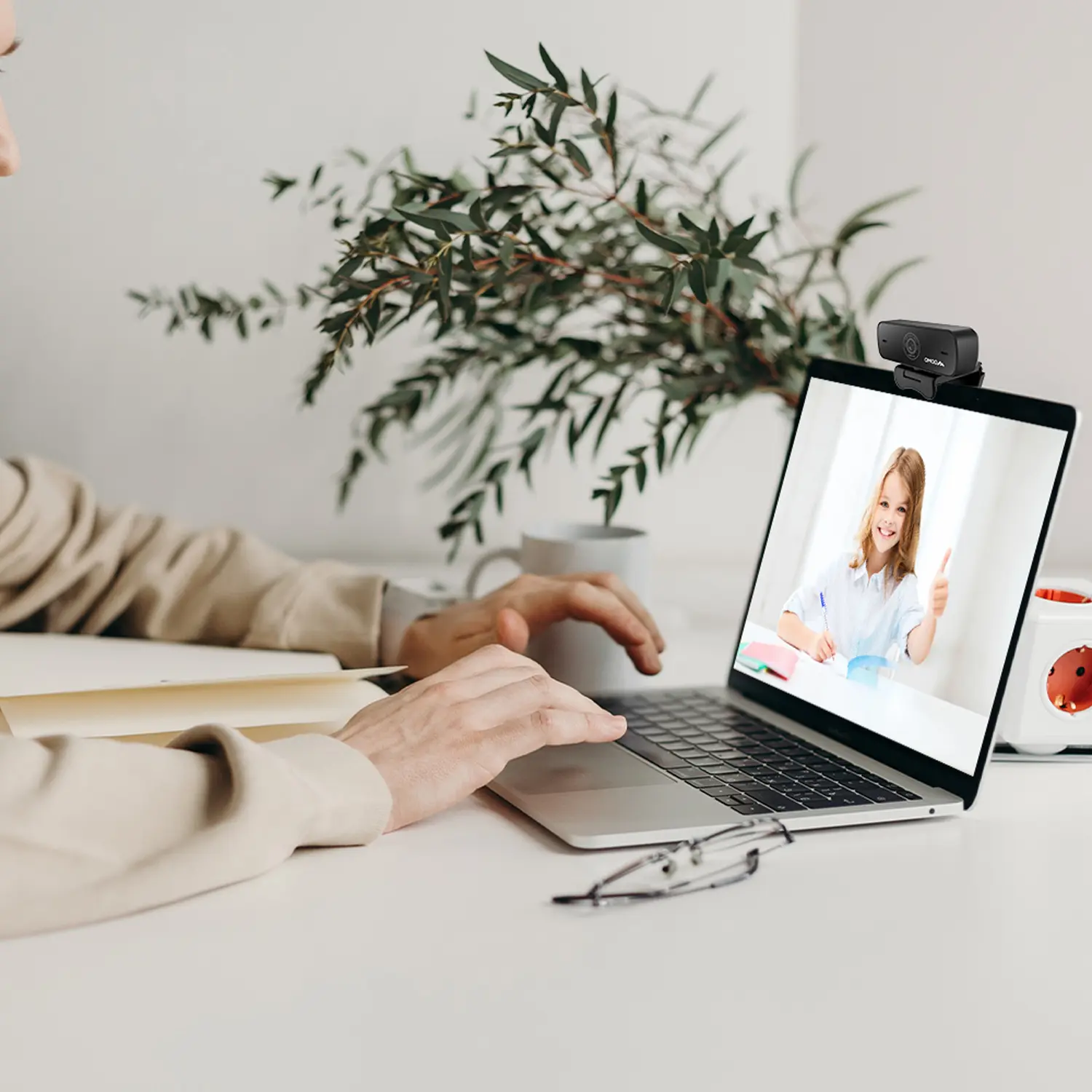
Elevate Your Meetings in Seconds: QWC 006 Webcam
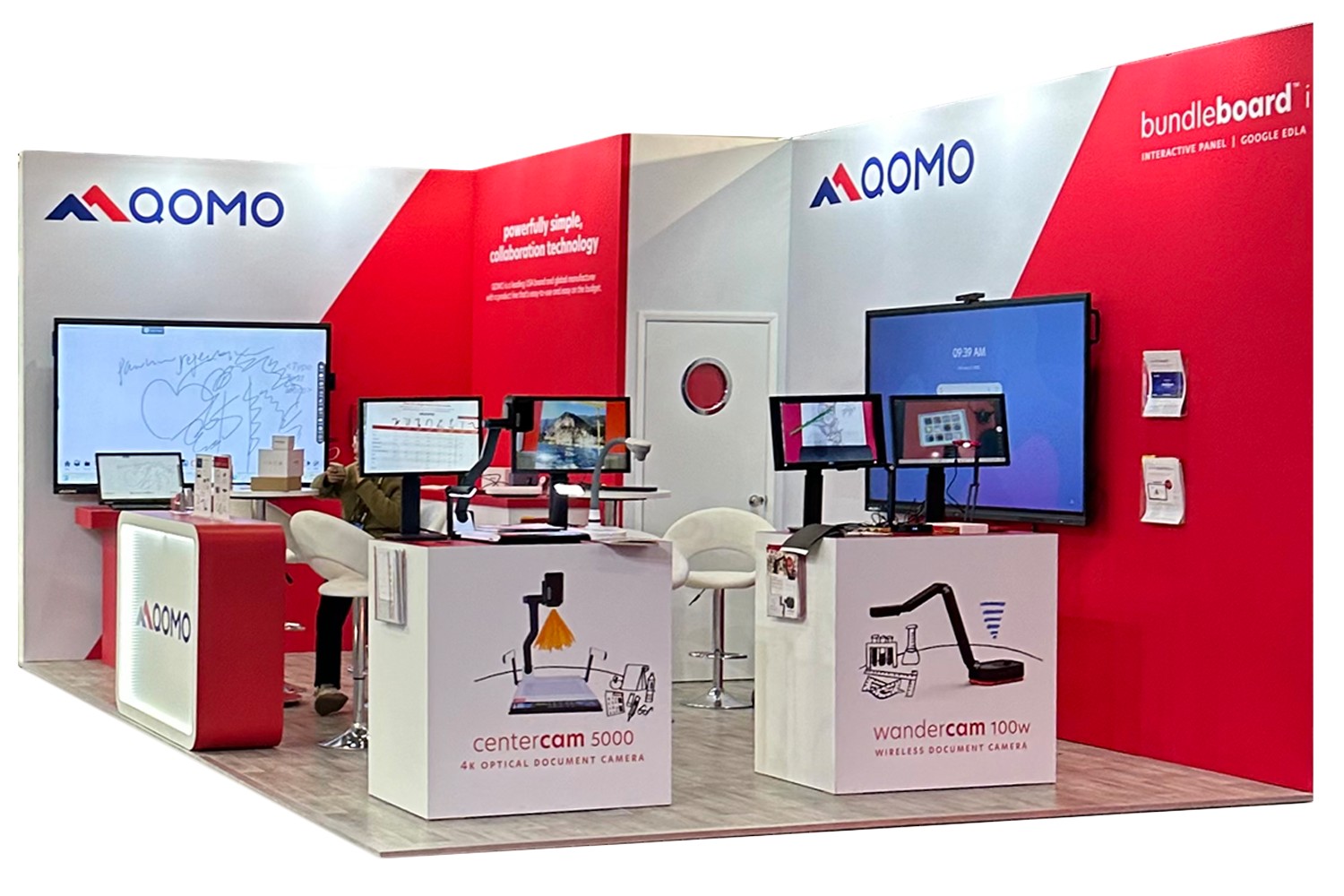
Meet QOMO at ISE 2025
Wireless Document Camera Solution, Revolutionizing Wireless Technology
QRF Series, Transform Your Classroom!
QOMO, Building Intelligent Classrooms
QOMO QShare100 New Release
Outstanding Office Equipment Recommendations
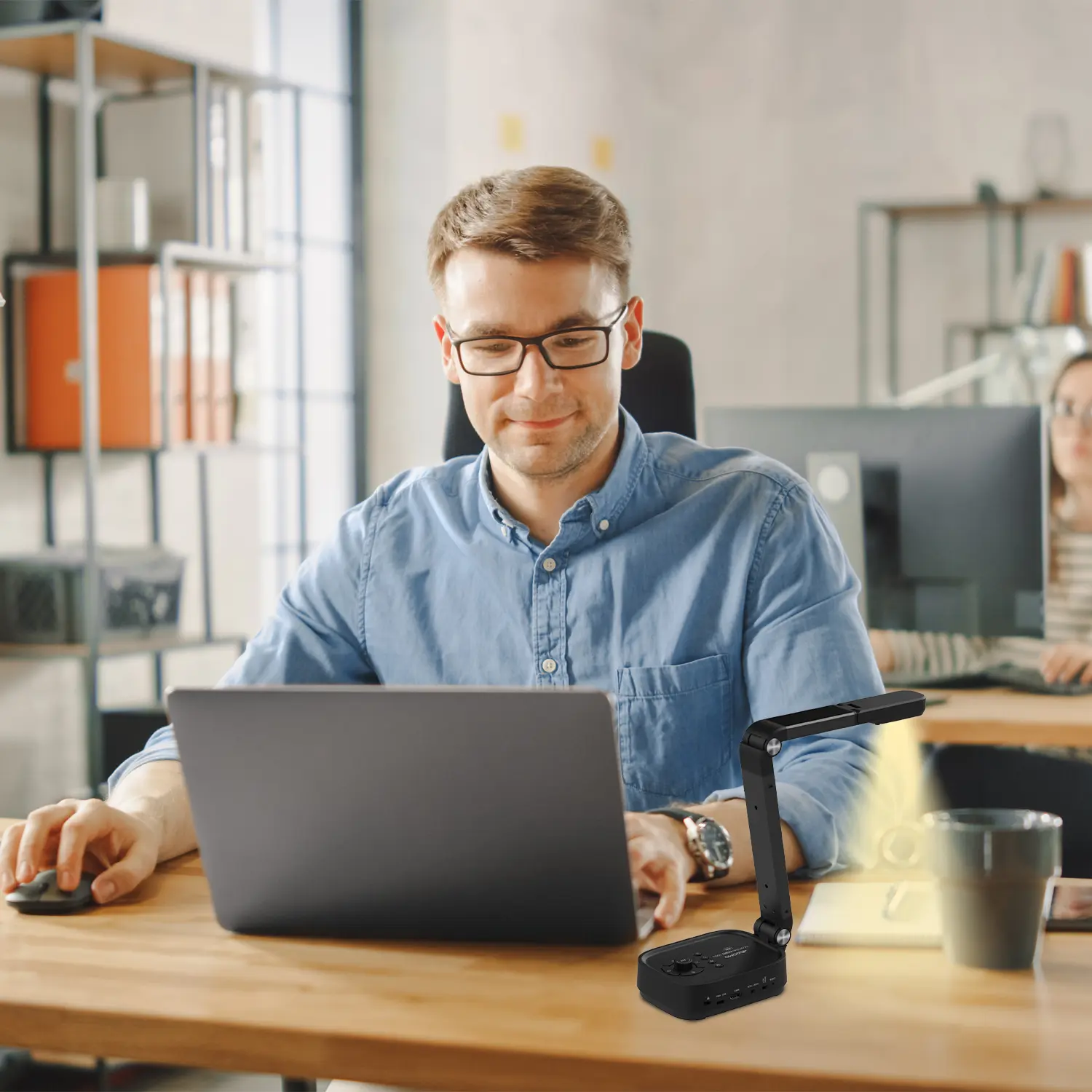
Choosing the right Usb Document Camera can improve meetings, training sessions, and remote collaboration. However, business buyers need more than sharp images. They need dependable performance, simple controls, and compatibility with existing office systems.
A strong model should capture printed pages, invoices, product samples, and handwritten notes clearly. Autofocus matters when presenters move materials beneath the lens. A flexible arm helps frame small objects without awkward adjustments. Built-in microphones, USB connectivity, and software support can also affect daily productivity. Small details matter.
Reliability deserves close attention. A camera may look impressive in a short demonstration, yet perform poorly during long meetings. Heat, unstable drivers, weak hinges, or slow autofocus can become expensive frustrations. This guide examines ten leading options through practical business considerations, including image quality, lighting performance, setup time, portability, warranty coverage, and total value.
No model is perfect.
Some cameras offer excellent resolution but limited software support. Others feel sturdy but lack useful recording features. Those compromises should be considered honestly. Prices and specifications can also change, so buyers should verify current information before purchasing. The recommendations in this guide are designed to support careful decisions, not replace hands-on testing. Whether your team needs classroom-style demonstrations, document sharing, or product inspection, the best choice should fit the workflow rather than simply win on paper.
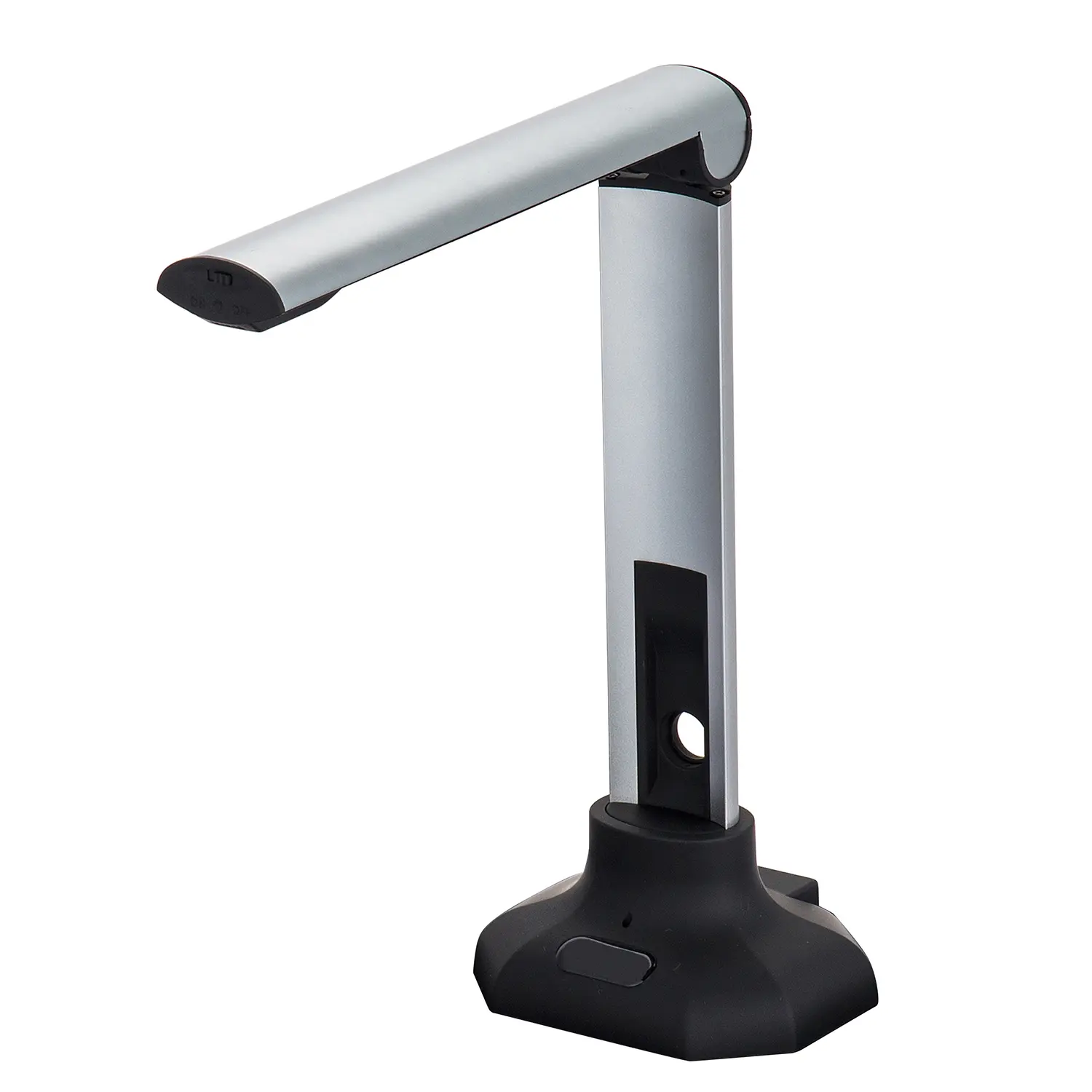
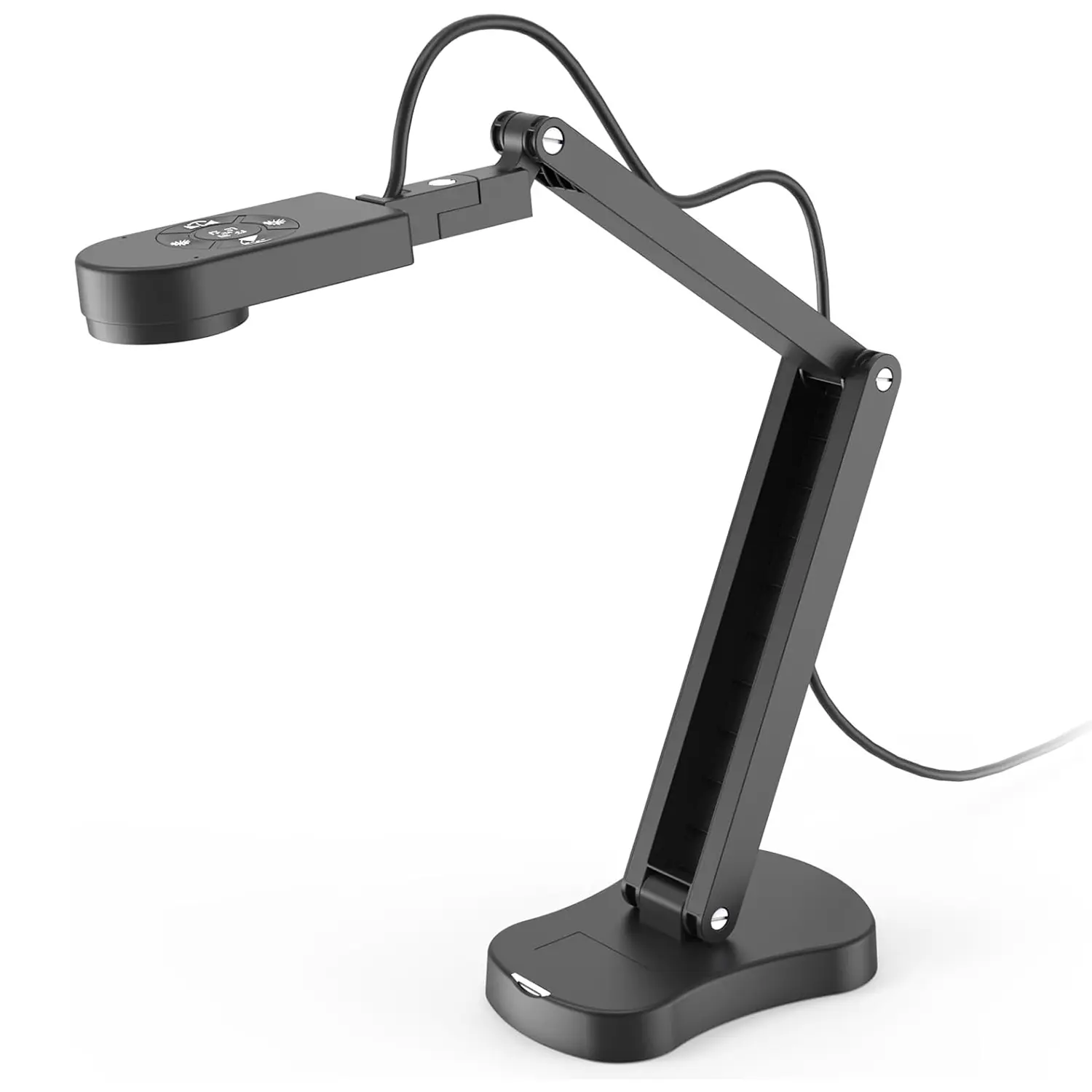
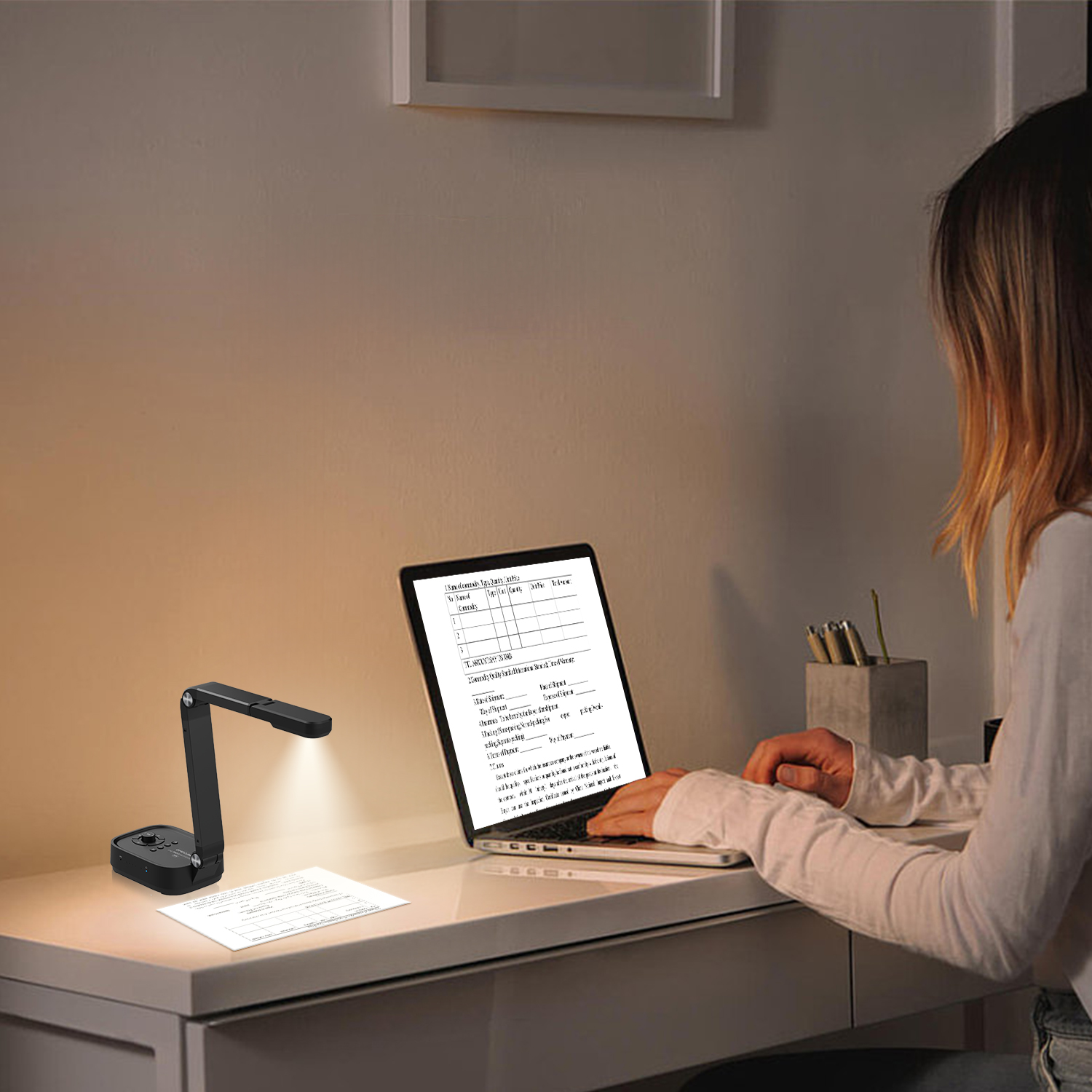
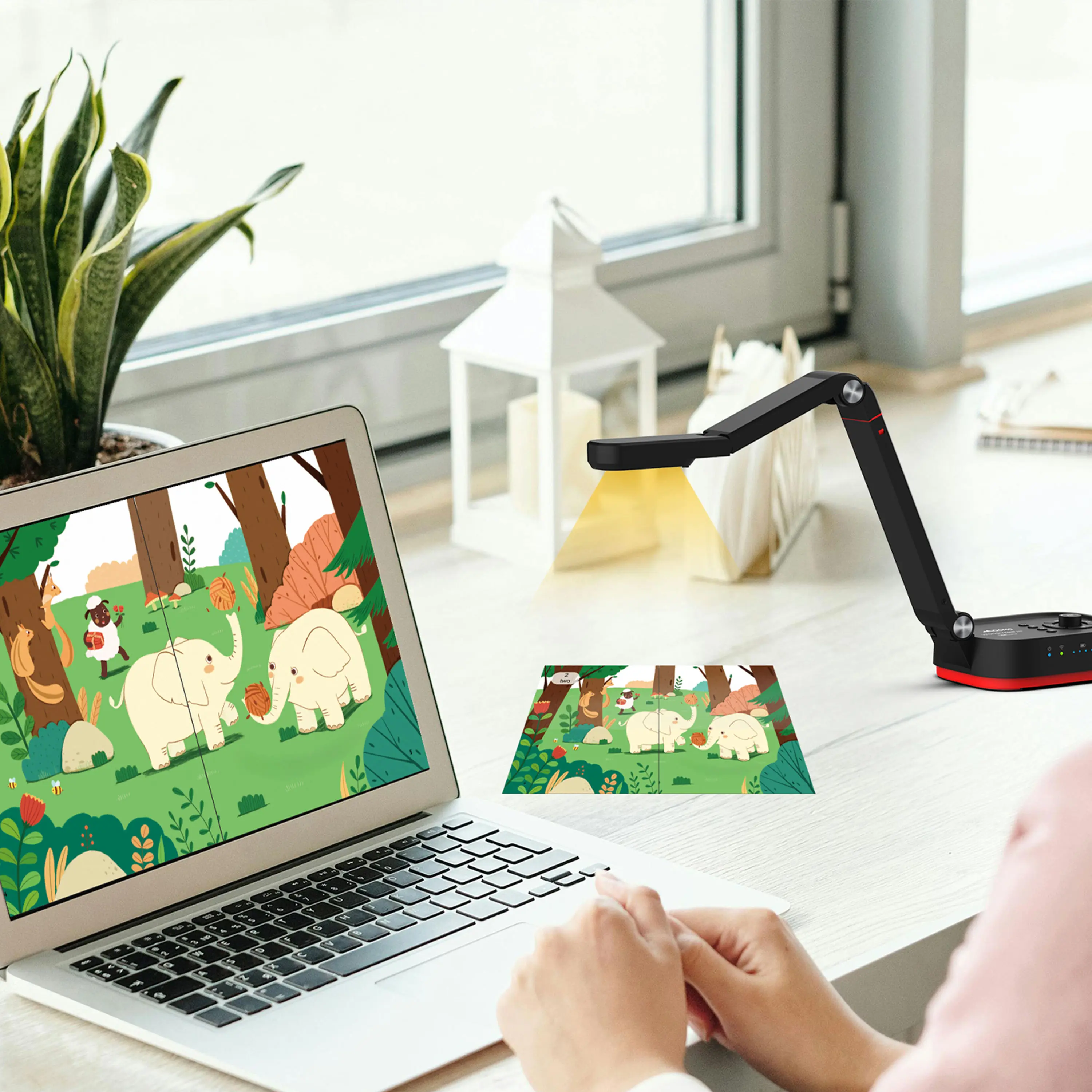
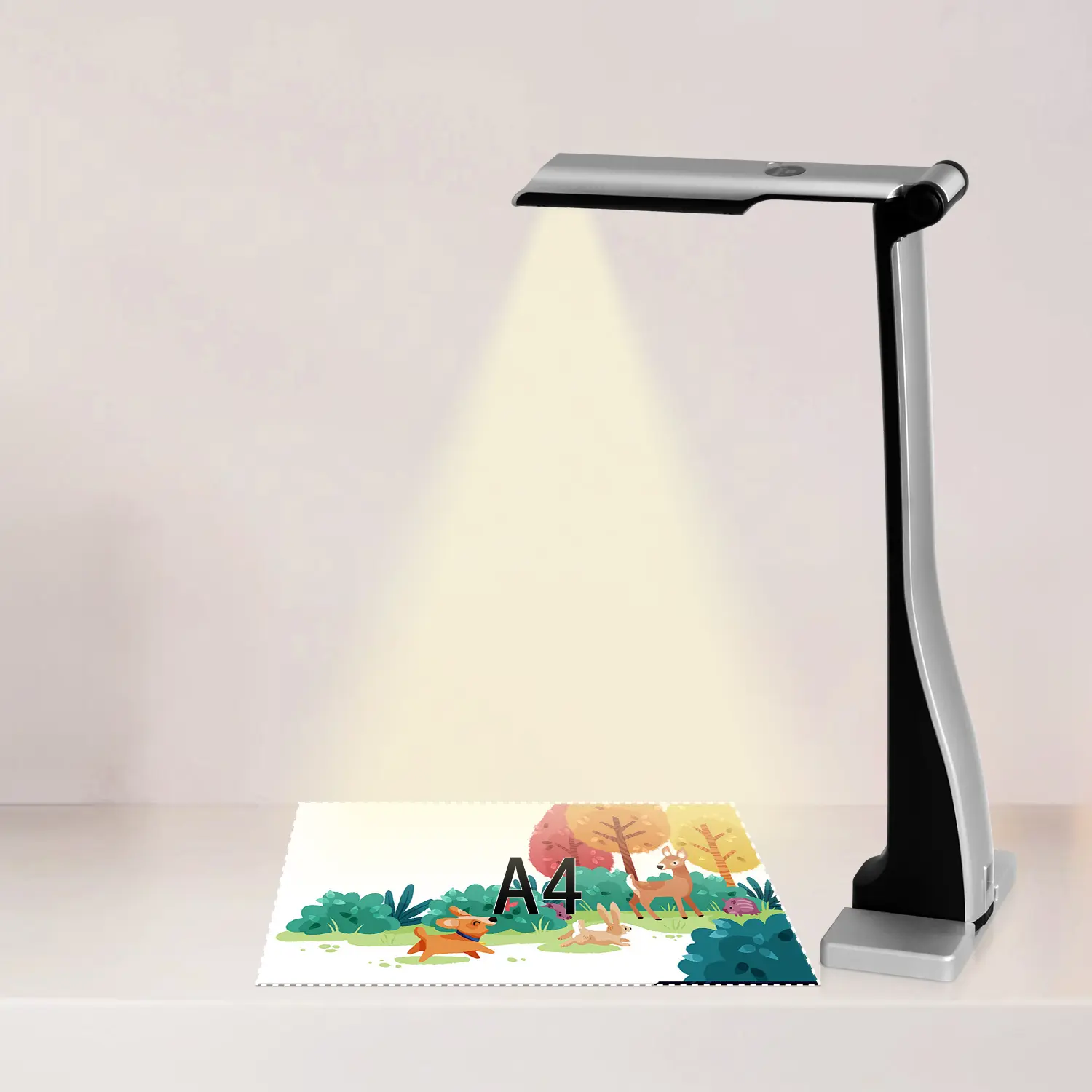
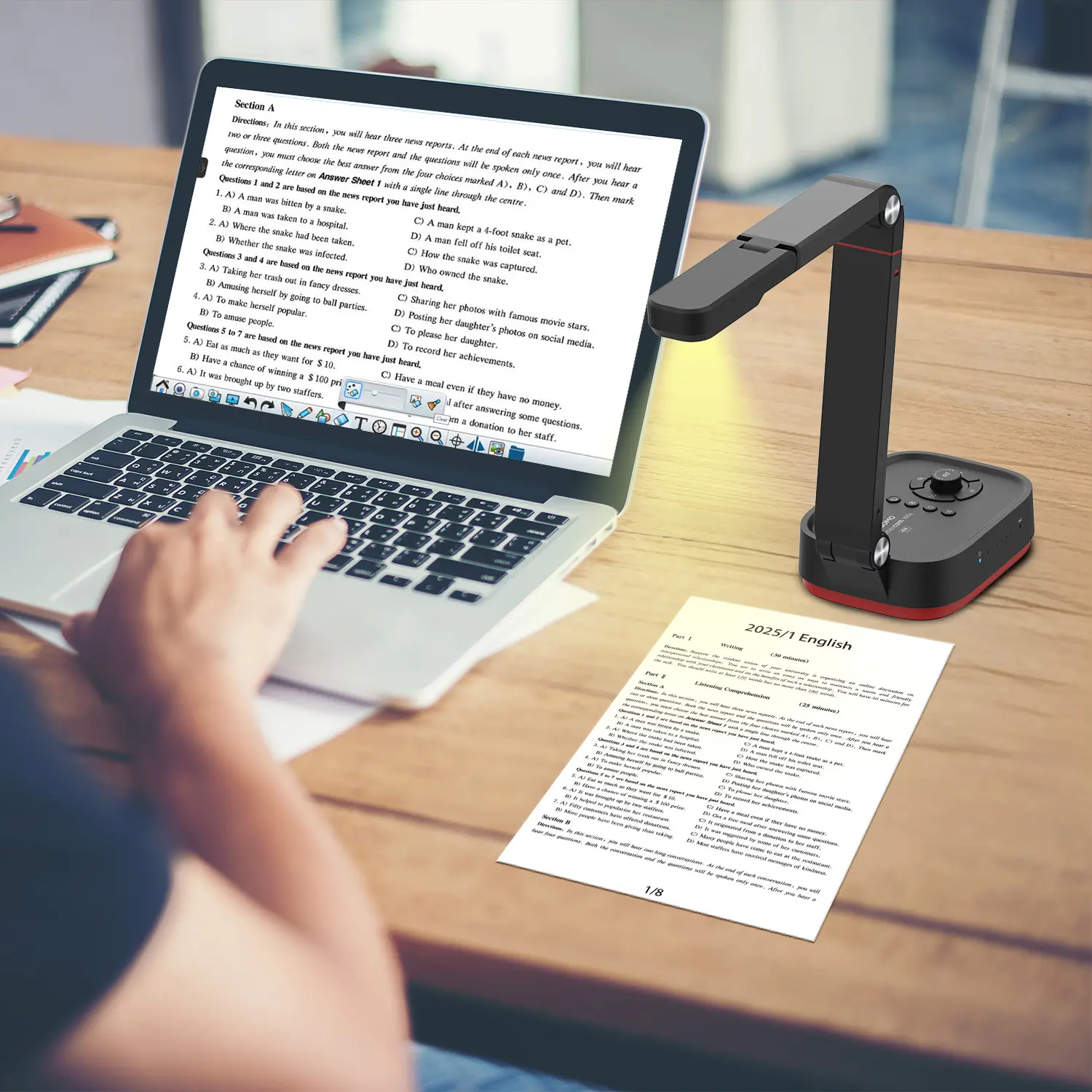
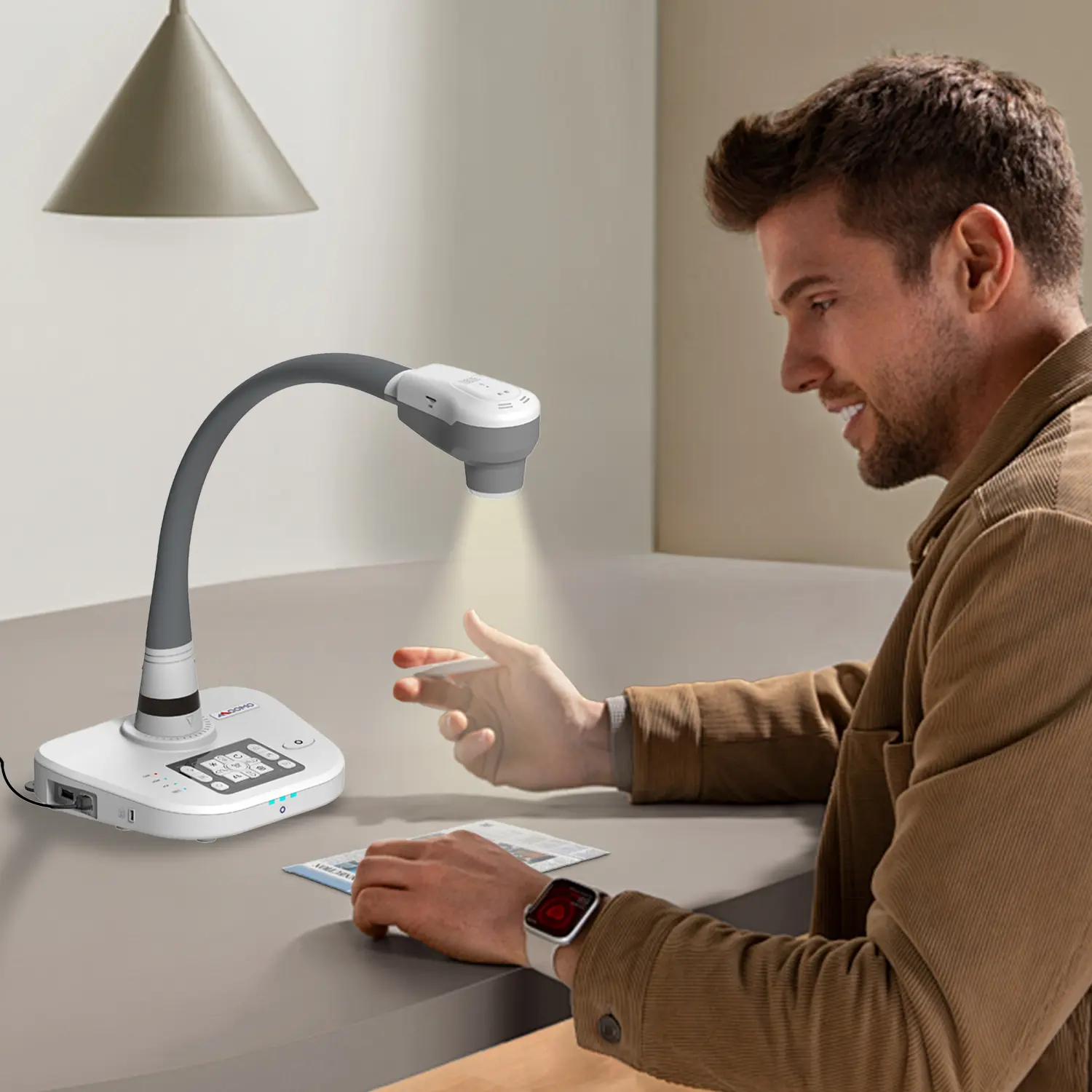
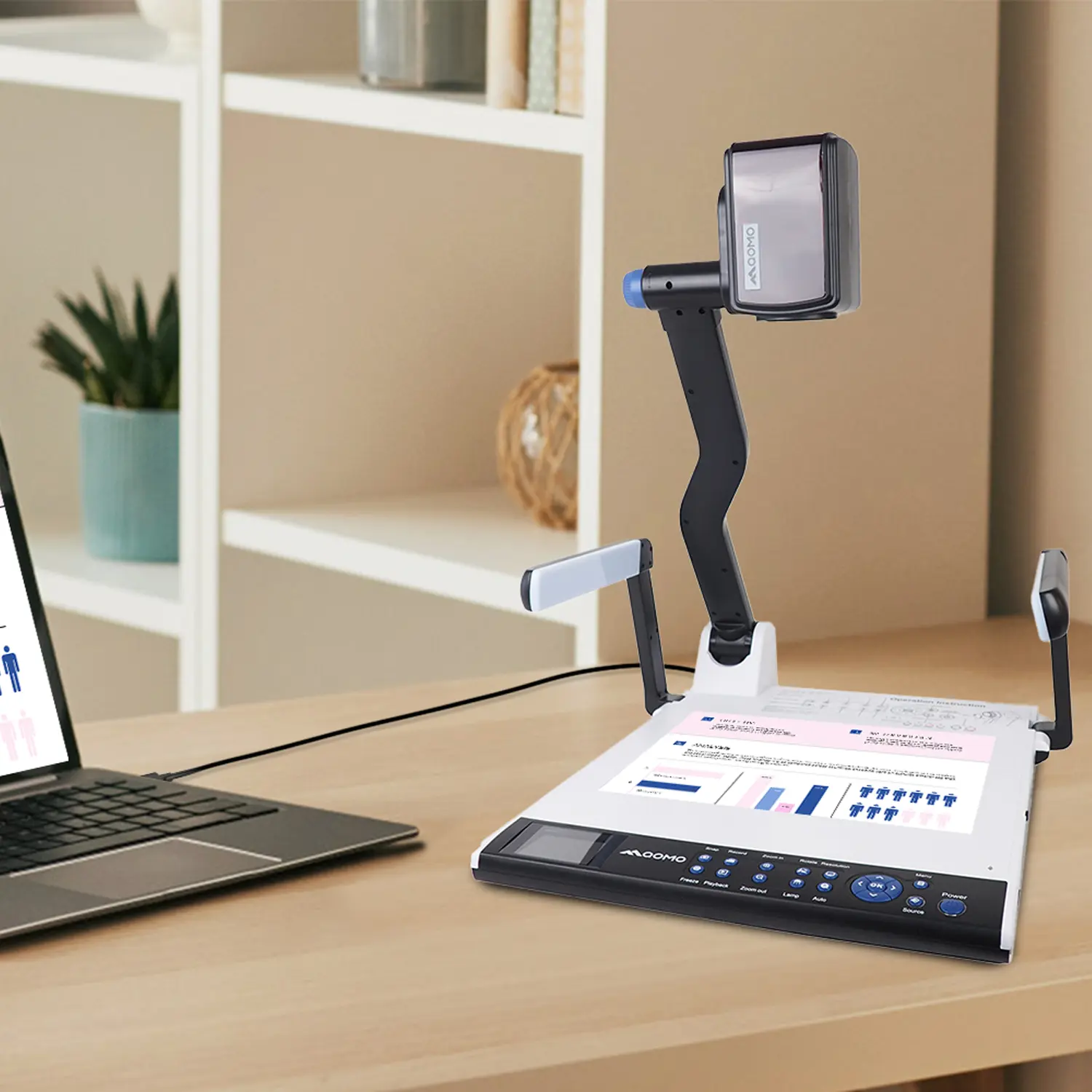
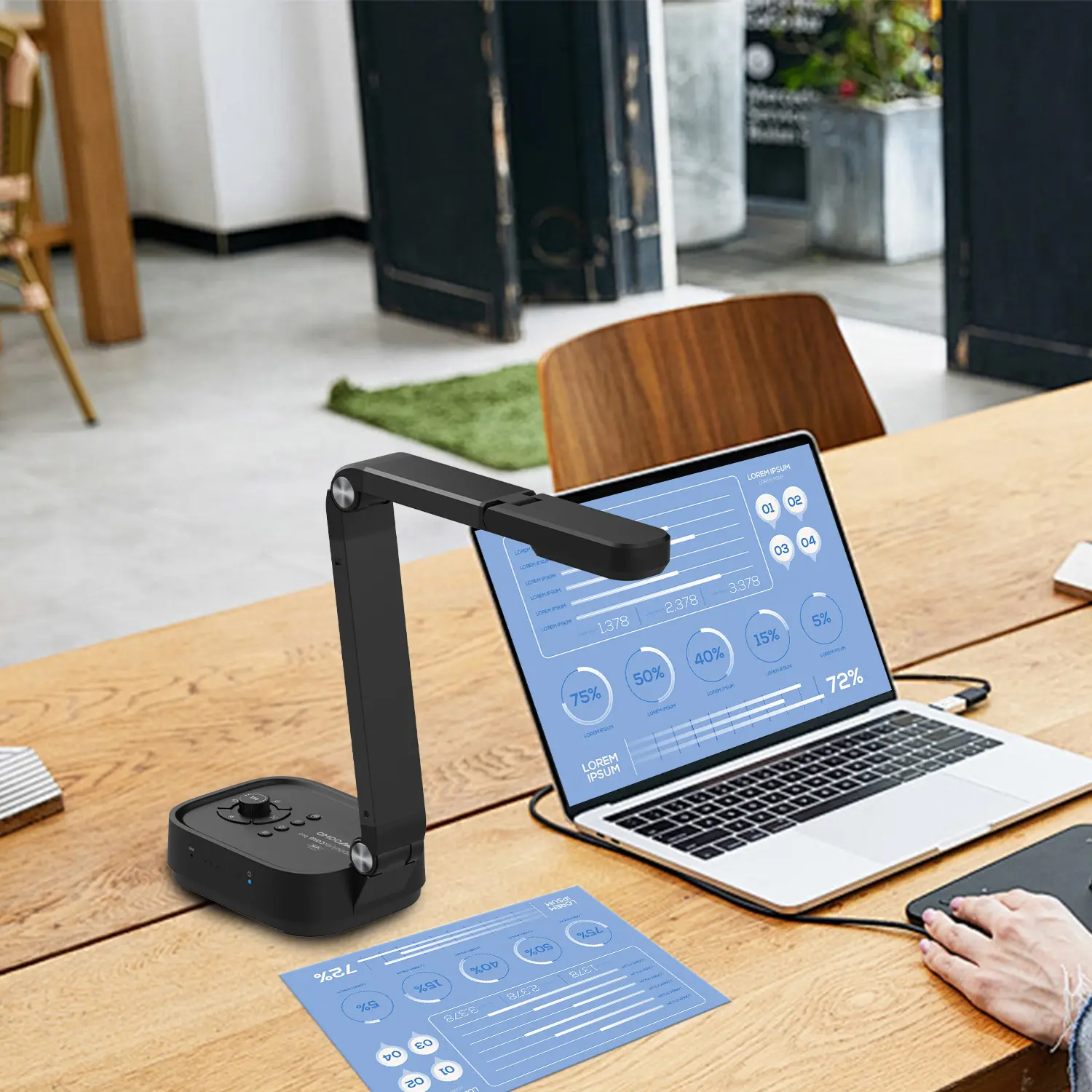
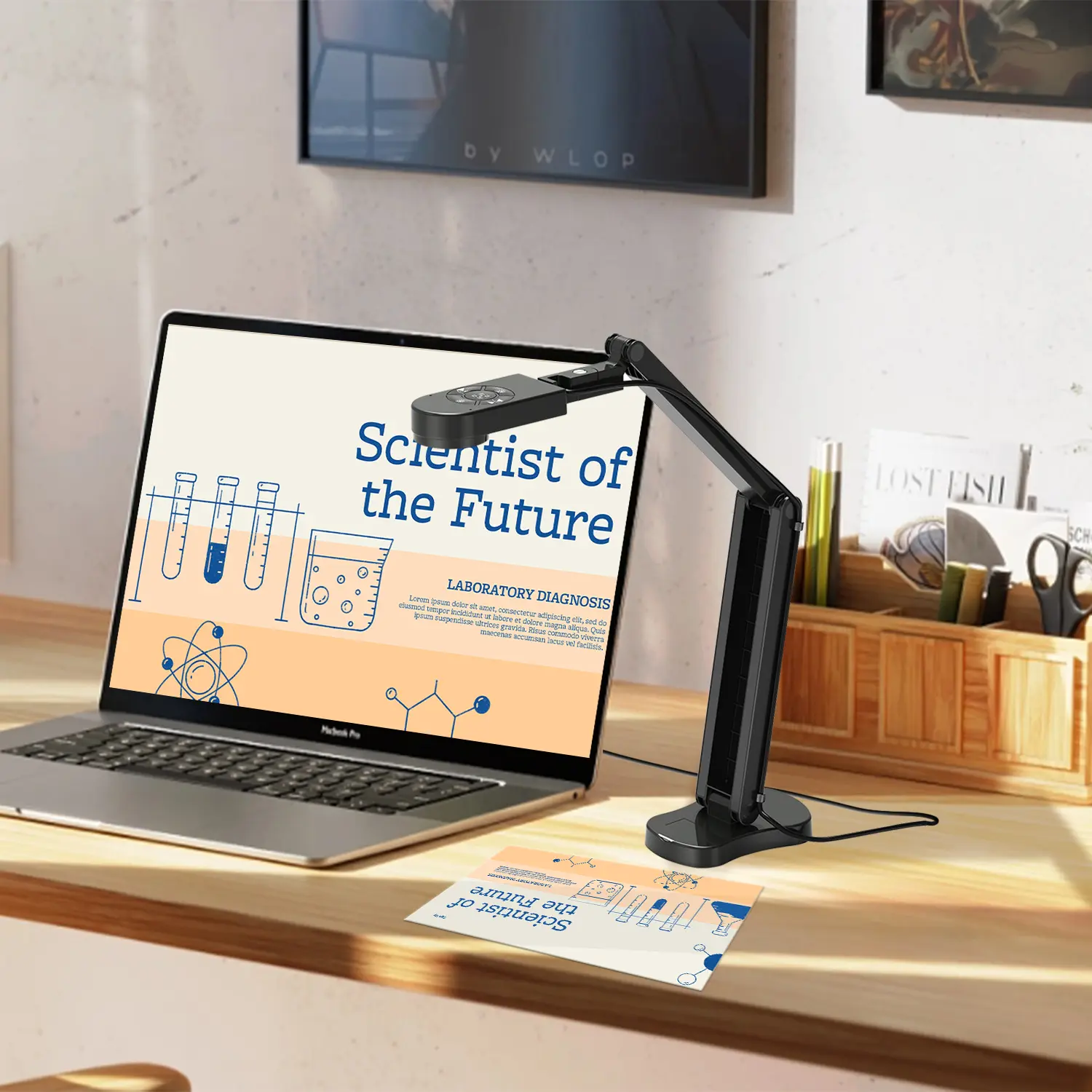
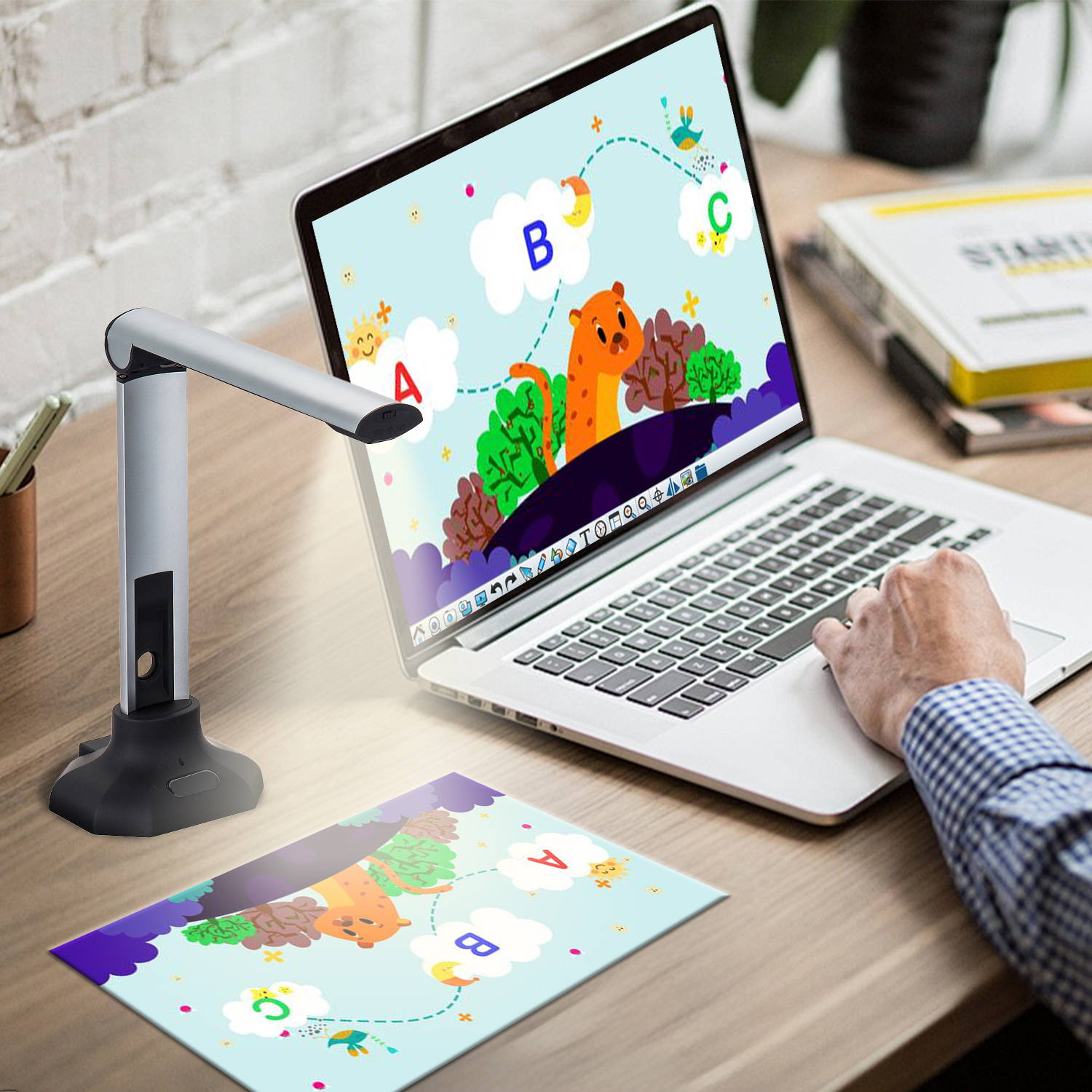
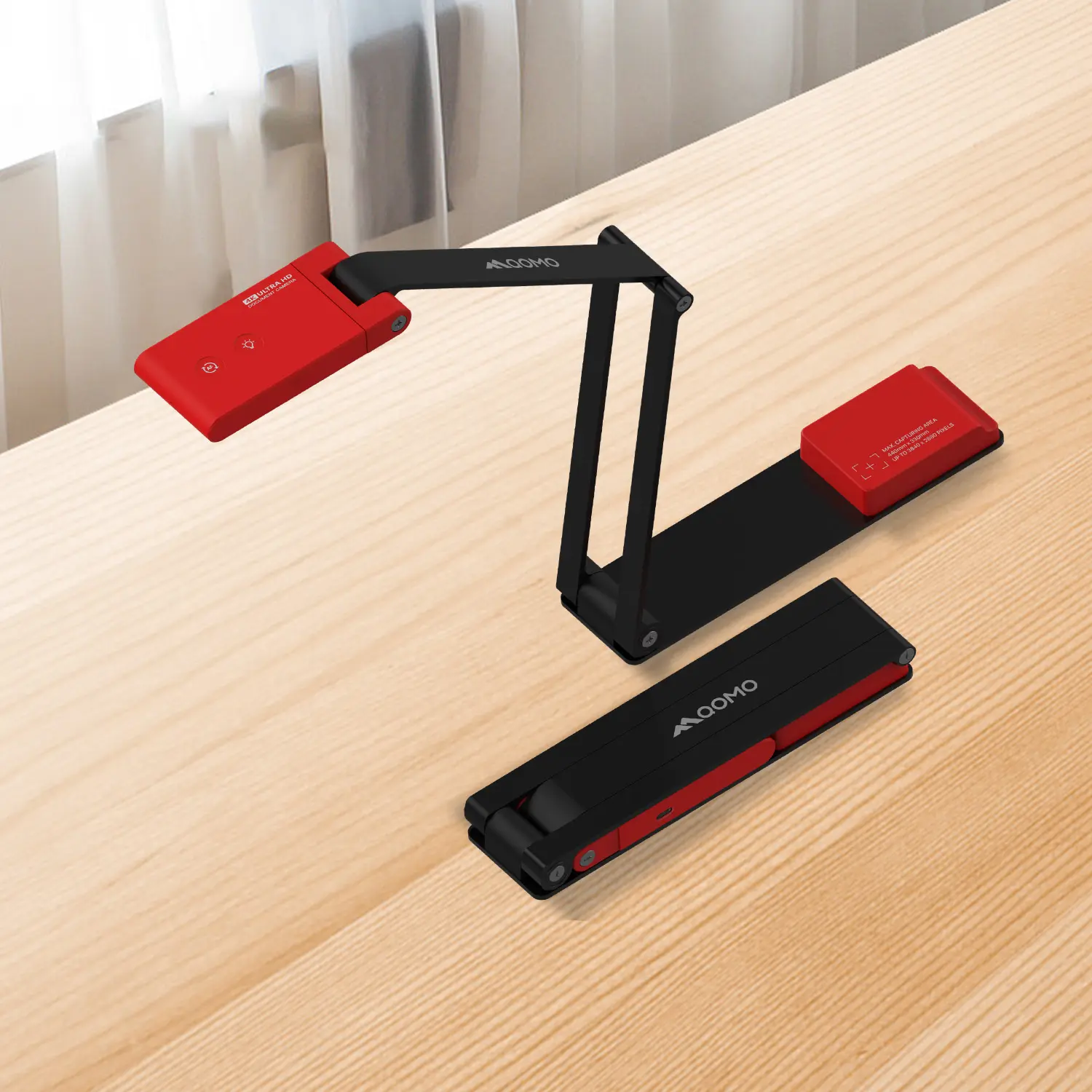
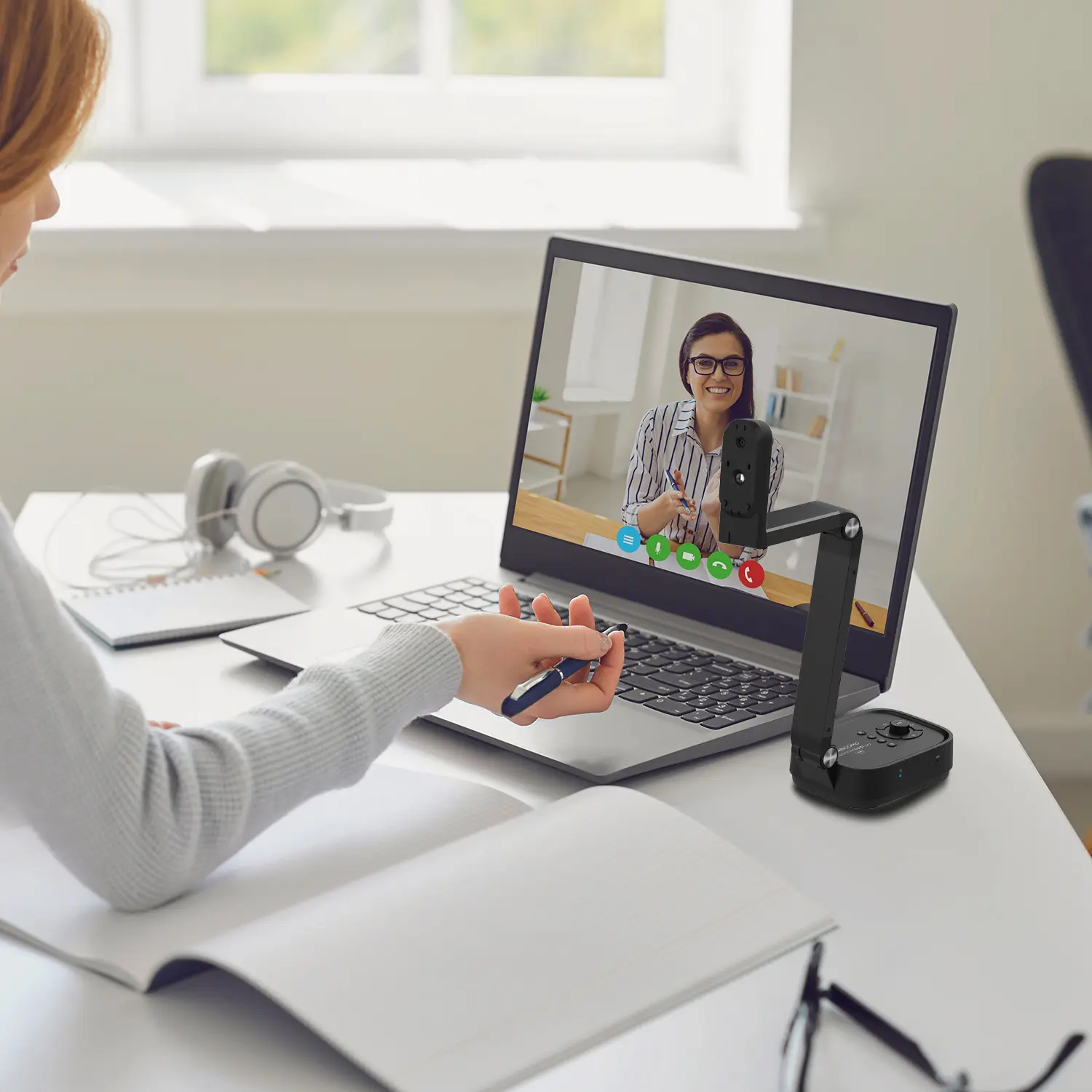
A USB document camera is a compact imaging device for capturing paper documents, books, objects, and handwriting. Unlike a standard webcam, it points downward from an adjustable arm. This position keeps pages flat and readable during meetings, training sessions, and remote inspections.
The device connects through USB and usually appears as a camera source on a computer. Its image sensor converts reflected light into digital frames. Software then displays those frames in video calls, presentation tools, or document-capture applications. Autofocus sharpens text at different heights, while built-in lights reduce shadows under dim office conditions. Some models also support image rotation, cropping, annotation, and optical character recognition. OCR can turn a photographed page into editable text, but it may misread faint marks or unusual fonts.
In office testing, a clear capture area matters more than impressive specifications alone. A letter-sized page should fit without constant repositioning. The arm should remain steady when someone taps the desk. Small details matter. USB power is convenient, yet long cables can cause unstable connections. Compatibility also deserves attention, especially with managed workplace computers. I have found that glossy pages still create glare, even with careful lighting. That limitation is easy to overlook. Buyers should test real documents, not only bright sample sheets, before choosing a camera for regular business use.
Common USB document-camera output modes range from 720p to 4K. Higher resolutions reveal finer text and object details, while higher frame rates provide smoother movement during demonstrations. Actual availability depends on the camera, USB connection, and conferencing software.
Choosing a USB document camera should begin with business needs, not a glossy specification sheet. A training team may need sharp images of invoices, circuit boards, or handwritten notes. A legal department may value secure local storage and reliable document framing. A classroom-facing sales team may need fast autofocus during live demonstrations. Different work creates different pressure.
The 2023 Work Trend Index reported that 73% of employees wanted continued remote-work options. That finding supports cameras with stable USB connectivity, clear audio compatibility, and simple deployment across meeting rooms. AVIXA’s 2024 Industry Outlook also showed continued growth in professional audiovisual spending. Buyers should still examine total cost, including mounting arms, lighting, software, and replacement cables. Cheap equipment can become expensive when every meeting needs manual adjustment.
Resolution matters, but it is not everything. A 1080p sensor often handles contracts and diagrams well under controlled lighting. Larger sensors may perform better when shadows cross a page. Test autofocus on glossy paper. It can hesitate. Check whether the camera supports standard UVC connections, because locked software creates avoidable IT work. Ask staff to test the device for ten minutes, not ten seconds. My own purchasing mistake was trusting sample images taken in perfect light. Real offices are less kind. A small footprint, physical privacy cover, and a durable hinge may matter more than an impressive frame-rate number. Reliability is often quiet.
Comparing the Ten Best USB Document Cameras
A fair comparison starts with the work, not the product name. Check image sharpness on invoices, sketches, and glossy pages. A clear 1080p image may outperform a higher-resolution camera with weak lighting. Test autofocus near a printed line, then move the page slowly. Notice delays. They matter during live meetings. Compare frame rates, capture areas, and image rotation. A flexible arm also helps when documents have curled corners or handwritten notes. USB compatibility is important, but software stability deserves equal attention. A camera that disconnects during a client presentation creates avoidable pressure.
Tips: Use the same desk, lamp, document, and computer for every test. Record a short sample. Review small text at normal viewing size. Check whether controls are simple enough for a colleague to use without training. Also inspect the base, hinges, cable length, and storage case. These details often decide daily satisfaction. Security settings should be reviewed before connecting the camera to shared systems.
I once focused too heavily on picture quality and overlooked the stand. It looked fine in a catalog, yet it shifted when I adjusted the page. That experience changed my scoring method. Give separate scores for clarity, lighting, handling, software, durability, and support. Include a cost-per-use estimate for frequent meeting rooms. No model wins every category. A slightly imperfect camera may still be the better business choice when it is dependable, quick to operate, and easy to maintain.
Choosing among the 10 best USB document cameras depends on the work, not just image resolution. In a training room, a fast autofocus system keeps printed pages readable while the presenter moves. A built-in microphone can capture explanations without forcing staff toward a laptop. Keep it simple.
For accounting teams, sharp text, adjustable lighting, and a stable overhead arm matter most. These features help capture invoices, receipts, and handwritten notes under uneven office lights. A large capture area reduces constant repositioning. However, extremely high resolution may increase file sizes without improving routine document checks. That trade-off is easy to overlook.
Teachers and support agents may need smooth video, low-latency movement, and one-touch image rotation. A compact base suits shared desks, while a flexible neck helps demonstrate equipment from different angles. For remote approvals, privacy controls and reliable USB compatibility deserve careful testing.
I once selected a camera for its excellent image quality, but its stiff hinge slowed every demonstration. That was a poor practical choice.
Buyers should test setup time, cable reach, software recognition, and heat after an hour of use. Specifications matter, but daily handling often reveals more.
Choosing a USB document camera for business starts with the work, not the advertised megapixel count. A finance team may need crisp receipts, while trainers need smooth motion for live demonstrations. Test autofocus on small print, glossy pages, and folded forms. Resolution matters, but poor lighting can ruin a sharper sensor. Choose an adjustable arm, stable base, and a lens that covers your largest document. Keep the camera close to eye level. It reduces awkward framing. Models with built-in microphones can help, though dedicated audio is often more reliable.
During setup, connect the camera directly to the computer before adding hubs or adapters. Install only the required driver or approved application, then check permissions for video and audio. Open the meeting or scanning software and select the camera manually. Place two soft lights at opposing angles to reduce shadows and glare. A plain background makes text easier to read. Record a thirty-second sample. Review focus, color, page edges, and audio sync before an important session. This small test catches surprisingly expensive mistakes.
Maintenance is simple, but it needs a routine. Wipe the lens with a clean microfiber cloth, inspect the cable, and tighten the arm without forcing it. Store the unit away from heat, dust, and heavy equipment. Keep firmware and software updated through verified sources. I once focused too heavily on image quality and underestimated desk space; that choice made daily use awkward. Reassess the setup after real employees use it. Their feedback may expose problems a specification sheet cannot. Replace damaged cables promptly, and document the chosen settings for consistent results.