+86 152 8002 3723
QVoteProfessional Audience Response System software offers the most convenient functions for your interactions.
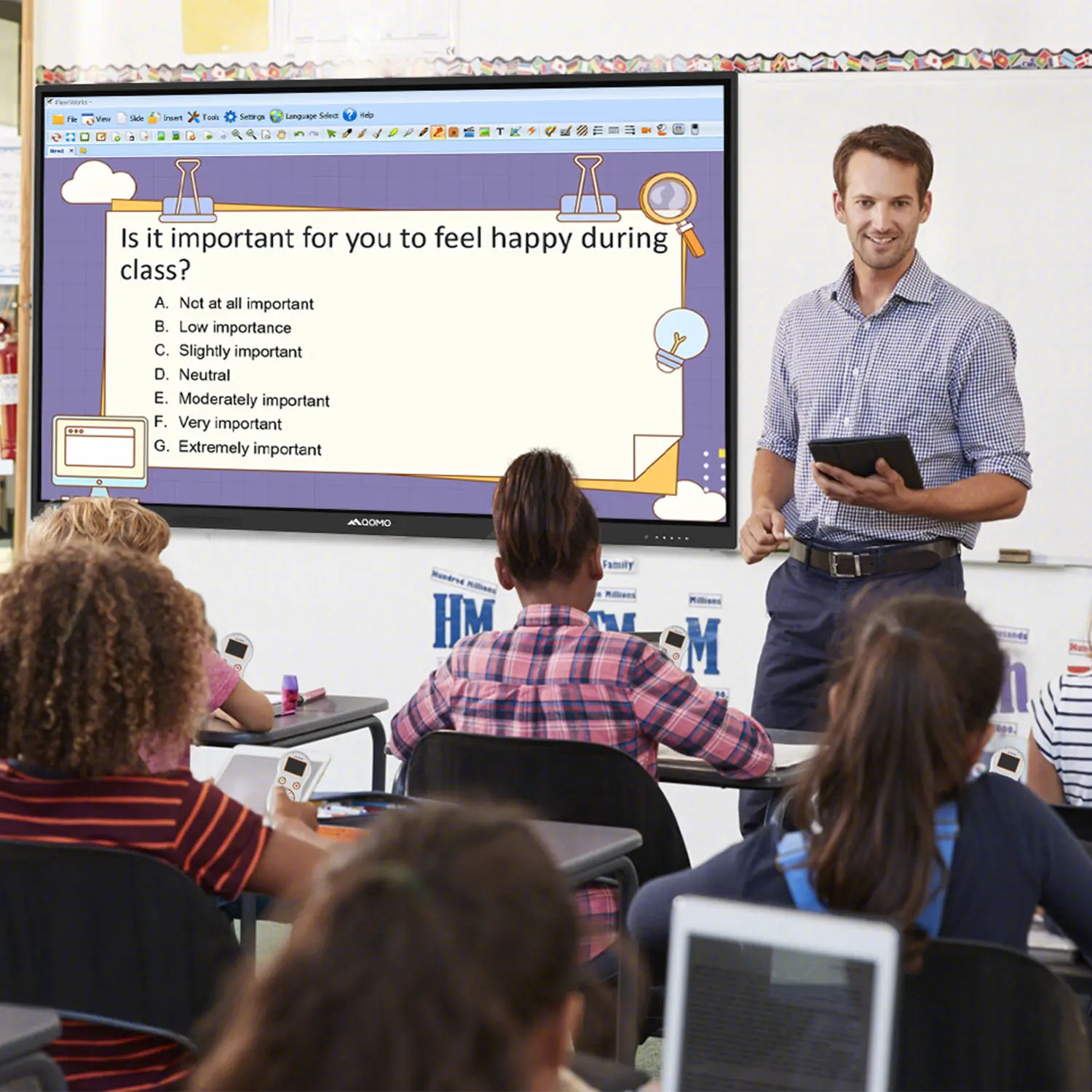
QClickThe most convenient educational software for working with Microsoft PowerPoint to quickly set up various question types and generate intelligent feedback reports.
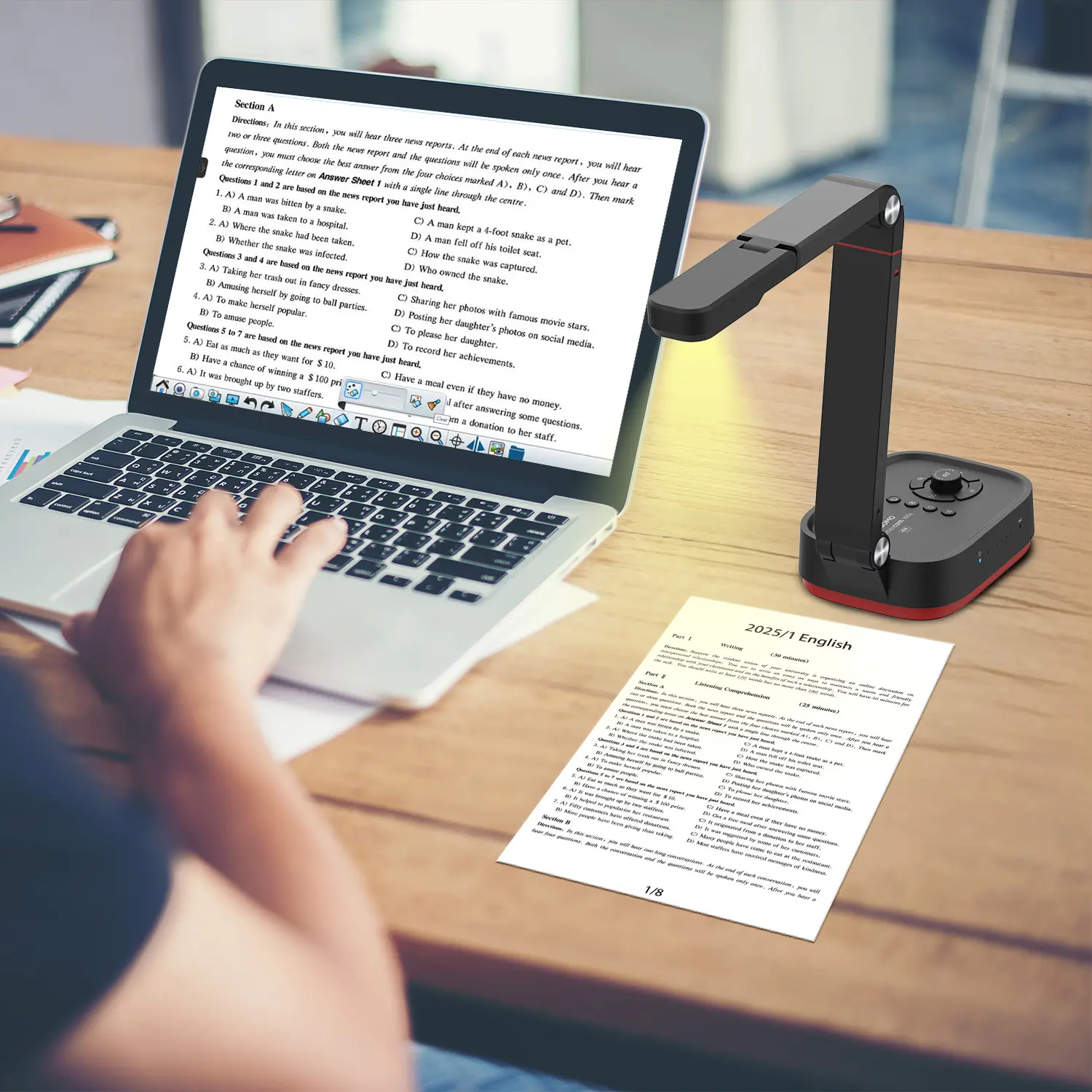
QCameraQCamera by QOMO allows for real-time streaming from cameras and document cameras. Annotate, save snapshots, record, and manipulate camera images instantly.
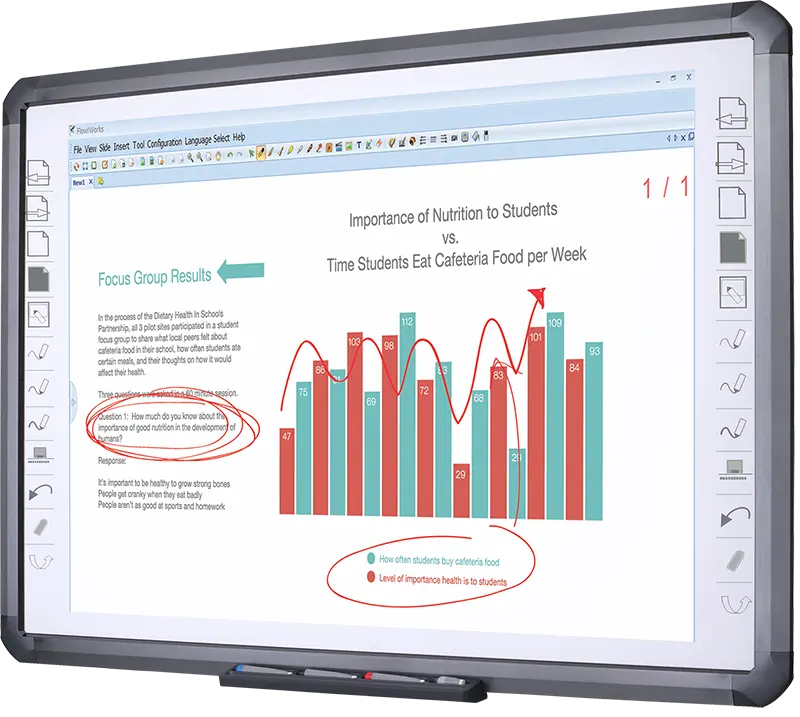
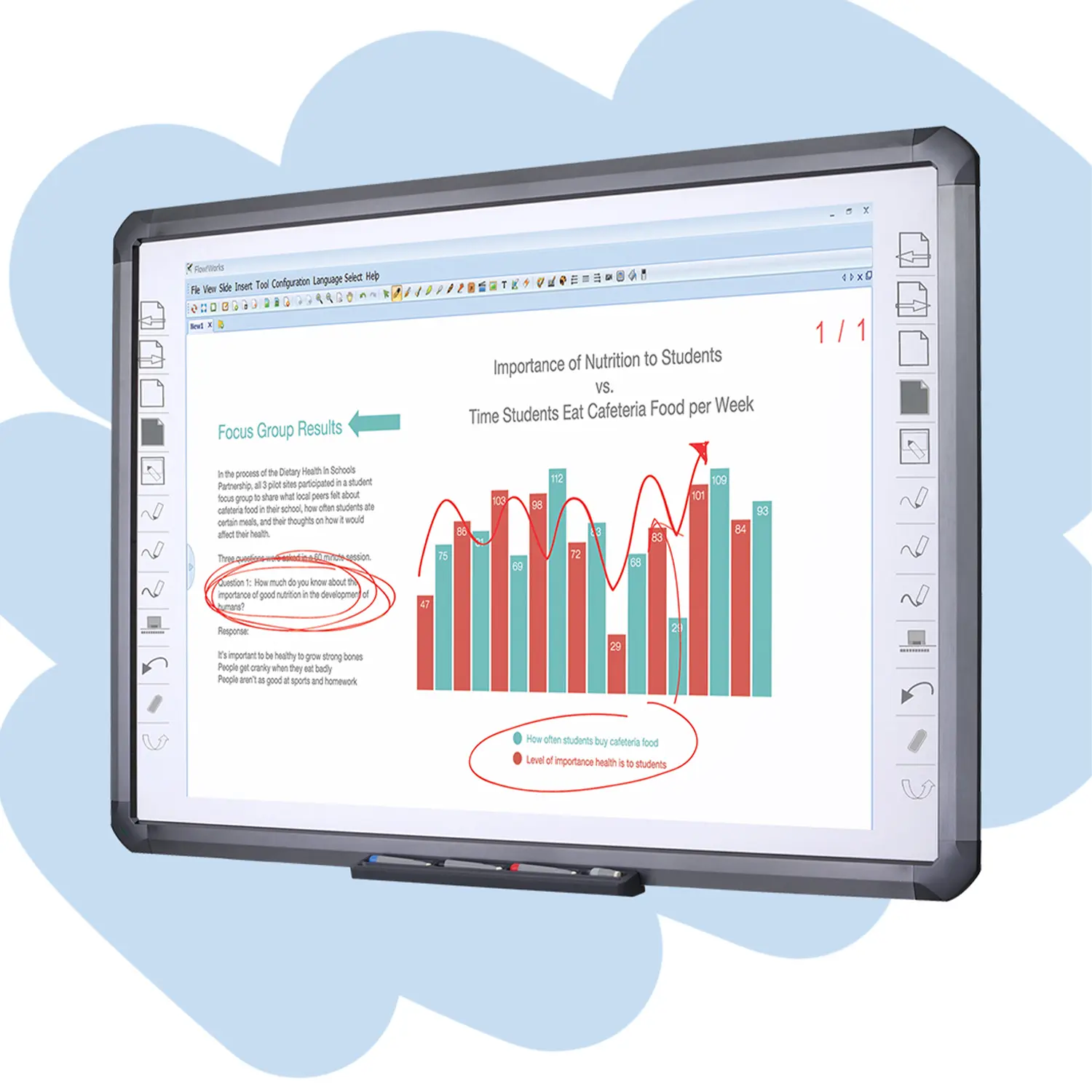
Flow!Works ProUser - friendly whiteboard software, it encompasses a wide range of presentation tools and powerful functions, delivering the most professional presentation experience to you.
Flow!WorksFlow!Works incorporates more educational tools, further enhancing the interactivity and fun - factor of your teaching.
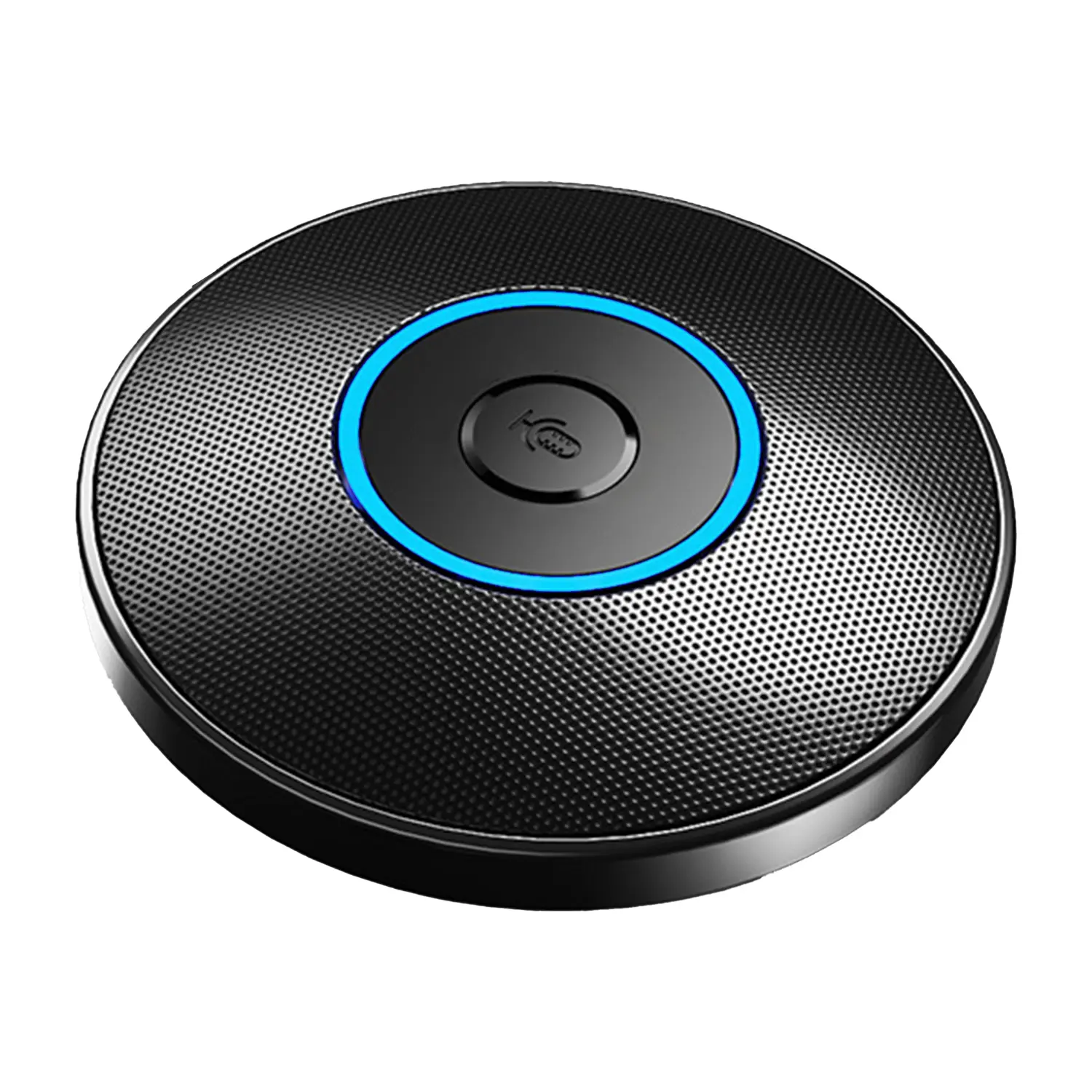
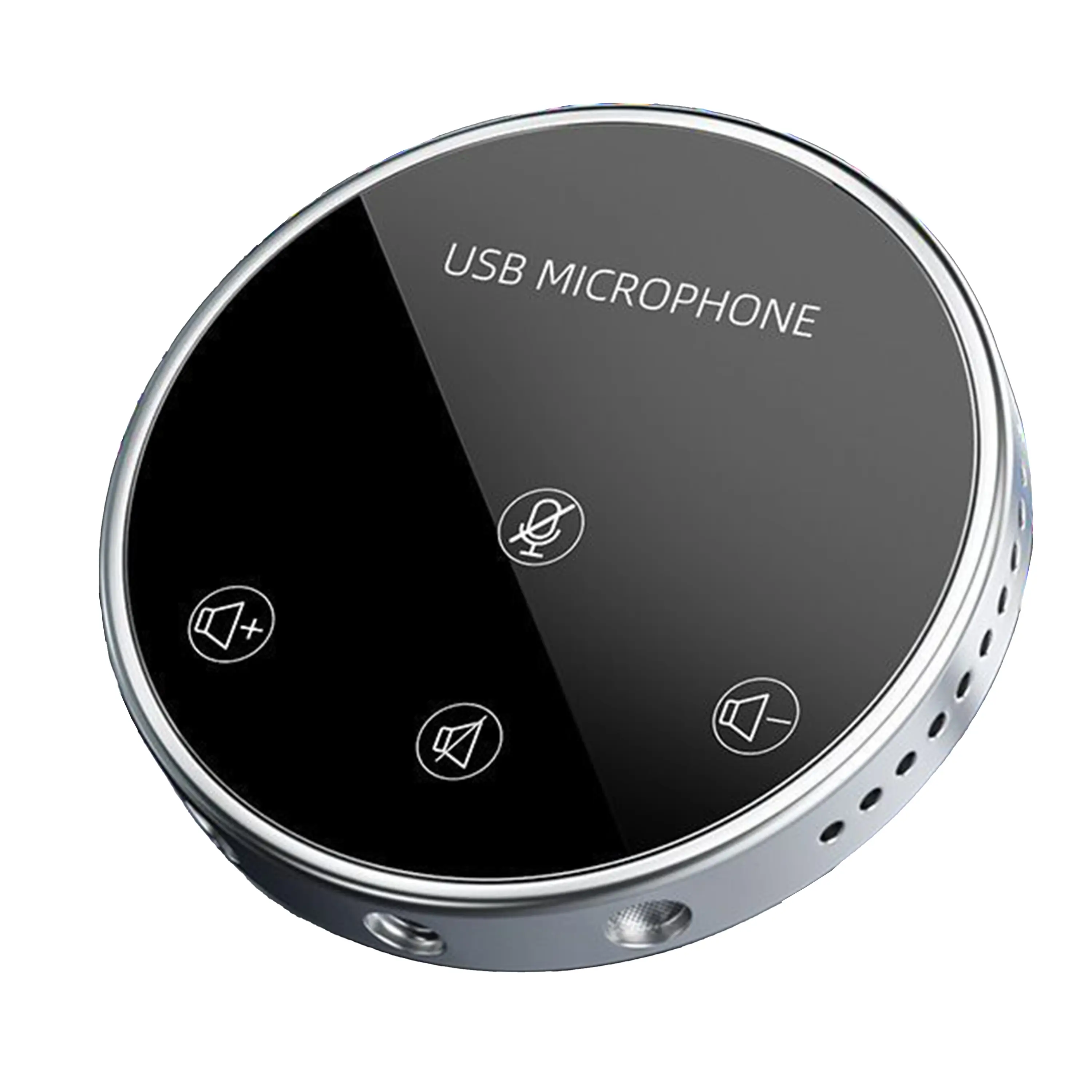
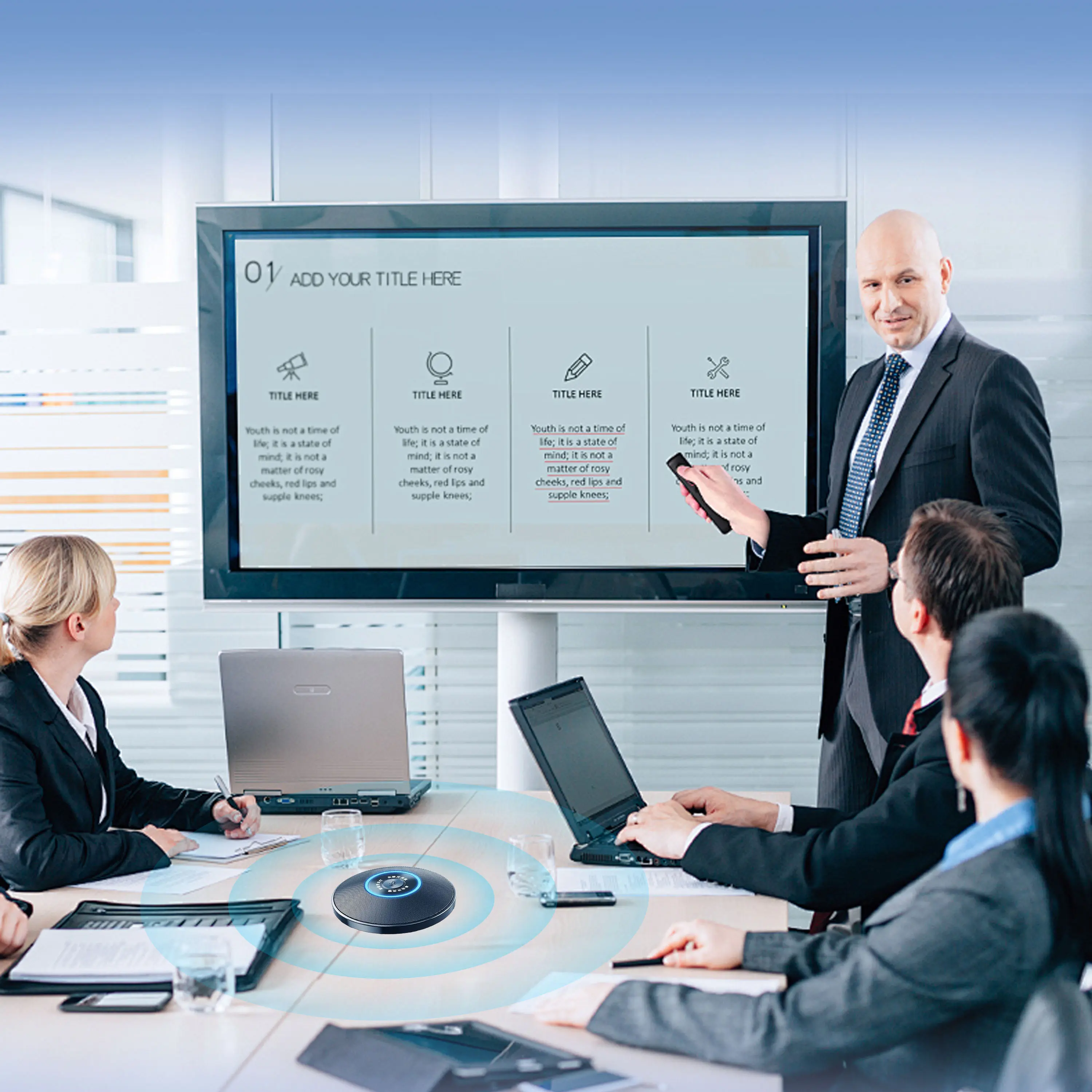
Conference Microphone● USB
● Plug and Play
● Intelligent Noise-Canceling
● 10ft/3m Extended Pickup Range
● 360° Omnidirectional Pickup
Conference Speakerphone● USB-C
● Plug and Play
● Intelligent Noise-Canceling
● 10ft/3m Extended Pickup Range
● 360° Omnidirectional Pickup
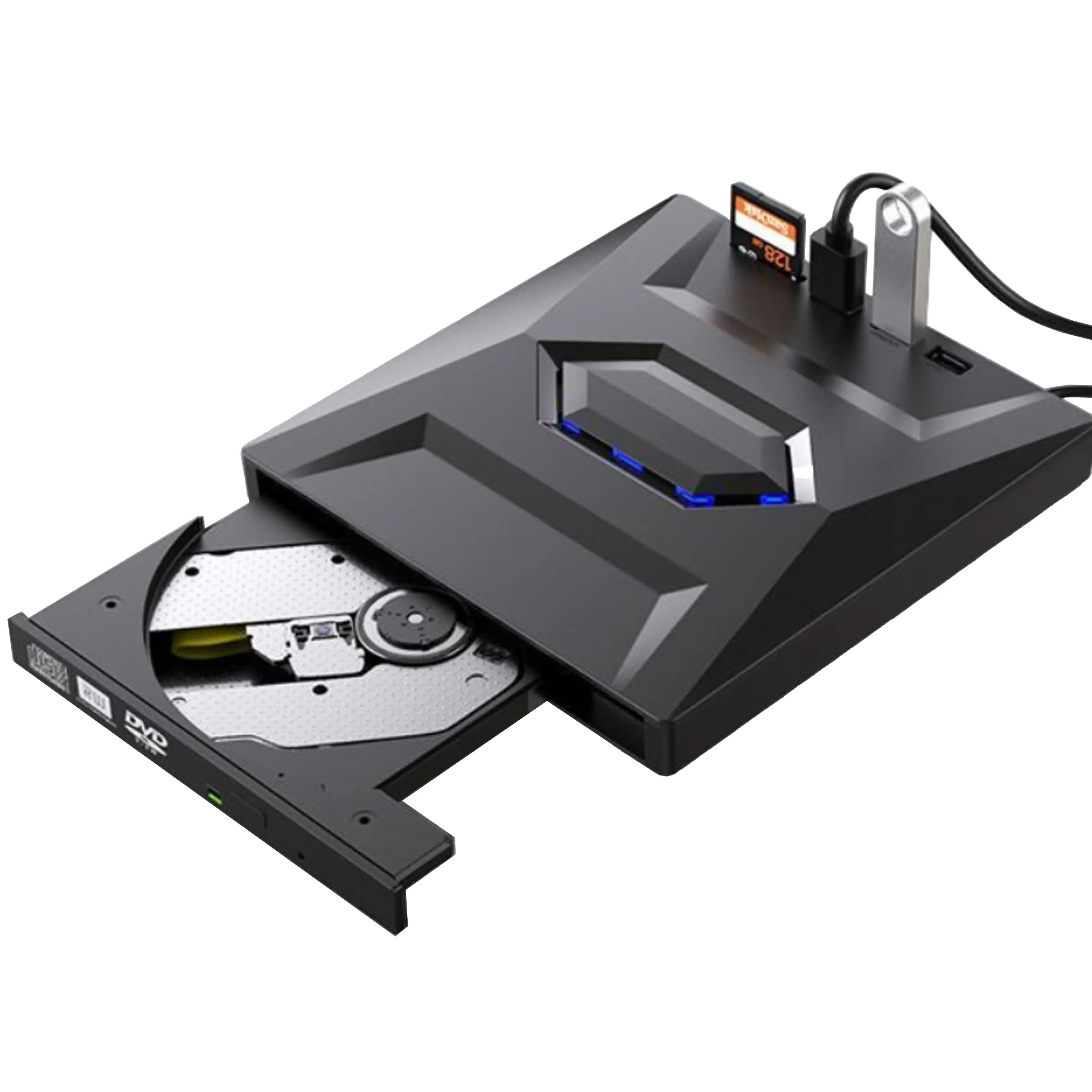
USB External CD/DVD Drive• USB and USB-C
• USB 3.0
• 8x DVD and 24x CD write/read speeds
• Portable
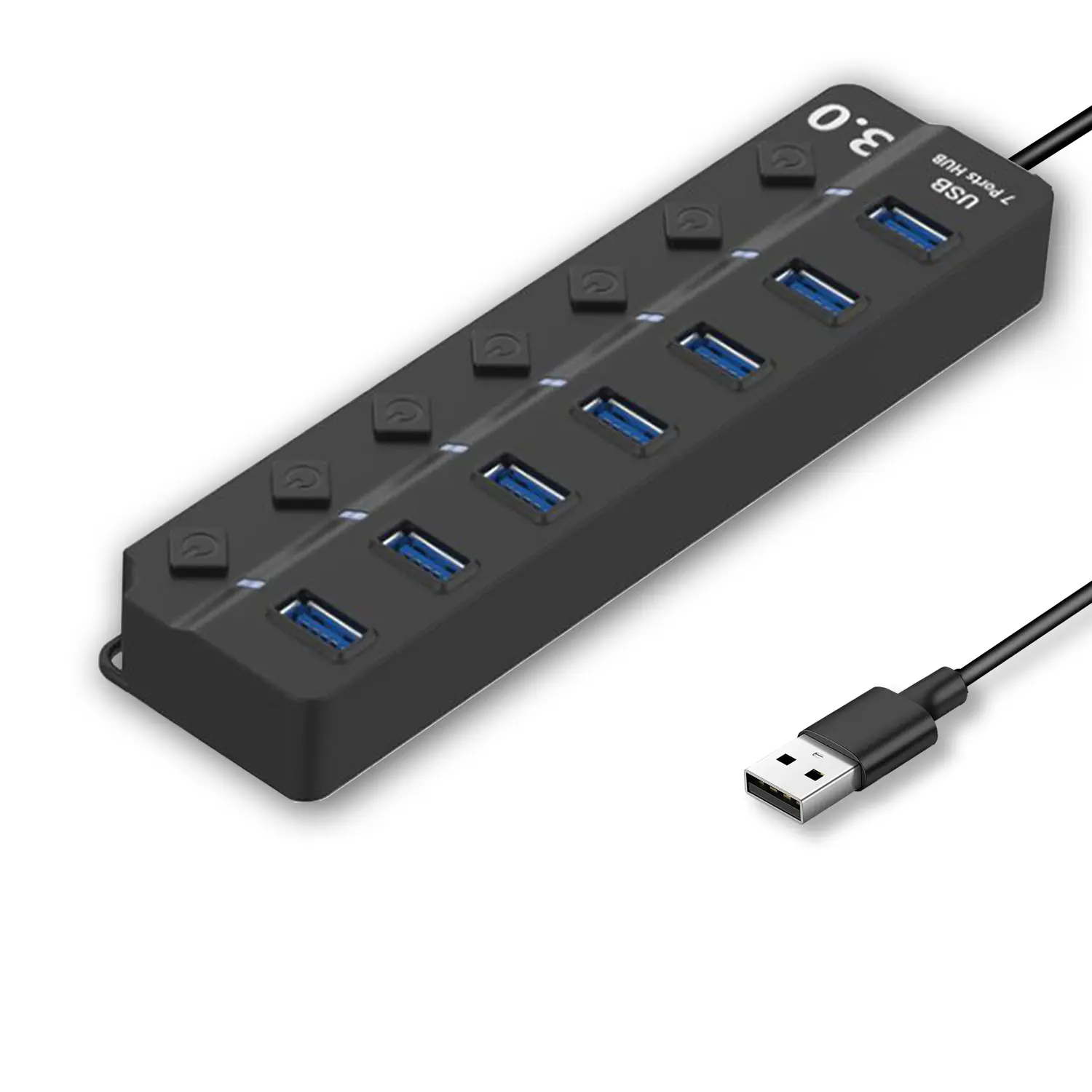
7-Port USB 3.0 Hub● USB 3.0
● Plug and Play
● 7-in-1 USB Hub
● Individual On/Off Switches
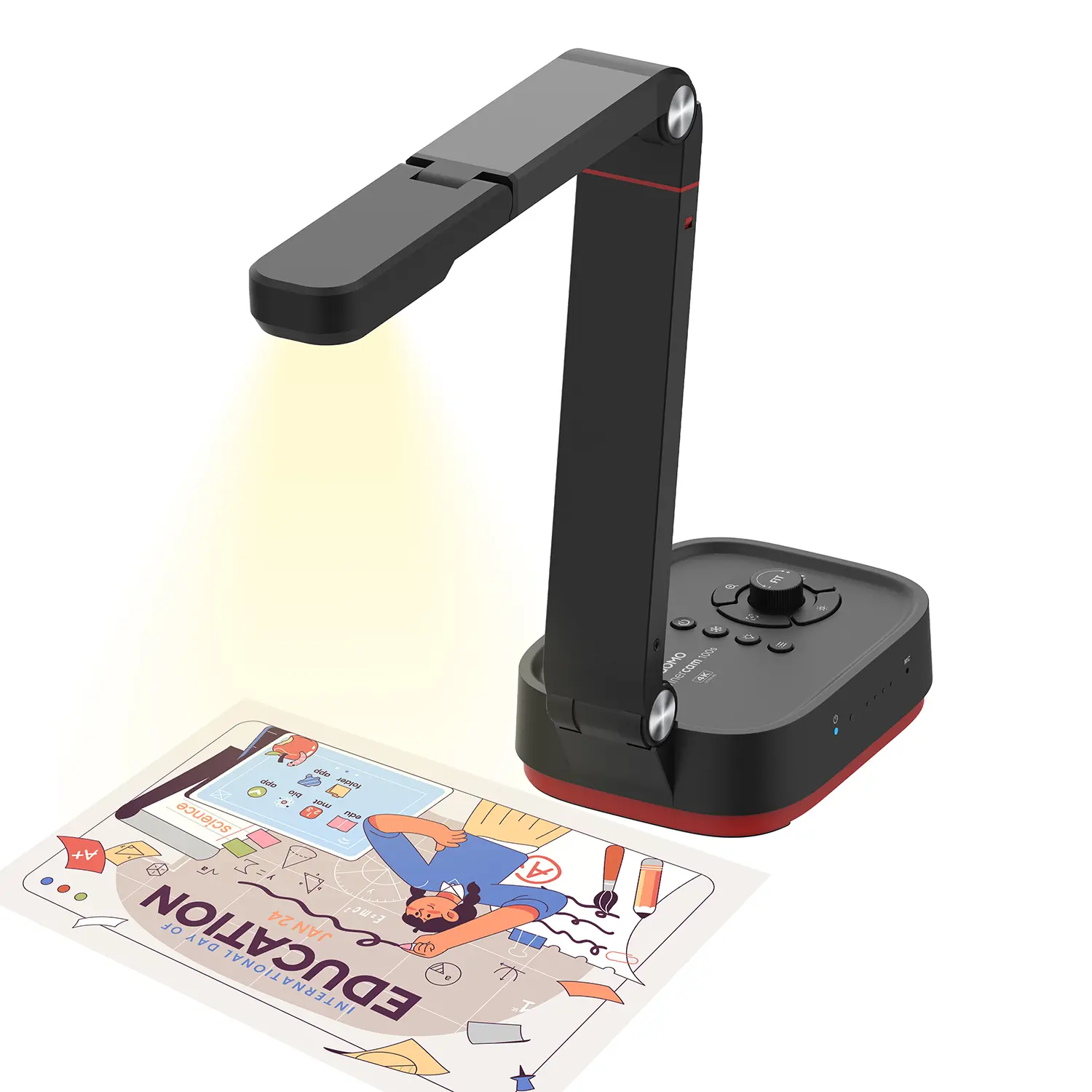
Revolutionize Your Presentations and Document Display with QWC 100S Document Camera
Enhance Call Experience: New Conference Microphone Now Available
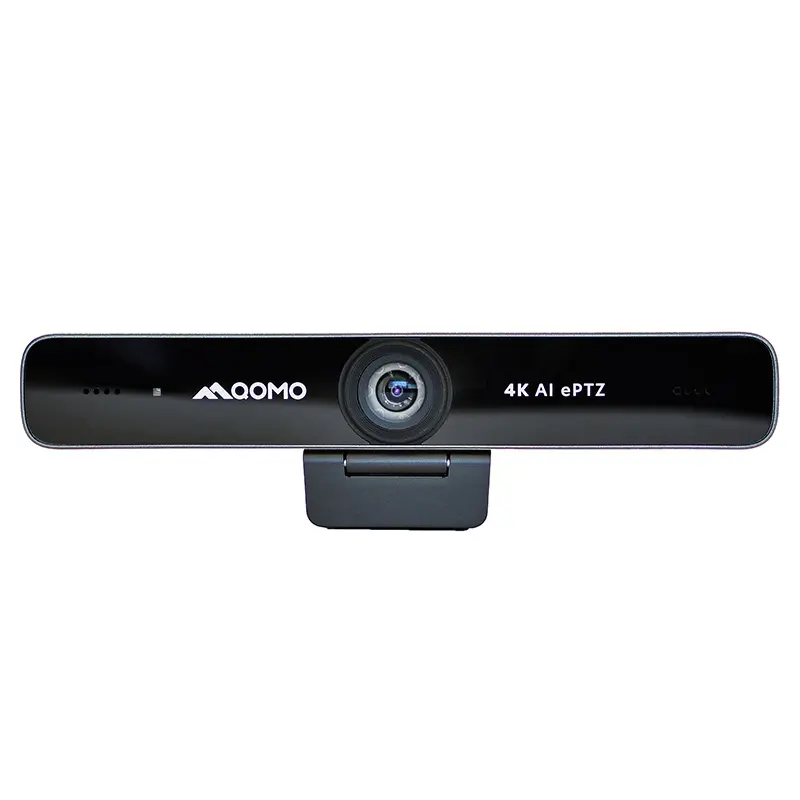
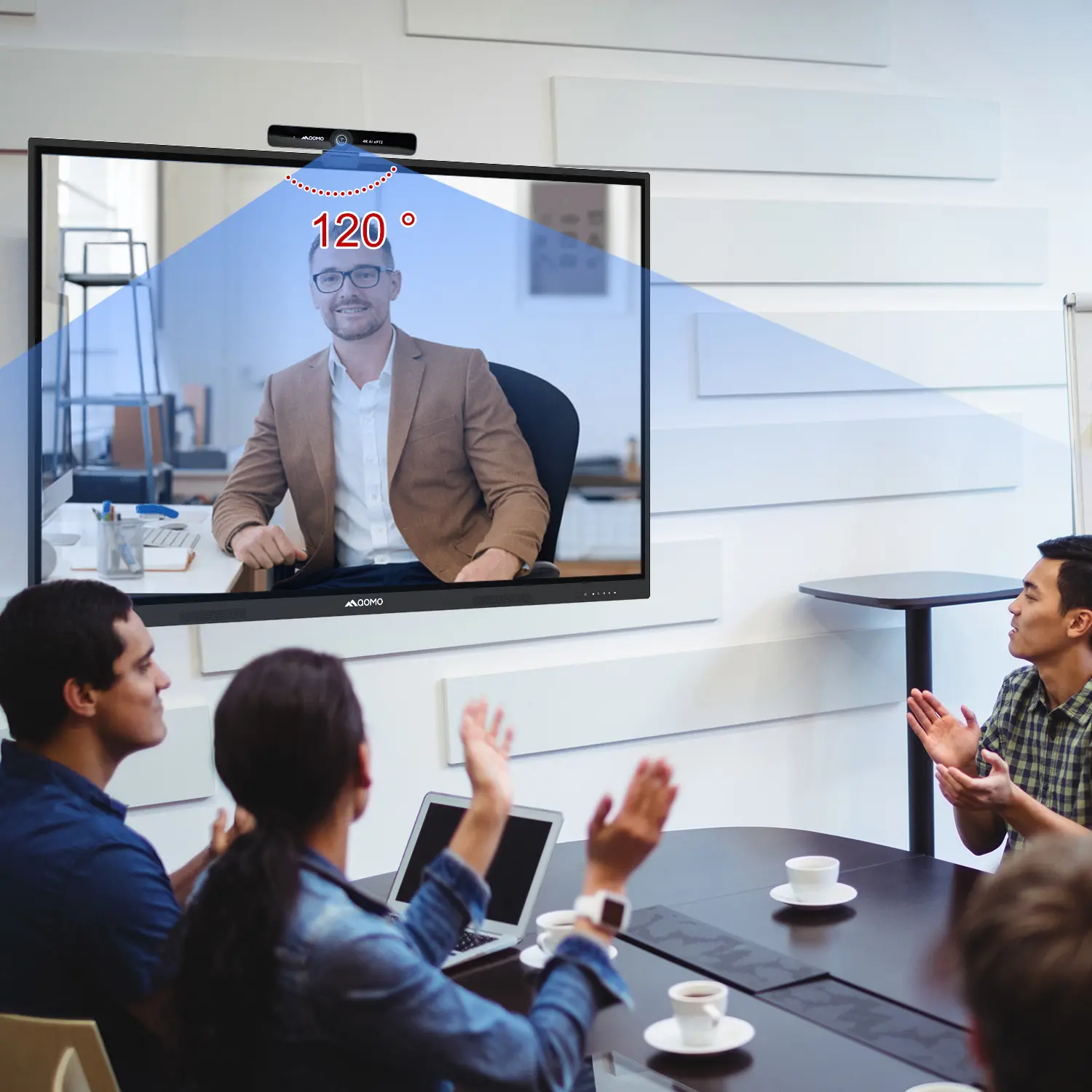
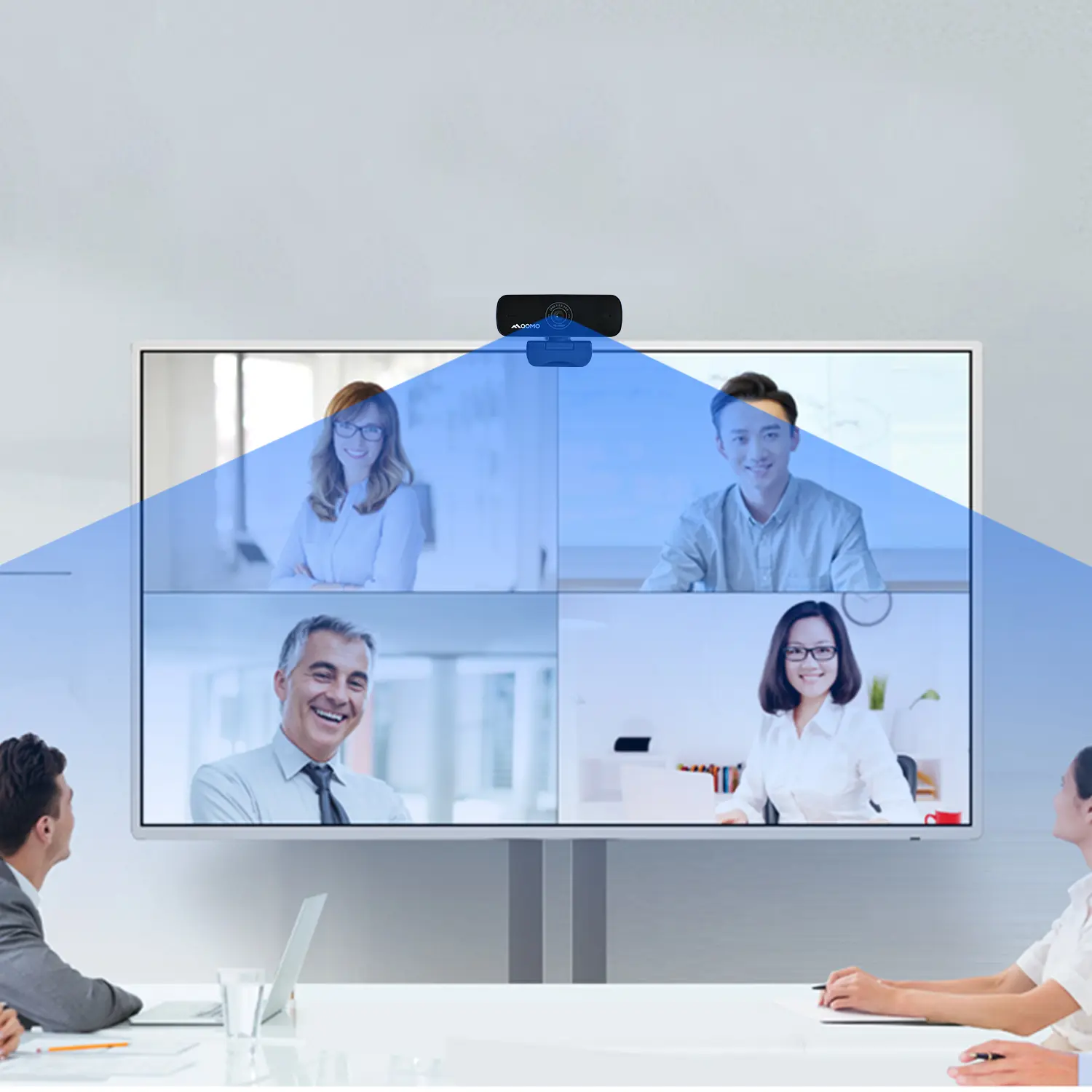
AI-Powered Face-Tracking Webcam
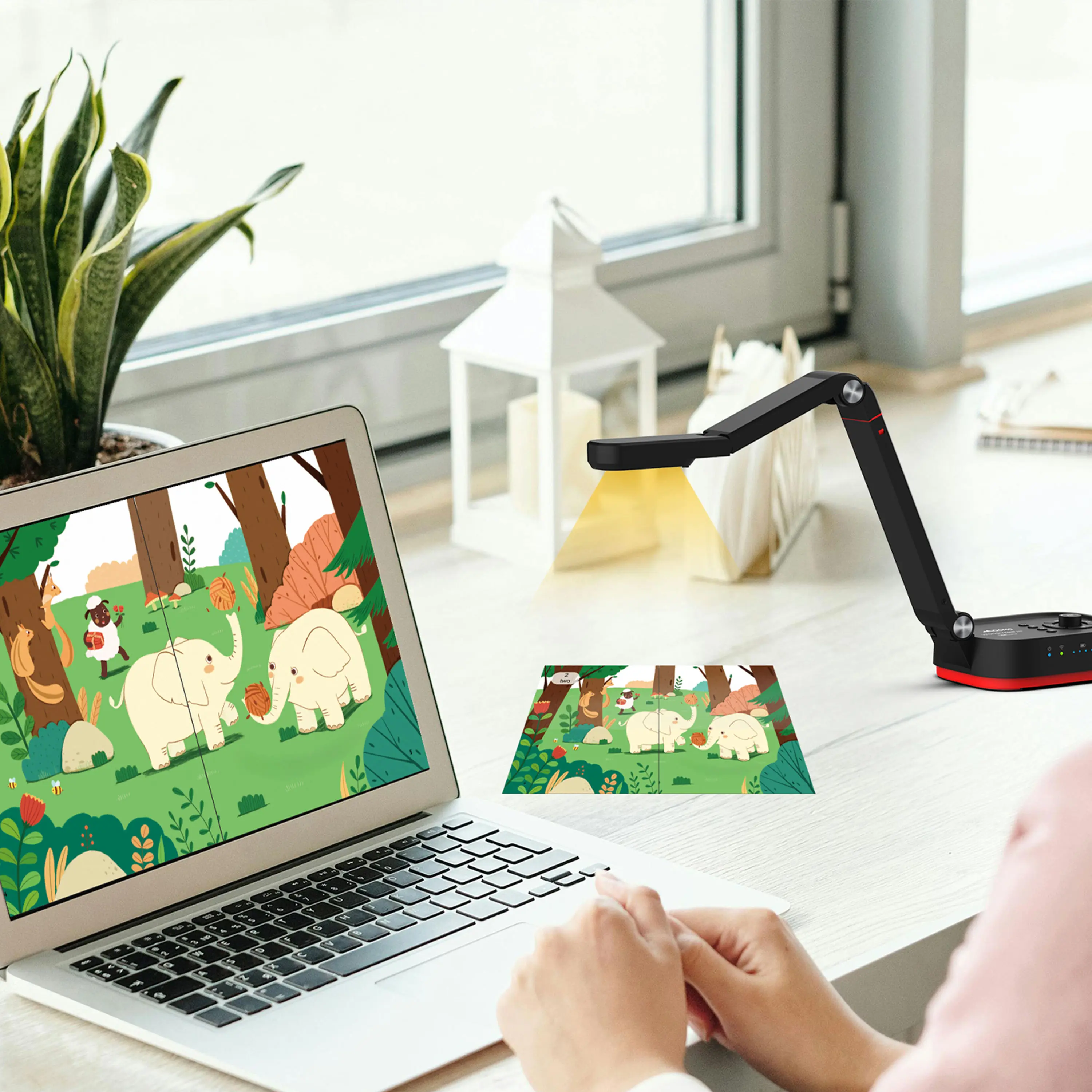
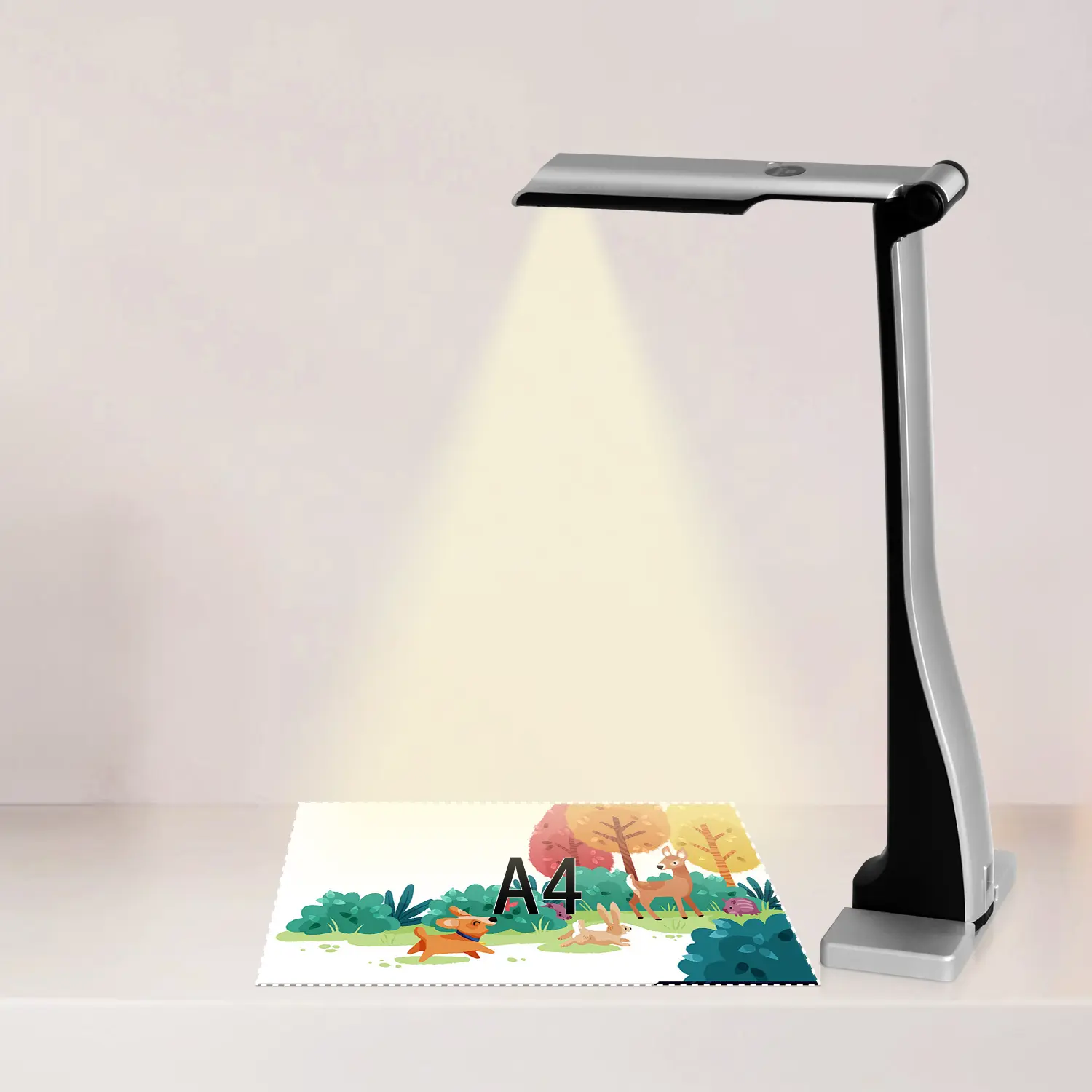
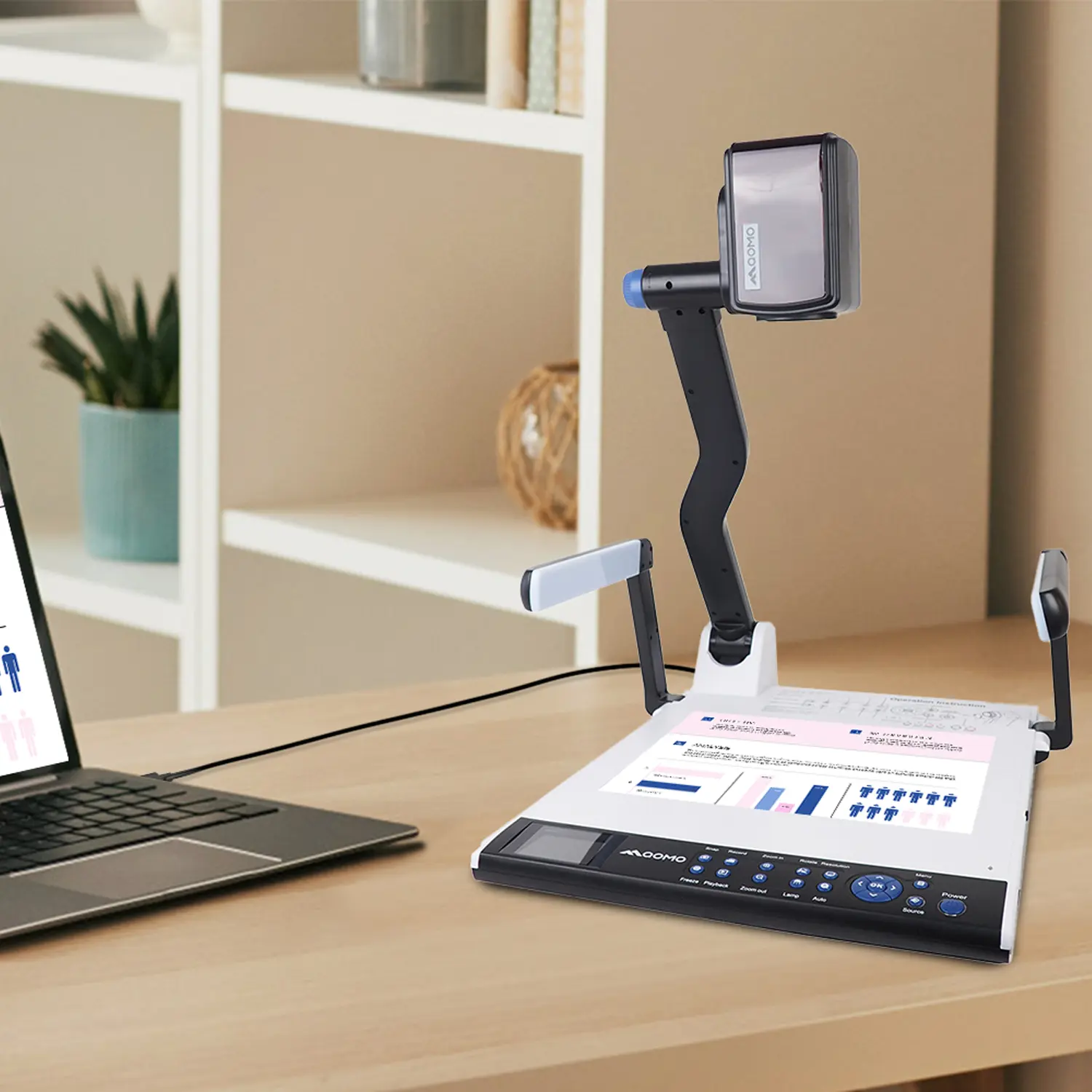
Portable Document Camera Recommendations
Classic Design, Exceptional Functionality: QPC 22 Document Camera
Wireless Screen Mirroring Solution for All Devices
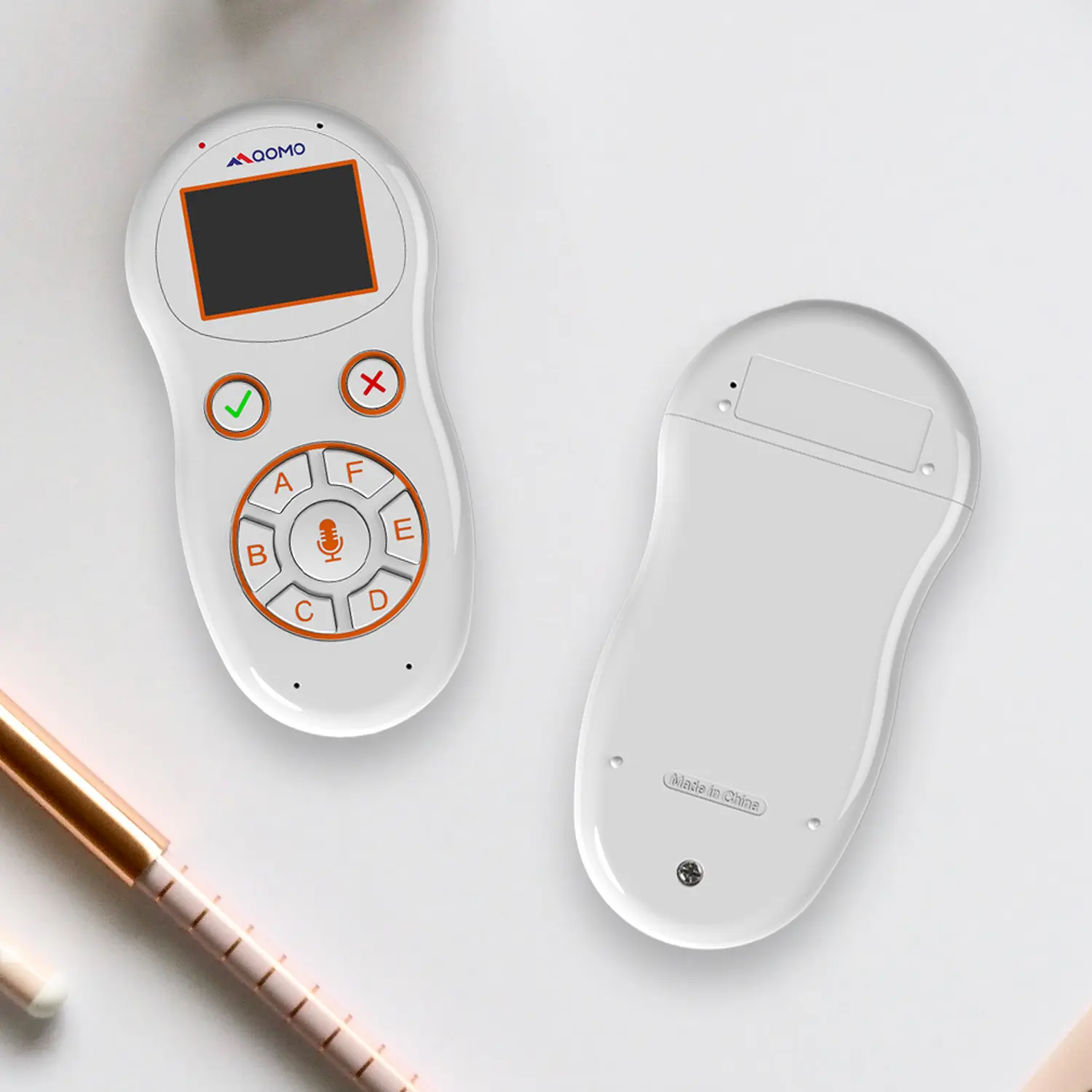
Latest Audience Response System: QRF 999
Introducing the QPC 80H3 Gooseneck Document Camera
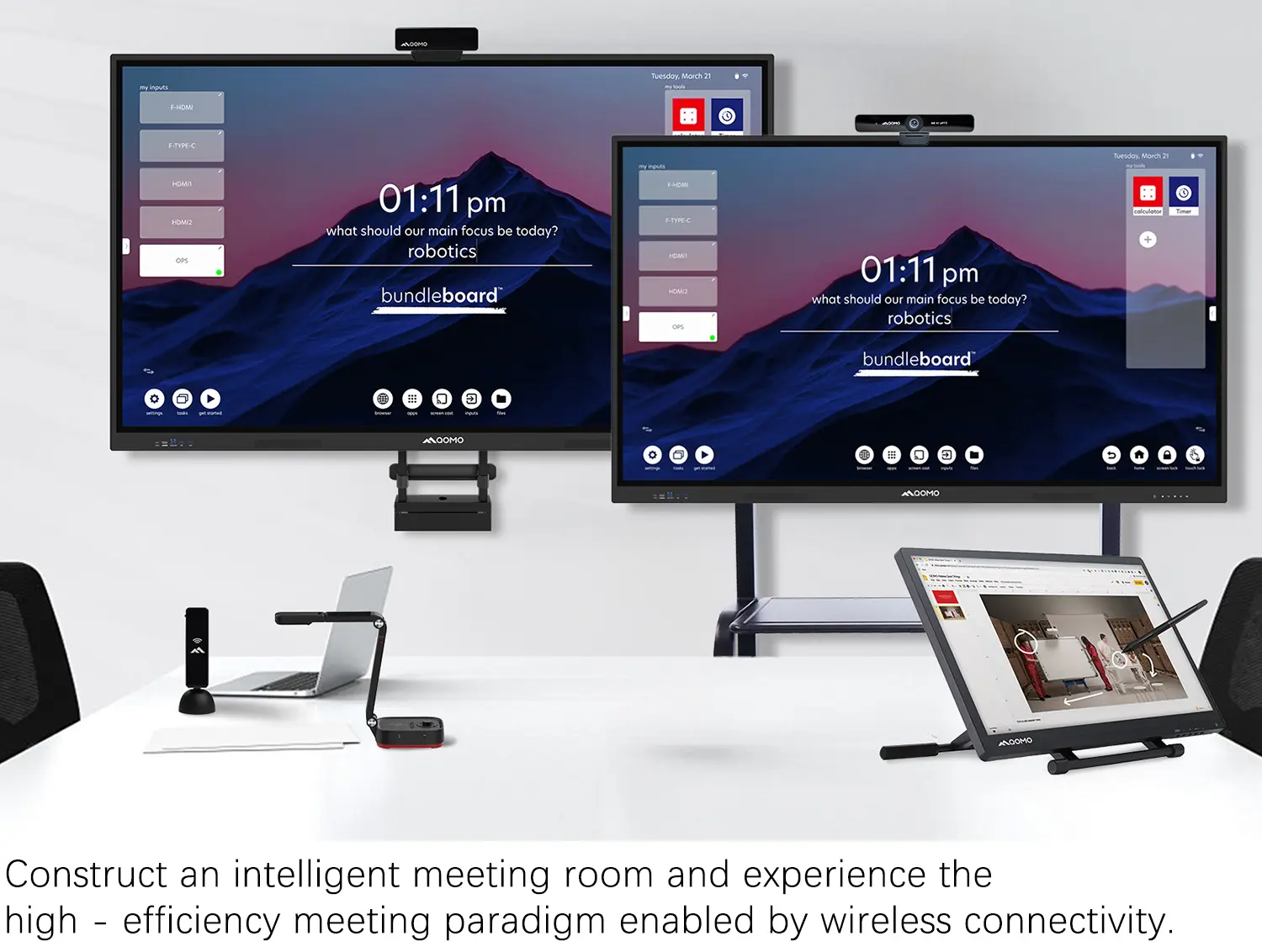
Creating a Smart Integrated Classroom: What Do You Need?
Wireless Connectivity Upgraded: WiFi-Free Wireless Document Receiver
Flow!Works Pro: Interactive Whiteboard Software for Engaging Classrooms
How to Choose the Perfect Document Camera and Elevate Productivity
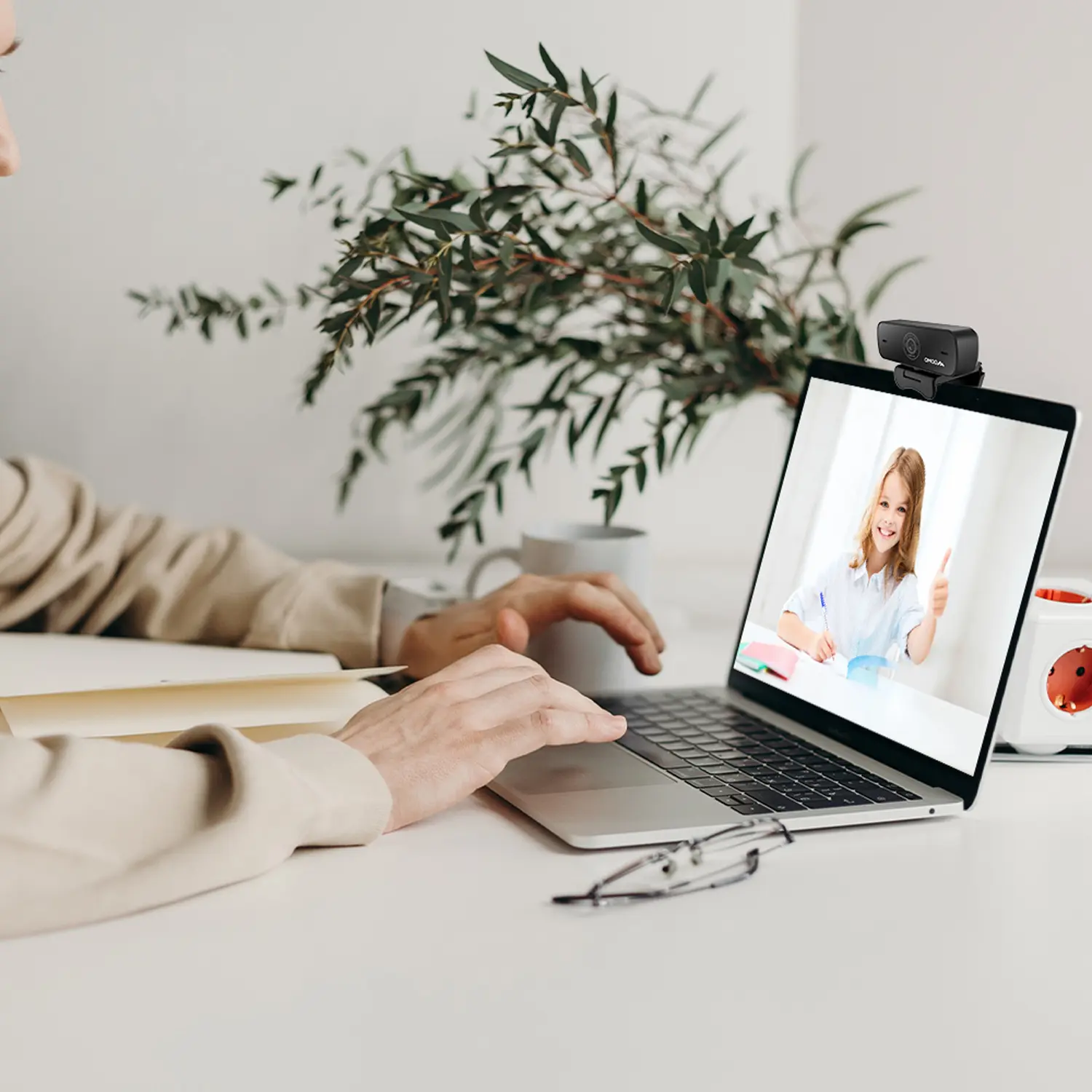
QWC 004 Conference Webcam: The Top Choice for Remote Education
QCamera: Dedicated Software for Document Cameras to Elevate Your Presentations
QRF999 Voice Response System: Enhancing Teacher-Student Interaction
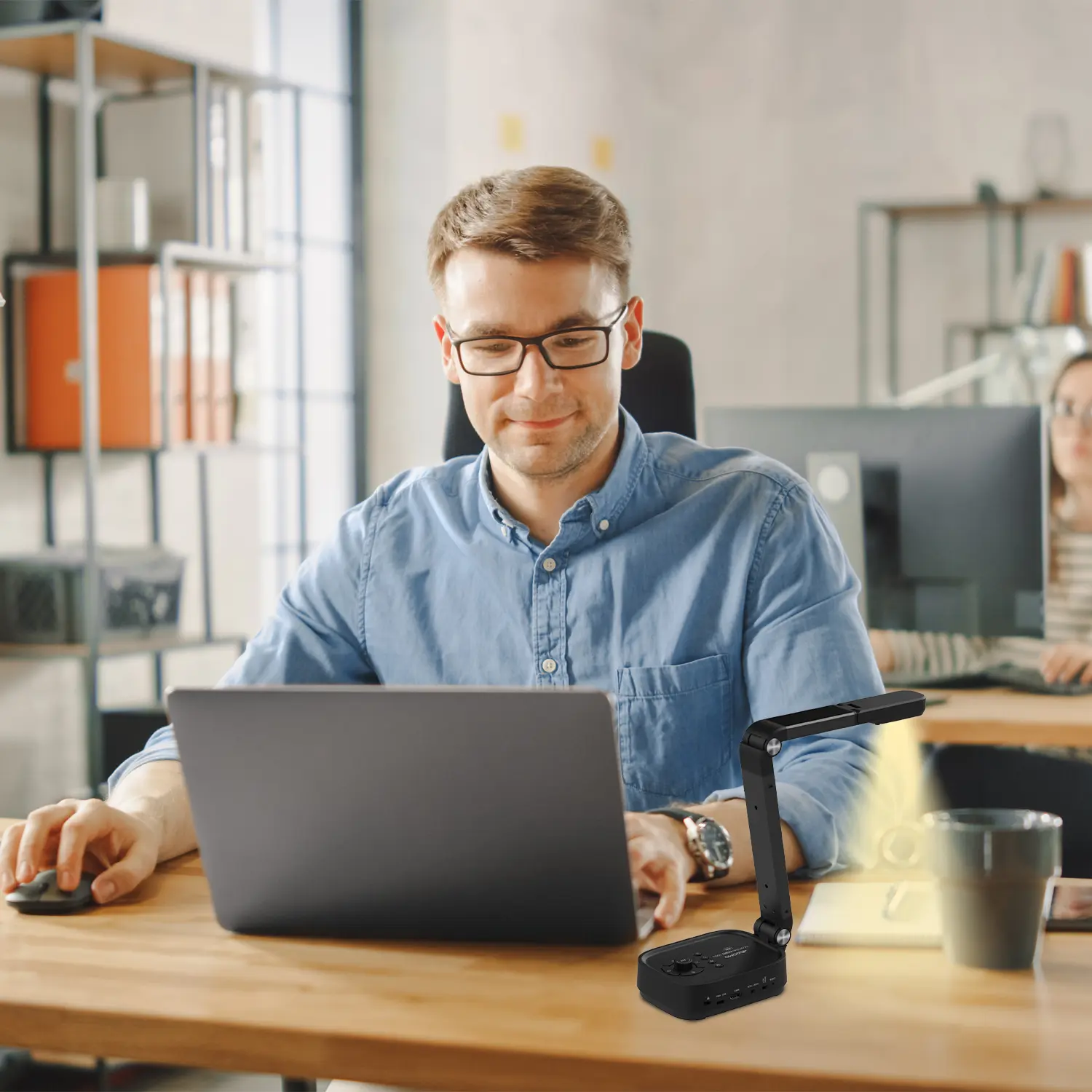
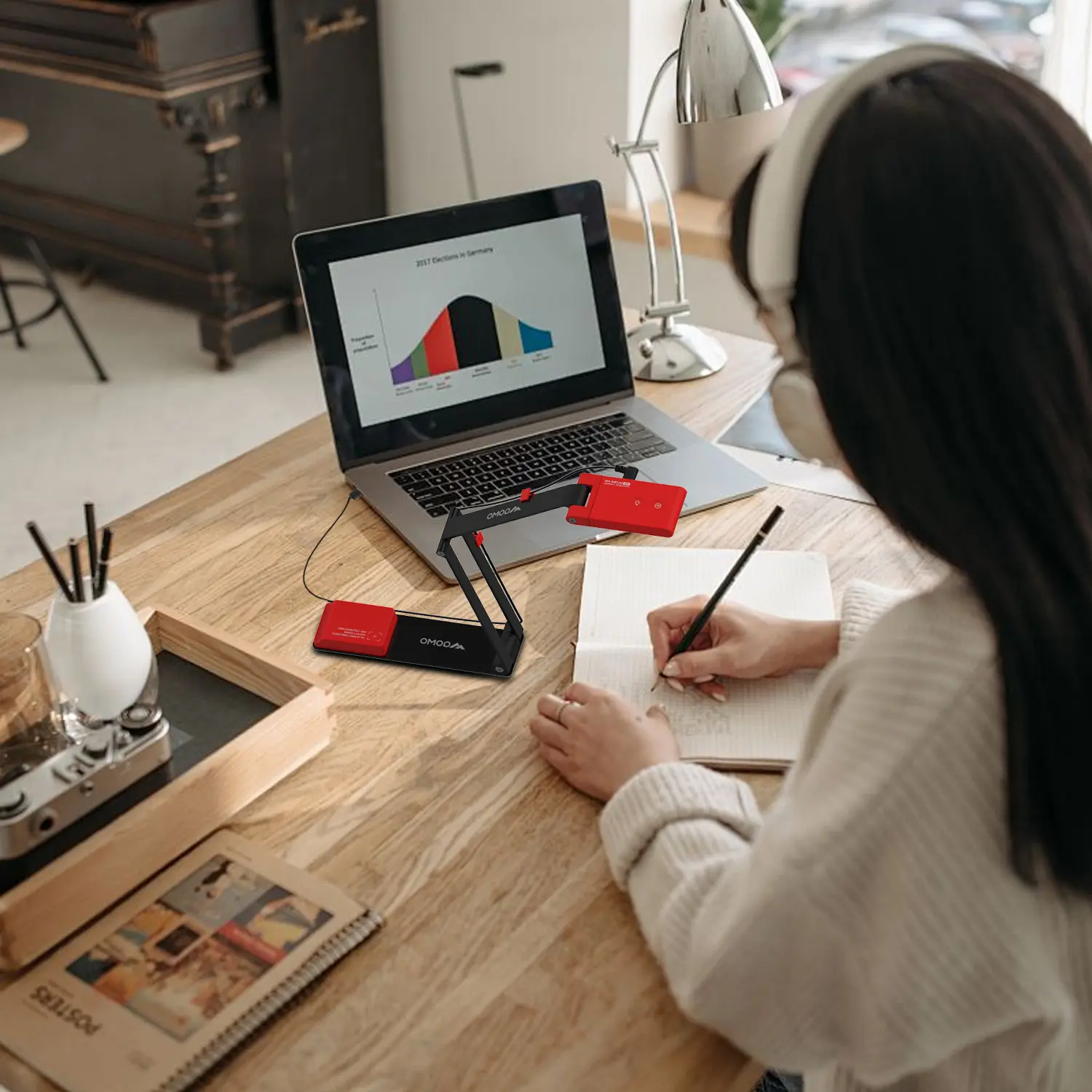
Work From Home? Maybe You Should Try This Document Camera
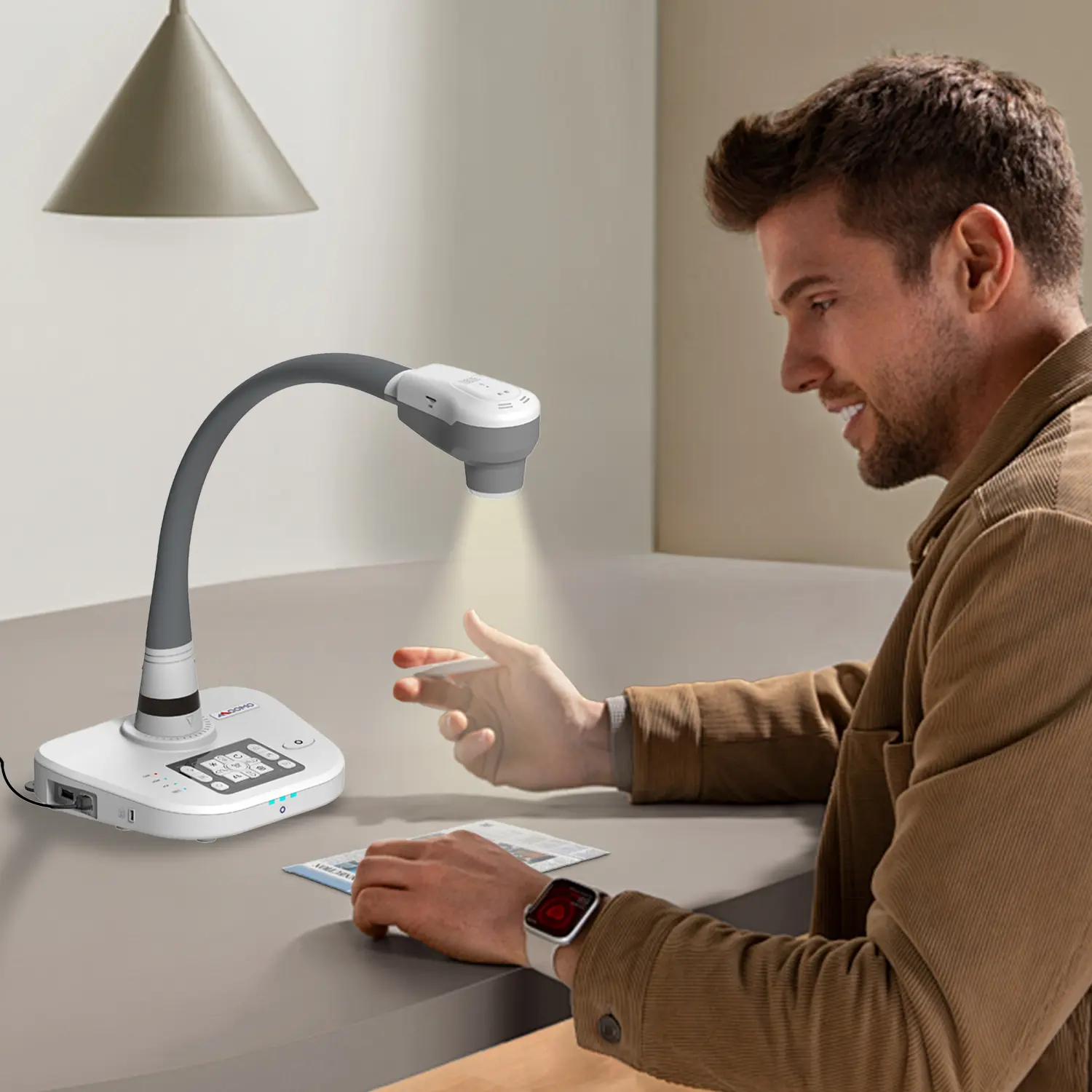
The Ultimate Educational Tool: Gooseneck Document Camera
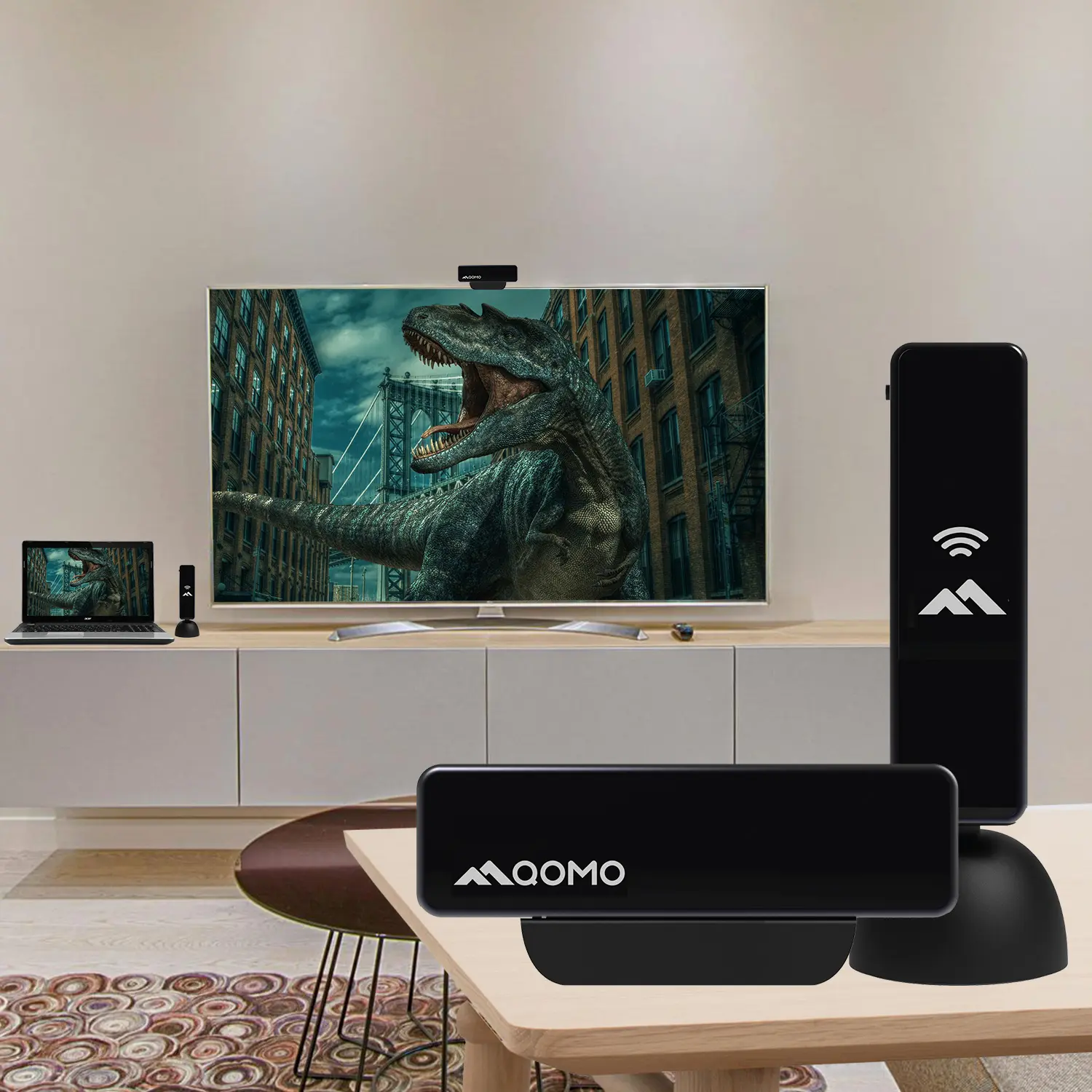
60GHz Millimeter-Wave Wireless Screen Sharing: QShare 100
What Does a Modern Conference Room Need?
QD5000 Document Camera: Unimaginable Versatility!
QWC 004: The Most Cost-Effective Webcam
QVote Interactive Classroom Response System Software
Functionality, Aesthetics, Portability! Meet the QWC 100S Document Camera!
Why Choose the BundleBoard H/H2 Interactive Flat Panel?
Save Your Budget—Introducing the All-New QPC 70 Document Camera!
QIT 600F3: Revolutionize Your Presentations
QCamera: Professional Document Camera Software
QPC 5: The Ultimate 4K Portable Document Camera
Elevate Your Meetings in Seconds: QWC 006 Webcam
Meet QOMO at ISE 2025
Wireless Document Camera Solution, Revolutionizing Wireless Technology
QRF Series, Transform Your Classroom!
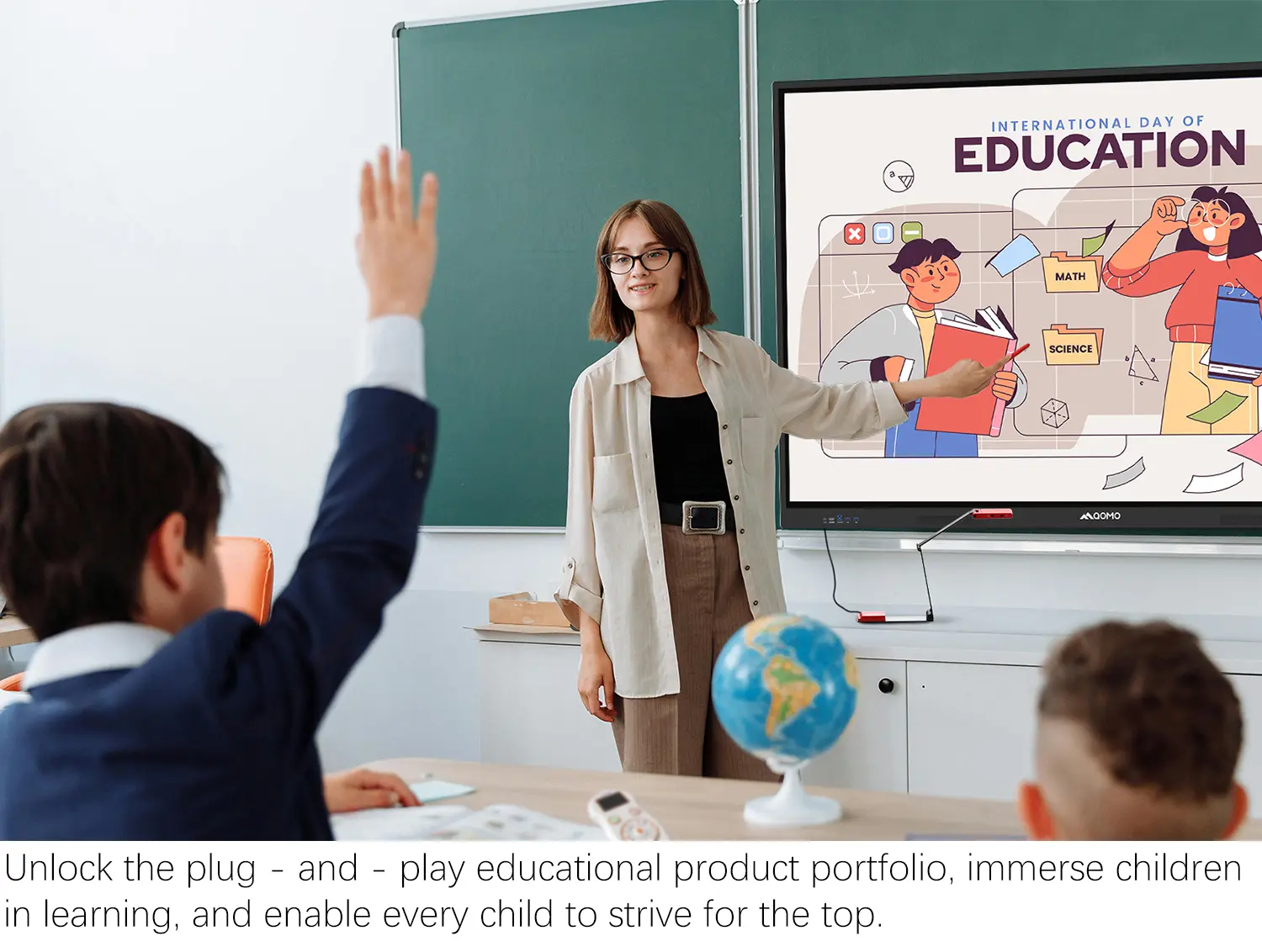
QOMO, Building Intelligent Classrooms
QOMO QShare100 New Release
Outstanding Office Equipment Recommendations
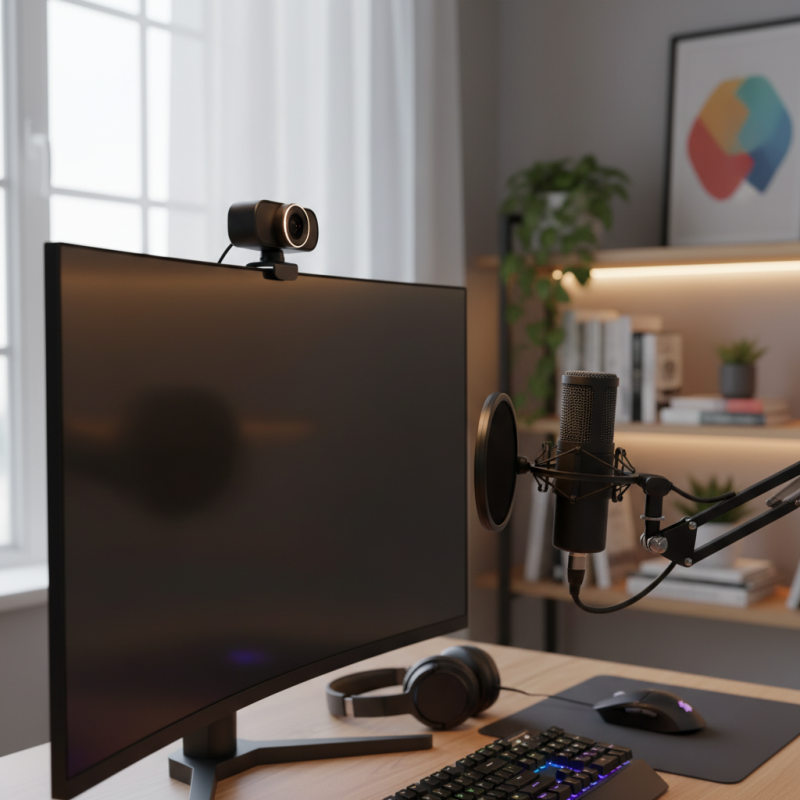
Choosing the right camera for desktop use can be challenging. With numerous options available, it’s easy to feel overwhelmed. The camera for desktop streaming and video calls should deliver clear visuals and quality sound. Consider the environment where you will use it. Lighting plays a vital role in video clarity. A well-lit room enhances the overall experience.
Resolution is another essential factor. Many modern cameras offer at least 1080p, which can significantly improve video quality. However, not all cameras deliver the same performance. It’s important to read user reviews and expert opinions to find a reliable option. Sometimes, the most publicized brands don't live up to the hype.
Think about ease of use, too. A plug-and-play camera might save time during setup. No one enjoys complicated installations before an important call. Finally, remember that every camera has its limitations. Reflection on these can help you make a well-informed choice. Selecting the best camera for desktop streaming is a thoughtful process that requires careful consideration of your specific needs.
When selecting a camera for streaming or video calls, several factors come into play. Resolution is crucial. A camera with at least 1080p ensures clarity. Users appreciate clear images, especially for professional settings. However, high resolution often requires powerful hardware. Consider your system's capabilities alongside camera quality. Frame rate is also important. A smoother frame rate enhances the viewing experience. Aim for at least 30 fps for optimal results.
Lighting plays a key role as well. Good lighting improves image quality dramatically. Natural light is beneficial, but dedicated lighting is often necessary. While many cameras struggle in low light, some perform better than others. Evaluate how your camera handles shadows and bright spots. Additionally, autofocus features can impact usability. A camera that struggles to focus can be frustrating during calls.
Sound quality is often overlooked. Built-in microphones may not provide the best audio. External microphones can enhance sound clarity significantly. This is particularly valuable in busy or noisy environments. Finally, consider your environment and setup. A compact camera can save space, but ensure it meets your specific needs. Reflecting on these aspects will guide you toward a suitable choice for your streaming endeavors.
When selecting a camera for desktop streaming and video calls, it's crucial to consider several types of cameras. Webcams are the most common choice. They are easy to set up and usually have built-in microphones. Their quality has improved significantly, making them suitable for casual streaming and professional video calls. However, the image quality may not match that of higher-end options.
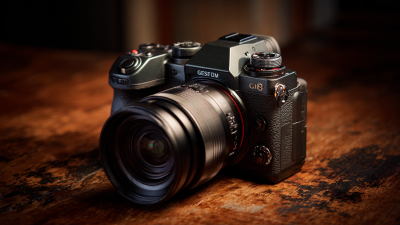
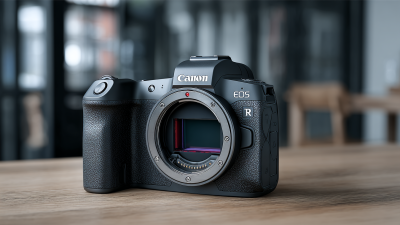
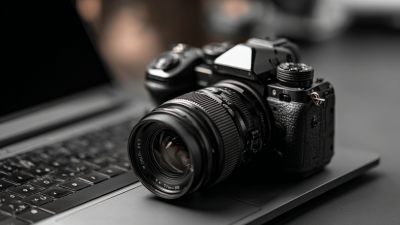
DSLRs and mirrorless cameras offer superior image quality, providing a more professional look. They can capture high-resolution videos with excellent detail and color accuracy. However, these cameras can be bulky and may require additional equipment like capture cards and lenses. The learning curve can be steep, and this option may not be ideal for everyone.
Smartphone cameras are another viable option. Many modern smartphones come equipped with powerful cameras that can shoot high-quality video. They are convenient and often have excellent autofocus features. However, they might lack the flexibility of traditional cameras, especially for lighting adjustments. Each camera type has strengths and weaknesses. Assessing your needs will guide you toward the best choice.
| Camera Type | Resolution | Frame Rate (fps) | Field of View | Autofocus | Price Range |
|---|---|---|---|---|---|
| Webcam | 720p / 1080p | 30 fps / 60 fps | 70° - 90° | Yes | $30 - $150 |
| DSLR Camera | 1080p / 4K | 30 fps / 60 fps | Varies (70° - 120°) | Yes | $500 - $3000 |
| Mirrorless Camera | 1080p / 4K | 30 fps / 60 fps | Varies (80° - 120°) | Yes | $600 - $2500 |
| Action Camera | 1080p / 4K | 60 fps / 120 fps | Wide (up to 170°) | Yes | $100 - $500 |
| PTZ Camera | 1080p / 4K | 30 fps | Varies (up to 90°) | Yes | $300 - $2000 |
When selecting a camera for desktop streaming and video calls, several features are essential. The resolution is crucial for clarity. A camera with at least 1080p resolution ensures your image is crisp and professional. Look for models with high frame rates too. This aspect enhances motion smoothness, making your video more engaging.
Another key feature is low-light performance. Often, streaming occurs in various lighting conditions. A camera capable of adjusting and maintaining quality in dim environments is necessary. Autofocus speed is also important. A slow autofocus can lead to frustrating delays during video calls.
Audio quality should not be overlooked. Built-in microphones vary significantly in quality. Some may pick up background noise or sound muffled. Consider investing in an external microphone for a clearer experience. Many cameras have adjustable settings for audio, enhancing the overall interaction.
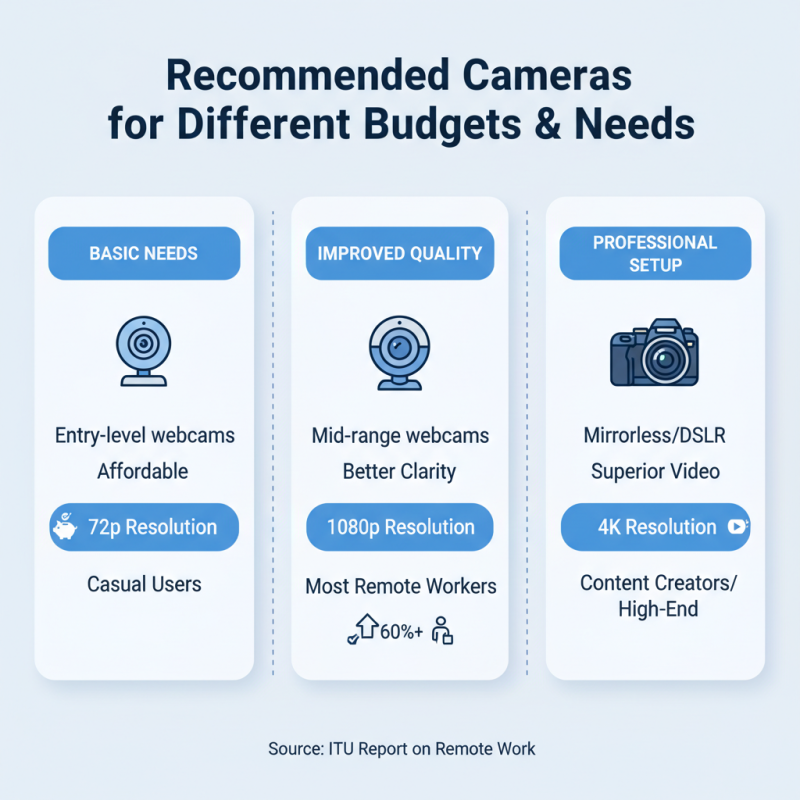
When searching for the best camera for desktop streaming or video calls, budget plays a crucial role. A report from the International Telecommunication Union indicates that nearly 60% of remote workers prioritize video quality. For basic needs, entry-level webcams can suffice. They provide decent video quality without breaking the bank. Look for models offering 720p resolution, which is standard for casual users.
Mid-range options often feature built-in microphones and higher resolution up to 1080p. This enhancement makes a noticeable difference. According to recent surveys, users report a 40% increase in viewer engagement with clearer visuals. However, not all mid-range cameras deliver exceptional performance. Some struggle with low-light conditions, which can adversely affect video quality.
For professionals or serious streamers, consider investing in high-end cameras. These often have advanced features like manual focus and 4K resolution. A 2022 report from the Streaming Media Magazine emphasized that high-definition streaming leads to longer viewer retention rates. While these cameras provide superior quality, they require a better understanding of settings. Many users may find the learning curve steep. It’s essential to weigh the benefits against your skill level and needs.
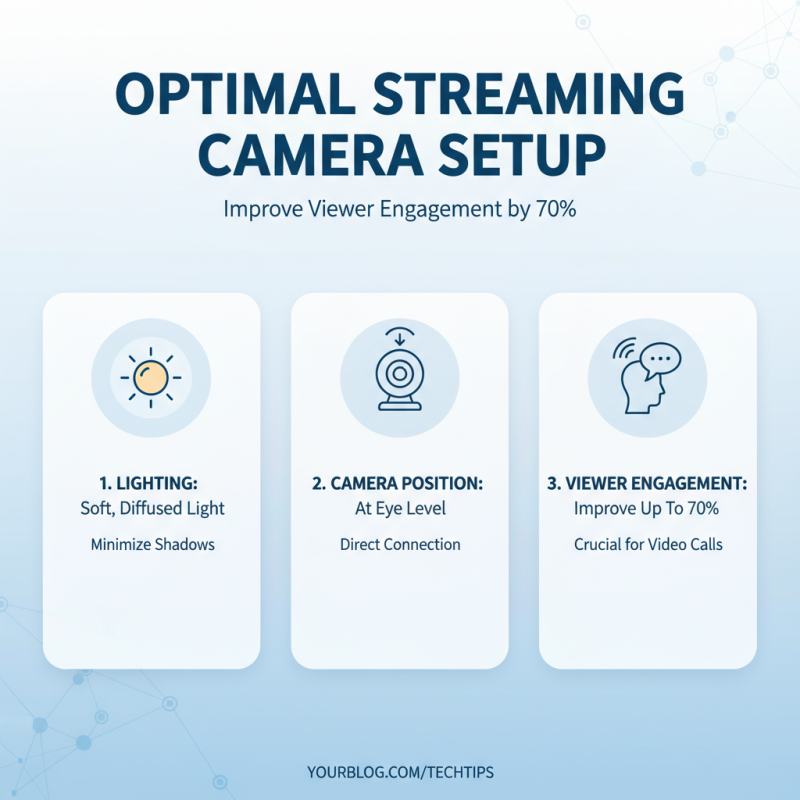
To achieve optimal streaming quality for desktop streaming and video calls, camera setup is crucial. Research indicates that well-positioned cameras can improve viewer engagement by up to 70%. Start by ensuring good lighting. Natural light helps, but soft, diffused artificial lighting can minimize shadows on your face. Place your camera at eye level for a more direct connection with your audience.
Consider the backdrop of your video setup as well. A clean, uncluttered space keeps the focus on you. A report by a leading video communications platform found that backgrounds influence audience perception, with neutral colors and minimal distractions preferred. Additionally, adjusting your camera's resolution settings can significantly impact clarity. Aim for at least 1080p for professional-looking streams.
For the best results, invest time in testing your audio and video quality. Regularly check your connectivity to avoid interruptions. Ensuring a stable internet connection can reduce video lag. Experiment with camera angles and framing. Sometimes, small tweaks can make a big difference. Remember, reflection on your setup can lead to continuous improvement in your streaming quality.